
Finance: Prepayment Invoices from Purchase Orders
Creating a Prepayment Invoice from a Purchase Order: The Benefits
- Purchase order details are copied to the prepayment invoice, so you don’t need to re-enter data.
- The prepayment invoice is automatically linked to the purchase order.
- Released prepayment invoices are immediately reflected in purchase order totals.
- When an AP bill is created for the purchase order, paid prepayment invoices are automatically applied to the bill.
- Multiple prepayment invoices can be created for a single purchase order, supporting milestone-based advance payments.
- Creating prepayment invoices directly from purchase orders reduces the risk of incorrect document application.
How to Create a Prepayment Invoice from a Purchase Order
You create a prepayment invoice on the Purchase Orders (PO301000) form.
On the More menu, you click Create Prepayment Invoice. In the Create Prepayment Invoice dialog that opens, you specify the prepayment percent or the prepayment amount (see below).
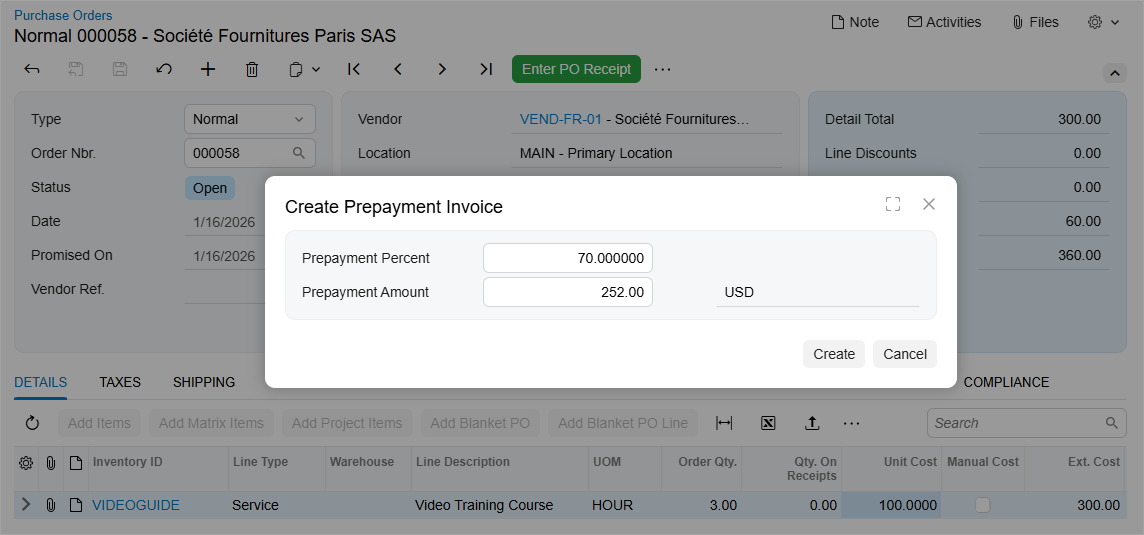
The default prepayment percent is determined as follows:
- For the first prepayment invoice:
- If a prepayment percent is specified on the Vendor Info tab of the Purchase Orders form, that value is used.
- Otherwise, the system uses the prepayment percent specified in the vendor settings on the Vendors (AP303000) form.
- If no prepayment percent is specified in either place, the prepayment percent is set to 100.
- For a subsequent prepayment invoice: The prepayment percent is calculated based on the remaining balances of the purchase order as follows.
Prepayment Percent = (Remaining Unpaid Amount ÷ Remaining Unbilled Amount) × 100
You can modify the percent, if needed. Once the prepayment percent is specified, click Create.
What the Created Prepayment Invoice Looks Like
When you click Create in the Create Prepayment Invoice dialog box, the Bills and Adjustments (AP301000) form opens with a new document of the Prepmt. Invoice type. Its summary information—such as the vendor, document currency, location, and tax zone—is copied from the purchase order. The document date is set to the current business date.
The Details tab contains only detail lines that haven't yet been fully billed. The values of the following columns are copied from the purchase order: Inventory ID, Trans. Description, Discount Percent, Discount Code, UOM, Account, Subaccount, Project Task, Cost Code, and Tax Category.
On the Taxes tab, the taxes are transferred as well. If current tax rates differ from the rates calculated for the purchase order on its document date, taxes are recalculated.
Processing Purchase Orders with Prepayment Invoices
When the prepayment invoice is released, it appears with the Pending Payment status on the Prepayments of the Purchase Orders (PO301000) form.
Prepayment for the Full Purchase Order Total Amount
If a prepayment invoice is created for the total purchase order amount and released, the Unpaid Amount on the Other tab of the purchase order is set to 0 (see below).
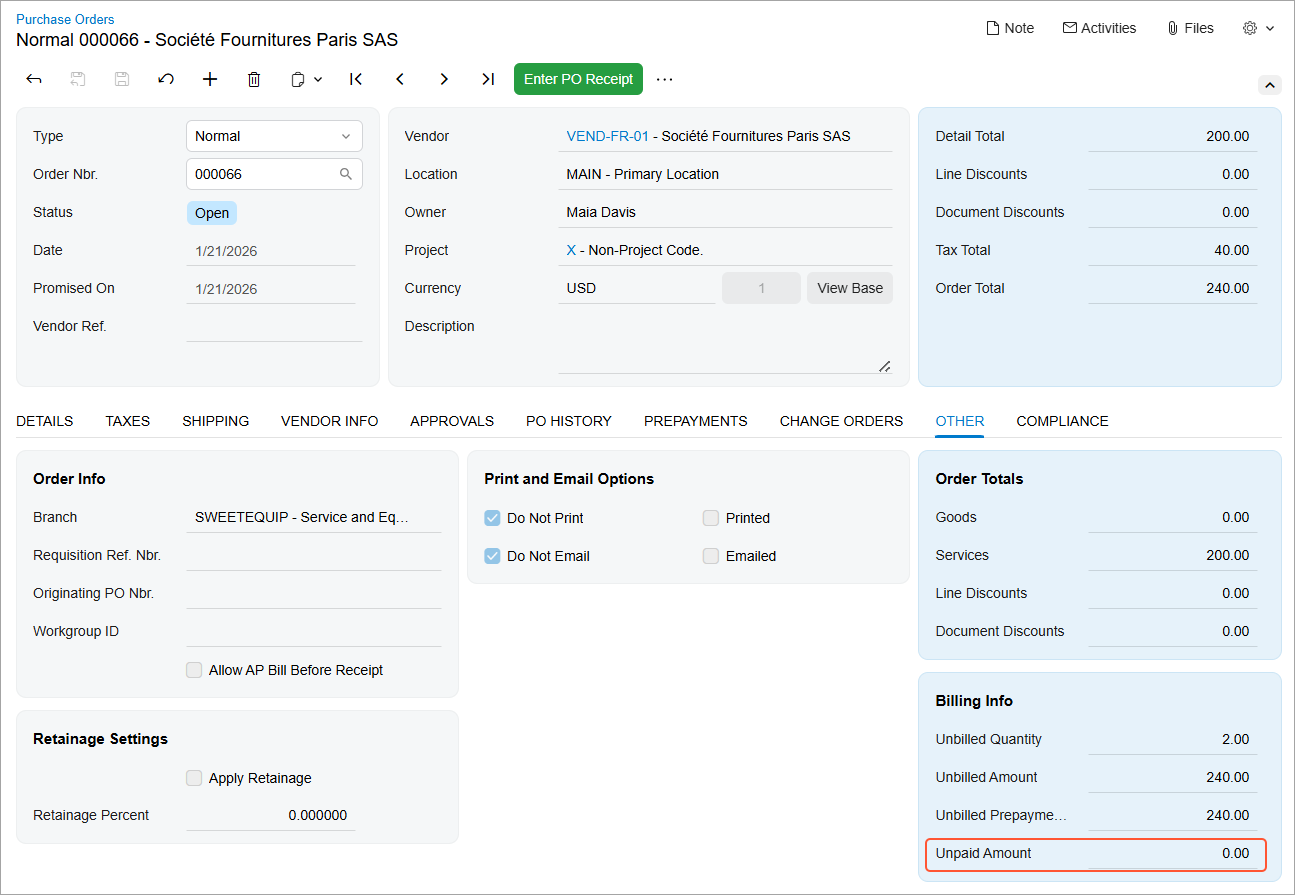
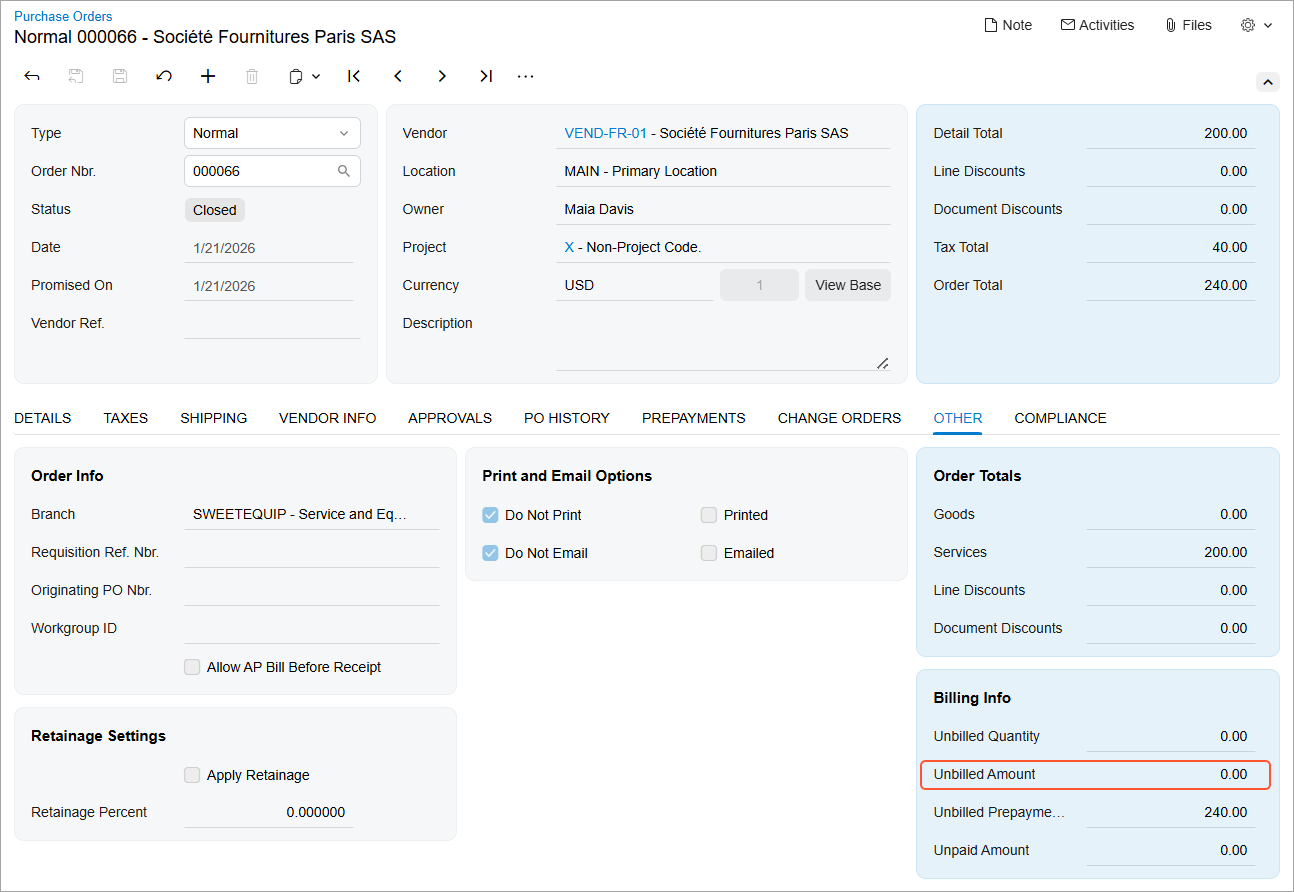
When the AP bill for the purchase order is created and released, the linked released prepayment invoice is automatically associated with the AP bill and added to the Applications tab of the Bills and Adjustments (AP301000) form. The purchase order is assigned the Closed status, and its unbilled balance is set to 0 (see below).
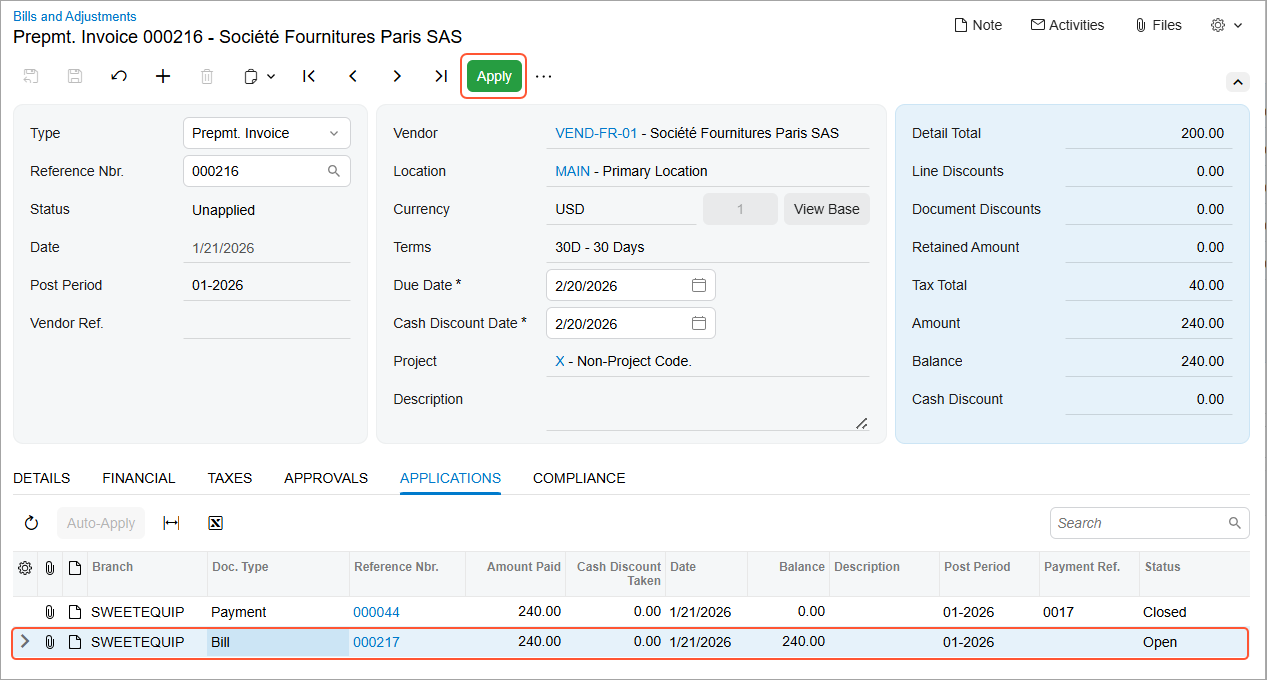
If the prepayment invoice is paid after the AP bill has been created, you apply it to the linked AP bill. To do this, while viewing the prepayment invoice on the Bills and Adjustments form, select the bill on the Applications tab (see below).
You can also open the prepayment invoice on the Checks and Payments (AP302000) form. On the Documents to Apply tab, the associated AP bill is listed. To apply the prepayment invoice to the AP bill, click Release on the form toolbar.
After the application is released, both the prepayment invoice and the bill are closed.
This behavior applies only when the prepayment invoice and the AP bill are created for the full purchase order amount.
Prepayment for a Partial Purchase Order Amount
If a prepayment invoice is created for a partial purchase order amount and released, the Unpaid Amount on the Other tab of the purchase order is reduced by the prepayment amount (see below). Below you can see a purchase order with a 50% prepayment applied.
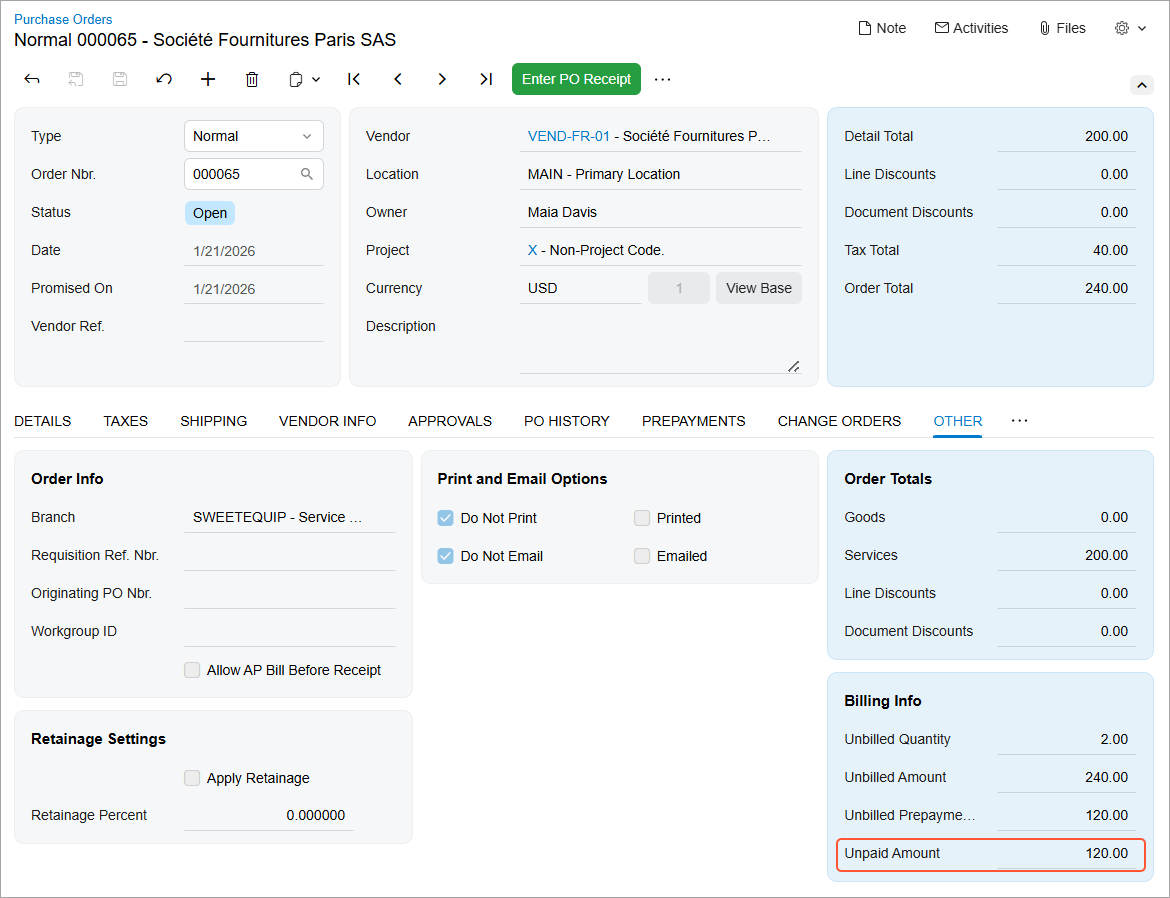
When a subsequent prepayment invoice is created for the remaining purchase order amount and released, the Unpaid Amount is set to 0. The Unbilled Prepayment Total is set to the full purchase order amount until an AP bill is created.
When the AP bill is created for the full purchase order amount and released, all linked released prepayment invoices are automatically associated with the AP bill and appear on the Applications tab of the Bills and Adjustments form. The purchase order is assigned the Closed status, and its unbilled balance is set to 0.
Once the prepayment invoice is paid, you can apply it to the AP bill. Because the prepayment invoice covers only part of the purchase order amount, the Amount Paid column shows the prepayment amount. The Balance column shows the total balance of the AP bill.
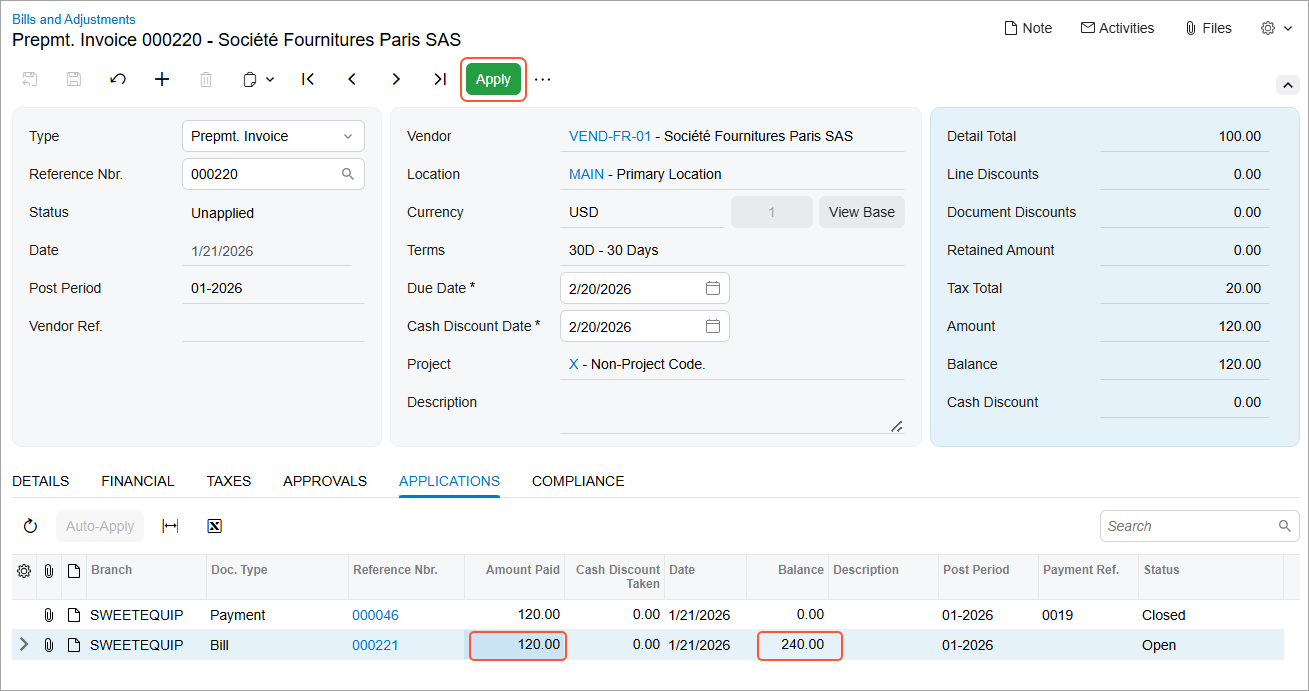
When the application is released, the prepayment invoice is closed. The purchase order is also closed because the AP bill has already been created. The AP bill remains open until the remaining balance is paid
You can create any number of prepayment invoices for a purchase order until an AP bill is created for the purchase order.
AP Prepayment Invoices in Aging Reports
Several accounts payable aging reports have been updated to properly reflect prepayment invoices. In these reports:
- Only the unpaid portion of a prepayment invoice posted to the Accounts Payable account is included.
- Prepayment invoice amounts are displayed with a plus sign.
- Applications of payments and reversing adjustments to prepayment invoices reduce the outstanding balance of prepayment invoices.
- Fully paid prepayment invoices are no longer displayed.
The following reports reflect prepayment invoices as described above:
- AP Aging (AP631000)
- AP Aging by Project (AP631200)
- AP Aged Period-Sensitive (AP630500)
- AP Aged Period-Sensitive by Project (AP630600)
- AP Aging MC (AP631100)