
Finance: Applying Refunds to Bills and Invoices When Credits Exceed Document Amounts
In MYOB Acumatica 2026.1.1, you can apply refunds directly to bills and invoices—even when the total of related credits exceeds the document amount. This enhancement helps you settle open documents faster and more cleanly.
Whether you're working in accounts payable or accounts receivable, you can now fully apply all related documents in a single refund transaction.
What You Can Do Now
- Settle bills and invoices with refunds in a single transaction—even when credits exceed document totals
- Reduce manual steps and reconciliation effort
- Improve accuracy and transparency in refund processing
- Maintain existing controls, validations, and auditability
Simplify Refund Settlement in AP
In accounts payable, refunds often arise when credit adjustments exceed outstanding bills. Previously, these situations required multiple transactions to fully apply credits and close documents. Now refunds can settle all related AP documents at once.
On the Documents to Apply tab of the Checks and Payments (AP302000) form, you can now apply documents of additional types to a vendor refund. The Bill and Credit Adjustment types are now available, along with Debit Adjustment and Prepayment (see below).
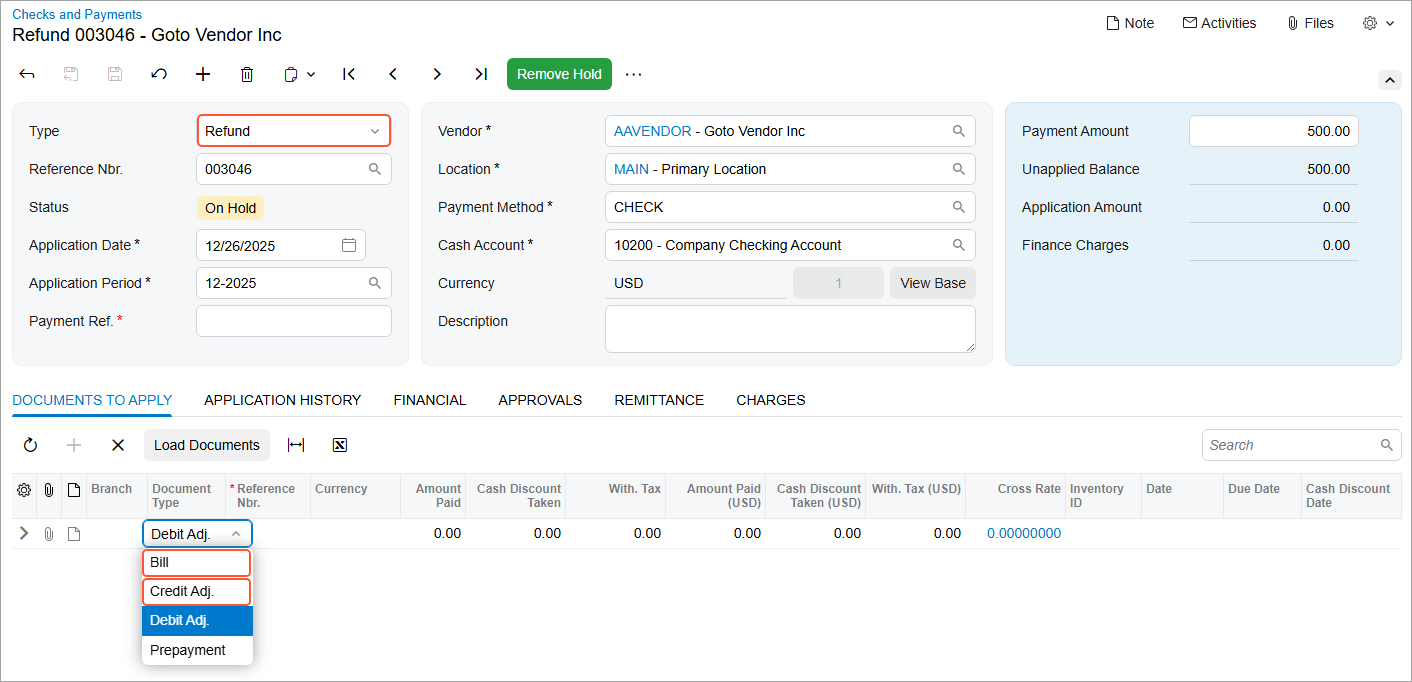
If you click Load Documents on the table toolbar, the system loads documents of all supported types.
Application Amount = Amount Paid (Debit Adj.) + Amount Paid (Prepayment) - Amount Paid (Bill) - Amount Paid (Credit Adj.)As a result, you can settle all related AP documents together—without creating separate refund or adjustment transactions.
Refunds continue to follow the same workflows you already use. Refunds that include bills and credit adjustments can still be voided, and any applied documents are reopened and made available for future processing, if needed.
Apply Refunds More Flexibly in AR
Customer refunds often involve a combination of invoices and credits, especially when customers have been over-credited. On the Documents to Apply tab of the Payments and Applications (AR302000) form, you can now apply customer refunds to documents of additional types. The Invoice, Debit Memo, and Overdue Charge types are now available (see below) in addition to Credit Memo, Payment, and Prepayment.
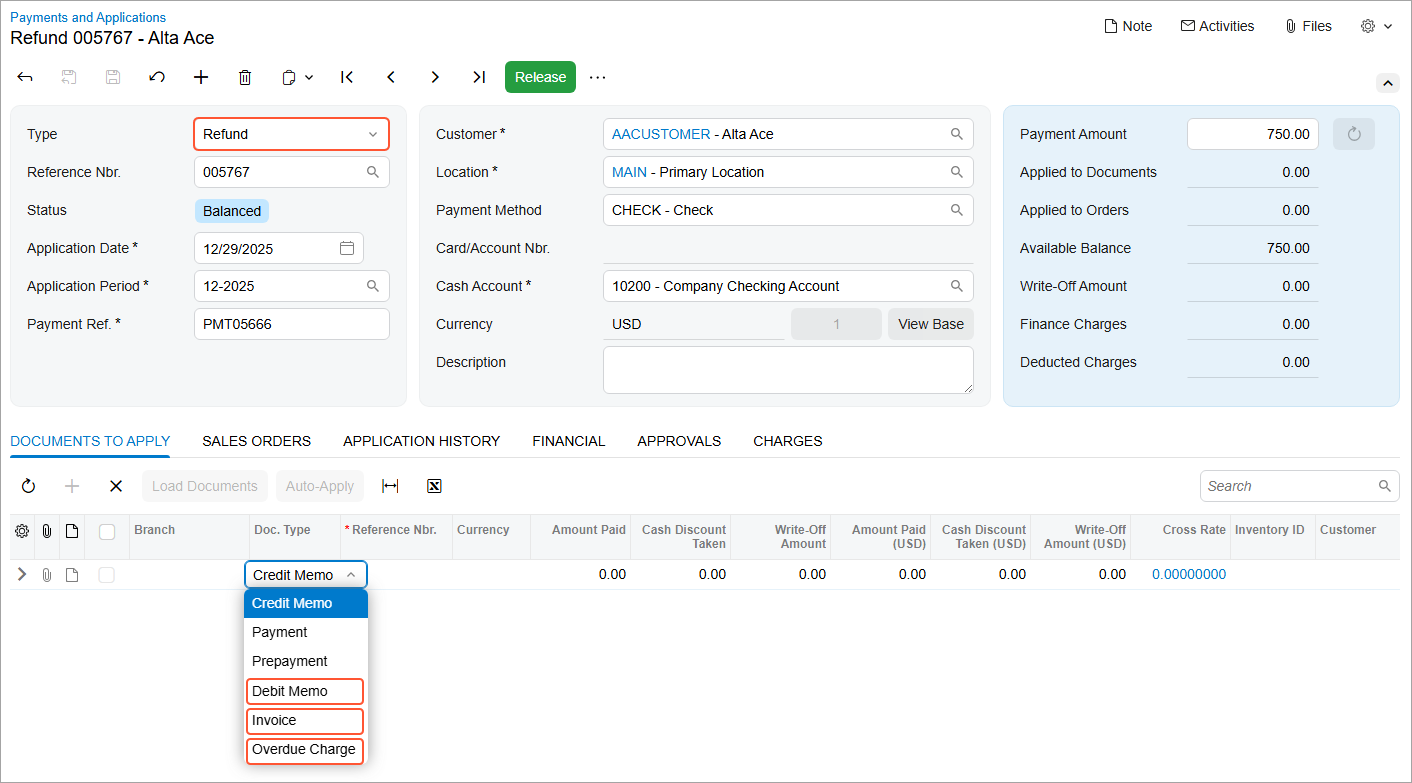
The system now calculates the application amount as follows.
Applied to Documents = Amount Paid (Credit Memo) + Amount Paid (Prepayment) + Amount Paid (Payment) - Amount Paid (Invoice) - Amount Paid (Debit Memo) - Amount Paid (Overdue Charge)This calculation allows you to fully settle a customer’s open documents—even when credit memos exceed invoice totals—without breaking the process into multiple transactions.
When you’re working with parent and child customer accounts, you can apply refunds created at the parent level to documents from associated child accounts. This capability simplifies centralized settlement for organizations with complex customer structures.
Create Refunds Directly from Bank Transactions
You can also use this capability in bank reconciliation workflows, reducing manual cleanup after you’ve matched transactions.
Customer Refunds from Disbursement Transactions
When matching a disbursement on the Process Bank Transactions (CA306000) form, you can now create a customer refund and match it to multiple document types. If the Match to Multiple Documents check box is selected on the Match to Invoices tab, you can match a refund to invoices, debit memos, credit memos, and overdue charges. The refund’s application history reflects all selected documents.
Below you can see a $600 disbursement (Item 1) matched to three AR documents (Item 2). The transaction amount matches the total amount of the documents (Item 3). When you click Process on the form toolbar, the system creates a $600 customer refund.
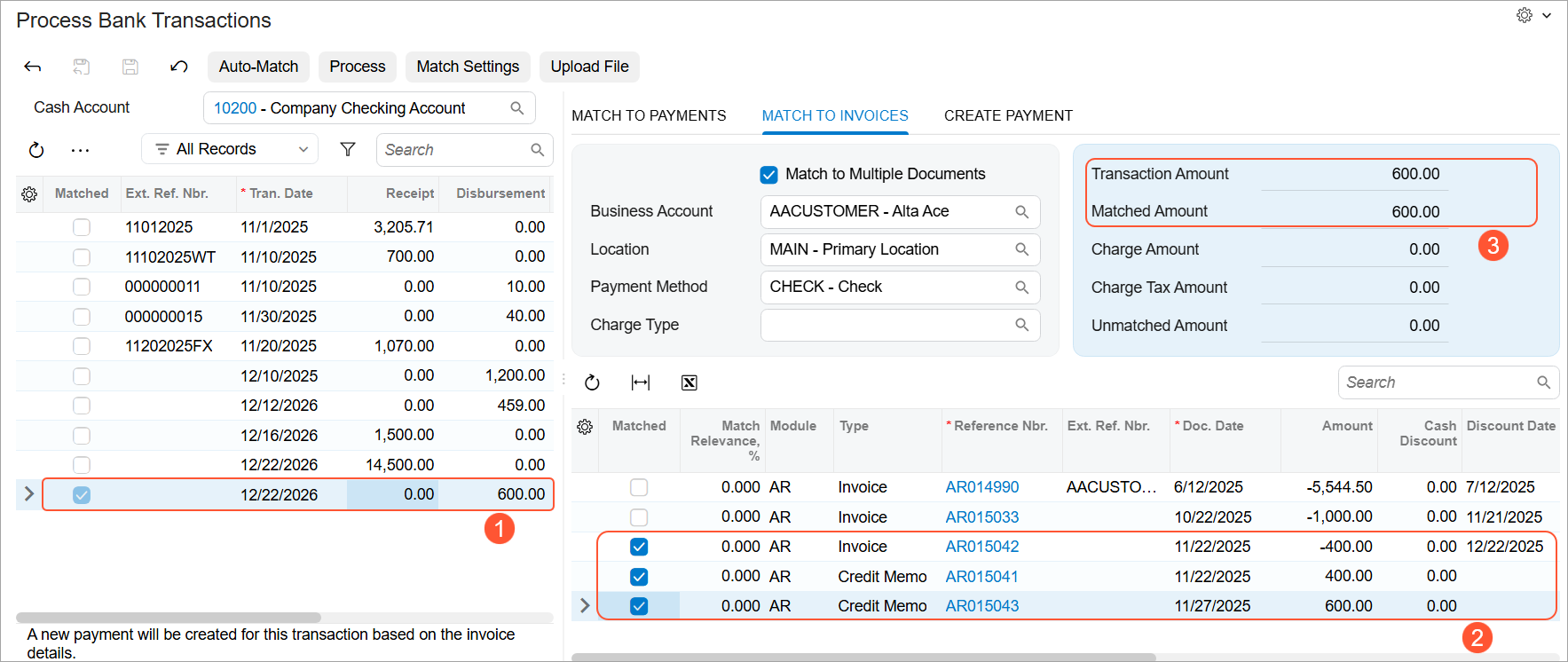
You can also create customer refunds and match them to multiple documents when creating an AR payment for a disbursement on the Create Payment tab of the Process Bank Transactions form.
Vendor Refunds from Receipt Transactions
Similarly, when matching a receipt, you can create a vendor refund and apply it to bills, credit adjustments, and debit adjustments in one step. To be able to match a receipt to multiple AP documents, you must select the Match to Multiple Documents check box on the Match to Payments tab.
The system ensures that the matched document amounts balance with the bank transaction amount, preserving existing validation rules.
Below you can see a $1500 receipt (Item 1) matched to four AP documents (Item 2). The transaction amount matches the total amount of the documents (Item 3). When you click Process on the form toolbar, the system creates a $1500 vendor refund.
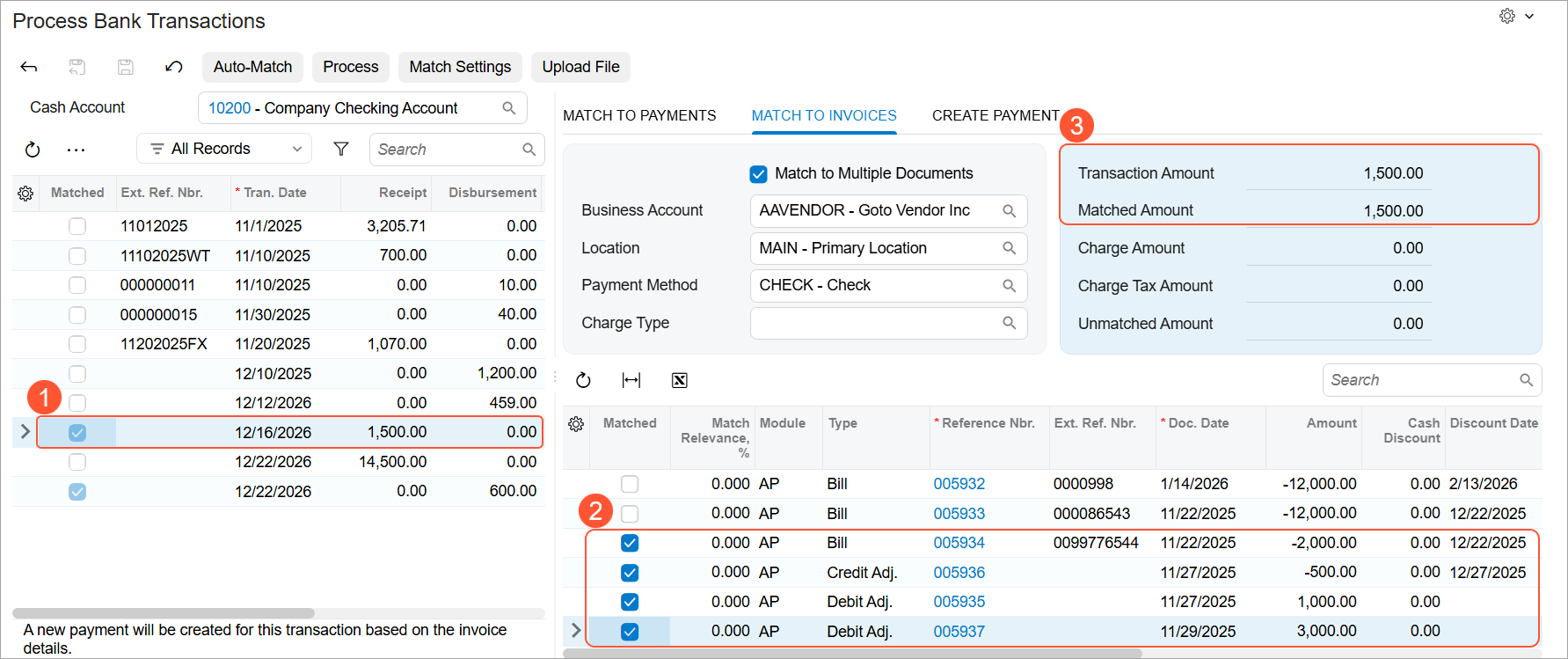
You can also create vendor refunds and match them to multiple documents when creating an AP payment for a receipt on the Create Payment tab of the Process Bank Transactions form.
Reverse and Void Refund Applications
Refunds that include bills, invoices, and other newly supported document types fully support existing reversal scenarios:
- Voiding a refund reverses the original transaction and reopens all applied documents.
- Reversing an application allows you to undo applications without forcing immediate reapplication to other documents.
- A refund can’t be saved with an out-of-balance application amount, ensuring accounting integrity at all times.
These safeguards help maintain accurate balances while giving you the flexibility to correct or adjust refund applications when needed.
What Hasn't Changed
To ensure a smooth transition, refunds follow the same workflows and rules as they did previously:
- The default settings and validation of the Amount Paid and Cash Discount Taken values remain unchanged.
- The existing calculations of the balance, currency, and discount continue to apply.
- No changes have been made to related reports, APIs, access rights, database structure, or mobile functionality.
At a Glance
You can now apply refunds across bills, invoices, and related credits in one streamlined process—saving time while keeping your financial data accurate and balanced.