
Finance: Prepayment Invoices in Accounts Payable
Everyday business operations often involve prepayments to vendors, particularly when suppliers require deposits before delivering goods or services. In some countries, legislation requires value-added taxes (VATs) to be recognized and reported in tax reports at the time a prepayment is paid.
To support these requirements, MYOB Acumatica 2026.1.1 introduces new functionality that allows you to create prepayment invoices in accounts payable with VAT recognition at payment time. When a prepayment invoice is paid, the system generates GL transactions for the calculated tax amounts, and these taxes are included in the corresponding tax report.
When the prepayment invoice is later applied to a vendor bill or a credit adjustment, the system reverses the previously recognized VAT amounts to prevent duplicate tax recognition.
Enabling the New Feature
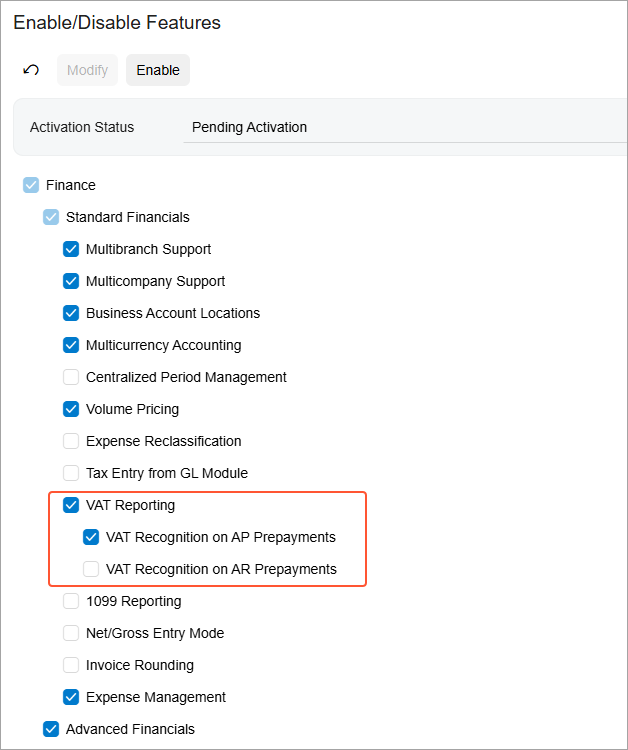
On the Enable/Disable Features (CS100000) form, the new VAT Recognition on AP Prepayments feature has been introduced to support recognizing VAT when prepayments are paid in accounts payable (see below). Make sure that this feature is enabled before you proceed with the setup.
Specifying the Prepayment Invoice Numbering Sequence
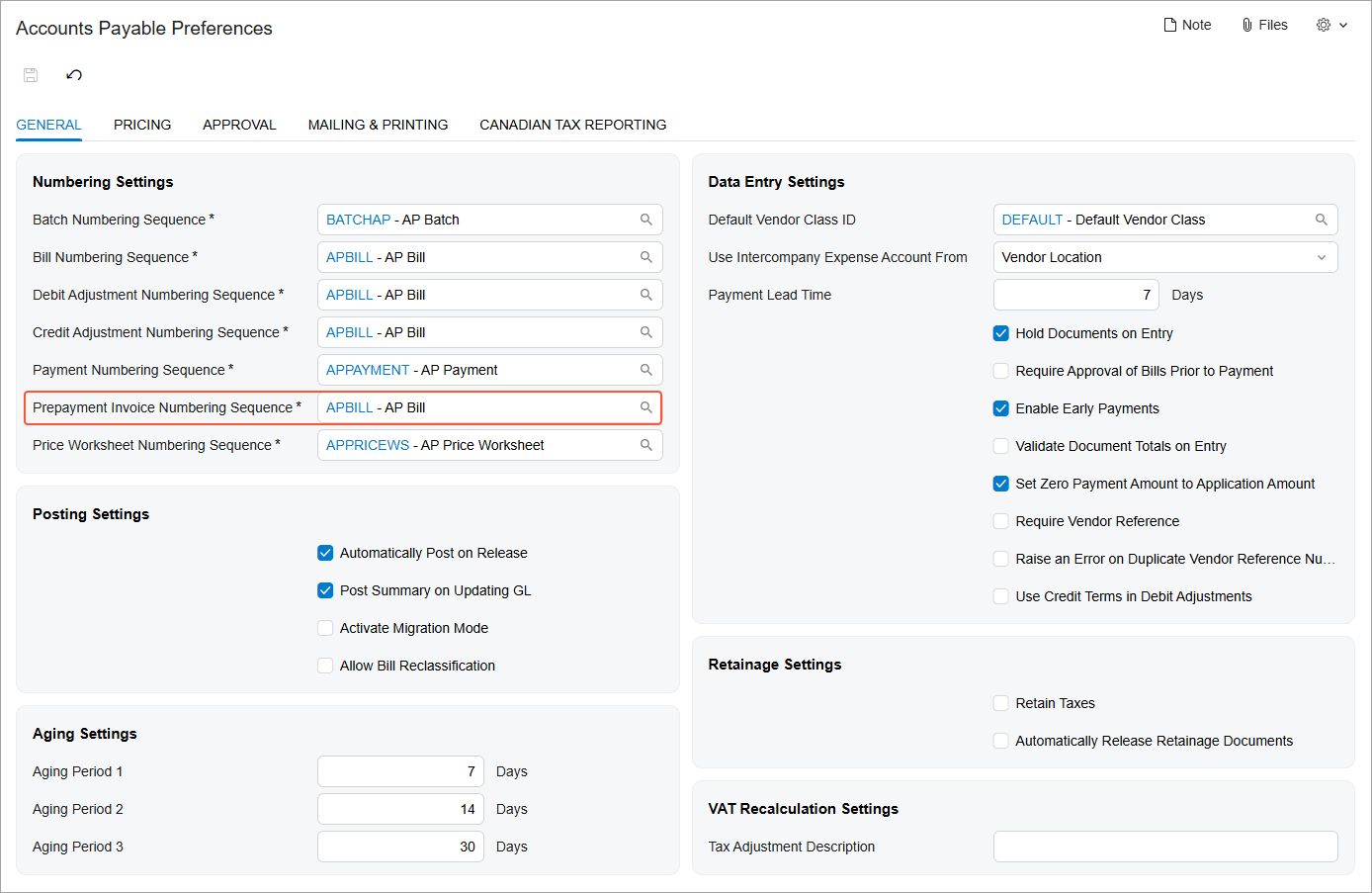
On the General tab of the Accounts Payable Preferences (AP101000) form, you specify a dedicated numbering sequence in the Prepayment Invoice Numbering Sequence box. The system uses this sequence to assign reference numbers to prepayment invoices.
This box appears only when the VAT Recognition on AP Prepayments feature is enabled on the Enable/Disable Features (CS100000) form.
Setting Up the Prepayment Invoice Approval Workflow
You can set up a standard approval workflow for prepayment invoices.
On the Approval tab of the Accounts Payable Preferences form (AP101000), the Prepmt. Invoice option is available in the Type column if the Recognition on AP Prepayments feature is enabled on the Enable/Disable Features (CS100000) form.
The approval workflow setup process is similar to that used for other AP documents. For details, see Specific Approvals: Accounts Payable Documents.
Specifying Tax Settings for Use in Prepayment Invoices
On the Taxes (TX205000) form, you must specify the tax settings that will be applied to prepayment invoices. On the GL Accounts tab, specify the following accounts for the tax:
- Tax on AP Prepayment Account
- Tax on AP Prepayment Subaccount (if applicable)
This account (and subaccount, if applicable) is used to record the VAT amount when a prepayment invoice is paid. When the payment application is released, the system credits the specified account for the VAT amount calculated on the prepayment invoice, ensuring that this amount is recognized and reported in the appropriate tax period. When the prepayment invoice is later applied to a vendor bill or a credit adjustment, the system debits this account to prevent duplicate tax recognition.
Creating a Prepayment Invoice
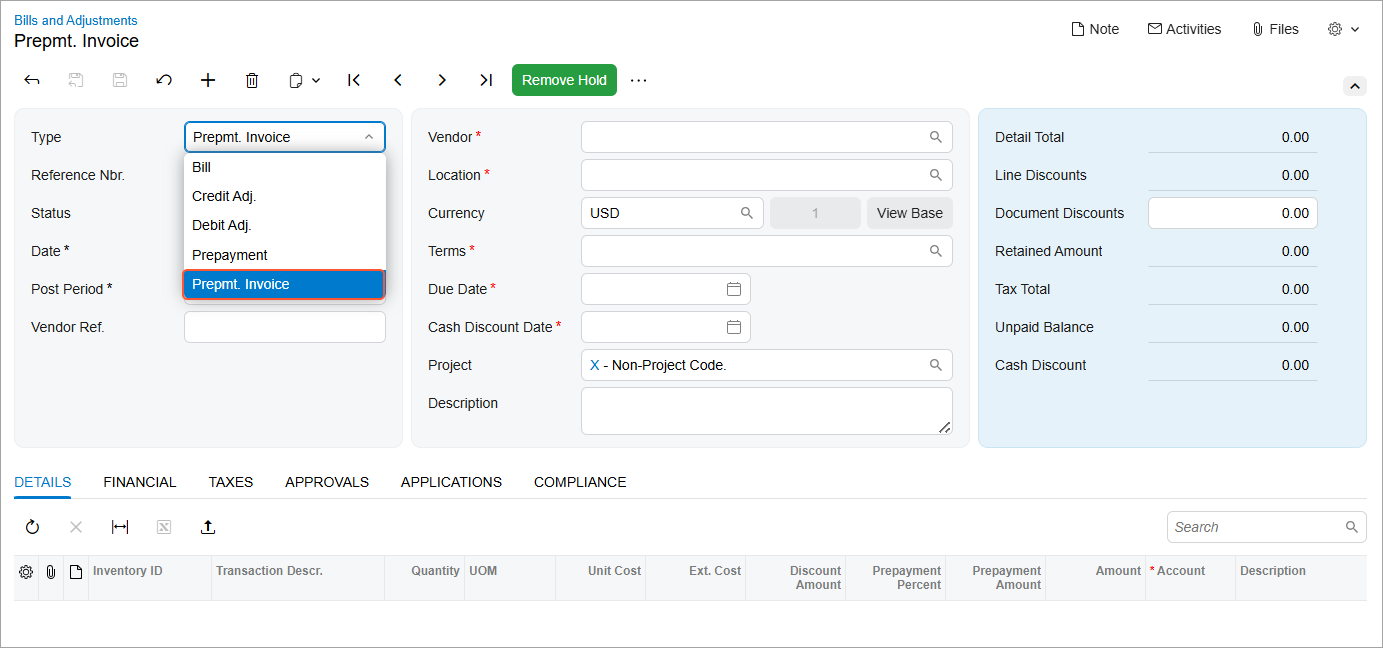
To create a prepayment invoice on the Bills and Adjustments (AP301000) form, select Prepmt. Invoice in the Type box of the Summary area (see below).
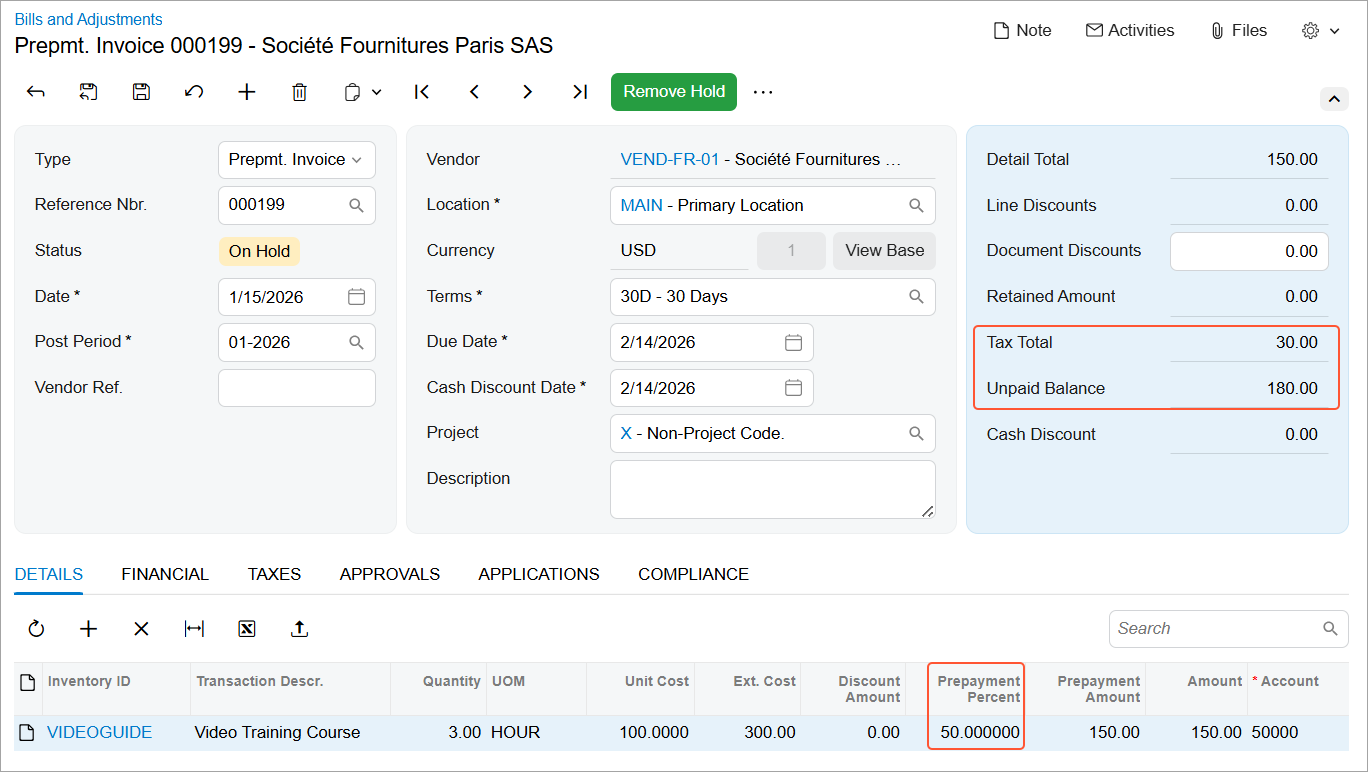
When you add detail lines on the Details tab, the prepayment percent is inserted in each line (see below) as follows:
- If a prepayment percent is specified in the vendor settings, the system inserts this percent.
- If no prepayment percent is specified for the vendor, the system inserts a default prepayment percent of 0, and you must enter the required percent.
Once you've specified all document details and saved the prepayment invoice, the system calculates the balance and the total tax amount of the prepayment invoice. These amounts are displayed in the Unpaid Balance and Tax Total boxes (see below).
Understanding the Prepayment Invoice Lifecycle
The following table shows the main processing steps in the lifecycle of a prepayment invoice, from creation through closure. (Some steps apply conditionally.) Each step is initiated by a user action on the Bills and Adjustments (AP301000) form and results in a corresponding document status.
| Step | User Action | Status | Notes |
|---|---|---|---|
| 1 | Create and save a prepayment invoice | On Hold |
The Remove Hold button is shown on the form toolbar of the Bills and Adjustments form. This status is assigned if the Hold Documents on Entry check box is selected on the Accounts Payable Preferences (AP101000) form. Tip:
If the approval workflow has been set up for
prepayment invoices, they’re always created with the On Hold status. |
| Balanced |
The prepayment invoice can be released. This status is assigned instead of On Hold if the Hold Documents on Entry check box is cleared on the Accounts Payable Preferences form. |
||
| The actions of this step are performed if the approval workflow has been set up for prepayment invoices. | |||
| 2 | Remove the prepayment invoice from hold | Pending Approval |
The Approve and Reject buttons become available on the form toolbar of the Bills and Adjustments form. |
| Reject the prepayment invoice | Rejected |
The prepayment invoice can’t be released until it’s corrected and resubmitted. |
|
| Approve the prepayment invoice | Balanced |
The approved prepayment invoice can be released; the Release button appears on the form toolbar. |
|
| The following step is performed if the approval workflow has not been set up for prepayment invoices. | |||
| 2 | Remove the prepayment invoice from hold | Balanced |
The prepayment invoice can be released. This step applies if the Hold Documents on Entry check box is selected on the Accounts Payable Preferences form. |
| 3 | Release the prepayment invoice | Pending Payment |
The system creates a GL batch to credit the Accounts Payable account and debit the prepayment (deposit) account in the amount of the prepayment invoice. The prepayment invoice can now be paid; the Pay button appears on the form toolbar. For details, see the Paying the Prepayment Invoice section of this topic. |
| 4 (Optional) | Void an unpaid prepayment invoice | Voided |
The system creates a debit adjustment with a single line summarizing the prepayment invoice’s details. After you release the debit adjustment, the system reverses the GL entries posted when the prepayment invoice was released: Now the Accounts Payable account is debited, and the prepayment account is credited. |
| 5 | Pay the prepayment invoice | ||
| Pay the prepayment invoice partially | Pending Payment |
You can do one of the following:
Once either of these actions has been performed, the Unapplied status is assigned to the prepayment invoice. |
|
| Pay the prepayment invoice in full | Unapplied |
The prepayment invoice is paid and its balance can be applied to AP bills or credit adjustments. The Apply button appears on the form toolbar of the Bills and Adjustments form. For details, see the Applying the Prepayment Invoice to an AP Bill or a Credit Adjustment section of this topic. |
|
| 6 | Apply the prepayment invoice to AP bill or a credit adjustment | ||
| Apply a part of the prepayment invoice’s balance to any number of AP bills or credit adjustments of the vendor; release the application | Unapplied |
You can apply the remaining balance to any AP document of the vendor. |
|
| Apply the full balance of the prepayment invoice to any number of the vendor’s AP bills or credit adjustments; release the application | Closed |
The prepayment invoice’s balance is 0, and no further processing of this document is allowed. |
|
Viewing the Vendor’s Balance
On the Vendor Details (AP402000) form, when the VAT Recognition on AP Prepayments feature is enabled, two additional columns appear in the table: AP Account and AP Subaccount (if subaccounts are enabled in your system). These columns show the specific accounts the system updates when a prepayment invoice is released.
A prepayment invoice appears in the table using two separate lines—one line for each AP account updated when the prepayment invoice is released. The prepayment invoice balance is shown on each line with a different sign, depending on the account to which the prepayment amount is posted (see below):
- The first line shows the amount posted to the prepayment account, representing the advance payment made to the vendor. This amount is displayed with a minus sign.
- The second line shows the amount posted to the Accounts Payable account, representing the VAT-related liability. This amount is displayed with a plus sign.
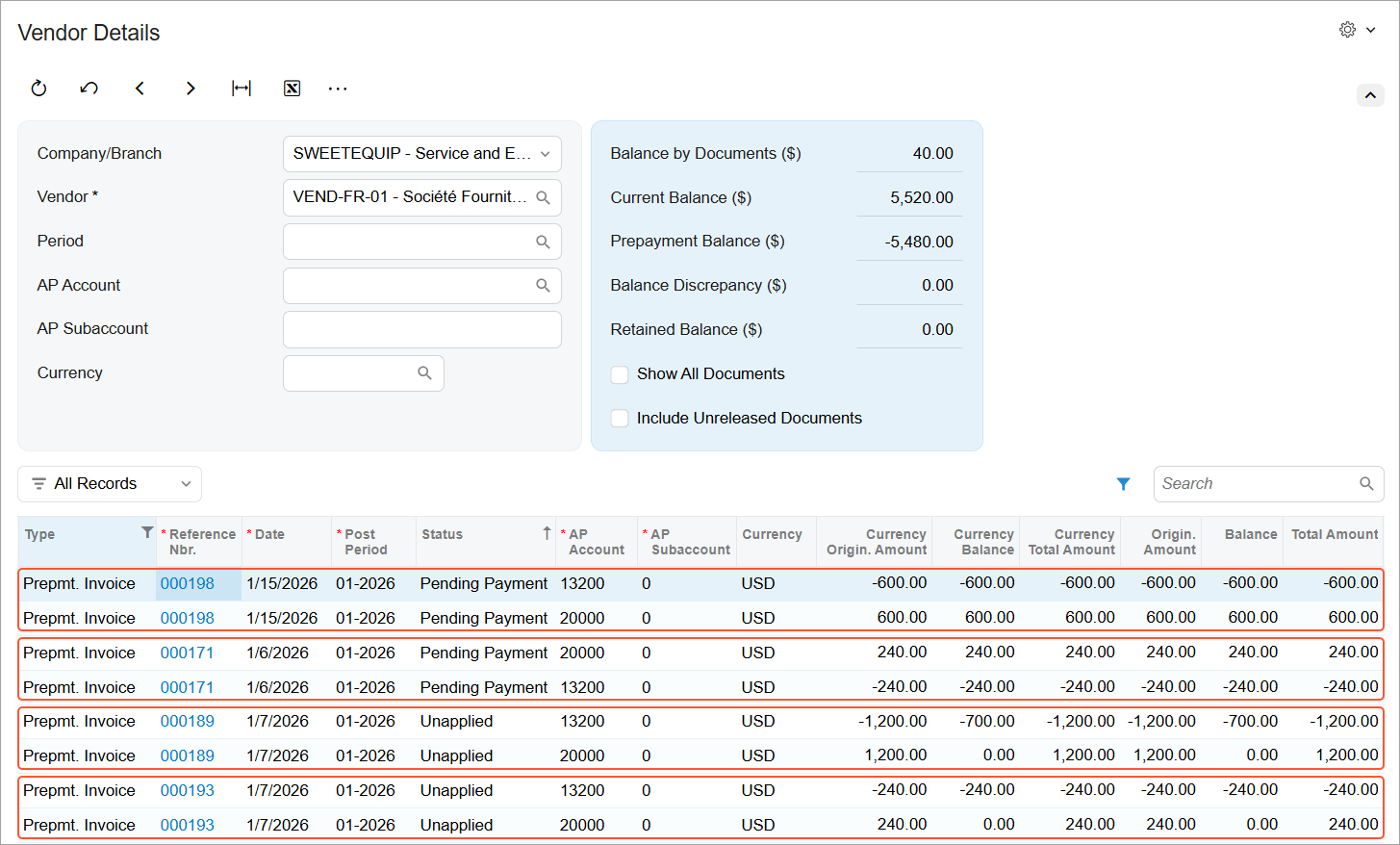
The amount shown in the Original Amount column follows the same sign logic.
The Current Balance amount in the Summary area isn’t affected by the prepayment invoice. Instead, the balances from both lines of the prepayment invoice are aggregated and reflected in the Prepayment Balance box. This ensures that prepayments are tracked separately while the vendor’s current liability remains unchanged.
Paying the Prepayment Invoice
Once the prepayment invoice has been released, you can pay it. On the Bills and Adjustments (AP301000) form, you click Pay on the form toolbar. The system opens the Checks and Payments (AP302000) form with the prepayment invoice added on the Documents to Apply tab. You can now pay the prepayment invoice fully or partially.
To Pay the Prepayment Invoice in Full
First, ensure that the system has inserted the prepayment invoice’s unpaid balance in the Payment Amount box of the Summary area of the Checks and Payments form and in the Amount Paid column of the Documents to Apply tab.
Then release the payment. Depending on the vendor's payment method, you may have to print the corresponding check first.
When the payment application is released, the system generates a GL batch to credit the company's cash account and debit the Accounts Payable account. The batch also includes VAT transactions debiting the Tax Claimable account and crediting the Tax on AP Prepayment account. You can find the GL batch link on the Financial tab of the Checks and Payments form.
The Payment document is assigned the Closed status. On the Application History tab, the system adds a line with the reference numbers of the prepayment invoice and the generated GL batch. The prepayment invoice is assigned the Unapplied status, which means that its balance can be applied to the vendor’s AP bills or credit adjustments.
On the Bills and Adjustments form, the balance of the prepayment invoice is now displayed in the Balance box (which replaces the Unpaid Balance box once the prepayment invoice is paid) in the Summary area. The system also updates the vendor’s prepayment balance on the Vendors (AP303000) form.
To Pay the Prepayment Invoice Partially
To apply a partial payment to the prepayment invoice, on the Checks and Payments form, specify this amount in the Payment Amount box of the Summary area and in the Amount Paid column on the Documents to Apply tab. Then release the payment.
The generated GL batch includes VAT transactions calculated proportionally to the paid amount. You can find the link to this batch on the Financial tab of the Checks and Payments form. The payment document is assigned the Closed status, and the prepayment invoice maintains the Pending Payment status, with the remaining amount shown in the Unpaid Balance box on the Bills and Adjustments form.
You can either pay the unpaid balance of the prepayment invoice or write it off. To write off the unpaid balance of the invoice, you click Write Off Unpaid Balance on the More menu of the Bills and Adjustments form. The system creates a document of the Debit Adj. type and opens it on the same form. When the debit adjustment is released, the system generates a GL transaction that credits the vendor's prepayment (deposit) account and debits the Accounts Payable account.
Applying the Prepayment Invoice to an AP Bill or a Credit Adjustment
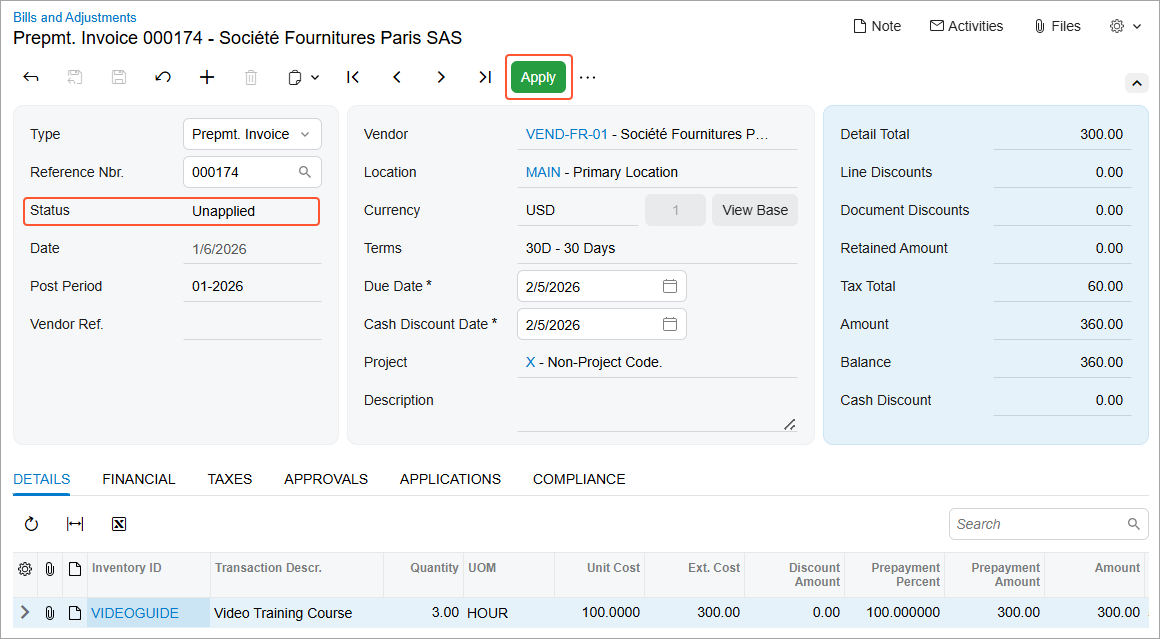
When the prepayment invoice has been fully paid, it’s assigned the Unapplied status (see below) and can be applied to an AP bill or credit adjustment. You can apply a prepayment invoice to a single AP bill or credit adjustment in full or distribute its available balance across any number of the vendor’s AP documents.
On the Bills and Adjustments (AP301000) form, click Apply on the form toolbar (also shown below).
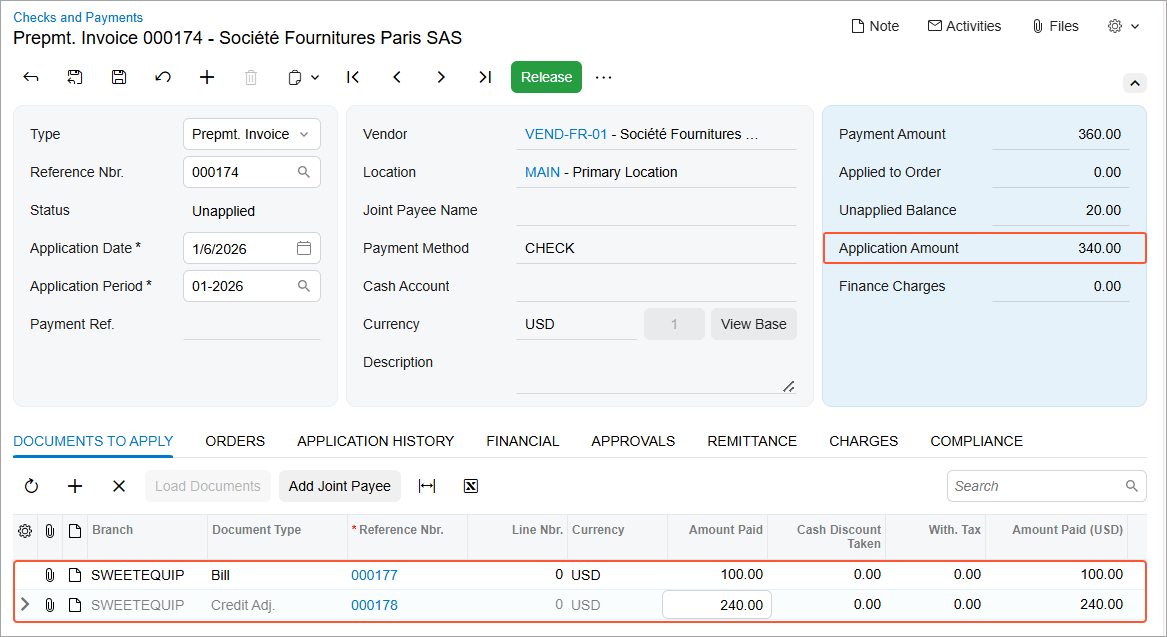
The system opens the Checks and Payments (AP302000) form with the prepayment invoice selected in the Summary area. On the Documents to Apply tab, add one or more rows and select the vendor’s AP bills or credit adjustments to which you want to apply the prepayment amount (see below). In the Amount Paid column, specify the amount to be paid for each selected AP document. Then on the form toolbar, click Release.
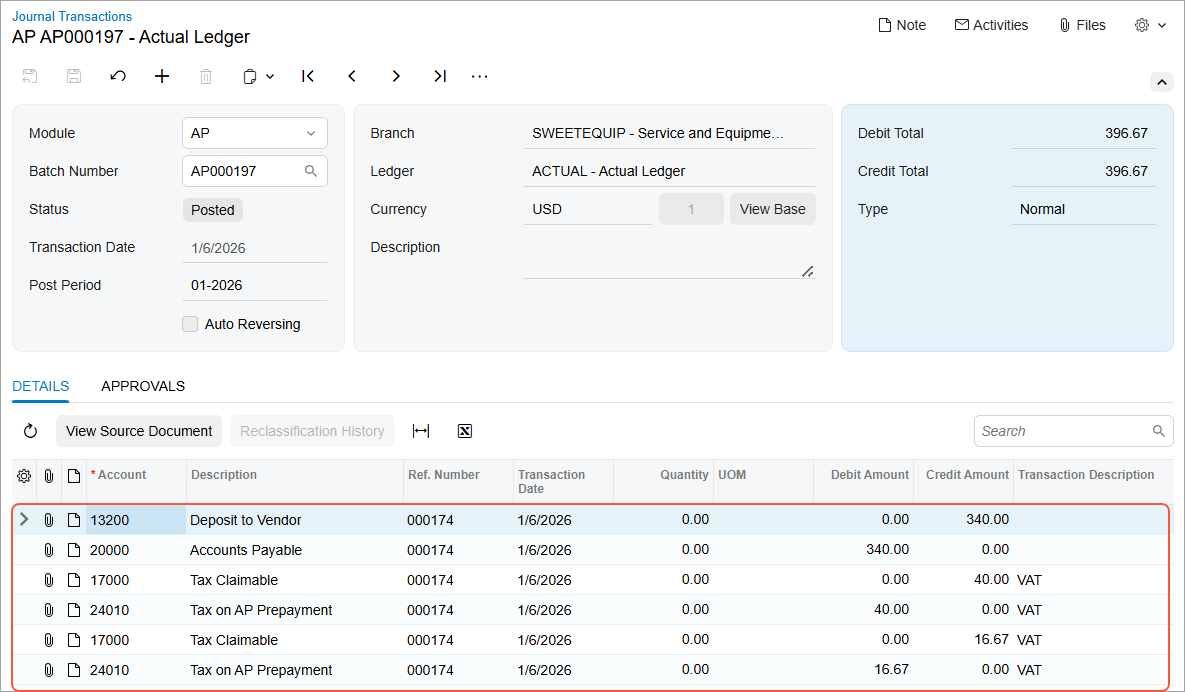
When you release the application, the system generates a GL batch that debits the Accounts Payable account and credits the prepayment (deposit) account. The batch also includes tax transactions debiting the Tax on AP Prepayment account and crediting the Tax Claimable account (see below). These entries reverse the tax entries created when the prepayment invoice was paid. The system also updates the vendor’s balance and prepayment balance on the Vendors (AP303000) form.
Depending on whether an AP document (AP bill or credit adjustment) is fully or partially paid, you’ll see the following impact on the statuses and balances of the document and prepayment invoice:
- If the AP document is partially paid, its status remains Open, and its balance is reduced.
- If the AP document is fully paid, its status changes to Closed, and its balance becomes 0.
- If the full available balance of the prepayment invoice is applied, the prepayment invoice’s status changes to Closed.
- If only part of the prepayment invoice balance is applied, the prepayment invoice’s
status remains Unapplied, and the remaining available balance is reduced
accordingly.
Figure 9. The unapplied balance in the prepayment invoice after payment of some AP documents 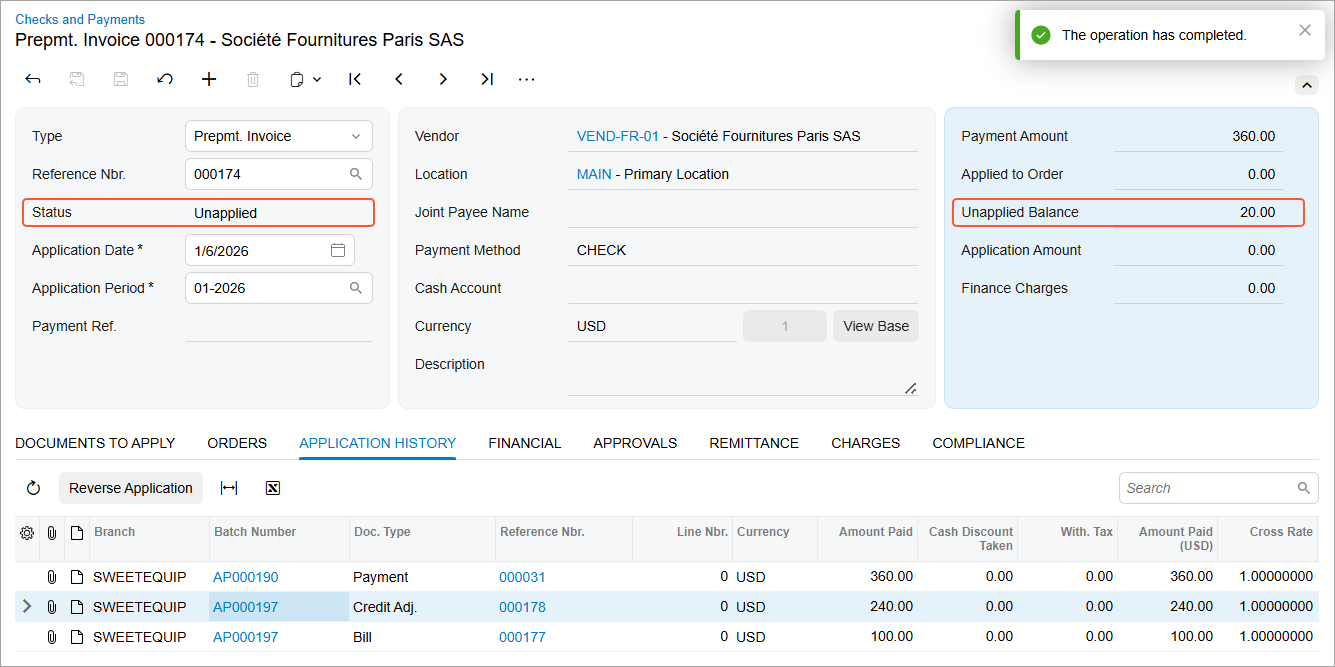
On the Application History tab, the system has added lines with the applied AP documents and the reference number of each document’s generated GL batch.
Key Takeaways
- Users can create AP prepayment invoices with calculated VAT, supporting countries where VAT must be recognized at prepayment time.
- Prepayment invoices are created as a separate document type (Prepmt. Invoice) with their own numbering, approvals, and processing flow.
- VAT is recognized when a prepayment is paid: The system credits the dedicated Tax on AP Prepayment account and debits the Tax Claimable account, ensuring that the tax amount is included in correct the tax report.
- Prepayment invoices support full or partial payment and application, with the correct tax and GL impact at each step.