
Retail Commerce: Importing BigCommerce Companies
In MYOB Acumatica 2026.1.1, the BigCommerce connector now supports importing core B2B company data from BigCommerce B2B Edition into MYOB Acumatica. You can import B2B companies along with their addresses and hierarchies, bring in company users, and synchronize orders placed on these users’ behalf.
These enhancements provide clearer visibility into customer relationships and organizational structures. They also improve data consistency between systems and make it easier and more efficient to manage BigCommerce B2B customers in MYOB Acumatica.
This functionality is currently intended for customers who have not yet synchronized B2B company data.
If you already synchronize B2B data through a third-party customization, continue using your existing implementation until this functionality becomes fully available in MYOB Acumatica.
To start using this functionality, enable the BigCommerce Business-to-Business Entities feature on the Enable/Disable Features form. The Company entity remains hidden on the BigCommerce Stores (BC201000) form even after the feature is enabled. To expose the entity, contact your MYOB support provider.
Companies in BigCommerce B2B Edition
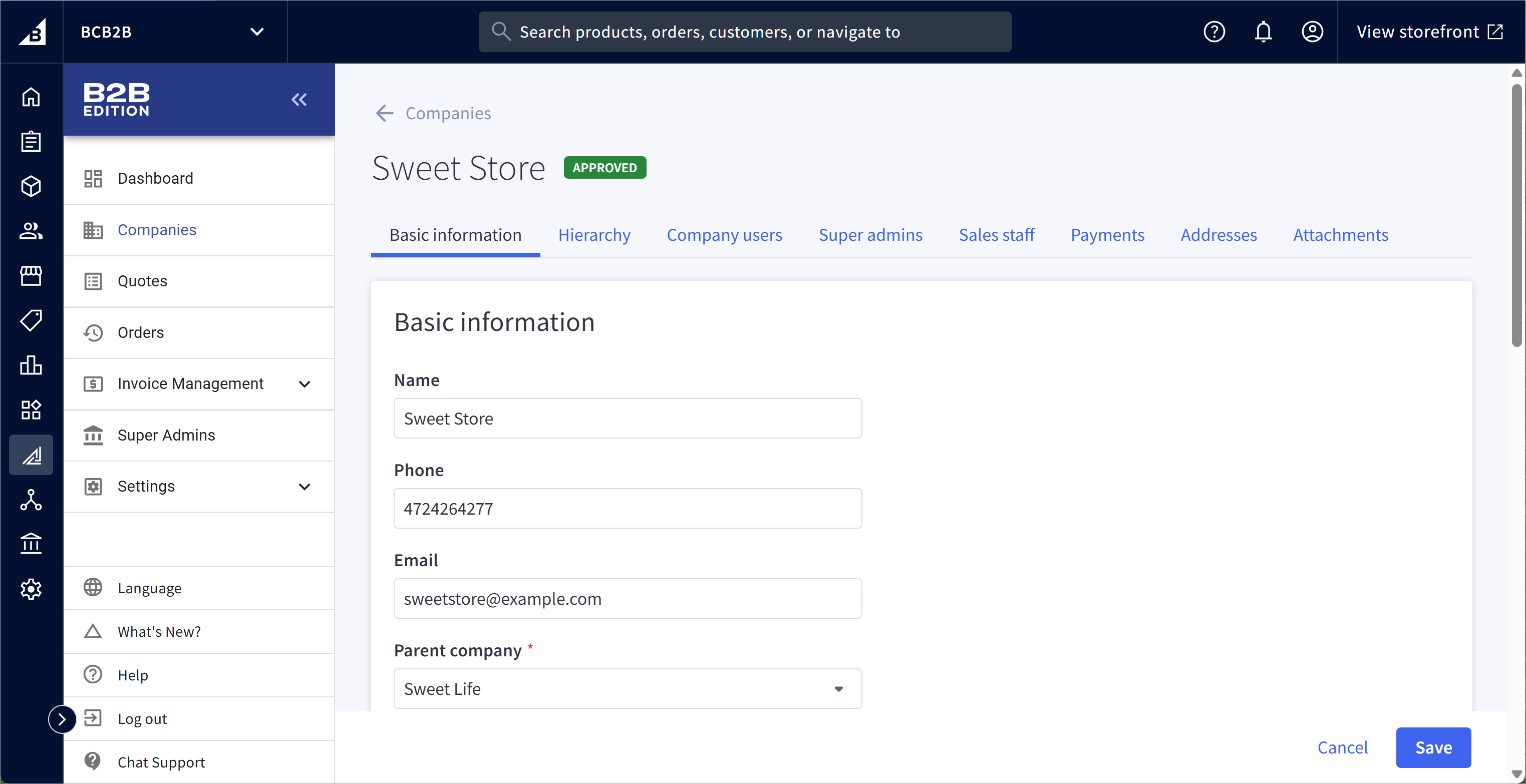
In BigCommerce, a company represents a B2B buying organization—that is, a customer or prospective customer for your organization. You manage each company’s users (your contacts) and their roles, shipping and billing addresses, and company-specific settings on the Companies page of the B2B Edition control panel, as shown below.
You can also define a company hierarchy, where one company acts as the parent of another.
Configuring the BigCommerce Store
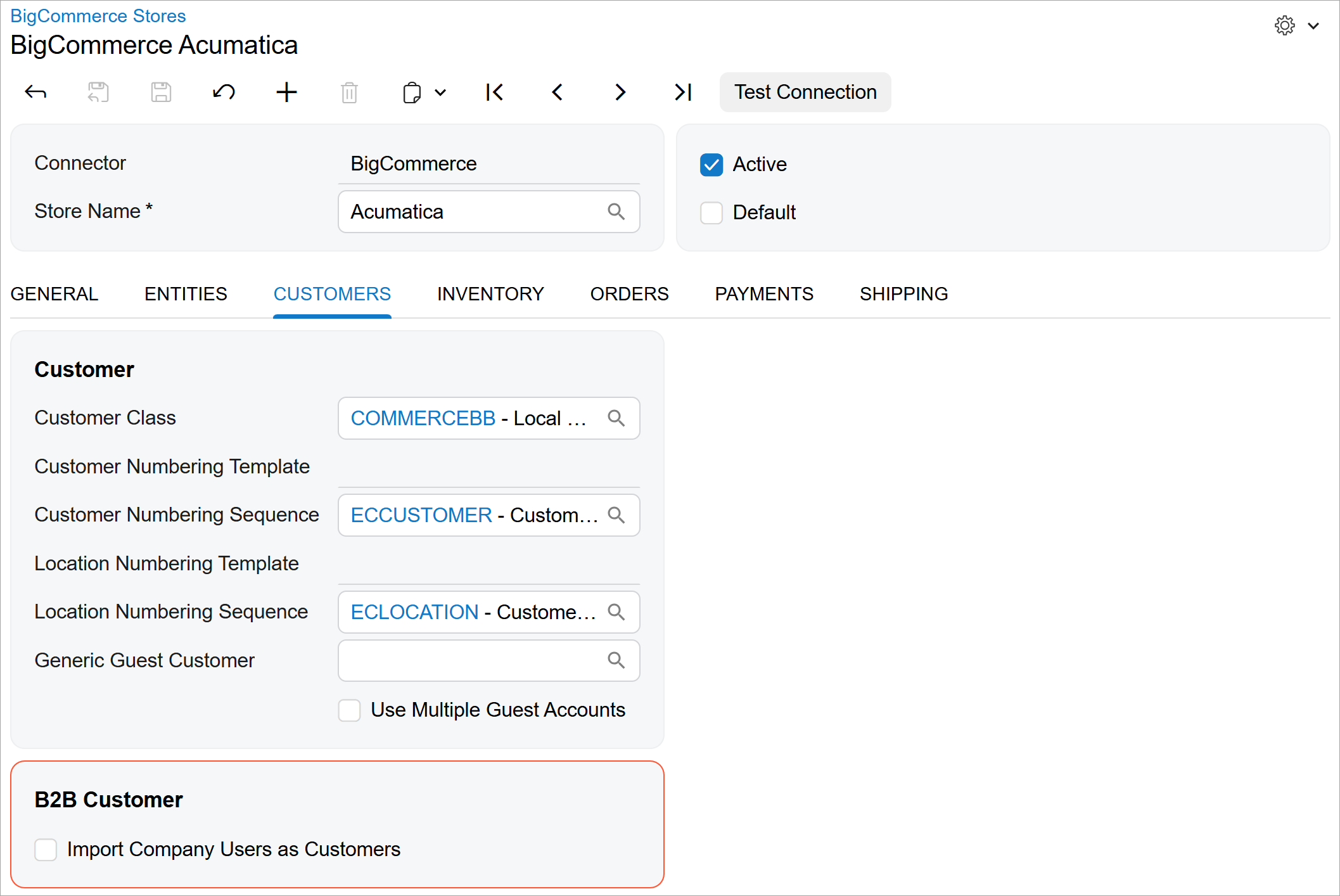
You import companies from BigCommerce by using the new Company entity, which you activate on the Entities tab of the BigCommerce Stores (BC201000) form. BigCommerce companies are represented in MYOB Acumatica as customers, and the system uses the same settings for importing companies as it does to import customers. You specify these settings on the Customers tab, including the customer class, customer numbering sequence, and location numbering sequence.
The only new element on the tab is the Import Company Users as Customers check box, shown below, which is cleared by default. When it’s cleared, company users are imported as contacts only. If you select the check box, company users are always imported as both customers and contacts.
Importing Companies from BigCommerce
When a company is imported from a BigCommerce store to MYOB Acumatica, the system creates the following records:
- A customer of the Organization customer category on the Customers (AR303000) form for the company
- A customer location on the Customer Locations (AR303020) form for each company address in the BigCommerce store
- A contact on the Contacts (CR302000) form for each company user in the BigCommerce store
- A customer of the Individual category on the Customers form for each company user in the BigCommerce store if either of the following conditions is met:
- The Import Company Users as Customers check box is selected on the Customers tab of the BigCommerce Stores (BC201000).
- The user has placed at least one order in the BigCommerce store.
During the initial company import, the connector first checks whether a company—defined as a customer with the Organization customer category—already exists in MYOB Acumatica with a matching external ID. If no match is found, the connector then searches for a company with the same email address.
Because BigCommerce allows multiple companies to share the same email address, companies with duplicate email addresses—either in BigCommerce or in MYOB Acumatica—cannot be synchronized.
Creating Customers in MYOB Acumatica for BigCommerce Companies
In MYOB Acumatica, a customer is created on the Customers (AR303000) form for each imported BigCommerce company. The customer is assigned the following settings:
- Customer Category (General tab): Organization
- Account Address (General tab): The company’s legal address
- Ext. Ref. Nbr. (General tab): The external ID of the company in BigCommerce and the store name in MYOB Acumatica
- Legal Name, Email, Phone number (General tab): The basic company information
- Parent Account (Financial): The parent
company if the corresponding company has been imported to MYOB AcumaticaAttention:This functionality is available if the Parent-Child Customer Relationship feature is enabled on the Enable/Disable Features (CS100000) form.
- Bill-To Address (Billing) tab: The company’s default billing address
- Ship-To Address (Shipping tab): The company’s default shipping address
- Price Class (Shipping tab): The company’s customer group if the corresponding Customer Price Class sync record has been imported
Creating Locationsin MYOB Acumatica for BigCommerce Company Addresses
In MYOB Acumatica, a customer location is created on the Customer Locations (AR303020) form for each company address in BigCommerce. The location has the following settings:
- Default (Summary area): Selected if the address is the default shipping address
- Status (Summary area): Inactive if the address has both the Shipping check box and the Billing check box cleared
- Billing Only (Summary area): Selected if the address has the Shipping check box cleared and the Billing check box selected
- External ID (General tab): The external ID of the address in BigCommerce and the store name in MYOB Acumatica
The system creates the default Main location with no address if either of the following conditions is met:
- The company has no address specified.
- All addresses have both the Shipping check box and the Billing check box cleared.
Creating Contacts in MYOB Acumatica for BigCommerce Company Users
An MYOB Acumatica contact is created on the Contacts (CR302000) form for each company user in BigCommerce. The contact is assigned the following settings on the General tab:
- Name, Email, Phone number: The basic information for the person
- Job Title: The person’s role
- Ext. Ref. Nbr.: The external ID of the user in BigCommerce and the store name in MYOB Acumatica
The user with the Admin role and the earliest creation date in BigCommerce is defined as the company’s primary contact. If the company has no Admin users, the user with the earliest creation date is defined as the company’s primary contact instead.
Company users with the Super Admin role in BigCommerce are not imported into MYOB Acumatica because a Super Admin user in BigCommerce can be associated with multiple companies.
Synchronization of Sales Orders for Companies
MYOB Acumatica supports bidirectional synchronization of sales orders created on behalf of companies.
When importing orders created by company users on behalf of their companies from BigCommerce, the system inserts the company as the Customer on the Sales Orders (SO301000) form. The user who placed the order is specified as the Contact, and the address used when placing the order in BigCommerce is imported as a company location.
When exporting sales orders created for companies along with their associated contacts from MYOB Acumatica, the system links each order to the company in BigCommerce. If an order has been fully paid in MYOB Acumatica, it’s created in BigCommerce with the Awaiting Fulfillment status. Otherwise, it’s created with the Awaiting Payment status.
Other Changes
On the Enable/Disable Features (CS100000) form, the Business-to-Business Entities feature has been replaced with the following connector-specific features:
- BigCommerce Business-to-Business Entities
- Shopify Business-to-Business Entities
To synchronize:
- The Company entity for BigCommerce stores, you enable the BigCommerce Business-to-Business Entities feature.
- The Price List and Customer Price Class entities for BigCommerce stores, you enable only the BigCommerce Connector feature. In other words, you
can now synchronize price lists and customer price classes without enabling the
BigCommerce Business-to-Business Entities feature.
The Price List and Company entities for Shopify stores, you enable the Shopify Business-to-Business Entities feature.
Feature Highlights
MYOB Acumatica now supports importing companies from BigCommerce B2B Edition. To get started, you activate the Company entity on the Entities tab of the BigCommerce Stores (BC201000) form. The configuration settings used for importing customers are also applied to BigCommerce companies.
When companies are imported, their addresses, hierarchies, and company users are also imported. In addition, MYOB Acumatica supports bidirectional synchronization of orders placed on behalf of these companies, ensuring consistent and up-to-date data across both systems.