
Projects and Construction: Enhanced Two-Tier Change Management
With streamlined two-tier change management capabilities in MYOB Acumatica 2026.1.1, project-related changes are easier to organize and track from the moment they're introduced. You can set up the system to add a new project task on the fly when a change request or change order is created. And you can quickly identify which project tasks are linked to change orders and change requests.
Also, to better align project budget changes with customer expectations, you can consolidate multiple budget lines into a single change order line.
- Change Orders for working with change orders
- Change Orders and Change Requests for working with change requests
Let's explore the new capabilities.
Default Common Tasks for Change Orders and Change Requests
You can configure the system to automatically create a new project task and associate it with each new change request or change order. The new project task is based on a common task—a task that's not associated with any project or project template and acts as a template for a new project task. If you’ve configured the system to create a new project task, it copies the common task's settings to this project task.
To set this up:
- On the Common Tasks (PM208030) form, create common tasks to be used for change orders and change requests.
- On the Projects Preferences (PM101000) form, specify these
templates in the following new boxes, shown below:
- Common Task for Change Order
- Common Task for Change Request
These tasks will be inserted in the corresponding boxes by default when a new change order or change request is created.
Figure 1. Default common tasks for change orders and change requests 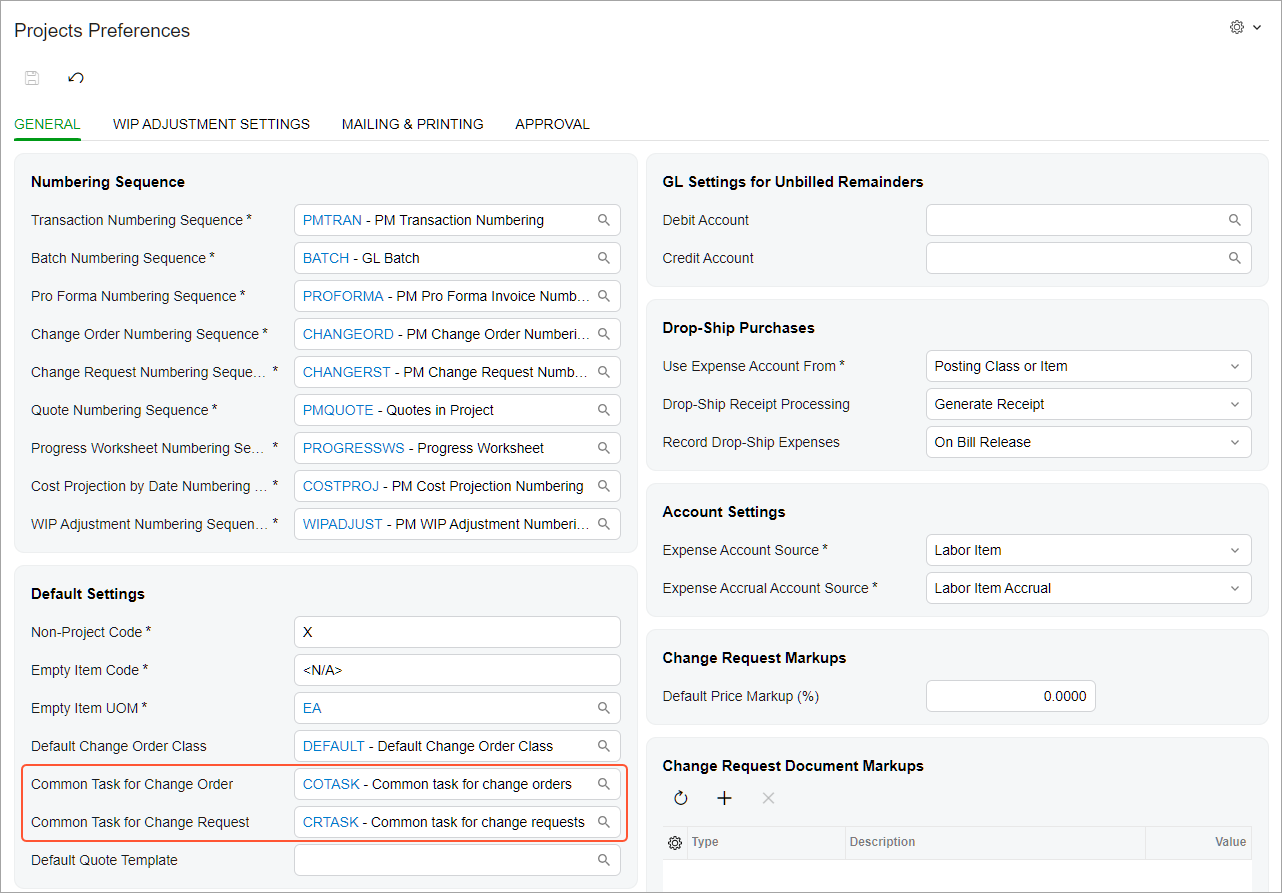
Project Task Generation for a Change Request
When a change request requires a dedicated project task to record costs or revenue separately, the system can automatically generate one when the change request is saved.
If a default common task for change requests is specified on the Projects Preferences (PM101000) form, the system does the following on the Change Requests (PM308500) form:
- Inserts this task in the new Common Task for Change Request box (Item 1 below). You can use this task, select another common task, or clear the box.
- Uses the common task as a template for the new project task that will be created. If the box is empty, the system will use the project's default task settings.
You enter the identifier to be used for the project task in the new Change Request Task Nbr. box (Item 2) so that the system can create the task. In a line on the Estimation tab, you can select it in the Project Task (Item 3) and Revenue Task columns.
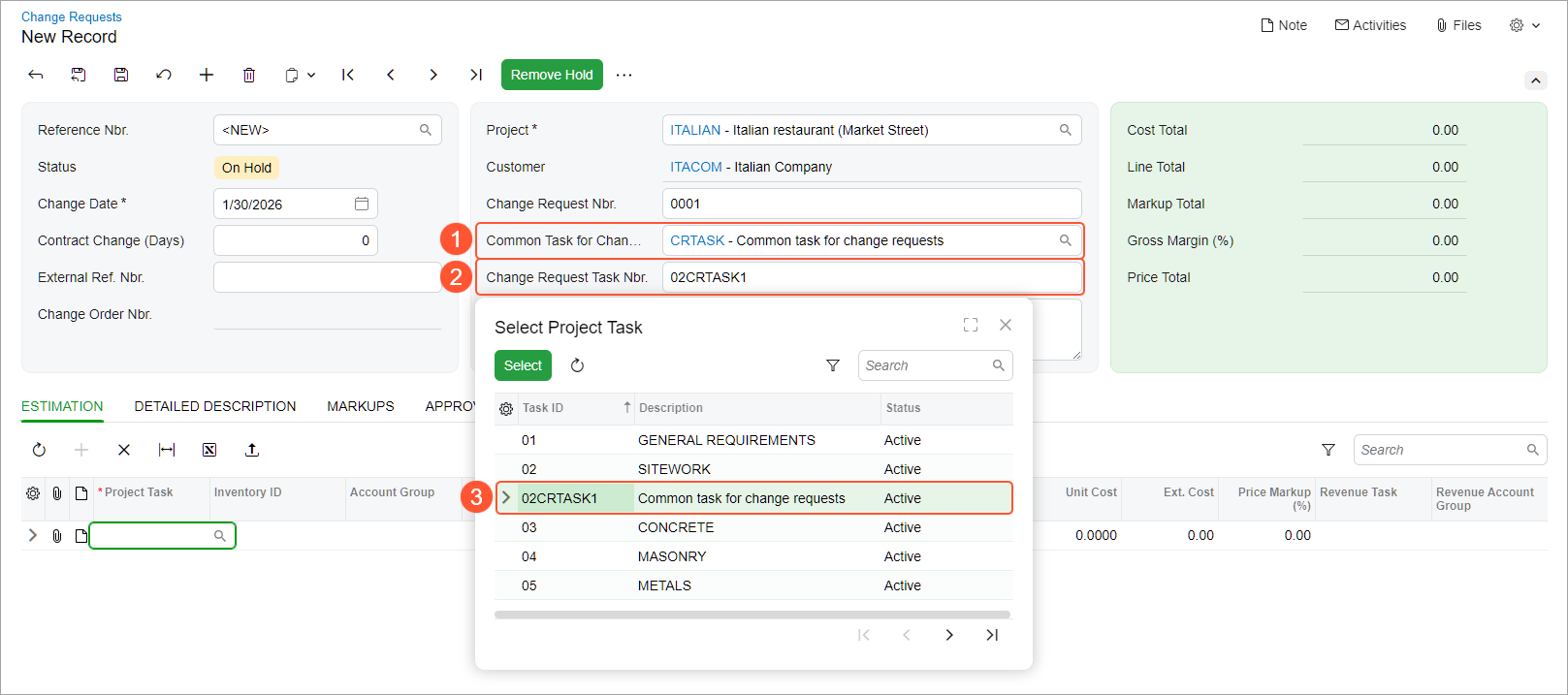
When you save the change request, the system creates the corresponding project task with the specified number and applies the selected settings. The Change Request Task Nbr. box becomes read-only.
Project Task Generation for a Change Order
As with change requests, when a change order requires a dedicated project task to record costs separately, the system can automatically generate one when the change order is saved.
If a default common task for change orders is specified on the Projects Preferences (PM101000) form, the system does the following on the Change Orders (PM308000) form:
- Inserts this task in the new Common Task for Change Order box (Item 1 below). You can use this task, select another common task, or clear the box.
- Uses the default task as a template for the new project task that will be created. If the box is empty, the system will use the project's default task settings.
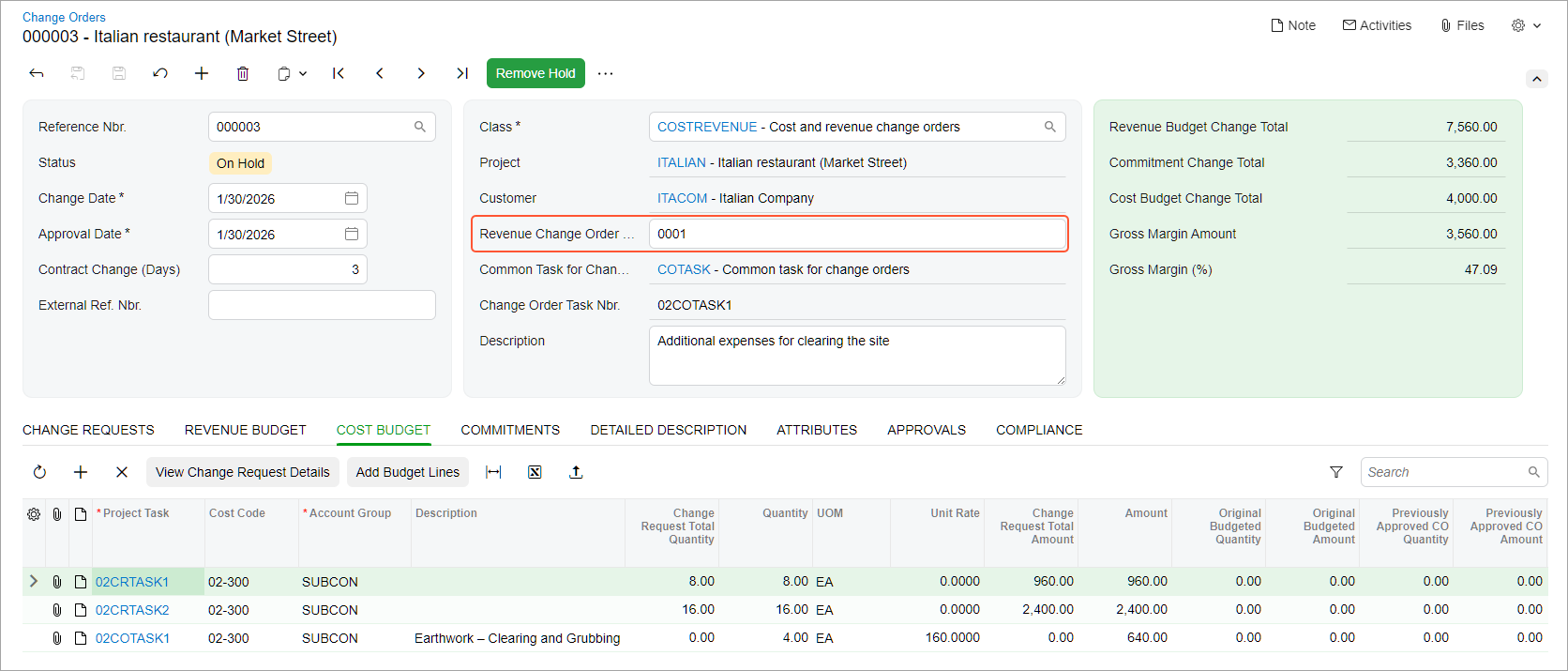
You enter the identifier to be used for the project task in the new Change Order Task Nbr. box (Item 2) so that the system can create the task. You can select this task number in the change order lines even before the project task record exists (Item 3).
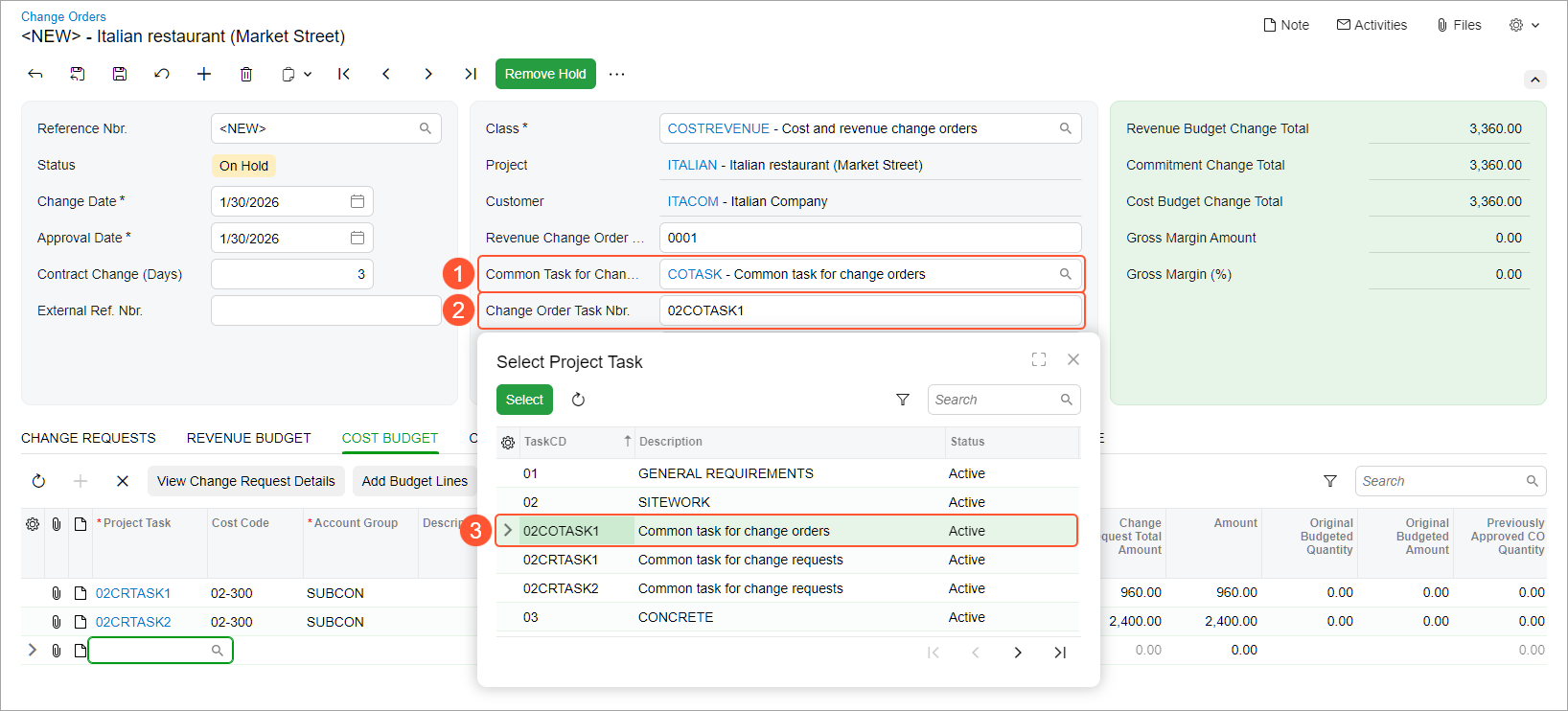
When you save the change order, the system creates the corresponding project task with the specified number and applies the selected settings. The Change Order Task Nbr. box becomes read-only.
Numbering of Each Project's Change Requests
Now you can easily see the sequential number of each change request within a project. For each change request within a project, the system inserts a sequential number, such as 0001, in the new Change Request Nbr. box on the Change Requests (PM308500) form. You can change this number to any other string of up to 15 characters, which can include numbers, letters, and symbols.
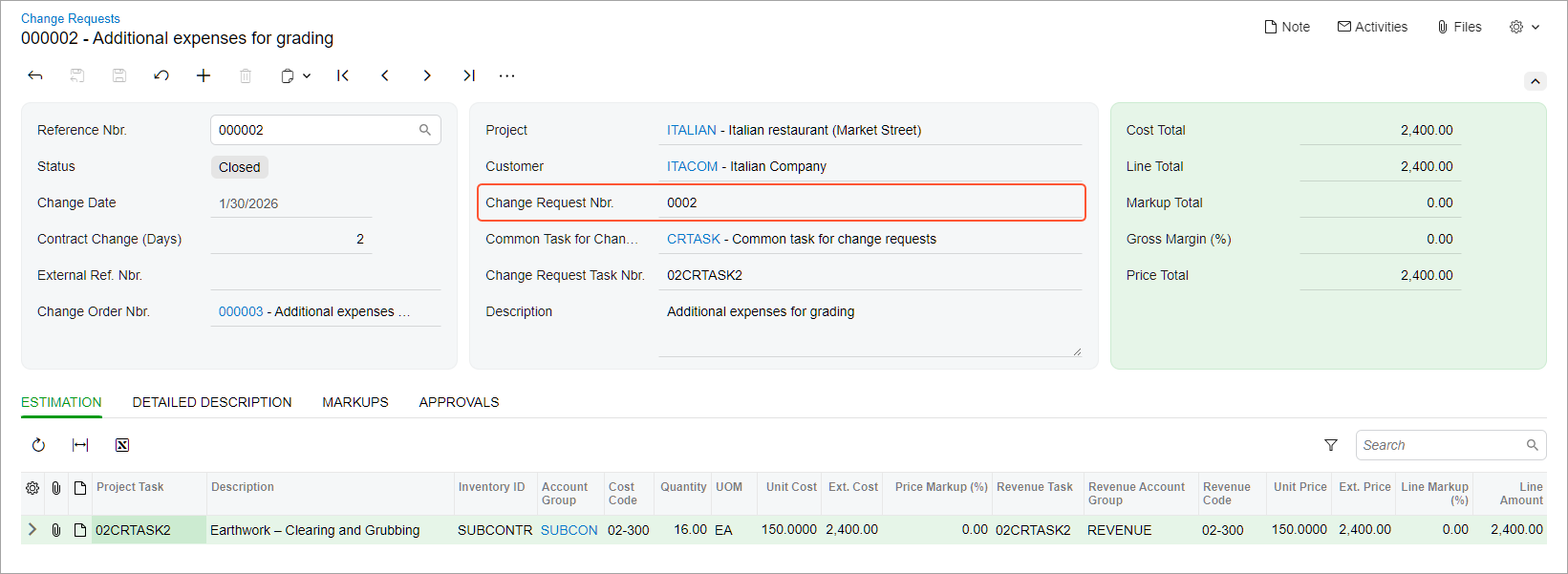
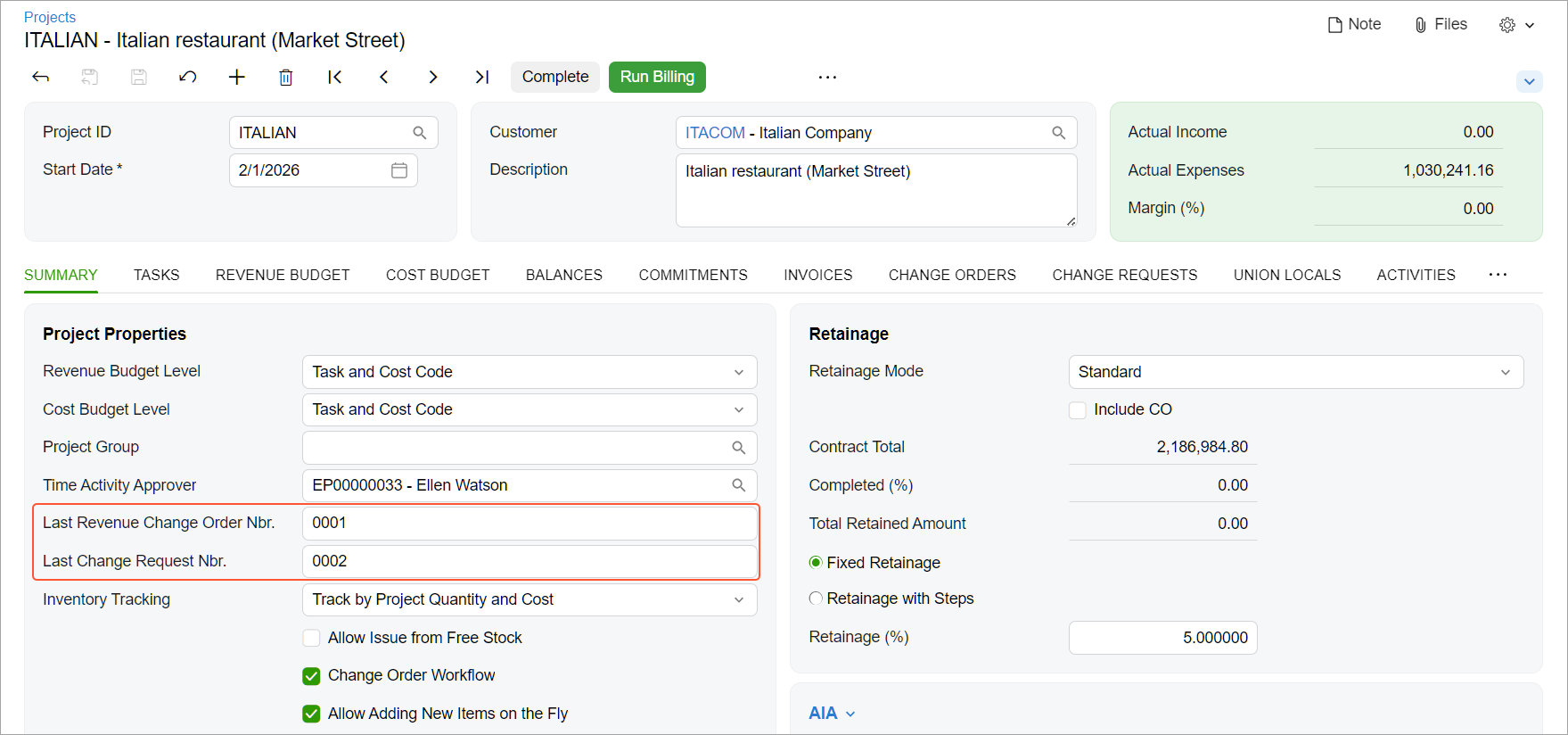
You can view a project’s latest change order and change request numbers on the Summary tab of the Projects (PM301000) form in the following boxes:
- Last Revenue Change Order Nbr. (the renamed box)
- Last Change Request Nbr. (the new box)
Finding a Project Task’s Source Change Order or Change Request
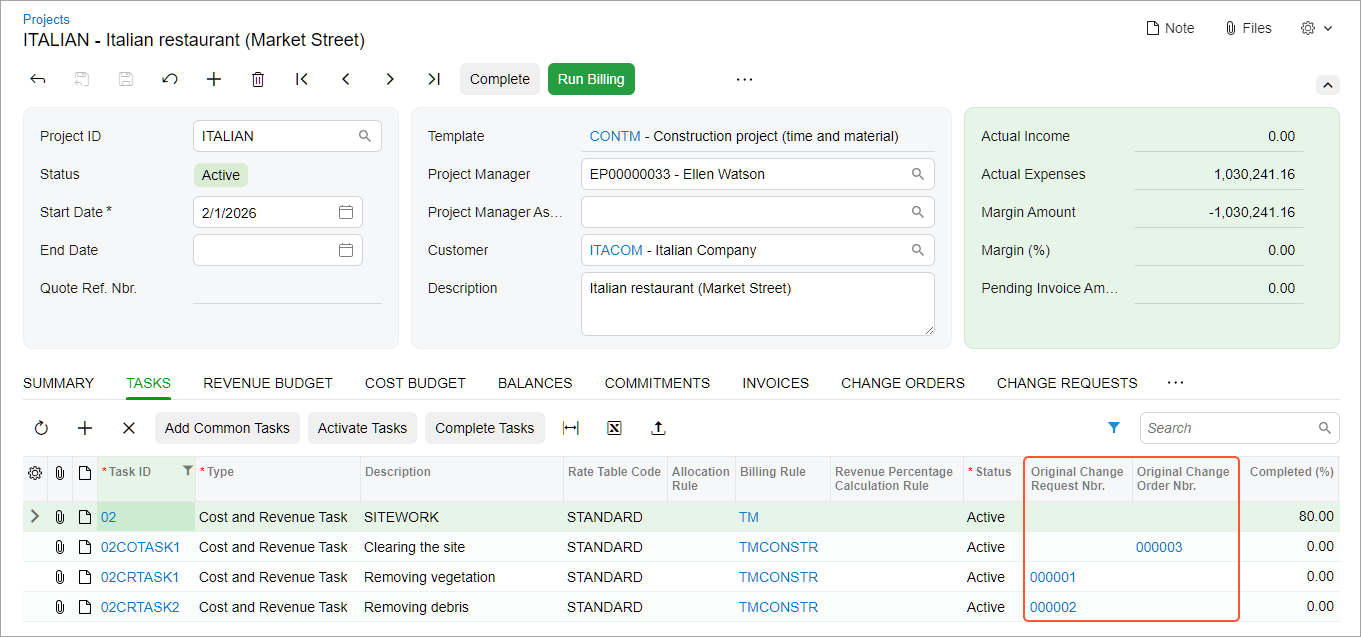
On the Tasks tab of the Projects (PM301000) form, you can quickly find and open the change document related to a project task in the following columns:
- Original Change Order Nbr.: The reference number of the change order, which is a link to it
- Original Change Request Nbr.: The reference number of the change request, which is a link to it
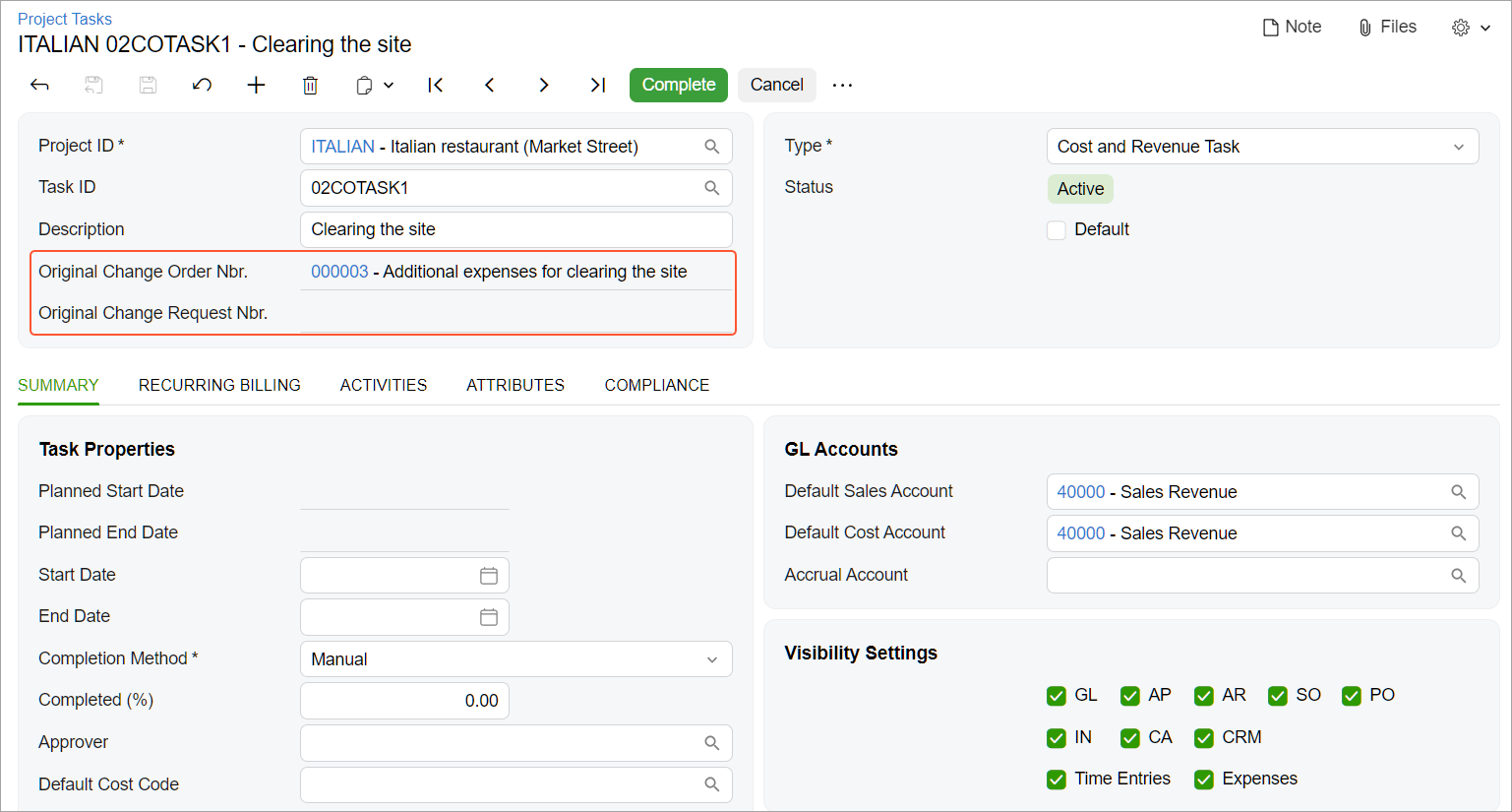
You can also quickly open the related change document directly from a project task. To do this, you click the link in one of these new boxes on the Project Tasks (PM301000) form:
- Original Change Order Nbr.
- Original Change Request Nbr.
Manually Consolidating Revenue Budget Lines in a Change Order
You may need to perform multiple occurrences of work that fall under a single task agreed on with the customer. To align a change order’s structure with the customer's expectations, you can now consolidate multiple change order lines on the Revenue Budget tab of the Change Orders (PM308000) form. To do this:
- Enter the number for the new task in the Change Order Task Nbr. box (Item 1 below).
- Click Consolidate Lines (Item 2) on the table toolbar of the Revenue Budget tab.
- In the dialog box that opens, click Consolidate (Item 3).
- Save your changes.
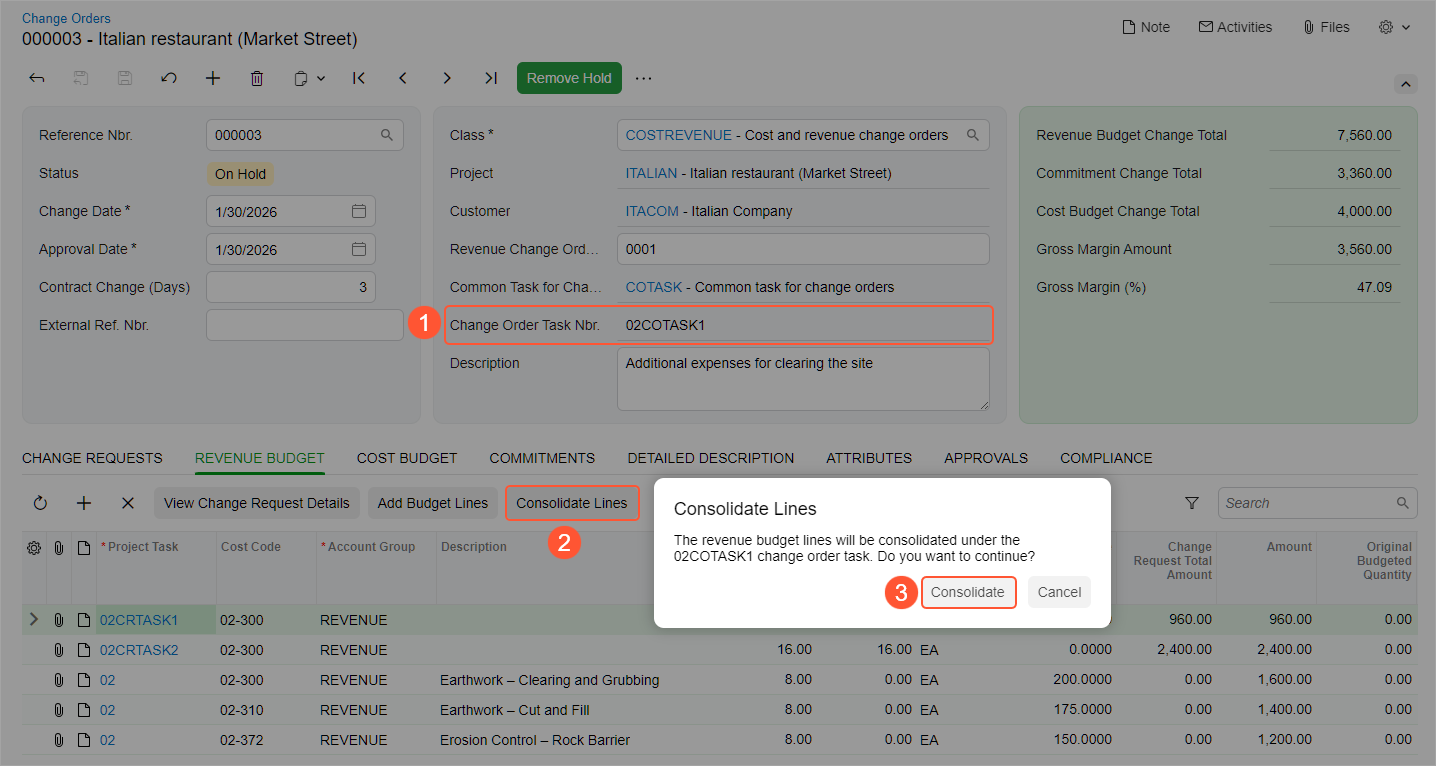
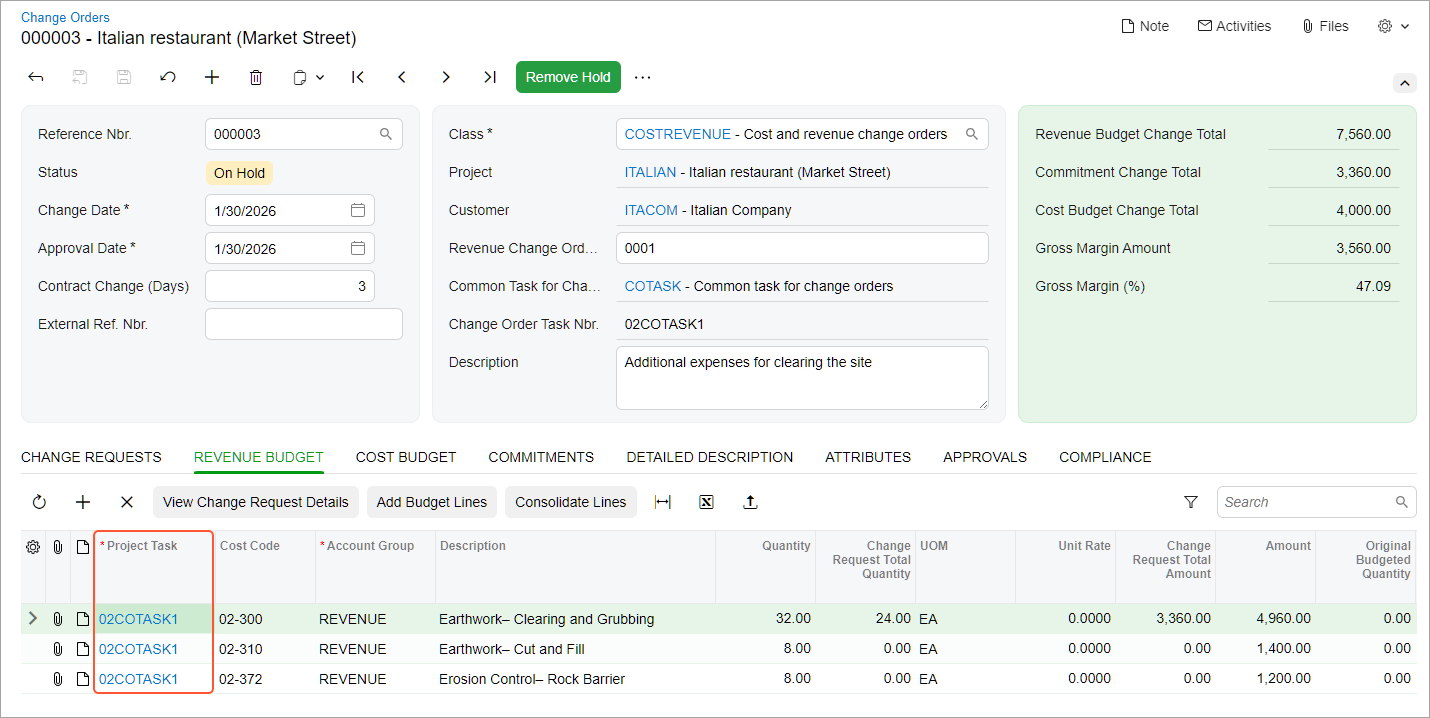
The system consolidates the lines by the project budget key—that is, by project, project task, account group, and optionally, inventory item, and cost code. It inserts the change order task specified in the Summary area as the project task of the consolidated lines on the Revenue Budget tab (see below).
Automatically Consolidating Revenue Budget Lines
In addition to manual consolidation, you can configure the system to automatically consolidate revenue budget lines from change requests in a project task when they’re added to a change order. To set this up, you select the new Consolidate Change Request Lines by Project Task check box on the Projects Preferences (PM101000) form.
Then when you add change requests to a change order on the Change Orders (PM308000) form, do the following:
- Enter the number for the new task in the Change Order Task Nbr. box.
- Add the change requests to the change order.
As a result, the system automatically consolidates the revenue budget lines by the project budget key.
Removal of a Change Request After Line Consolidation
If you remove a change request from a change order after its revenue budget lines have been consolidated, the system decreases the affected revenue budget line’s quantity and amount.
Suppose that a change request's revenue budget lines have been consolidated into a revenue budget line of the change order. Then you remove the change request by clicking Delete Row on the Change Requests tab of the Change Orders (PM308000) form.
In this case, the system decreases the affected revenue budget line’s quantity and amount by the values in the removed change request's estimation lines.
Selecting the Revenue Task on the Revenue Budget tab
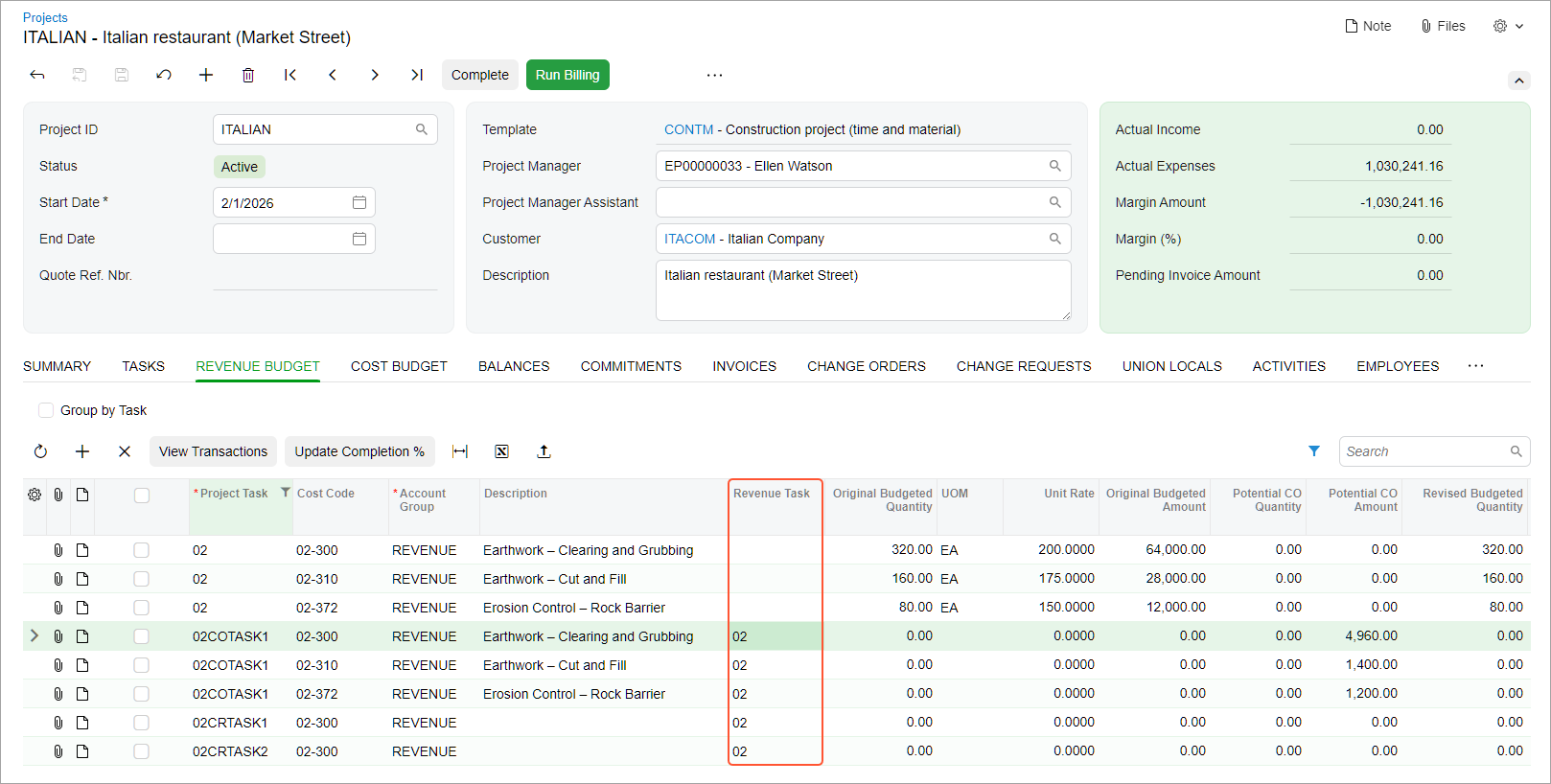
You can now associate a revenue budget line from a change order or change request with the original project task on the Projects (PM301000) form. To do this, you select a project task of the Revenue Task or Cost and Revenue Task type in the new Revenue Task column on the Revenue Budget tab, shown below. (By default, it's the rightmost column; the screenshot shows it in a more visible place.)
Thus, you can track which original revenue budget line of the project is updated by the selected revenue budget line of the related change order or change request. You might find this information useful for reporting.
Changing a Project Task Identifier
You may need to change a project task's identifier to make it more specific or correct a mistake. To do this, you click the new Change ID command on the More menu of the Project Tasks (PM301000) form. You can change the identifier of any project task, including the one added along with a new change order or change request.
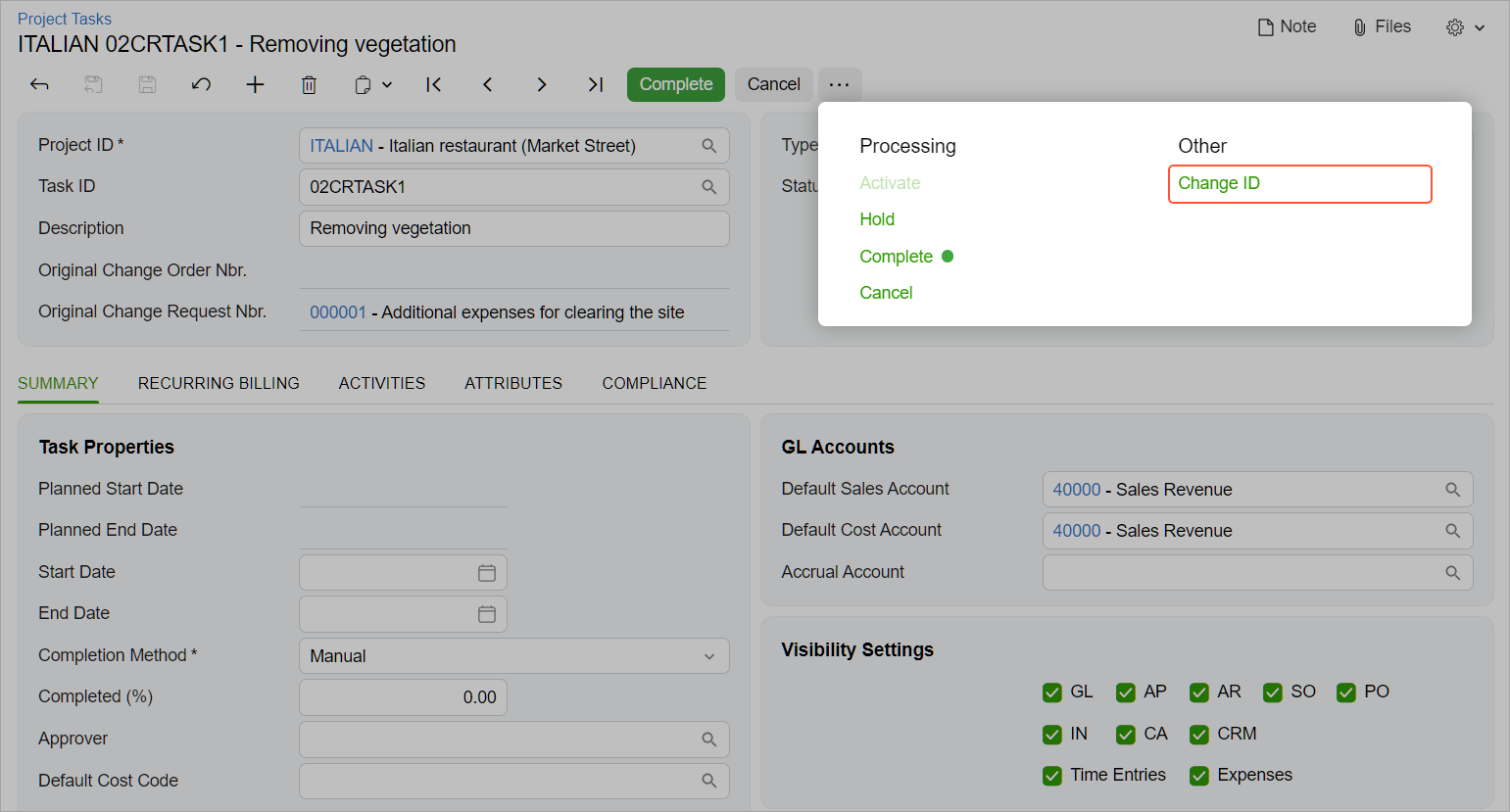
When you click the Change ID command, the Specify New ID dialog box opens, and you can enter a new identifier in the Task ID box and confirm the changes. The system will automatically update the task identifier in the project budget and in all documents where this task is used.
Selecting a Commitment Type in a Change Request
With the Create Commitment check box selected in an estimation line on the Change Requests (PM308500) form, you can now select one of the following in the new Commitment Type column, as shown below:
- Normal Purchase Order
- Project Drop-Ship
- Subcontract (if subcontracts are used in your system)
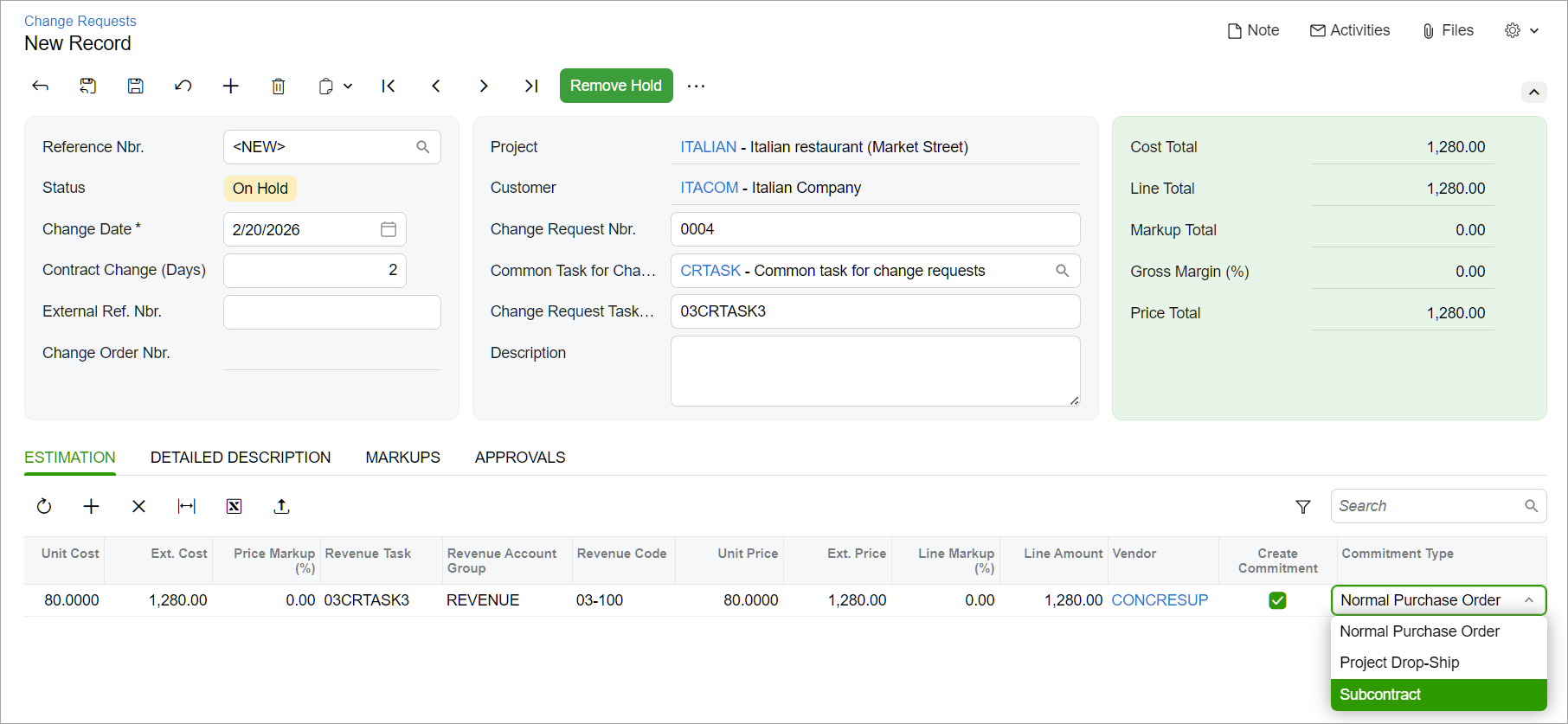
When you add this change request to a change order, the system adds a new commitment line with the selected commitment type on the Commitments tab of the Change Orders (PM308000) form. After the change order is released, the system creates a new commitment based on this line.
Capturing Changes in the Mobile App
With the updated functionality for projects in the MYOB Acumatica mobile app, you can capture and manage project-related changes directly from the project site and immediately generate related project tasks and commitments.
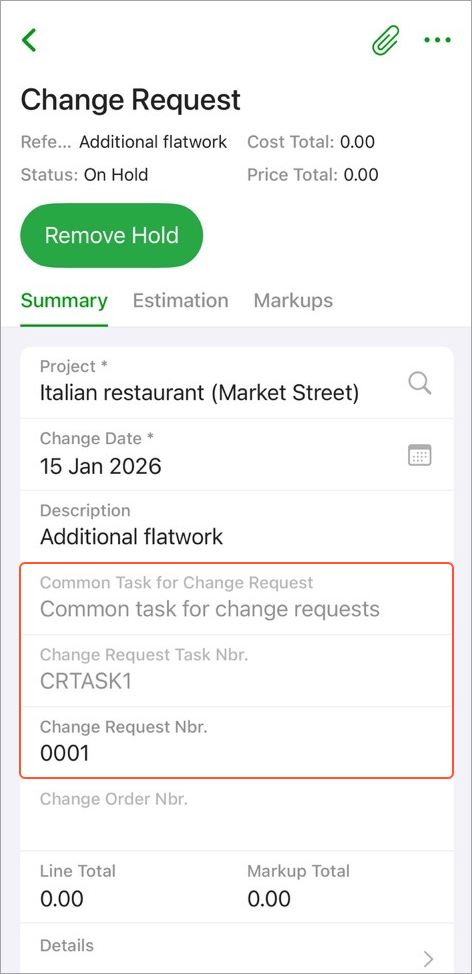
New Project Task for a Change Request: While adding a new change request on the Change Request screen, you can create a dedicated project task for it:
- Enter the task’s identifier in the new Change Request Task Nbr. field.
- Select this identifier on the Estimation tab.
- Save your changes. The project task is created.
If a common task is specified in the new Common Task for Change Request field, the system uses it as a template for the new project task. In the Change Request Nbr. field, you can also view or change the sequential number of the change request within the project.
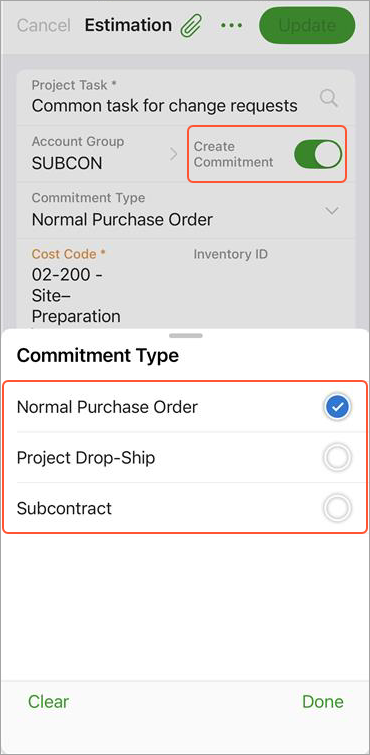
Commitment Type Selection: If you want to create a commitment for the change request right away, you can select the commitment type directly in the mobile app. By default, Normal Purchase Order is selected.
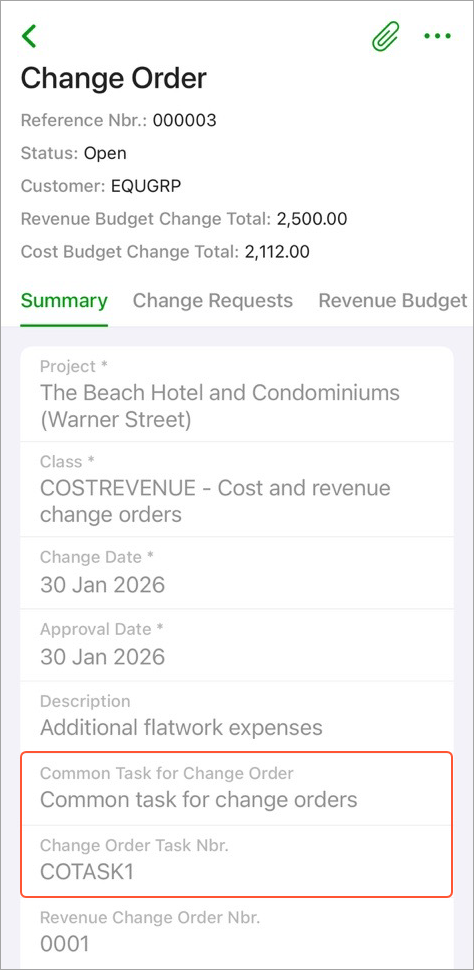
New Project Task for a Change Order: When you're adding a new change order in the field, you can create a dedicated project task. On the Change Order screen:
- Enter the identifier in the Change Order Task Nbr. field.
- Select this identifier in a change order line.
- Save the change order. The project task is created.
If a common task is specified in the new Common Task for Change Order field, the system uses it as a template for this new project task.
Line consolidation: If multiple scope changes should appear as a single line for the customer, you can consolidate revenue budget lines of a change order directly in the mobile app. To do this:
- Enter the number for the new task in the Change Order Task Nbr. field.
- Tap Consolidate Lines on the Revenue
Budget tab.
Figure 17. The Consolidate Lines command 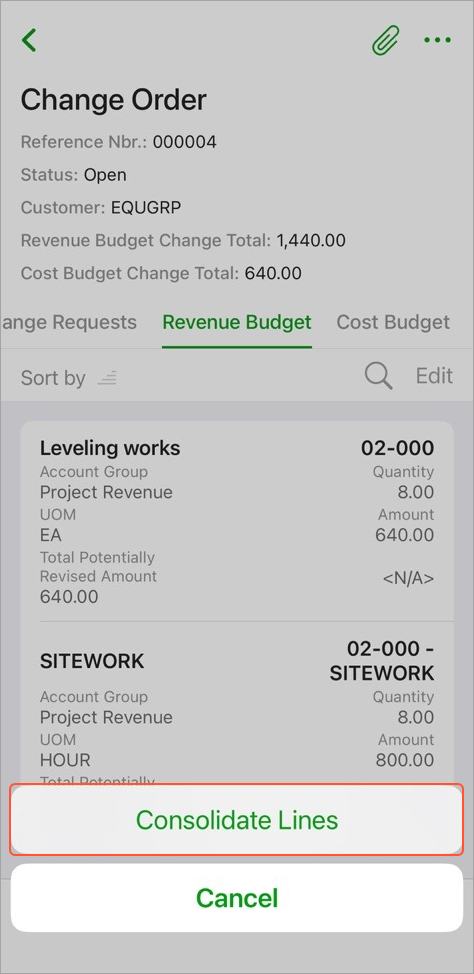
- In the dialog box, tap Consolidate.
Figure 18. The Consolidate Lines dialog box 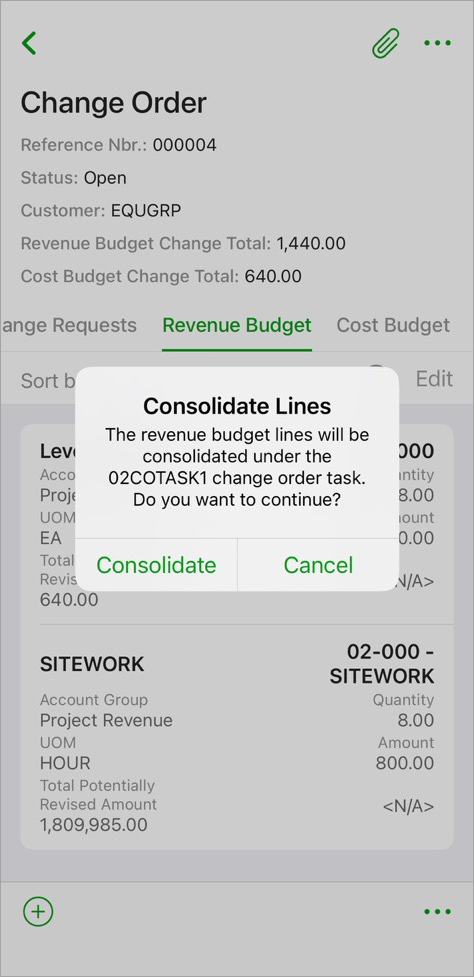
- Save the changes.
With these enhancements, project managers and field staff can record changes, generate related tasks, and initiate commitments immediately—helping keep project and budget data up to date in real time.
What You Can Do at a Glance
- Automatically create a dedicated project task while entering a change request or change order
- Use project-specific numbering for change requests for easy tracking
- Quickly locate and open a source change document for each task by clicking the link to the original change order or change request
- Consolidate revenue budget changes manually or automatically to record changes in ways that meet customer expectations
- Link a revenue budget line of a change order or change request to the original project budget line
- Change project task identifiers as needed
- Define the type of the commitment to be created at the time you submit a change request
Learn More
You might find these topics on change orders and change requests helpful: