
Platform: Greater Control Over Date-Time Values in Pivot Tables
MYOB Acumatica 2026.1.1 offers you greater control over how date-time values are grouped and analyzed in pivot tables. You can now group date-time data by more granular date parts—such as day of quarter, week of month, or month of quarter—and calculate cumulative totals directly in pivot tables.
These enhancements make it easier to perform time-based analysis directly in pivot tables without exporting data to external tools. You can analyze trends over time, compare periods (such as this quarter versus the previous one or the same quarter last year), and track progressive results, such as weekly sales growth or cumulative monthly revenue.
Flexible Date Part Configuration in Pivot Tables
When configuring a pivot view, you can now specify which part of a date-time field to display and use for grouping. You can select one of the following options for the Date Part property:
- Hour of Day
- Day of Week
- Day of Month
- Day of Quarter
- Day of Year
- Week of Month
- Week of Quarter
- Week of Year
- Month of Quarter
- Month of Year
- Quarter of Year
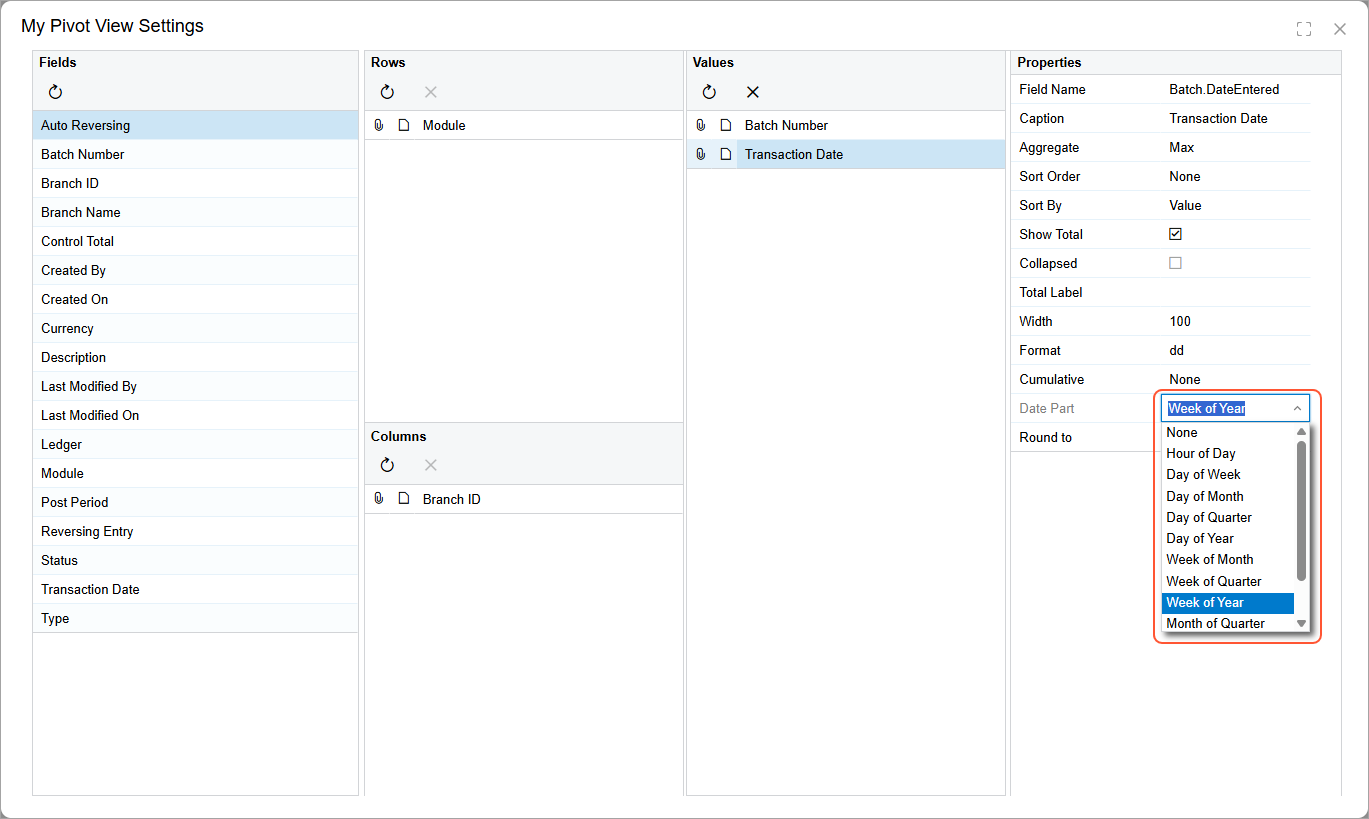
These options allow you to build more detailed time-based analysis directly in pivot tables. For example, you can:
-
Compare weekly sales within each month
-
Analyze seasonal patterns by month within a quarter
-
Evaluate year-over-year performance by month
Cumulative Roll-Ups
When configuring pivot views, you can now use the new Cumulative property to display aggregated values as cumulative roll-ups, which are running totals. You can select one of the following options for the property:
- None (default): Values are shown with no cumulative roll-up.
- By Rows: Values are accumulated along the row axis. That is, each row value is added to the previous row value within the same column.
- By Columns: Values are accumulated along the column axis, with each column value added to the previous column value within the same row.
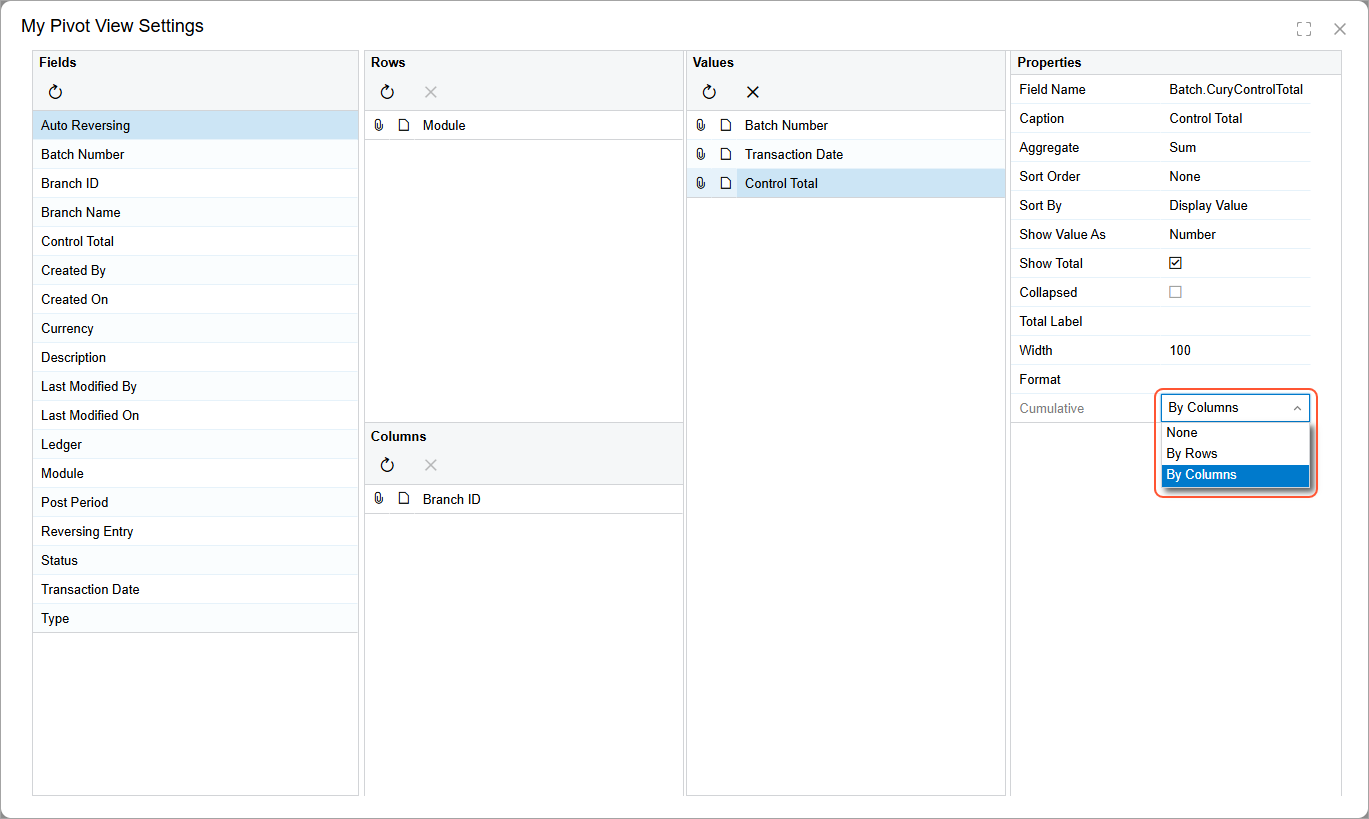
Cumulative roll-ups make it easier to track progressive results, such as revenue accumulating throughout a month or sales growth across a quarter.
Date Part Versus Round To
Because the Date Part and Round To properties both provide date-based grouping, it’s important to understand how they differ:
- Date Part extracts a specific component of the date—such as Month of Year or Week of Month—and groups records by that component. For example, Month of Year groups all January records together, regardless of their year.
- Round To adjusts the date to the start of the selected time interval (such as the first day of the month) and groups records by that adjusted date. If Month is selected, January 2025 and January 2026 remain separate groups because the year is still part of the grouping.
Use Date Part when you want to compare the same period across different years, and use Round To when you want to analyze results within a specific calendar timeline.