
Projects and Construction: Forecasting Costs by Quantity and Unit Rate
In MYOB Acumatica Construction Edition 2026.1.1, date-sensitive cost projections now support forecasting based on the quantity and unit rate. This lets you estimate project costs based on the remaining quantity of work along with the projected unit rate. You can still estimate project costs based on total amounts, as you could in earlier releases of MYOB Acumatica Construction Edition.
Let's explore how you set up and use this functionality.
Setting Up Calculation by Quantity and Unit Rate
To forecast a project’s costs by quantity and unit rate, you must set up this calculation for the project and, if applicable, for the relevant account groups.
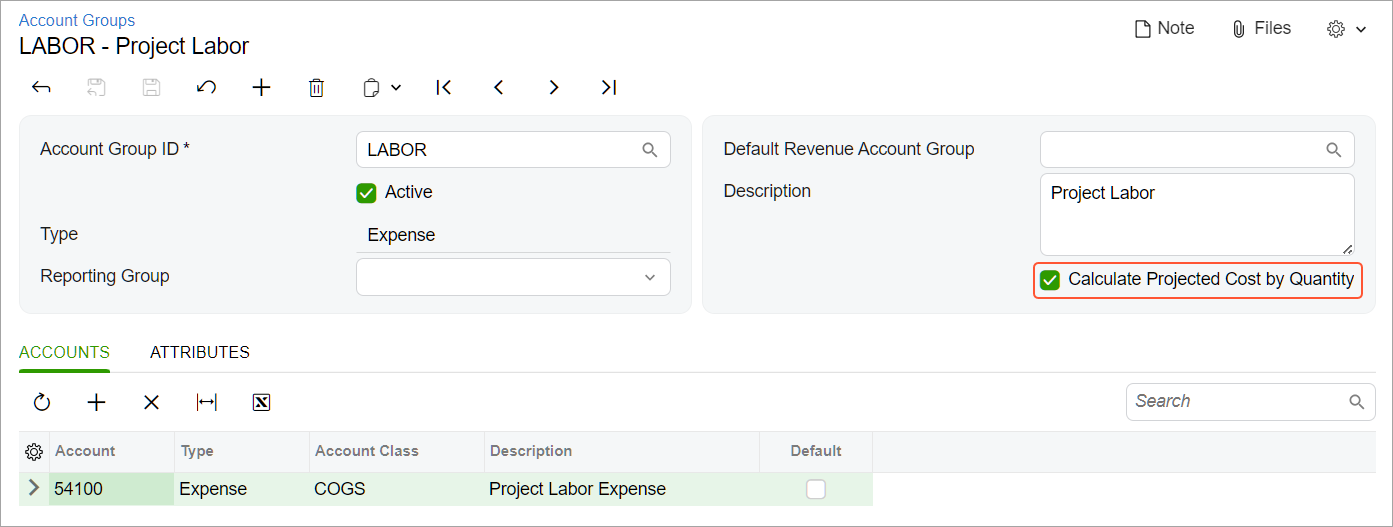
To configure this at the account group level, you select the new Calculate Projected Cost by Quantity check box on the Account Groups (PM201000) form. You do this for each expense account group used in the project's cost budget lines included in the cost projection.
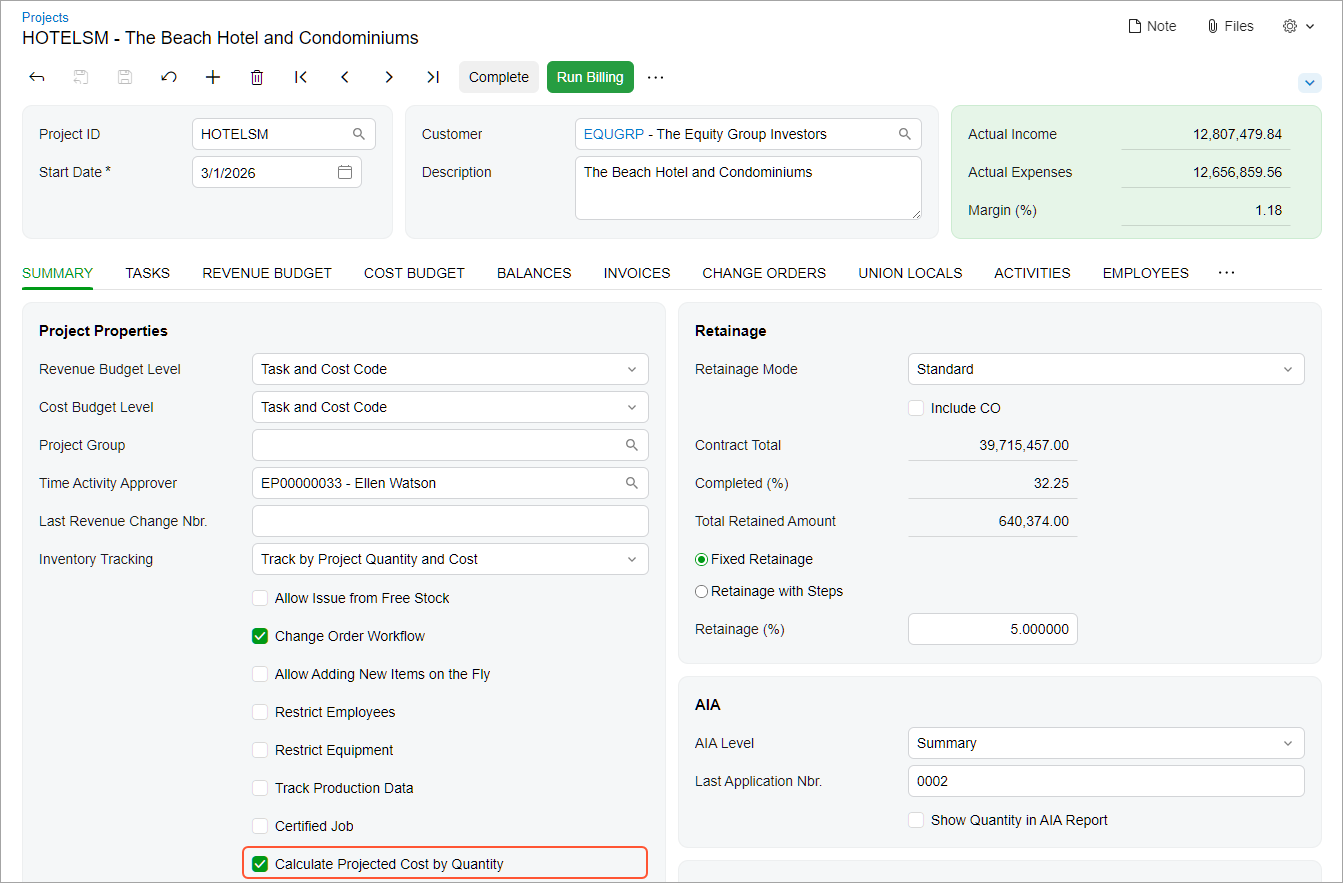
To forecast the project's costs by quantity, you also need to select the new Calculate Projected Cost by Quantity check box on the Projects (PM301000) form. You'll find this check box on the Summary tab, as shown below.
The Resulting Cost Projection Settings
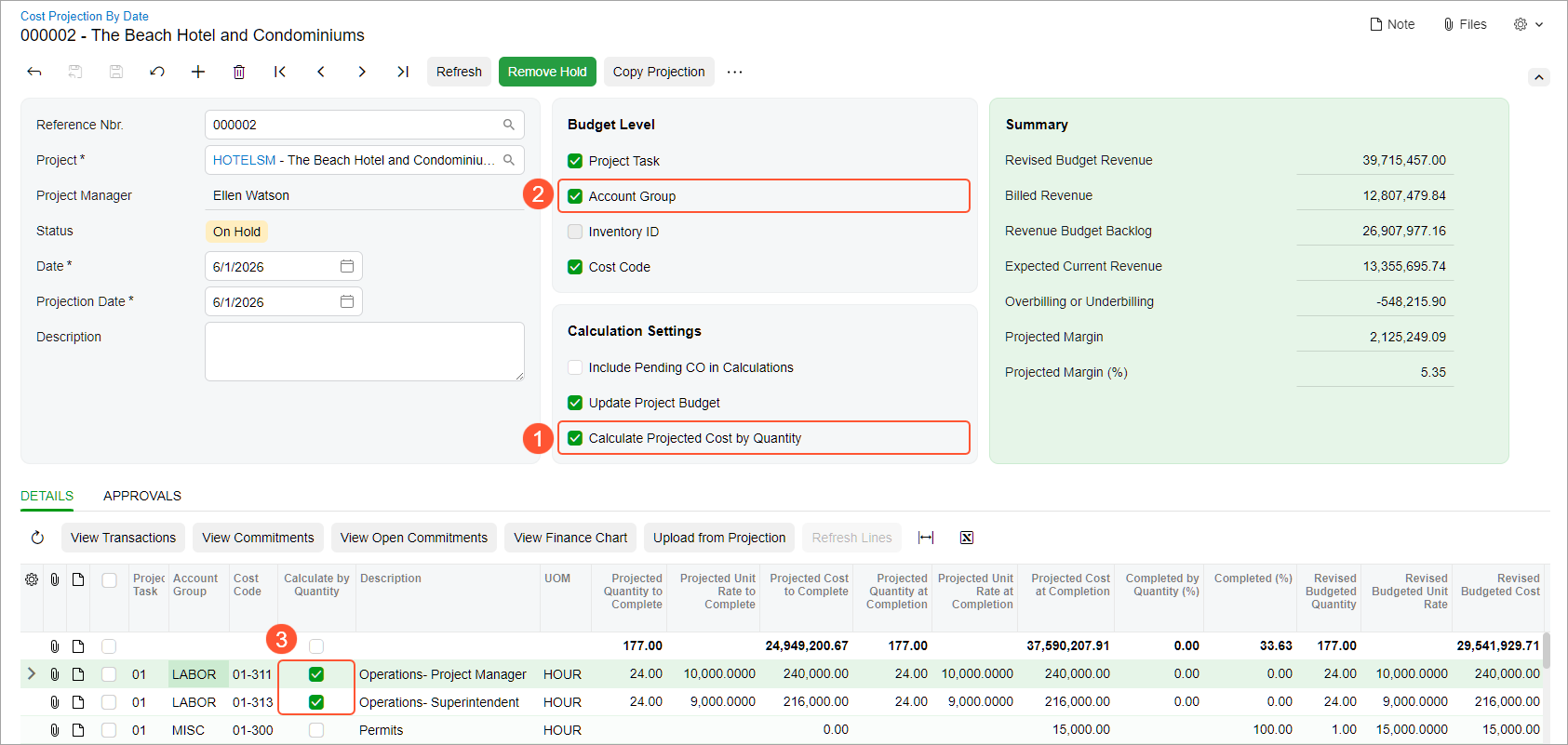
For a project configured to calculate projected costs by quantity, the system does the following for the project's cost projection on the Cost Projection by Date (PM305500) form:
- Selects the Calculate Projected Cost by Quantity check box in the Summary area (Item 1 below).
- On the Details tab, displays new columns showing values based on quantity and unit rate.
- If account groups are included in the cost projection’s budget level (Item 2), selects the Calculate by Quantity check box (Item 3) for each line with an account group that has the Calculate Projected Cost by Quantity check box selected.
Creating a Quantity-Based Cost Projection
You can create a fully quantity-based cost projection or a mixed one, with some lines projected by quantity and others by cost. To forecast project costs by quantity and unit rate on the Cost Projection by Date (PM305500) form, you need to:
- Ensure that the Calculate Projected Cost by Quantity check box in the Summary area is selected. If it's cleared, select it manually.
- Check that the Calculate by Quantity check box is selected for each line whose costs should be calculated by quantity and unit rate. If it's cleared, select it manually.
Calculations by Quantity and Unit Rate in a Cost Projection
With the Calculate Projected Cost by Quantity check box selected on the Cost Projection by Date (PM305500) form, you can forecast a project's costs to complete and cost at completion based on quantity and unit rate. For each line with the Calculate by Quantity check box selected, the system calculates:
- Projected costs and the cost completion percentage based on quantity, unit rate, and quantity completion percentage.
- Projected quantities and the quantity completion percentage.
- Various unit rates, such as the actual unit rate to date and the projected unit rate at completion. You can compare these rates with the projected unit rate you use for cost calculation.
Because the Calculate by Quantity check box is selected in the line, the Projected Cost to Complete and Projected Cost at Completion are read-only. If you need to adjust costs based on the quantity and unit rate, you can change the following column values, as shown below:
- Projected Quantity to Complete
- Projected Unit Rate to Complete
- Projected Quantity at Completion
- Completed by Quantity (%)
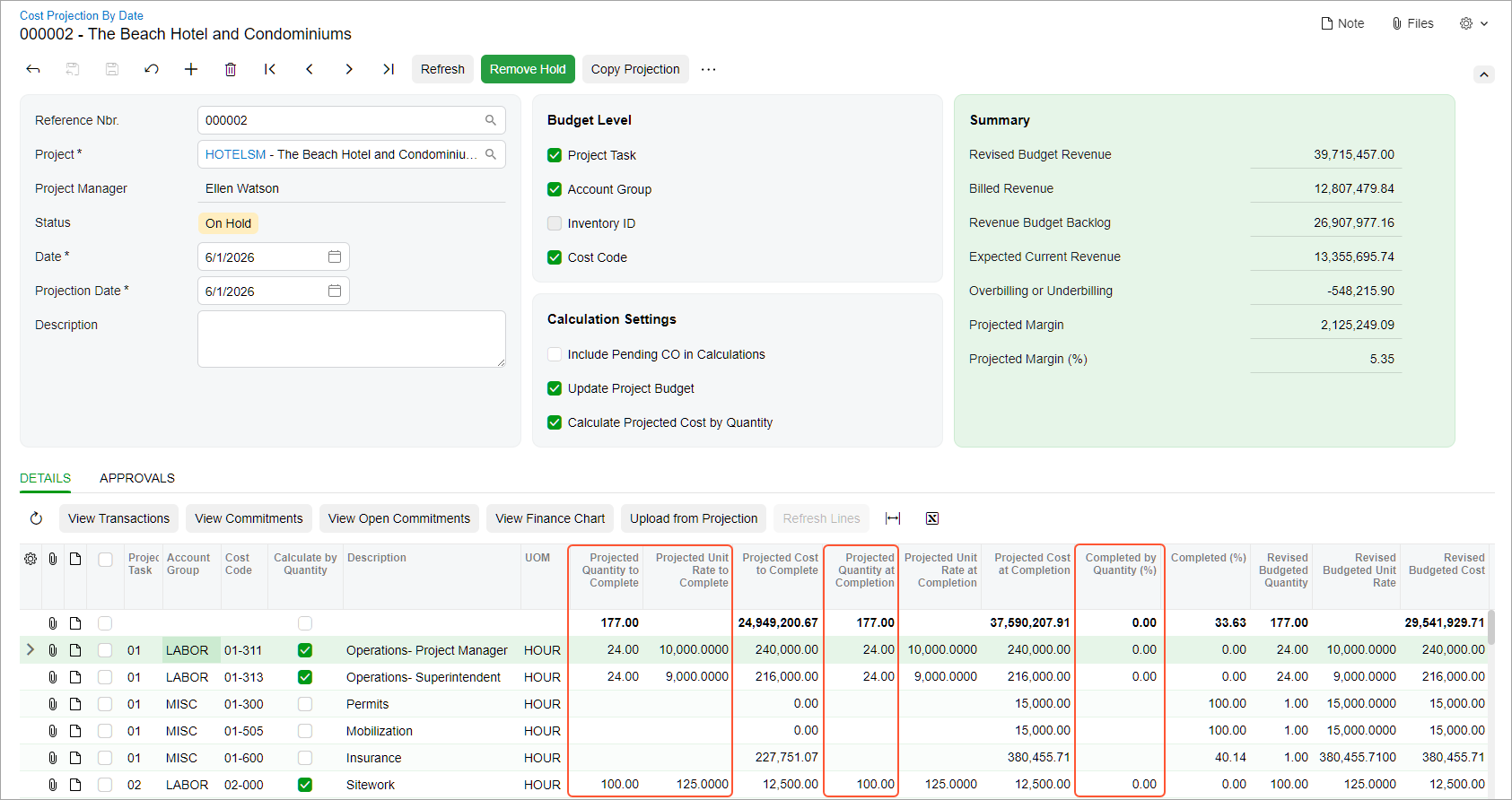
If you change any of these values, the projected values will be recalculated.
If the cost budget level of the project and cost projection are the same (for example, account group, cost code, and project task), you can see the description of the project's cost budget lines in the new Description column. Also, if a unit of measure is specified in a cost budget line, you can see it in the new UOM column. Otherwise, the UOM column is empty for the line.
Quantity and Unit Rate Buckets in Cost Projections
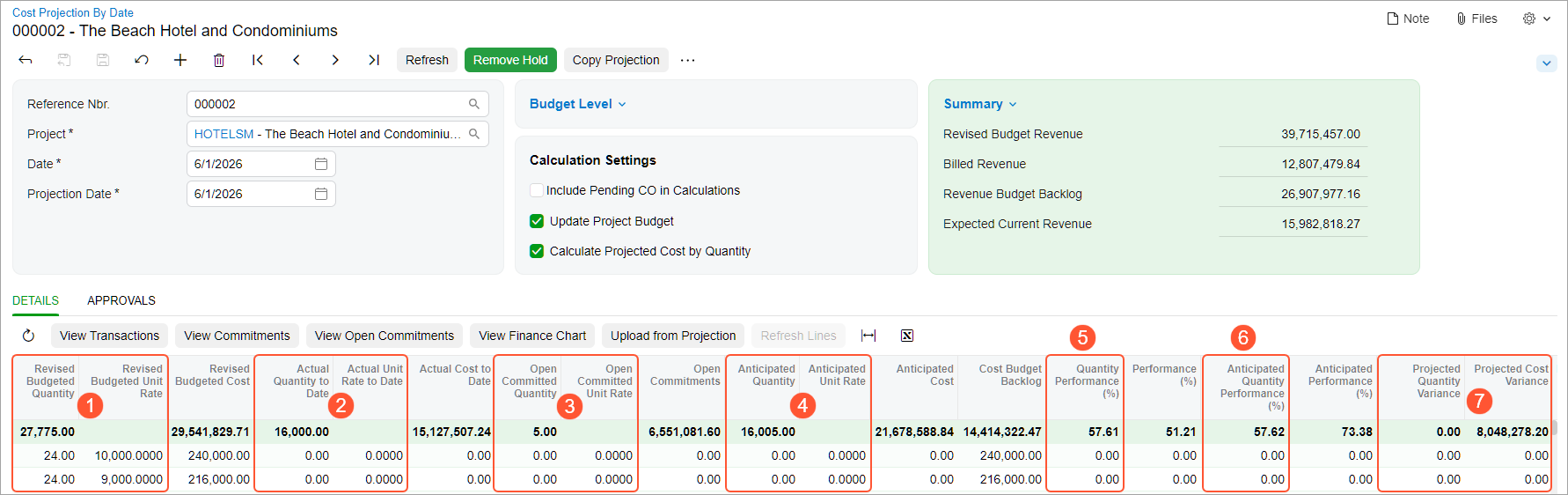
On the Cost Projection by Date (PM305500) form, you can review values related to quantity and unit rate in the new columns of the following buckets, shown below:
- Budgeted (Item 1 below): Revised Budgeted Quantity and Revised Budgeted Unit Rate
- Actual (Item 2): Actual Quantity to Date and Actual Unit Rate to Date
- Committed (Item 3): Open Committed Quantity and Open Committed Amount
- Potential: Pending CO Quantity, Pending CO Unit
Rate (if you use change orders in your system)Tip:If you want calculations to include unreleased change order amounts related to the project's cost budget lines, select the Include Pending CO in Calculations check box in the Summary area. These amounts will be added to the anticipated values.
Additionally, you can view:
- The anticipated quantity and unit rate based on existing commitments—purchase orders, subcontracts, and project drop-ships: The Anticipated Quantity and Anticipated Unit Rate columns (Item 4)
- The quantity-related performance percentage: The Quantity Performance (%), Anticipated Quantity Performance (%) columns (Items 5 and 6)
- The variance amounts: The Projected Quantity Variance and Projected Cost Variance columns (Item 7)
Forecasting Quantity-Based Costs Using Cost Projection: Example
Picture this: Your company is a contractor building a hotel. You track material costs by amount and subcontractor work by hours for your project. The subcontractor's progress is calculated by quantity (hours worked).
To use the quantity-based forecasting for the project's costs, you have selected the Calculate Projected Cost by Quantity check box for the SUBCON account group on the Account Groups (PM201000) form. Because you track the subcontractor's work hours by quantity, you've selected the Calculate Projected Cost by Quantity check box for the project on the Projects (PM301000) form.
The project started in March 2026. The concrete works were partially done, but at the beginning of June, you had to hire a new subcontractor to complete them. The unit rate of their labor costs has slightly increased:
- From $160.00 to $162.00 per hour for Cast-In-Place (CIP) slab installation
- From $86.50 to $87.00 per hour for rough carpentry
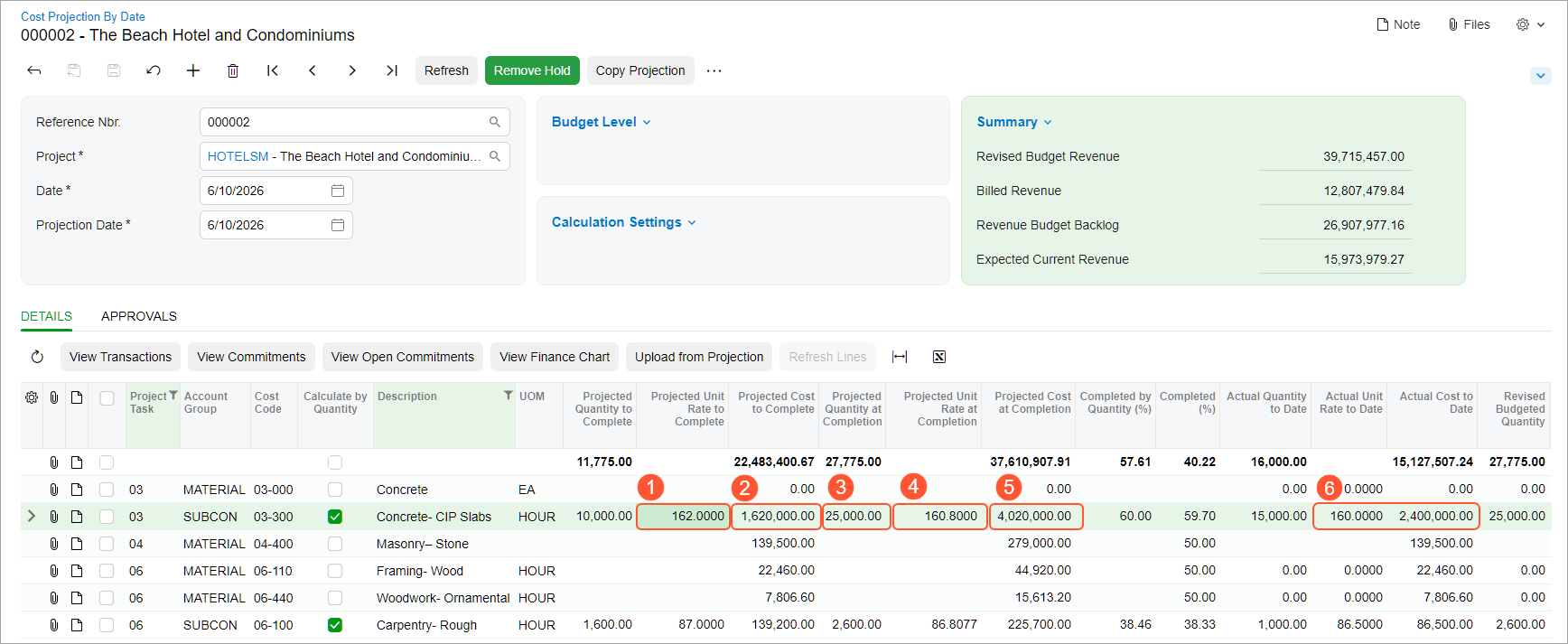
You need to estimate how these expenses will affect the project cost budget. On June 10, you've created a cost projection on the Cost Projection by Date (PM305500) form. In the Projected Unit Rate to Complete column (Item 1 below), you've entered the current unit rates for the labor. Now you can review the projected values:
- The projected cost to complete has increased by $20,000 (Item 2).
- The projected quantity at completion remains the same because no additional hours are needed (Item 3).
- The unit rate at completion for all the hours has slightly increased (Item 4).
- The projected cost at completion has increased by $20,000 (Item 5).
- The actual unit rate and actual cost to date are available for your reference (Item 6).
Now that you've estimated the costs, you're ready to release the cost projection to get the most precise cost information in your project budget.
Key Capabilities
- Quantity-based forecasting: Calculate projected costs for work by remaining quantity and projected unit rate.
- Combined cost projections: Include both amount-based and quantity-based lines in the same cost projection.
- Project budget insight: Review budgeted, actual, committed, and potential quantities along with quantity performance and variance.
Learn More
Need more details about cost projections? See Project Cost Projections: Date-Sensitive Cost Projections.