
Finance: Enhanced Foreign Currency Payment Experience
In MYOB Acumatica 2026.1.1, we’ve made managing multicurrency payments easier and more intuitive. You can now enter the amount paid directly in the document currency when creating AR or AP payments or reconciling bank transactions—no need to manually calculate the cross rate based on application amounts.
This update eliminates a common pain point: Bank statements rarely include cross rates, often forcing users to perform time-consuming manual conversions. It also reduces the risk of small rounding gain or loss discrepancies that can occur when exchange rates are limited to a set number of decimals.
Version 2026.1.1 also introduces greater visibility and flexibility in managing exchange rates. You can now:
- Review the exact cross rate used for payments received from customers or made to vendors
- Enter either a direct rate or a reciprocal rate when applying payments to invoices in different currencies
With these enhancements, MYOB Acumatica 2026.1.1 empowers your finance team to process international payments faster, more accurately, and with greater confidence.
Read on to learn how to create documents that specify the amount paid in the document currency and how to create payments based on bank statements.
Key Capabilities
- Enter payments in the document currency: Record payments received in foreign currencies—even when using a local currency bank account—by specifying the amount paid directly in the invoice currency. The system calculates the cross rate and bank account currency for greater precision and efficiency.
- Process foreign payments faster: When settling foreign currency bills or invoices from a local currency account, enter the amount paid in the document’s original currency. This eliminates extra calculations and ensures that payments are accurately applied across currencies.
- Reconcile bank statements accurately: While creating AR or AP payments based on bank statements, specify the amount paid in the invoice or bill currency for full alignment between bank transactions and financial records—no manual conversions required.
Creating an AR Payment
When you create an AR payment on the Payments and Applications (AR302000) form, you can now enter the amount paid, cash discount taken, and write-off amount in the document currency.
Example
You’ve released an invoice for EUR 1000 (USD 1134.76) and received a payment of USD 1140 for it. You need to create a payment and apply it to fully pay the invoice as follows:
- On the Payments and Applications form, create a payment of USD 1140.
- On the Documents to Apply tab, add the EUR 1000 invoice, as shown
below.
The system automatically inserts the invoice amount in USD in the Amount Paid (USD) column. If you apply the invoice with this amount paid (USD 1134.76), the payment will still have an available balance of USD 5.24.
Figure 1. A payment with the invoice applied to it 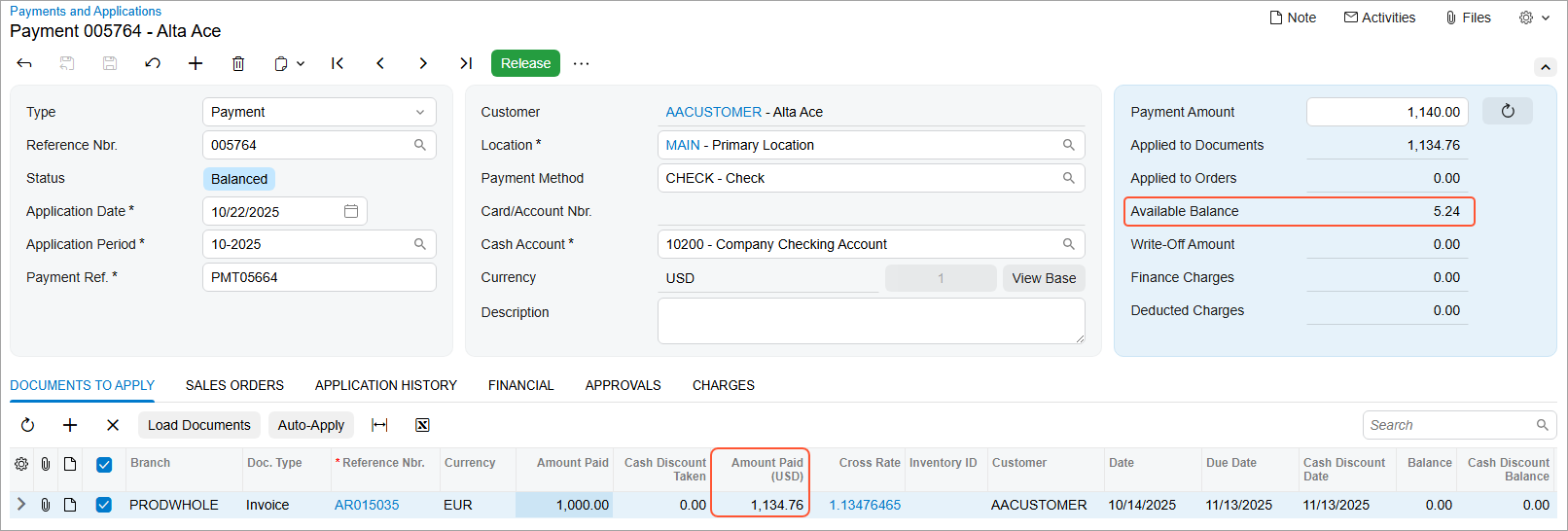
- In the Amount Paid (USD) column, enter 1140.
- Click Release to release the payment and the application.
After release, the payment is closed because it has been fully applied to the invoice, as shown below.
Figure 2. The released AR payment 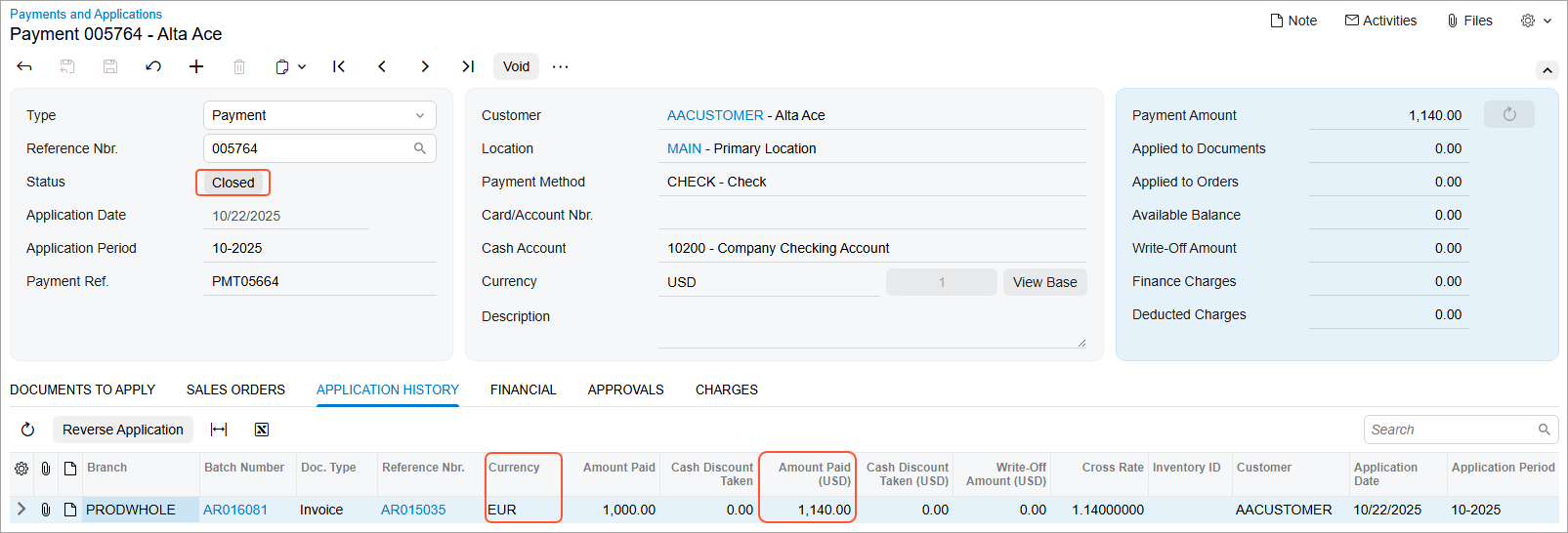
On the Application History tab (shown above), you can see the currency of the applied invoice in the Currency column. The Amount Paid (USD) column displays the invoice's amount in the payment currency, which is USD.
Creating an AP Payment
When you create an AP payment on the Checks and Payments (AP302000) form, you can enter the amount paid, cash discount taken, and withholding tax amounts in the document currency.
Example
You’ve released a bill for EUR 1000 (USD 1134.76) and later made a payment of USD 1136. You need to apply this payment to fully pay the bill as follows:
- On the Checks and Payments form, create a payment of USD 1136.
- On the Documents to Apply tab, add the EUR 1000 bill, as shown
below.
The system inserts the bill amount in USD in the Amount Paid (USD) column. If you apply the bill with this amount paid (USD 1134.76), the payment will still have an unapplied balance of USD 1.24.
Figure 3. A payment with the bill applied to it 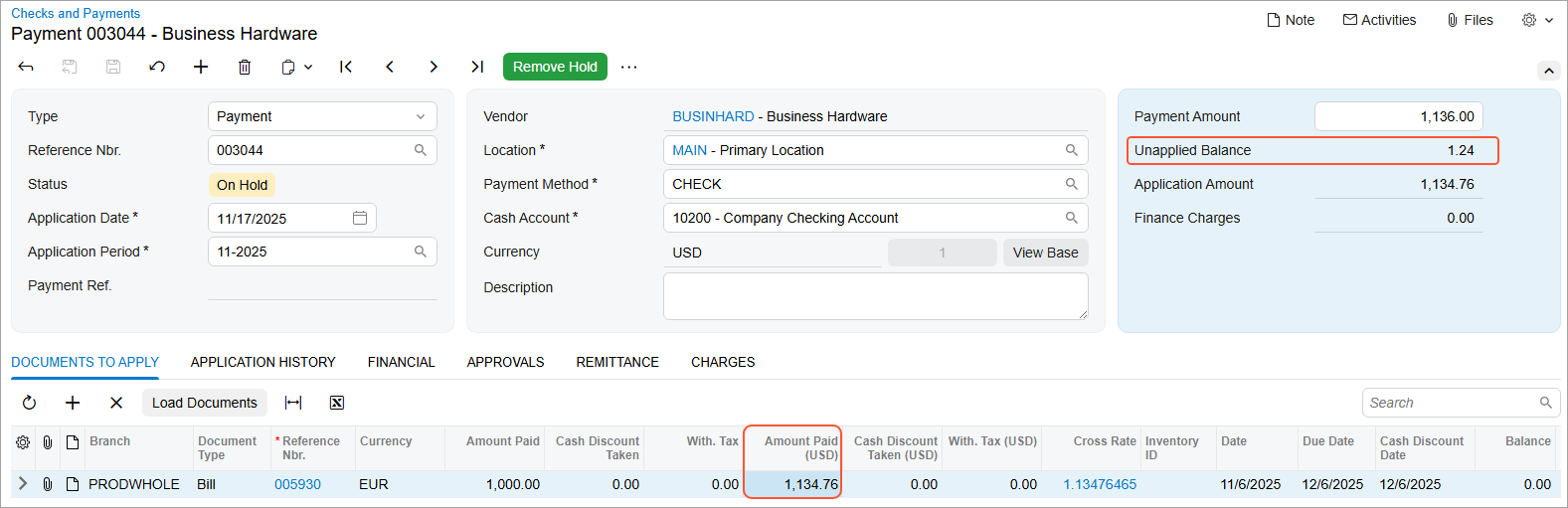
- In the Amount Paid (USD) column, enter 1136.
- Click Remove Hold.
- Click Print/Process to continue processing the payment. Then
click Process on the Release Payments
(AP505200) form to release the payment.
After release, the payment is closed because it has been fully applied to the bill, as shown below on the Checks and Payments form.
Figure 4. The released AP payment 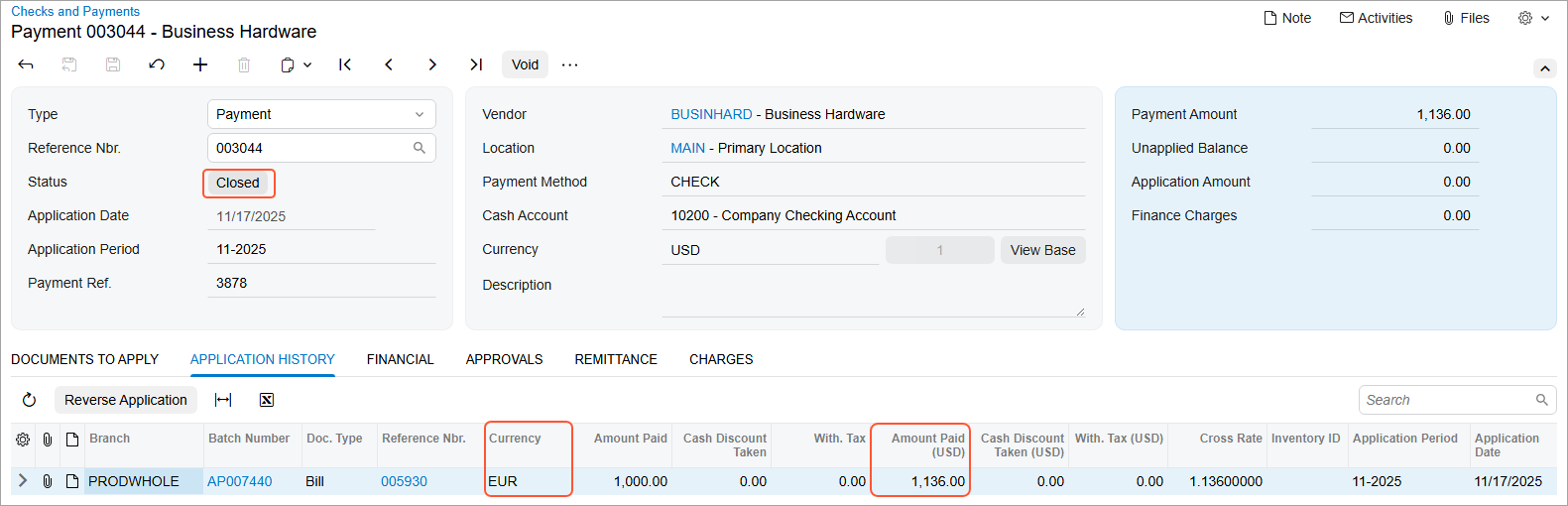
On the Application History tab (shown above), you can see the currency of the applied bill in the Currency column. The Amount Paid (USD) column shows the bill's amount in the payment currency, which is USD.
Processing a Bank Statement
When you create a payment based on a bank statement for a bill or invoice in a foreign currency, you can specify the amount paid in the document currency. If you’re creating a payment in a foreign currency from a bank account in the base currency, you can enter the direct or reciprocal cross rate from the bank statement.
Example
A bank statement for November 2025 contains a receipt for EUR 1000. It was received to a USD bank account at an exchange rate of 1 euro to 1.07 US dollars, resulting in a transaction amount of USD 1070. You need to create an AR payment based on this transaction as follows:
- On the Process Bank Transactions (CA306000) form, select the foreign currency payment in the left pane (see Item 1 below).
- On the Create Payment tab, select the Create check box (Item 2). In the Module box, select AR (Item 3).
- In the Business Account box, select the customer (Item 4) and
click Load Documents.
Below you can see the bank transaction with the settings of the AR payment that will be created.
Figure 5. The bank transaction and the AR payment settings 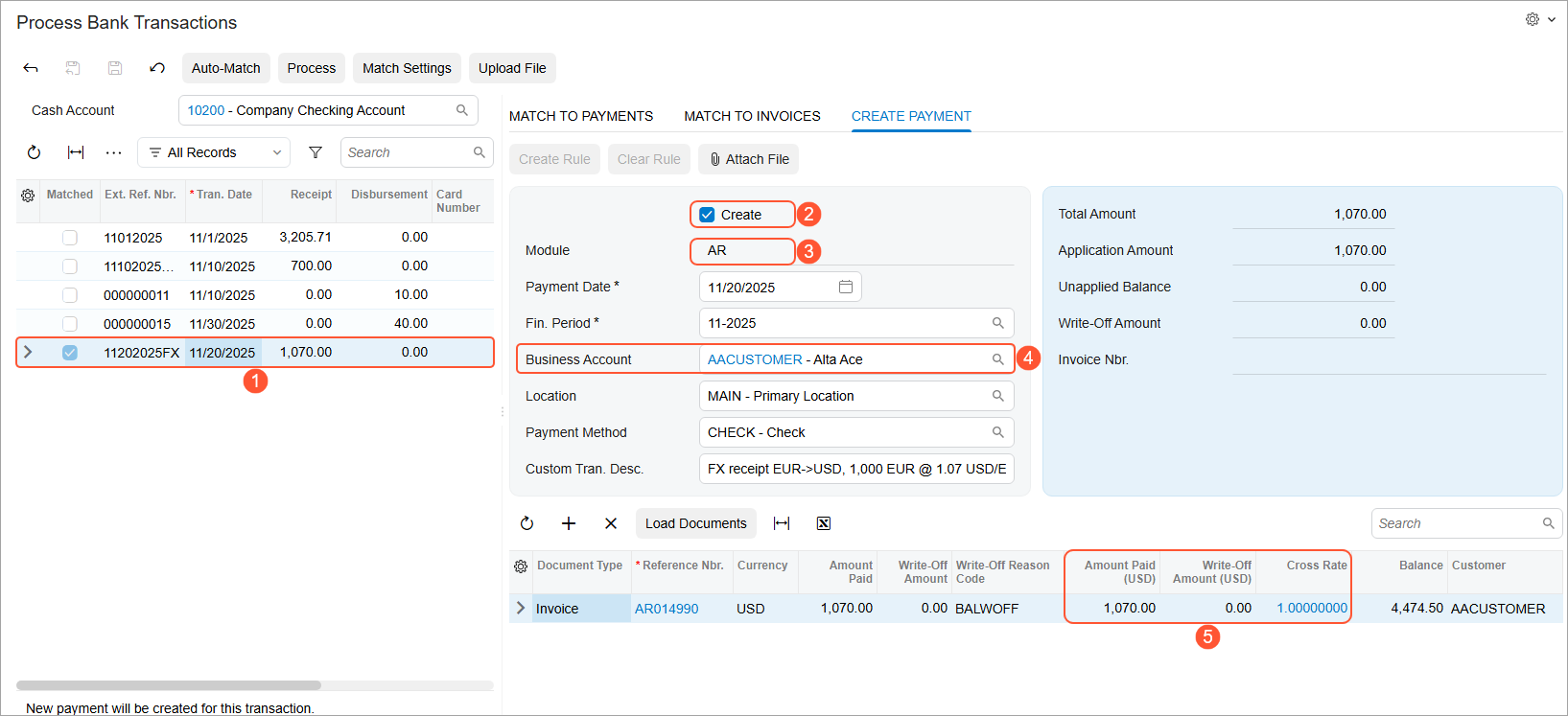
- On the form toolbar, click Process to create the payment.
On the Process Bank Transactions form, the table on the Create Payment tab shows the invoice to which the created payment will be applied. The table now contains these new columns:
- Amount Paid (<Payment_currency>): The amount in the payment currency. In the example above, the payment currency is USD.
- Write-Off Amount (<Payment_currency>): The amount of the write-off in the payment currency. In the example above, the payment currency is USD.
- Cross Rate: The cross rate at which the Amount and Amount Paid (<Payment_currency>) columns are calculated.
Below you can see the created AR payment and its application to a customer's invoice.
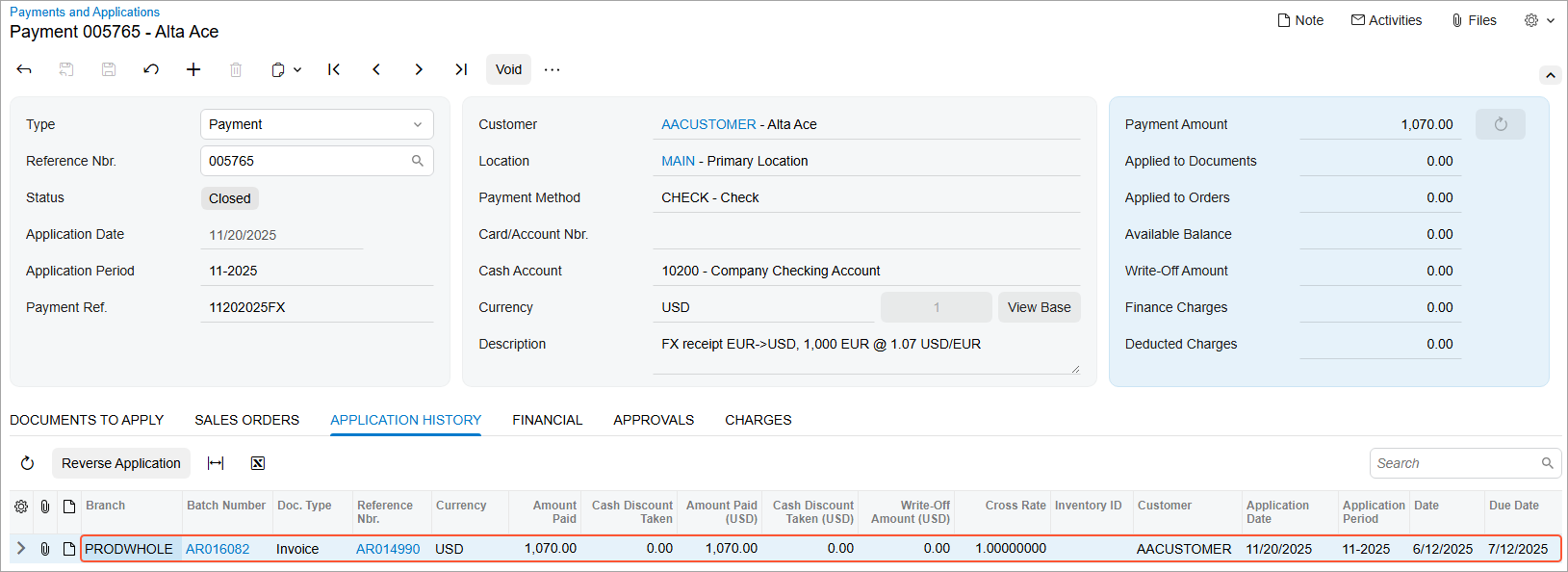
Selecting the Cross Rate
On the Payments and Applications (AR302000), Checks and Payments (AP302000), and Process Bank Transactions (CA306000) forms, the value in the Cross Rate column is now a link.
If you click this link, the system opens the Cross Rate Selection dialog box:
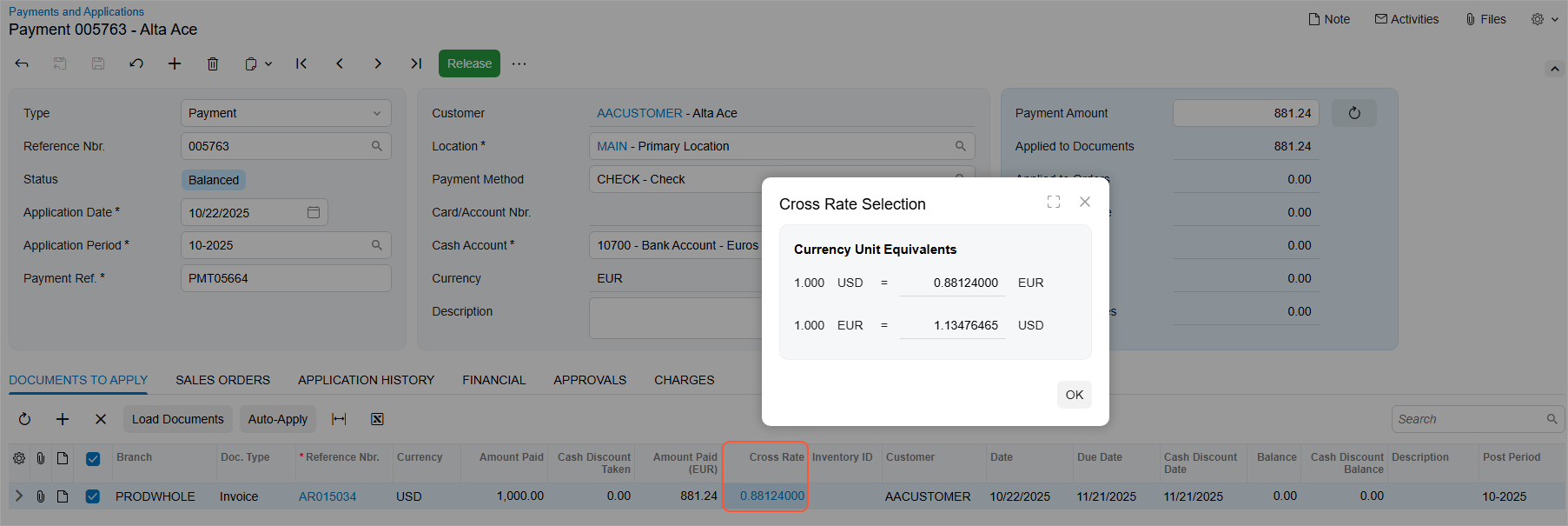
This dialog box contains the Currency Unit Equivalents section, which includes the default direct and reciprocal rates. In this dialog box, you can update the reciprocal rate, and the system will recalculate the direct rate. If you change the direct rate, the system will recalculate the reciprocal rate.
Summary of UI Changes
The tables below summarize the UI changes related to multicurrency payments on the noted forms.
Payments and Applications Form
You'll find the following changes on the Documents to Apply tab of the Payments and Applications (AR302000) form.
| Column Name | What Changed | Default Visibility | Dependence on the Multicurrency Accounting Feature |
|---|---|---|---|
| Amount Paid (<Payment currency>) | Renamed from Amount Paid | Visible | Appears whether or not the Multicurrency Accounting feature is enabled. |
| Amount Paid | New | Visible | Appears if the Multicurrency Accounting feature is enabled. |
| Cash Discount Taken (<Payment currency>) | Renamed from Cash Discount Taken | Hidden | Appears whether or not the Multicurrency Accounting feature is enabled. |
| Cash Discount Taken | New | Hidden | Appears if the Multicurrency Accounting feature is enabled. |
| Write-Off Amount (<Payment currency>) | Renamed from Write-Off Amount | Hidden | Appears whether or not the Multicurrency Accounting feature is enabled. |
| Write-Off Amount | New | Hidden | Appears if the Multicurrency Accounting feature is enabled. |
| Cross Rate | Contains a value that's a link to the Cross Rate Selection dialog box | Visible | Appears whether or not the Multicurrency Accounting feature is enabled. If the feature is disabled, the value is 1 and can’t be changed. |
Checks and Payments Form
You'll find the following changes on the Documents to Apply tab of the Checks and Payments (AP302000) form.
| Column Name | What Changed | Default Visibility | Dependence on the Multicurrency Accounting Feature |
|---|---|---|---|
| Amount Paid (<Payment currency>) | Renamed from Amount Paid | Visible | Appears whether or not the Multicurrency Accounting feature is enabled. |
| Amount Paid | New | Visible | Appears if the Multicurrency Accounting feature is enabled. |
| Cash Discount Taken (<Payment currency>) | Renamed from Cash Discount Taken | Hidden | Appears whether or not the Multicurrency Accounting feature is enabled. |
| Cash Discount Taken | New | Hidden | Appears if the Multicurrency Accounting feature is enabled. |
| With. Tax (<Payment currency>) | Renamed from With. Tax | Hidden | Appears whether or not the Multicurrency Accounting feature is enabled. |
| With. Tax | New | Hidden | Appears if the Multicurrency Accounting feature is enabled. |
| Cross Rate | Contains a value that's a link to the Cross Rate Selection dialog box | Visible | Appears whether or not the Multicurrency Accounting feature is enabled. If the feature is disabled, the value is 1 and can’t be changed. |
Process Bank Transactions Form
You'll find the following changes on the Create Payment tab of the Process Bank Transactions (CA306000) form. These changes apply if AR or AP is selected in the Module box of this tab.
| Column Name | What Changed | Default Visibility | Dependence on the Multicurrency Accounting Feature |
|---|---|---|---|
| Amount Paid (<Payment currency>) | Renamed from Amount Paid | Visible | Appears whether or not the Multicurrency Accounting feature is enabled. |
| Amount Paid | New | Visible | Appears if the Multicurrency Accounting feature is enabled. |
| Cash Discount Taken (<Payment currency>) | Renamed from Cash Discount Taken | Hidden | Appears whether or not the Multicurrency Accounting feature is enabled. |
| Cash Discount Taken | New | Hidden | Appears if the Multicurrency Accounting feature is enabled. |
| With. Tax (<Payment currency>) | Renamed from With. Tax | Hidden | Appears whether or not the Multicurrency Accounting feature is enabled. |
| With. Tax | New | Hidden | Appears if the Multicurrency Accounting feature is enabled. |
| Write-Off Amount (<Payment currency>) | Renamed from Write-Off Amount | Hidden | Appears whether or not the Multicurrency Accounting feature is enabled. |
| Write-Off Amount | New | Hidden | Appears if the Multicurrency Accounting feature is enabled. |
| Cross Rate | Contains a value that's a link to the Cross Rate Selection dialog box | Visible | Appears whether or not the Multicurrency Accounting feature is enabled. If the feature is disabled, the value is 1 and can’t be changed. |
Key Takeaways
- You enter the payment amount directly in the document currency—no more manual cross-rate conversions or tedious recalculations.
- You can now view the exact cross rate used for customer or vendor payments and enter a direct or reciprocal rate for full control over currency conversions.
- These enhancements reduce rounding gain or loss discrepancies, minimize manual adjustments, and help finance teams process international transactions faster.
Learn More
See these topics for more information:
- Accounts Receivable: Multicurrency Payment of Invoices: Entry of the Payment Amount Instead of the Cross Rate and Multicurrency Payment of Invoices: To Change the Payment Amount Instead of the Cross Rate
- Accounts Payable: Multicurrency Payment of Bills: Entry of the Payment Amount Instead of the Cross Rate and Multicurrency Payment of Bills: To Change the Payment Amount Instead of Cross Rate
- Bank Reconciliation: Bank Reconciliation: Reconciling Transactions in Foreign Currencies