
Inventory and Order Management: Approvals for Inventory Adjustments
MYOB Acumatica 2026.1.1 adds inventory adjustments to the existing approval workflow to help you strengthen control over these transactions. Now you can make sure that the right person has reviewed and approved an adjustment before its release. With this capability, you reduce the risk of errors and uncontrolled write-offs. Approvals apply to both system-generated adjustments and adjustments created by a user.
The following sections describe how inventory adjustment approvals work.
Creating an Approval Map
First, you create an approval map on the Approval Maps (EP205015) form. You select the new Adjustments entity type so that the map can apply to approvals of inventory adjustments.
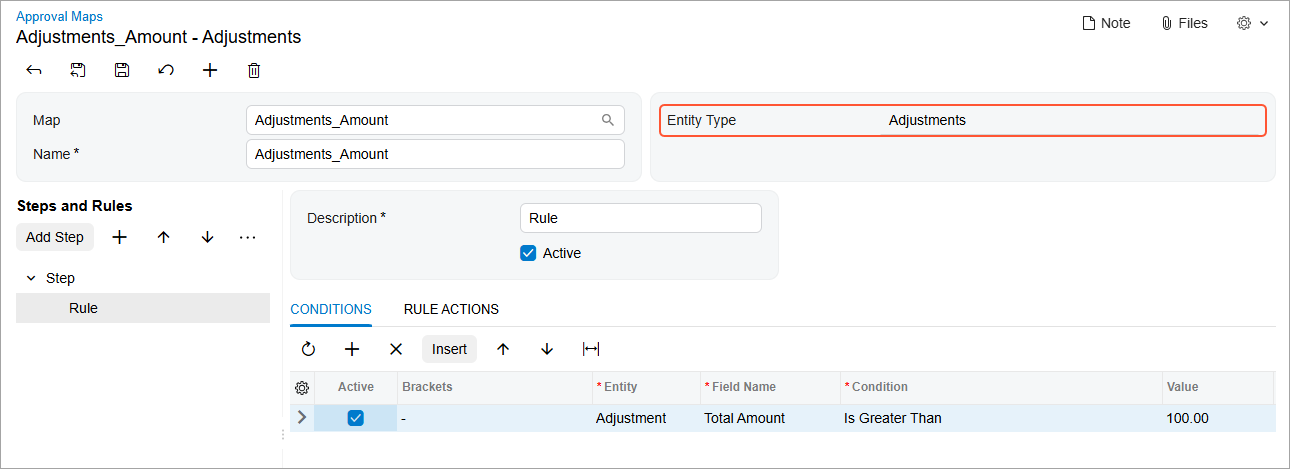
You specify approval rules, steps, and conditions as you do for other records that use approvals. For details, see Approval Configuration: Approval Maps.
Specifying Approval Settings in the Inventory Preferences
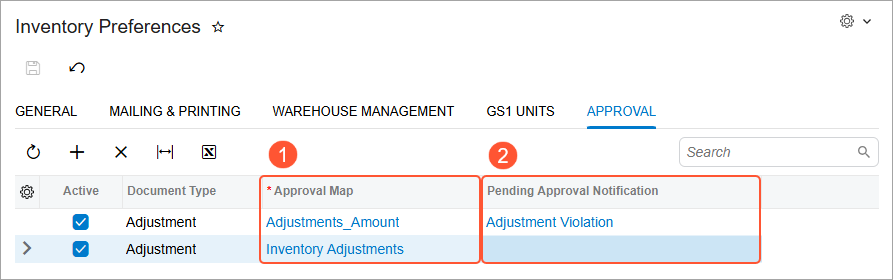
Once you create an approval map, you need to make sure it’s applied to adjustments. On the new Approval tab of the Inventory Preferences (IN101000) form, do the following:
- Select the created map in the Approval Map column (Item 1 below).
- Optional: Select a notification template (Item 2) in the Pending Approval Notification column. The system will use this notification template to let the responsible person know about new transactions to approve.
How Adjustment Approvals Work
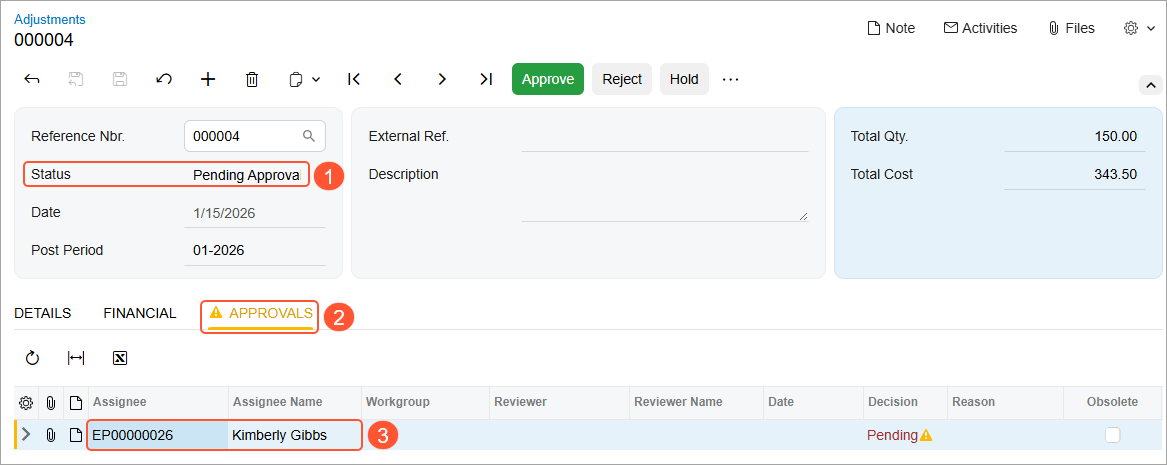
After at least one active approval map has been added to the Approvals tab of the Inventory Preferences (IN101000) form, all manually created adjustments on the Adjustments (IN303000) form are initially assigned the On Hold status. When you remove an adjustment from hold, the system determines whether approval is required. If the adjustment must be approved before it can be released, the system assigns the Pending Approval status (Item 1 below) to it.
If a system-generated adjustment is subject to approval, the system creates it with the Pending Approval status. If this adjustment doesn’t meet the criteria of the approval map, the system changes its status based on the standard workflow without approvals.
For an adjustment that’s pending approval, on the new Approvals tab of the Adjustments form, the system shows a warning (Item 2), as well as the name of each employee who must perform the approval (Item 3). The employee can approve, reject, or reassign the adjustment by clicking the appropriate command on the form toolbar or the More menu.
Processing Multiple Adjustments
To process multiple approvals for adjustments, you open the Approvals (EP503010) form. On this form, you can select multiple records with the IN Adjustment type and process them simultaneously.