
CRM: Work Smarter with the Activity Stream
When sales, marketing, and support teams manage customer interactions spanning many conversations and follow-up activities, it can be hard to quickly zero in on the information that matters. Starting in MYOB Acumatica 2026.1.1, you can use the Activity Stream to view all activities related to the opportunity, sales quote, case, or contact you’re working with. With the Activity Stream’s clear, readable layout, you can review all activities, drill down on any activity to learn more, and find what you need faster.
Read on to explore the new capabilities.
How You’ll Benefit
- Understanding of the record’s full context: By seeing the key data of all its related activities in a single view with a clean layout, you can grasp the full picture quickly.
- More efficient daily work: From the Activity Stream, you can open multiple activities in parallel to view their complete data. And you can use searching, filtering, and sorting to find what you’re looking for—especially helpful if the record has many activities.
- Greater focus on important details: Each activity tile highlights essential details and uses icons to indicate the activity type, helping you quickly decide which activities to review in more detail.
Exploring the Activity Stream
The Activity Stream provides a consolidated view of all activities related to the record you’re working with. Activities are displayed in a consistent tile-based layout that makes it easy to scan activities and get more information on any activity in a few clicks.
You can open the Activity Stream side panel tab by clicking the Activities icon in the side panel of the following forms:
- Cases (CR306000)
- Contacts (CR302000)
- Opportunities (CR304000)
- Sales Quotes (CR304500)
While the new Activity Stream is available, the Activities tab on these forms remains available for backward compatibility.
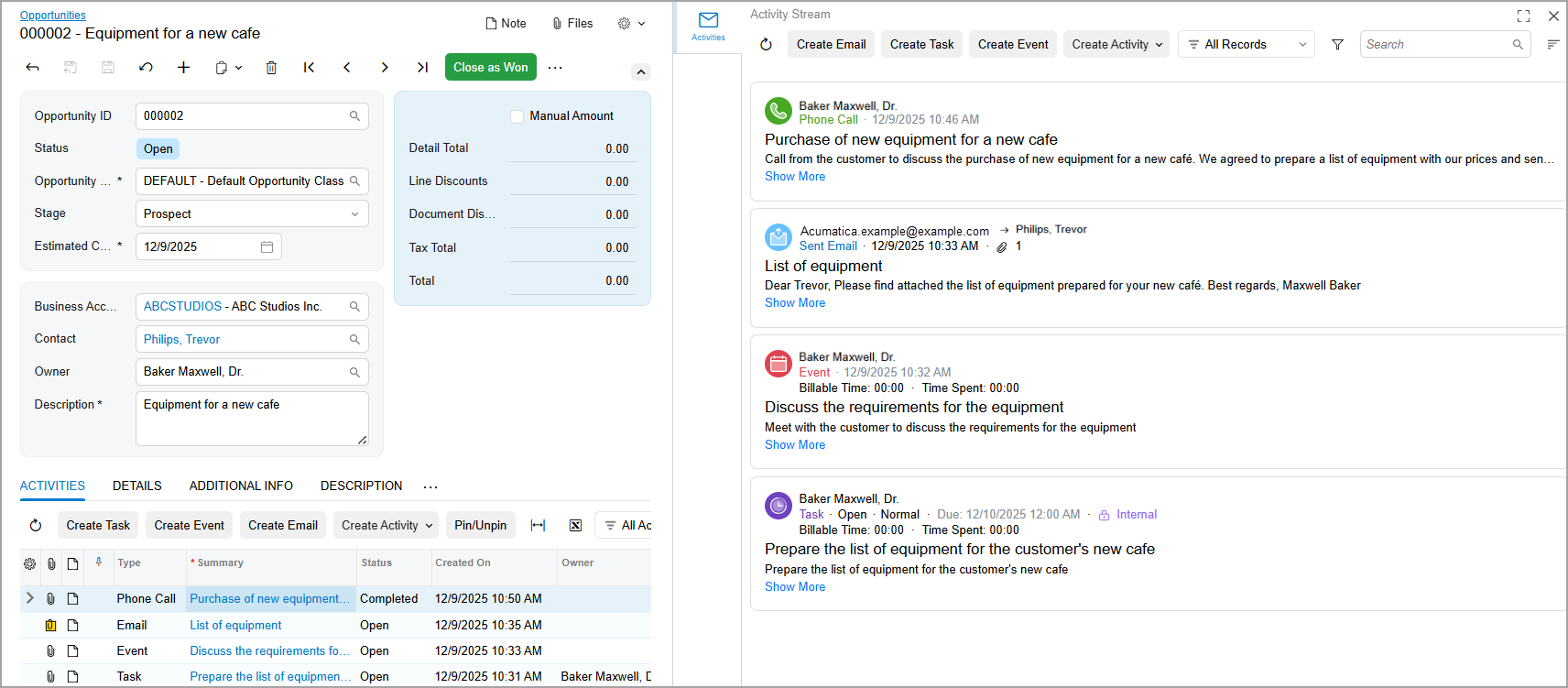
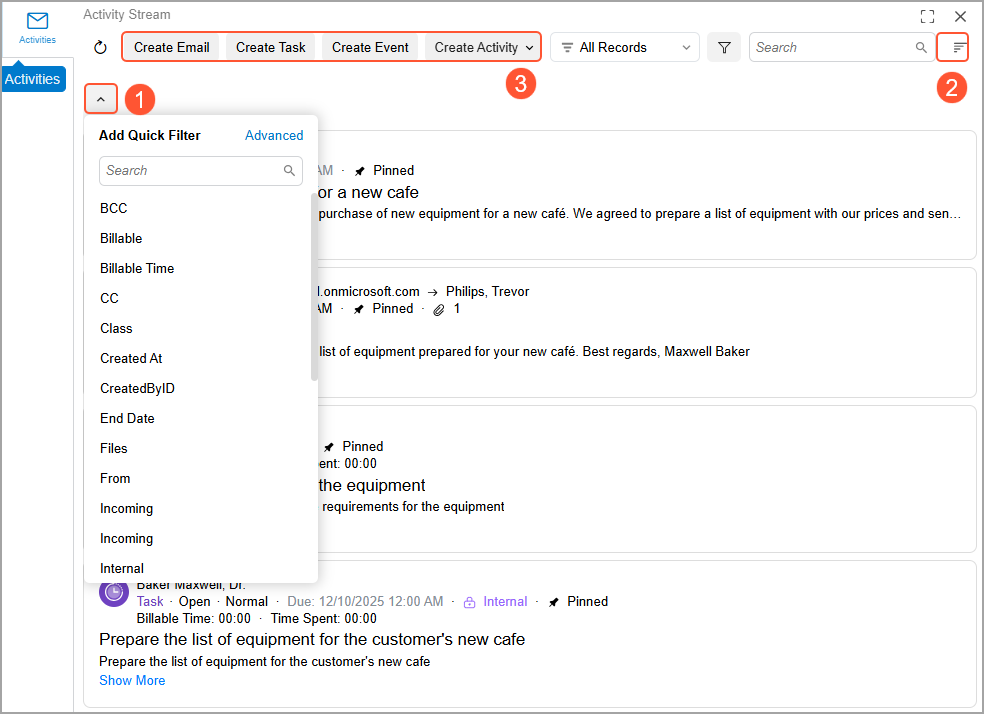
On the side panel tab—that is, the Activity Stream—activities related to the selected record appear as a collection of activity tiles. In the Activity Stream, you can:
- View key information about each activity
- Search in all activities by using the Search box
- Filter activities by using the Quick Filter menu, including filtering activities with attachments by selecting Files (Item 1 below)
- Sort activities by using the predefined sort options, including sorting by start date (Item 2)
- Create a new activity by using the toolbar command (Item 3)
- Refresh the list of activities
Working with Activity Tiles
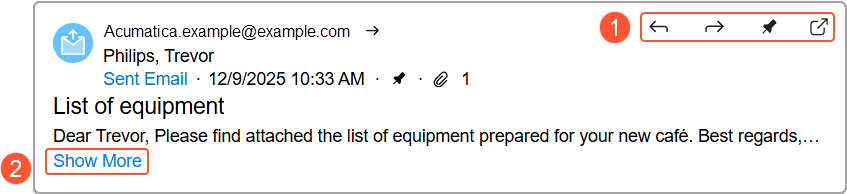
When you open the Activity Stream, all activity tiles are collapsed by default so that you see the most important activity details at a glance:
- In the tile menu, a set of buttons appears when you hover over the activity (Item 1 below); the available set of buttons depends on the activity’s type.
- In the tile header, you’ll see an icon that indicates the activity type and a brief set of key activity details in one line. (The specific details depend on the activity type.)
- The activity’s subject or summary is shown below the header.
- In the bottom of the tile, you’ll see the brief activity description (in one line).
You can expand the tile by clicking Show More (Item 2).
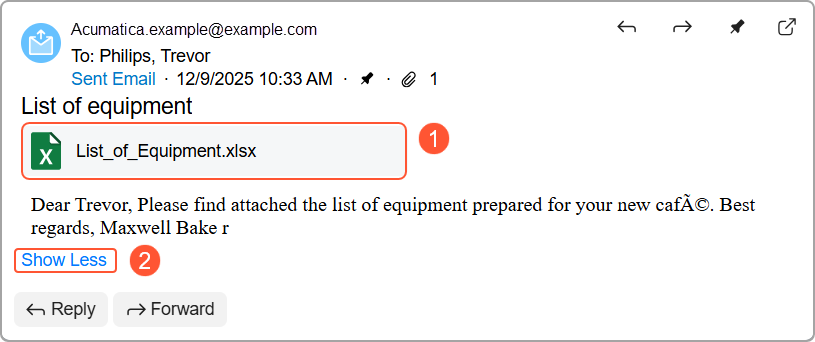
An expanded activity tile shows all activity details, including the following:
- The full set of activity details
- The full activity description
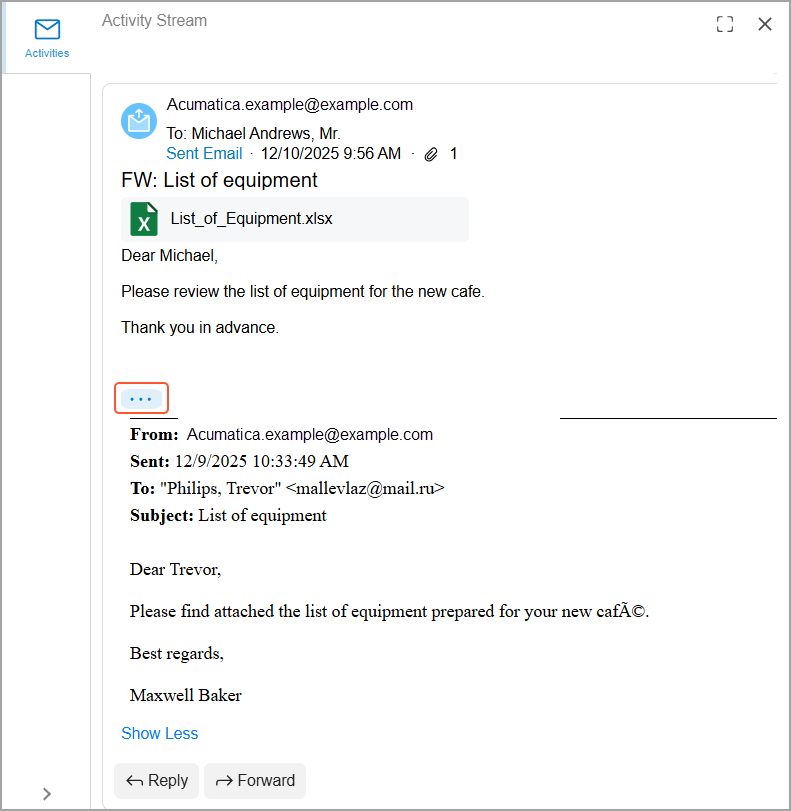
- The attachments that appear under the subject or summary, along with each attachment’s
icon, file name, and extension (Item 1 below)Tip:The expanded activity tile can show up to 10 attachments. If an activity contains more than 10 attachments, you can view all them on the activity’s data entry form.
You can collapse the tile by clicking Show Less (Item 2).
If you reply to or forward an email activity, the related email messages are grouped into
conversational threads. When the tile is expanded, you can view the thread icon ( ). Click it to see the email thread.
Adjusting Activity Type Indicators
If you're an administrator, you can make activity types easy to distinguish at a glance by assigning a background color to each activity type's icon in the Color column of the Activity Types (CR102000) form.
The list of icons (in the Image column) has also been updated to make them look more modern and easier to recognize.
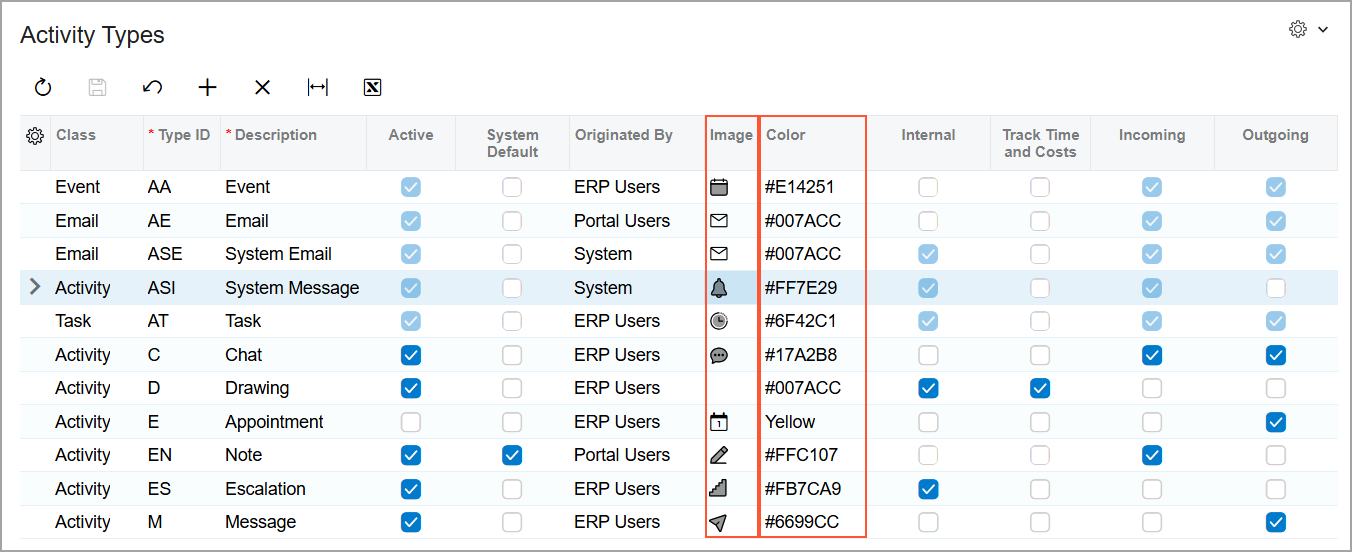
The selected icon is shown in both the Modern UI and the Classic UI.