
Projects and Construction: Align the Project and Branch in Purchasing and AP Documents
Using multiple branches in projects can create a simple but costly problem: A purchasing or AP document may be entered under the wrong branch.
In MYOB Acumatica 2026.1.1, you can keep a project’s purchasing and AP documents aligned with the project branch—that is, use the project branch when assigning branches in these documents. This reduces manual corrections and provides more reliable branch-level financial reporting.
Depending on the configuration settings you specify, the system can:
- Automatically insert the project branch in the project-related document and its lines
- Warn you—or block document processing—if the project branch doesn't match the branch of the project-related document or document line
Selecting the Branch-Defaulting Approach in Project-Related Documents
If your organization includes multiple branches or companies, you can select the approach the system uses to determine the branch in project-related purchasing and AP documents. On the Projects Preferences (PM101000) form, you use the new settings, which are shown below.
In the new Branch in Project Documents box, you can select:
- Ignore Project Branch (default): The system uses the user's default branch—that is, the branch specified on the User Profile (SM203010) form and shown in the top pane of the MYOB Acumatica screen. When you select the vendor in the document, the system changes the branch to the vendor branch if one is specified.
- Use Project Branch: The system inserts the project branch in the document and its lines.
- Use Project Branch in Lines Only: The system inserts the project branch only in document lines.
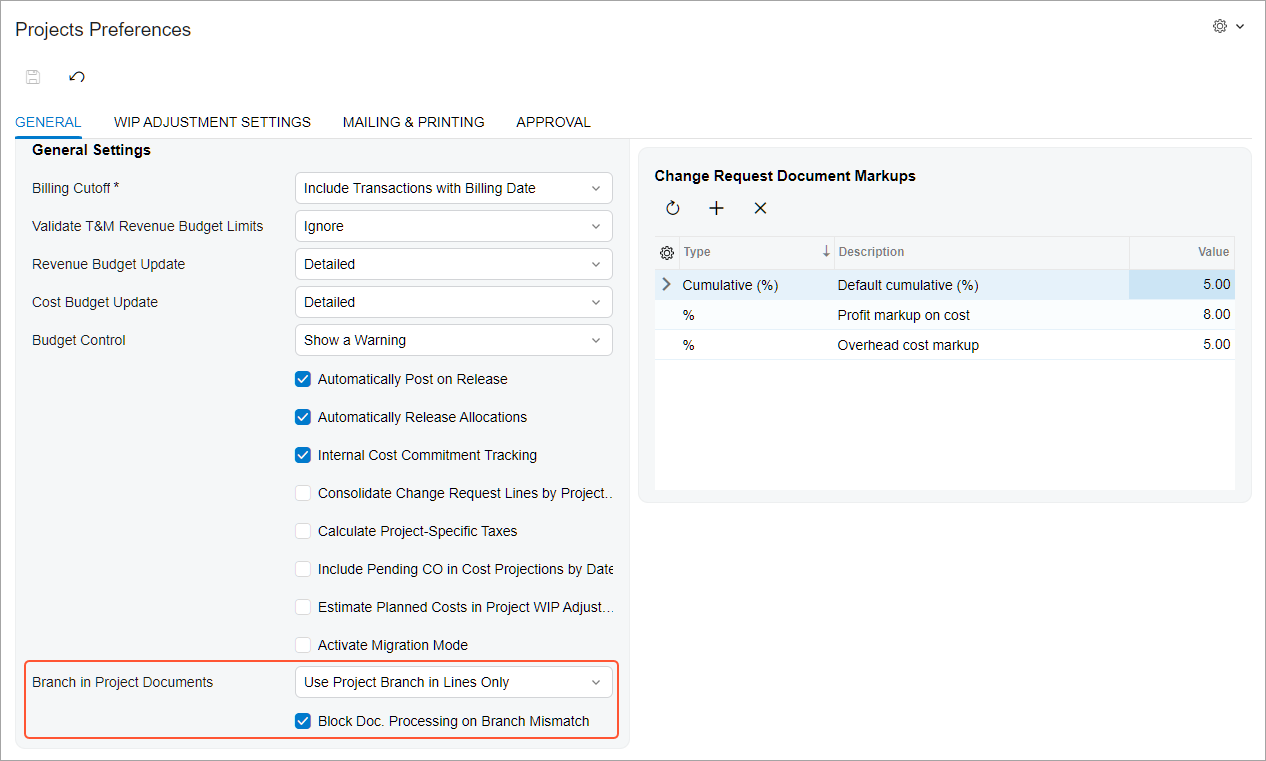
By using the new Block Doc. Processing on Branch Mismatch check box (see above), you can block the processing of a project document when its lines have a different branch than the project does. Let's see how the blocking works.
Blocking Processing When Branches Don't Match
If you need the same branch to be selected in each project-related document and its lines, you select the new Block Doc. Processing on Branch Mismatch check box on the Projects Preferences (PM101000) form. With this check box selected:
- You can't process the document if at least one branch in a document line differs from the project branch.
- The Branch box becomes required on the Projects (PM301000) and Project Templates (PM208000) forms to ensure that each project has a branch specified.
- If you want to eliminate mistakes where a document line is saved with an incorrect branch and later processed without being noticed, select this check box.
- The system verifies whether your user account has access to the project branch and whether the project branch is allowed for the vendor selected in the document. For details, see Vendor Visibility: General Information.
Where You Can Use the New Capabilities
Depending on the new configuration settings, the system can align the project's branch with the document branch on the following forms:
- Bills and Adjustments (AP301000)
- Cash Purchases (AP304000)
- Change Orders (PM308000)
- Incoming Documents (AP301100)
- Purchase Orders (PO301000)
- Purchase Receipts (PO302000)
- Subcontracts (SC301000)
You can also quickly check a project's branch while you’re:
- Selecting a project in the Project box on a data entry form: The lookup table now shows the project branch.
- Viewing the Projects (PM3010PL) list of records: The new Branch column shows each branch specified for a listed project.
Use Case 1: Centralized Processing with Costs Posted to the Project Branch
Your company runs projects based in different branches, but purchasing is processed for all projects in the head-office branch. As a result, you enter this branch as the document-level branch for purchase orders and vendor bills. But individual lines must have the project branch specified so that the project expenses are posted to that branch.
For this case, you set up the branch-defaulting approach on the Projects Preferences (PM101000) form by specifying the following settings:
- Branch in Project Documents: Use Project Branch in Lines Only
- Block Doc. Processing on Branch Mismatch: Cleared
When you create a purchase order on the Purchase Orders (PO301000) form and select a vendor with a default branch specified, the system populates the Branch box on the Other tab with the vendor's branch. When you add a line and specify a project, the system inserts the project branch in the line based on the selected Branch in Project Documents option.
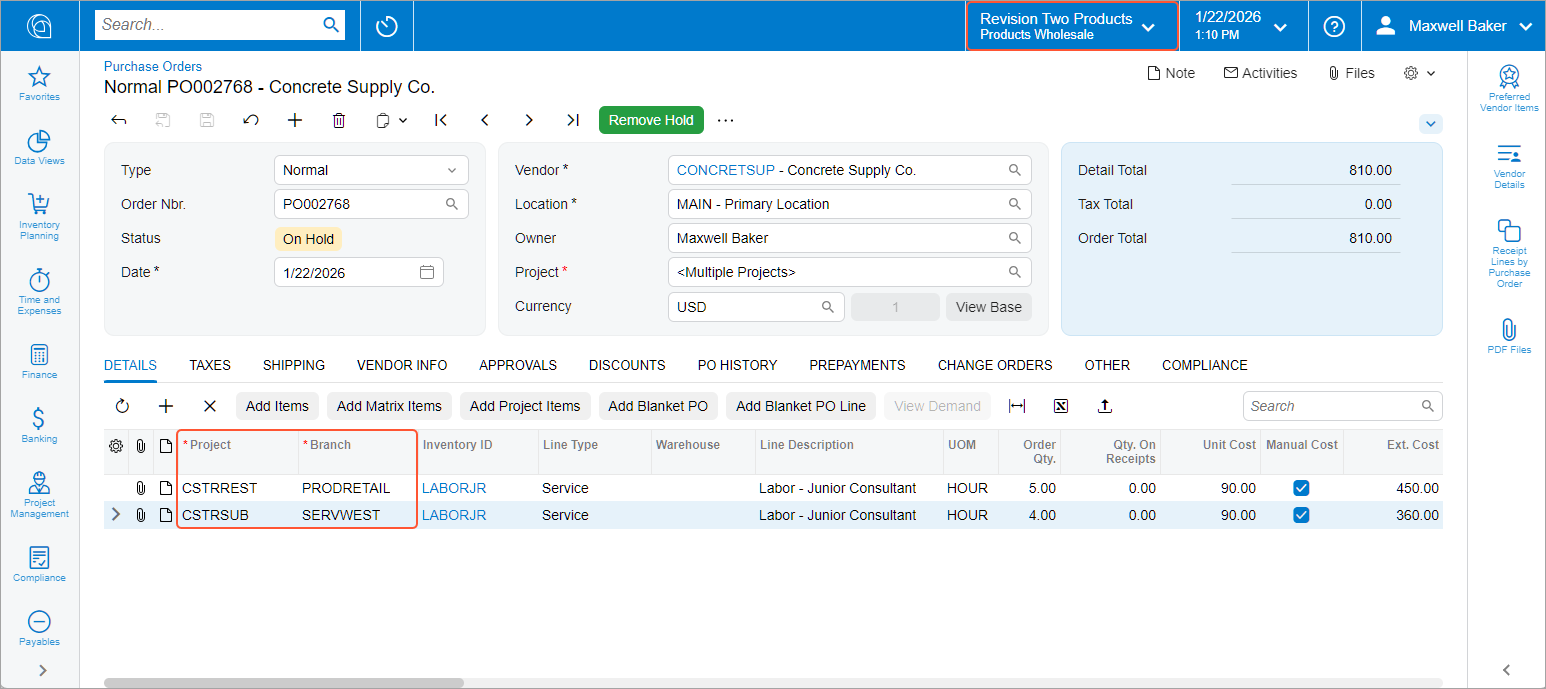
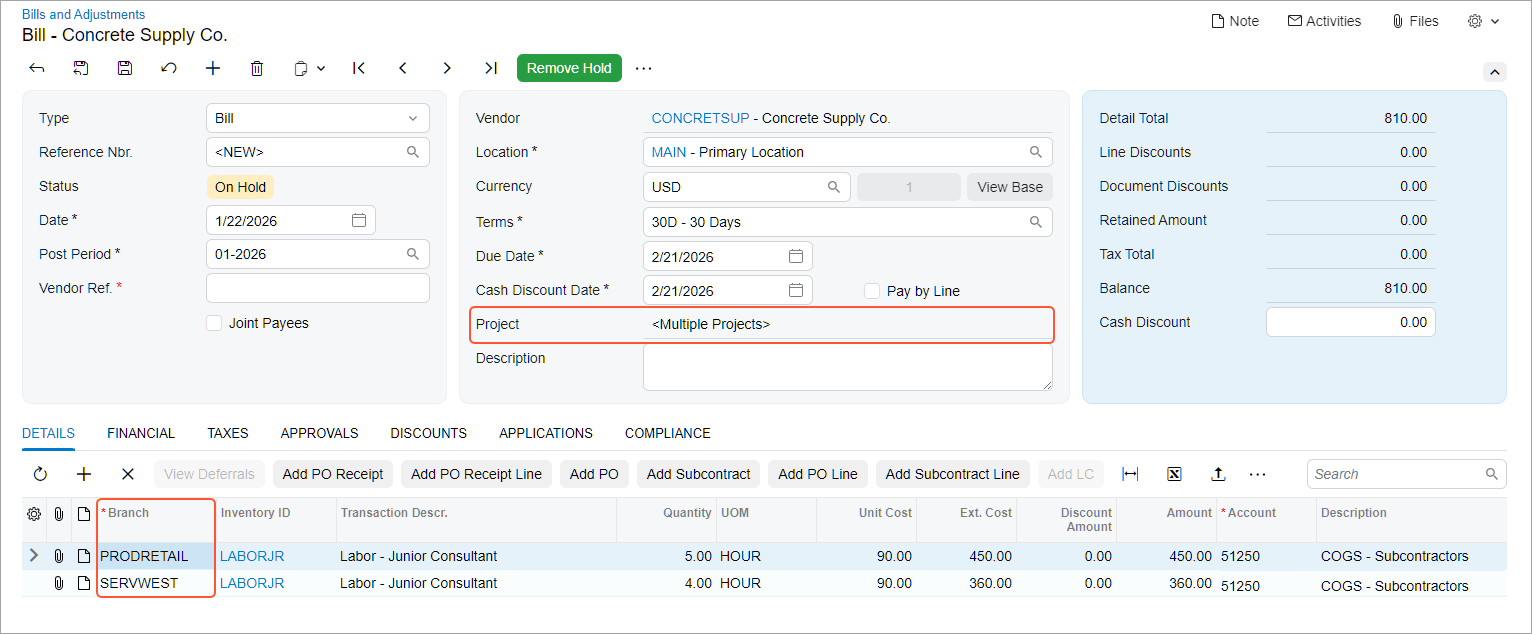
When you create a purchase receipt or bill for your purchase order, the system copies the project branches to the document lines, as shown below.
Use Case 2: Strict Branch Alignment for Project-Related Purchasing
Your organization requires project-related purchasing documents to have the same branch at the document and line levels.
In this case, you set up the branch-defaulting approach on the Projects Preferences (PM101000) form by specifying the following settings:
- Branch in Project Documents: Use Project Branch
- Block Doc. Processing on Branch Mismatch: Selected
As a result, the Branch box becomes required on the Projects (PM301000) form for each project.
When you enter a purchase order on the Purchase Orders (PO301000) form and select a vendor with a default branch, the system populates the Branch box on the Other tab with the vendor's branch because the non-project code is inserted in the Project box by default. Your user account's default branch is shown in the top pane of the screen.
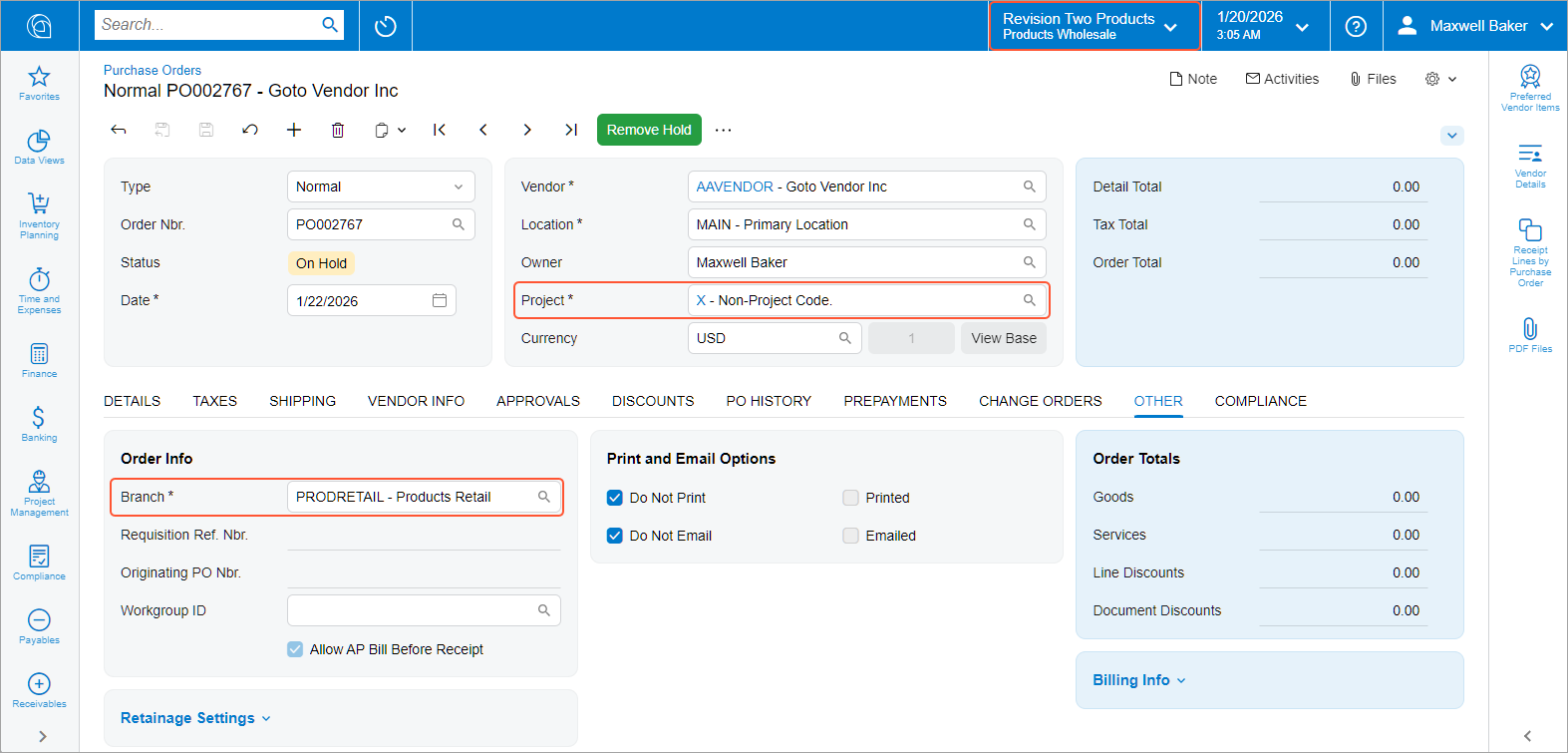
When you add the first line on the Details tab and select the project, the system inserts the project branch in the added line and updates the originating document-level branch on the Other tab. If you add a line for a project with a different branch, the system displays a warning.
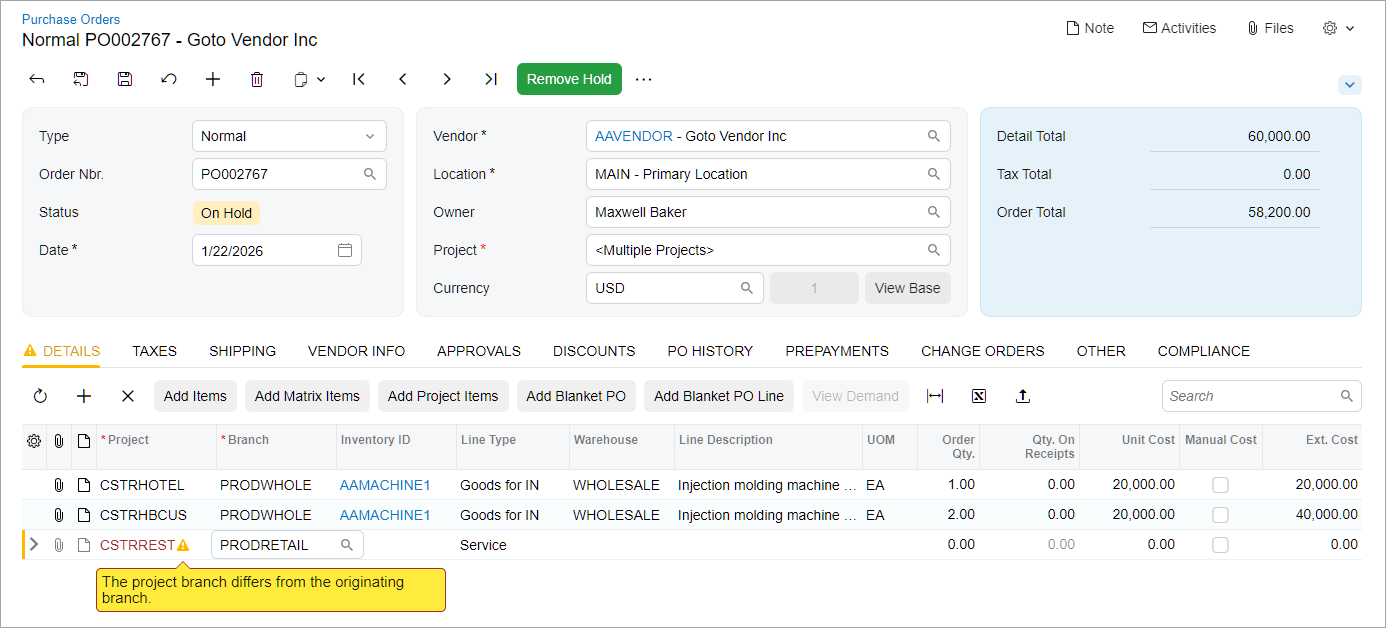
If the document-level branch and the line-level branches differ from the branch of any project specified in a line, you can't remove the purchase order from hold to continue processing it.
And when you create a purchase receipt or a bill for your purchase order, the system copies the branch to the document and its lines.
Quick Recap
- Streamline data entry and reduce mistakes while working with projects in multiple branches
- Select the branch-defaulting approach that fits your organization's operating model
- Protect branch-level financial reporting by keeping project expenses aligned with the correct branch