CRM: Side Panel with Customer Information
In MYOB Acumatica 2026.1.1, you can quickly access essential customer information by using the side panel. As you work in the list of customers, you can use the side panel to learn more about any listed customer.
This lets you view key customer details without leaving the list of records to open additional forms.
View the Side Panel for a Customer
In the Customers (AR3030PL) list of records, you can drill down into details for any customer in the side panel by clicking the customer and then clicking one of the side panel icons (shown below).
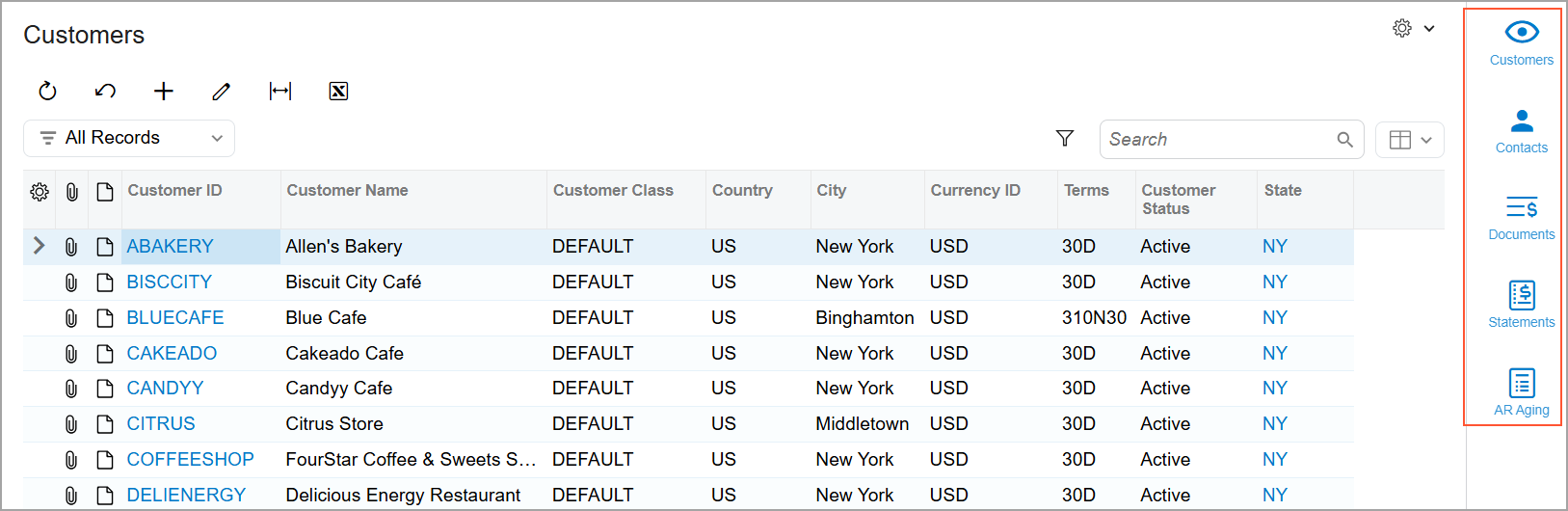
Clicking the icon opens the corresponding tab, which displays a particular type of information about the selected customer.
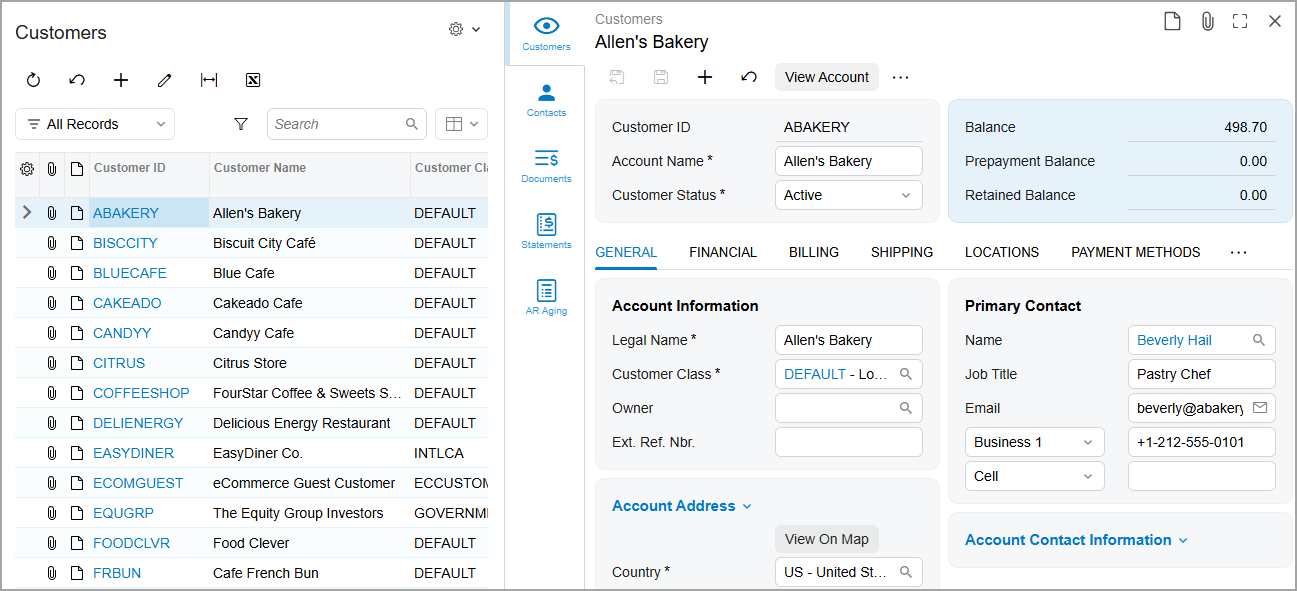
The Customers Tab
This tab shows the customer’s settings on the Customers (AR303000) form.
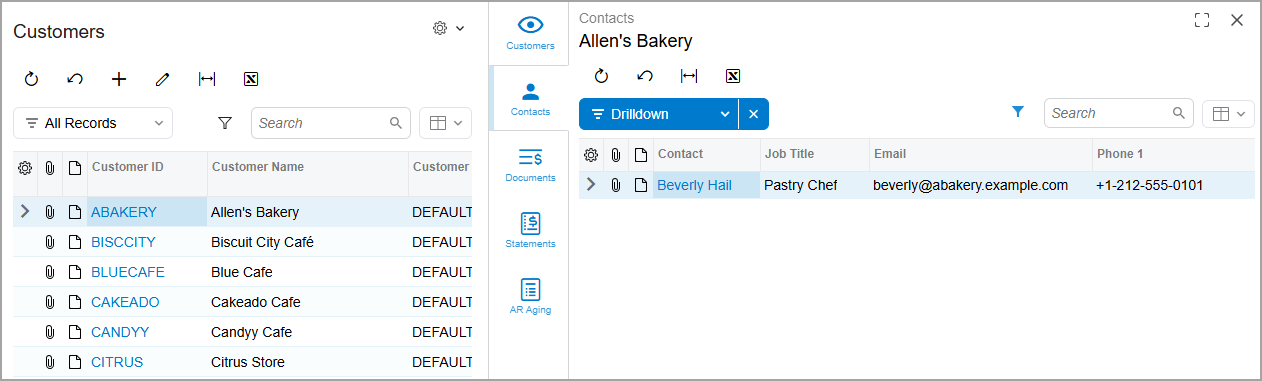
The Contacts Tab
This tab gives you a quick look at the selected customer's contacts and their basic data.
The Documents Tab
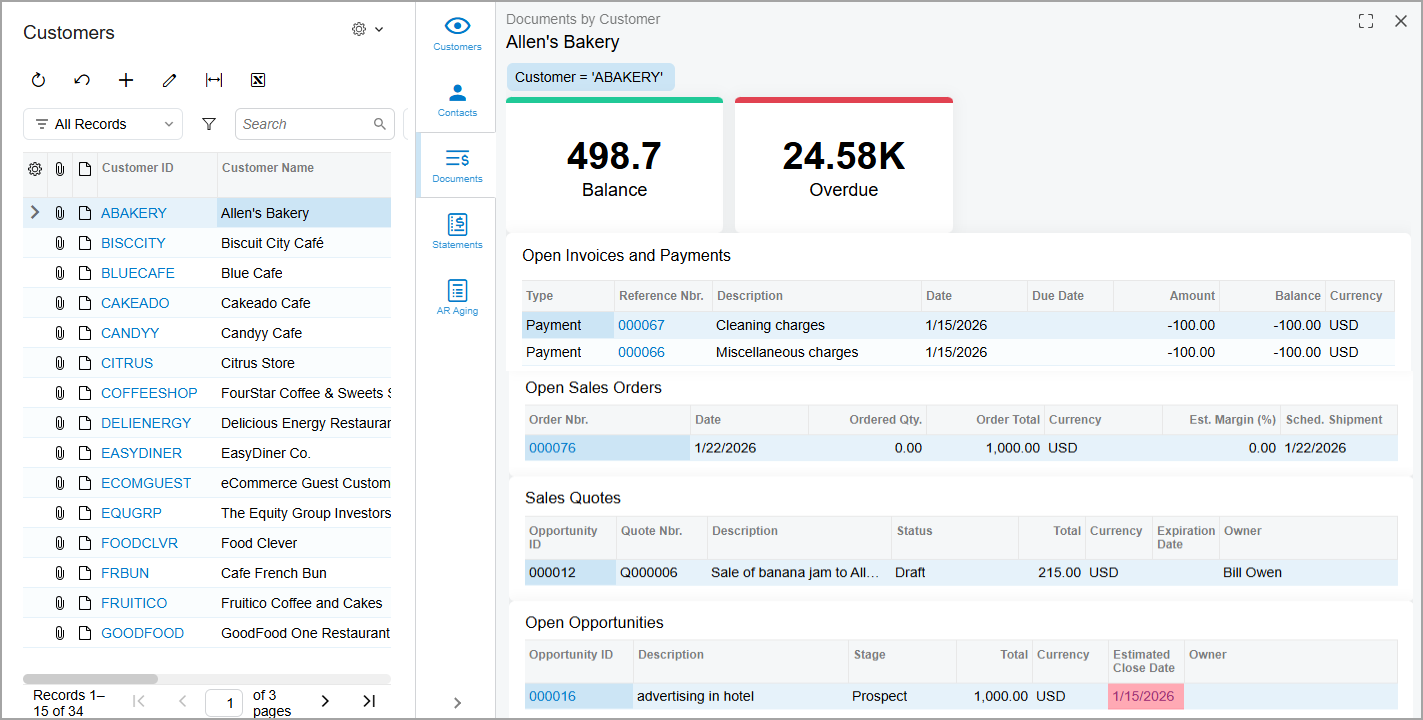
You can use the Documents tab to view balances, open AR documents, sales orders, quotes, and opportunities of the selected customer. The tab displays Documents by Customer (AR3013DB) dashboard with the following widgets and lists of records:
- Balance: The total amount of open AR documents, reduced by payments, prepayments, and credit memos. The system calculates this amount on the Customer Summary (AR3030SP) generic inquiry form.
- Overdue: The total amount of overdue AR documents, including credit memos and documents with a due date in the past. The system calculates this amount on the Customer Summary generic inquiry form.
- Open Invoices and Memos: The list of invoices and payments with the Open status. You can also view these documents on the Open Customer Documents (AR3031SP) generic inquiry form.
- Open Sales Orders: The list of sales orders with the Open status. You can also view them on the All Sales Orders (SO3011SP) generic inquiry form.
- Sales Quotes: A list of the customer’s sales quotes with the Draft, Sent, or Pending Approval status. You can also view these quotes on the Sales Quotes (CR3045SP) generic inquiry form.
- Open Opportunities: A list of the customer’s opportunities with the Open status. You can also view these opportunities on the All Opportunities (CR3041SP) generic inquiry form.
The Statements Tab
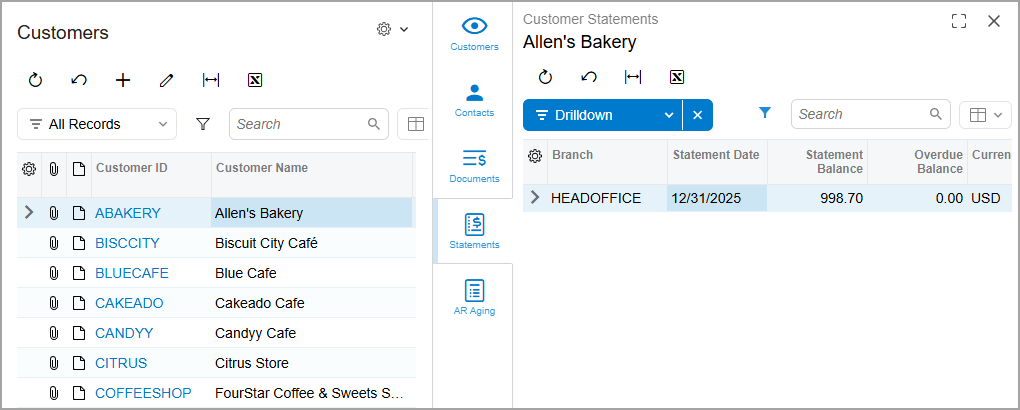
This tab shows a list of customer statements.
The AR Aging Tab
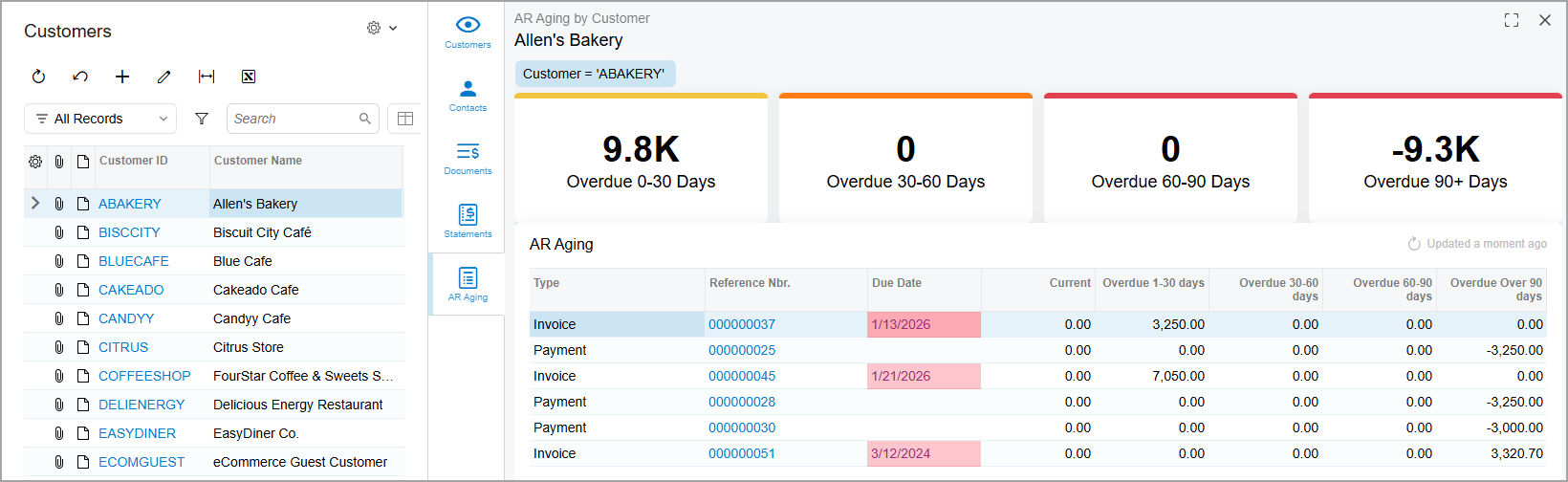
The AR Aging tab helps you understand how the selected customer's AR documents are distributed across aging periods. The tab shows the AR Aging by Customer (AR3014DB) dashboard with the following table and widgets:
- Overdue 0-30 Days: The total overdue amount for open AR documents that are up to 30 days past due.
- Overdue 30-60 Days: The total overdue amount for open AR documents that are more than 30 and up to 60 days past due.
- Overdue 60-90 Days: The total overdue amount for open AR documents that are more than 60 and up to 90 days past due.
- Overdue 90+ Days: The total overdue amount for open AR documents that are more than 90 days past due.
- AR Aging: The list of open AR documents that are overdue, distributed across aging periods.