
Time and Expenses: Mobile Time Tracking for Project Tasks
Time tracking for project tasks was introduced in MYOB Acumatica 2025R2. Starting in MYOB Acumatica 2026.1.1, this functionality is also available in the MYOB Acumatica mobile app, making it easier to track time while working in the field. You can now track time for project tasks, manage time logs, and create time activities from time logs in daily field reports or time cards directly from your mobile device.
Tracking Time in the Mobile App
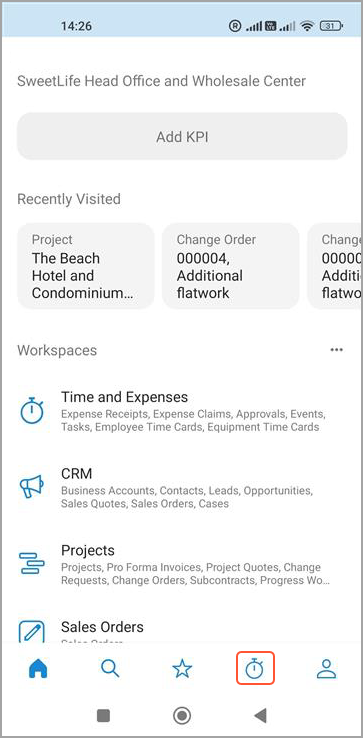
You can start tracking time for a project task by tapping the clock icon in the navigation bar of the main menu of the MYOB Acumatica mobile app.
On the Time Log screen, tap Plus. On the Project Tasks screen, select the needed project task. To find a project task quickly, you can use the search or sort options.
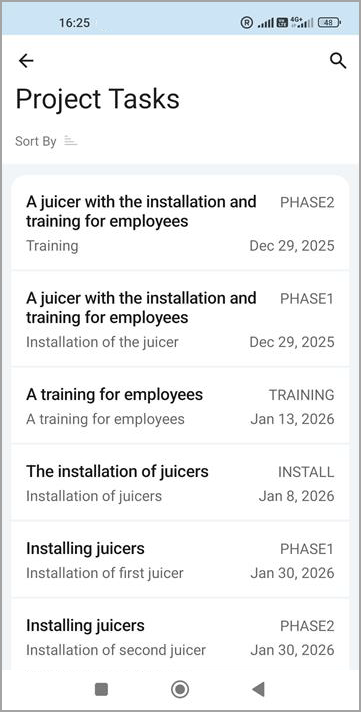
The list of project tasks includes only those that meet all of the following conditions:
- The Time Entries check box is selected on the Summary tab of both the Project Tasks (PM302000) form for the project task and the Projects (PM301000) form for the corresponding project.
- The status of both the project and its project task is Active.
- If the Restrict Employees check box is selected for the project, an employee who’s tracking time is added on the Employees tab of the Projects form.
When you tap a project task, the Time Log screen opens and the timer starts running.
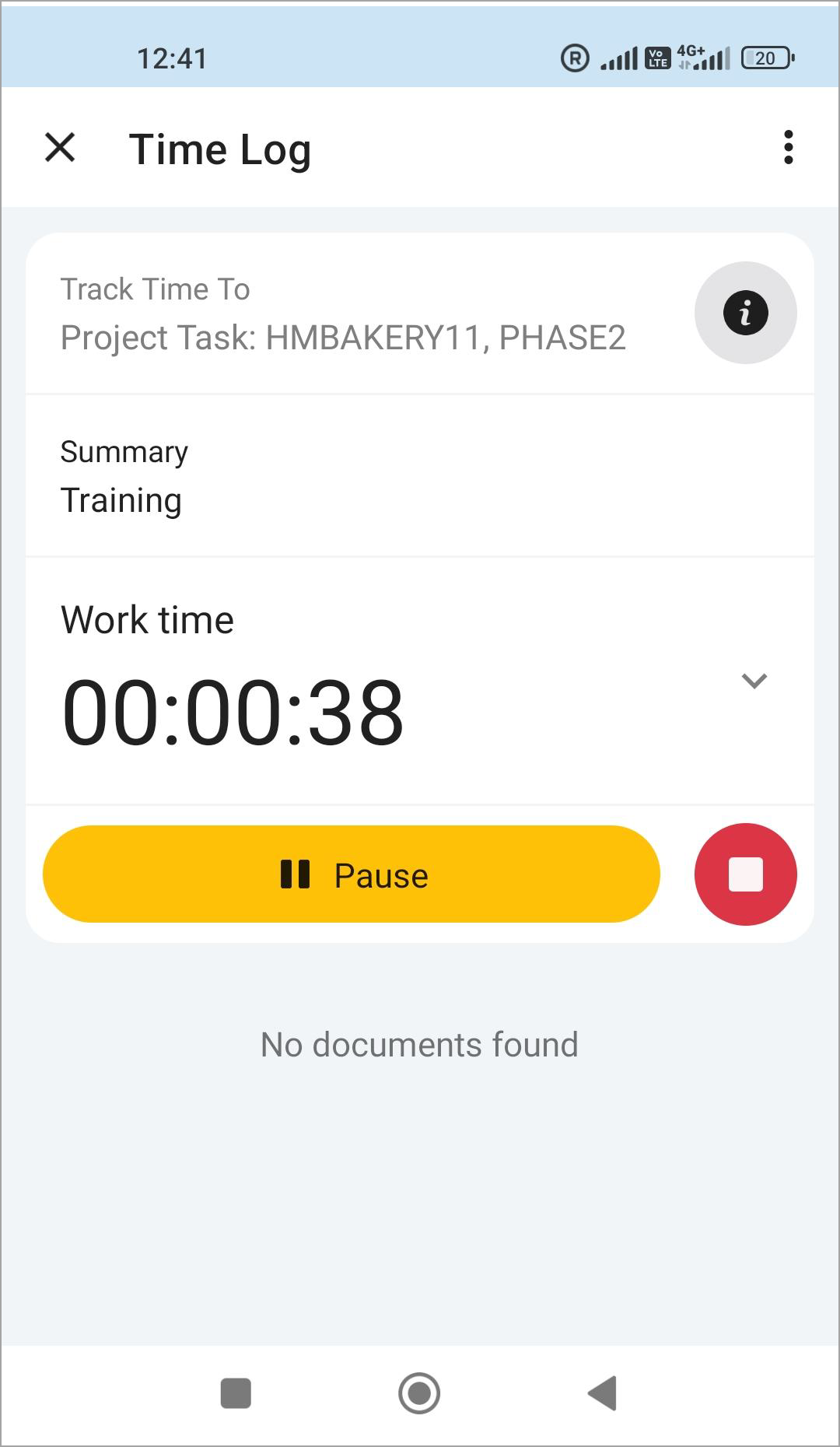
You can pause the timer and either resume it or select another project task by clicking Plus.
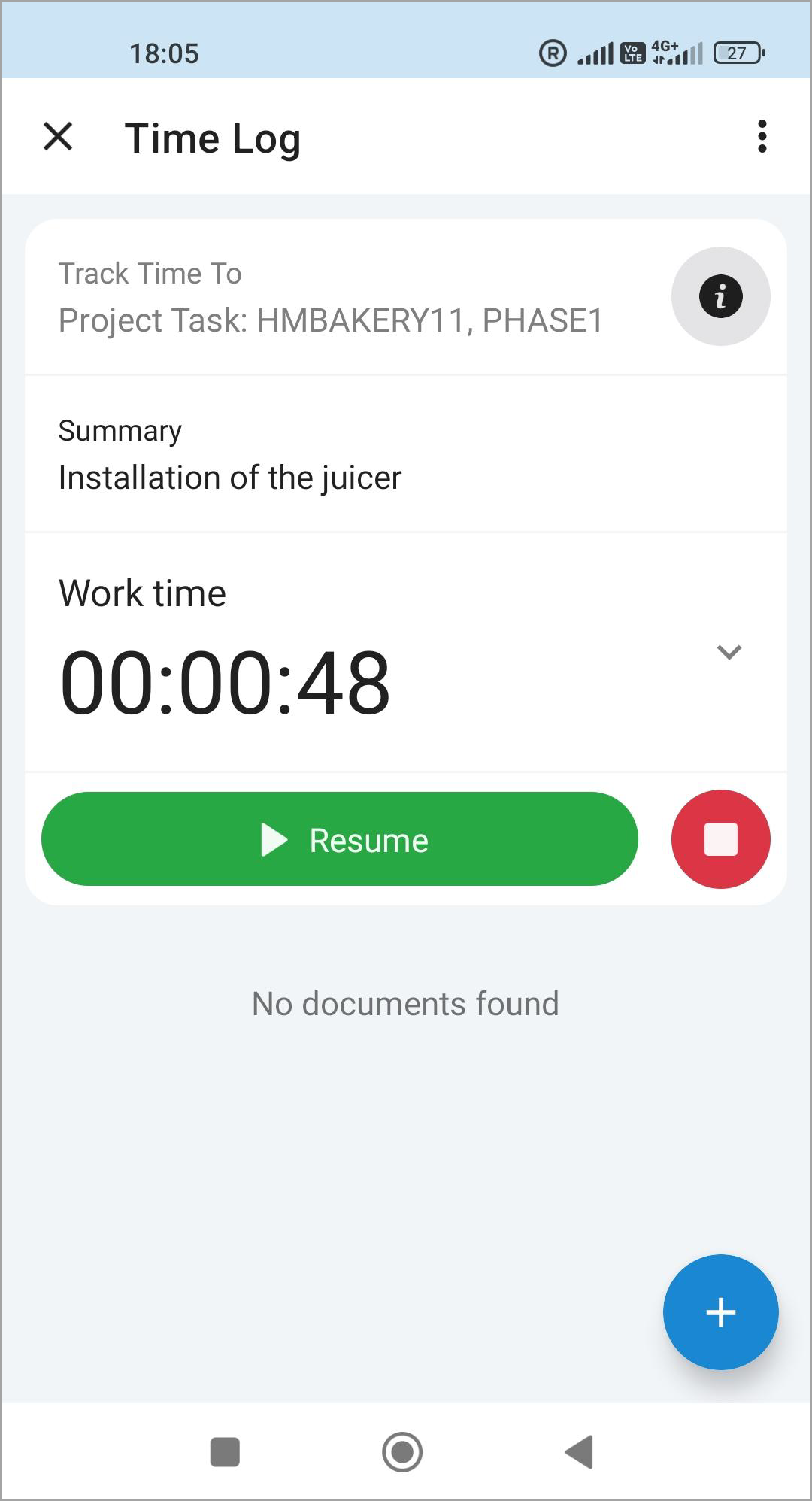
When you stop tracking time for a project task, the timer closes, and you return to the Time Log screen, where you can start tracking time again.
Managing Time Logs
When the timer is running or paused on the Time Log screen, you can change the time type by tapping the arrow to the right of the time counter. The time log is recorded using the most recently selected time type.
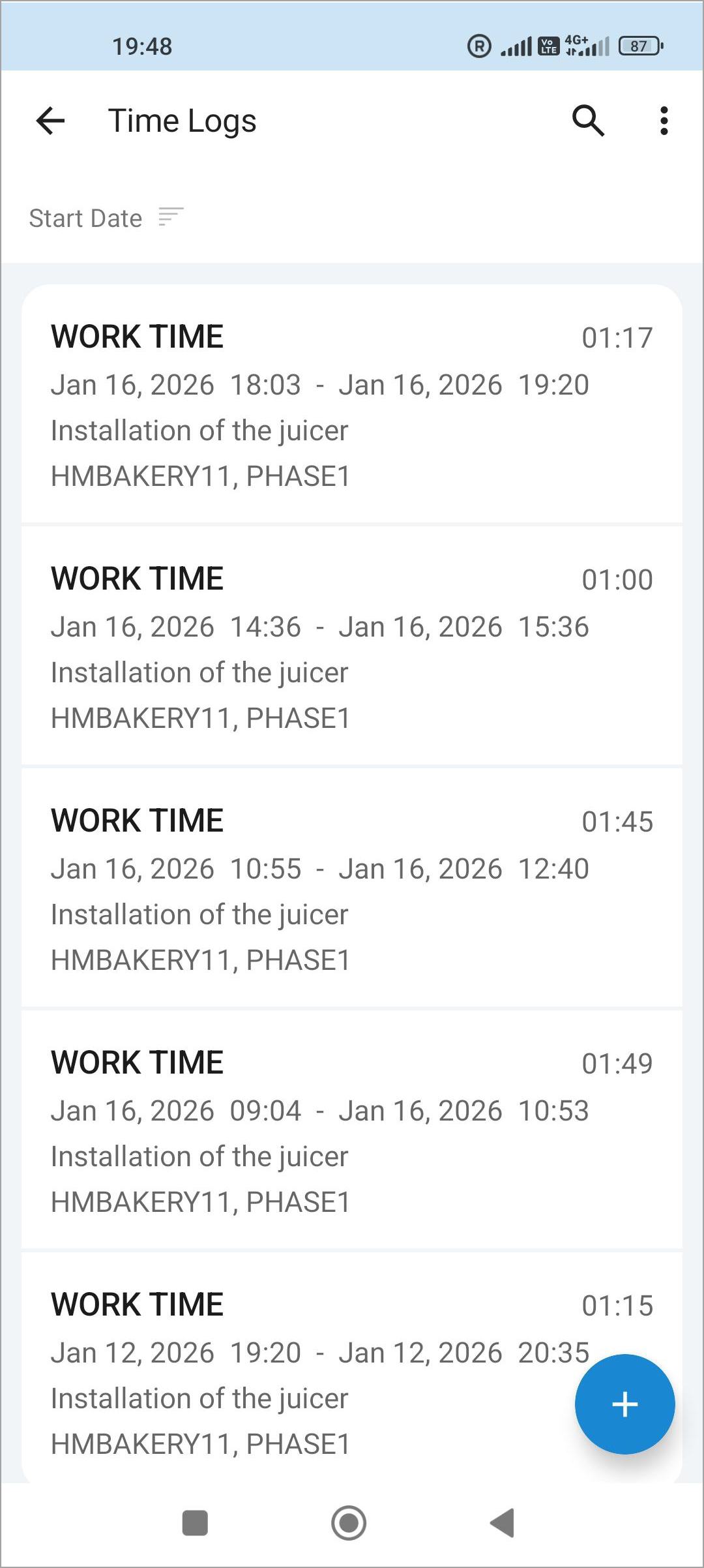
To manage time logs, tap the info icon ( ) to open the Time Logs screen. From
there, you can:
) to open the Time Logs screen. From
there, you can:
- View existing time logs for the project task
- Add a time log by tapping the Plus button
- Delete time logs
- Edit any time log's data (except the record ID) by tapping the time log
Viewing Daily Labor Activities
Version 2026.1.1 gives you enhanced visibility into daily labor activities on any project. You can see employee time logs for a selected day on the Time Log tab of the Daily Field Report (PJ304000) form.
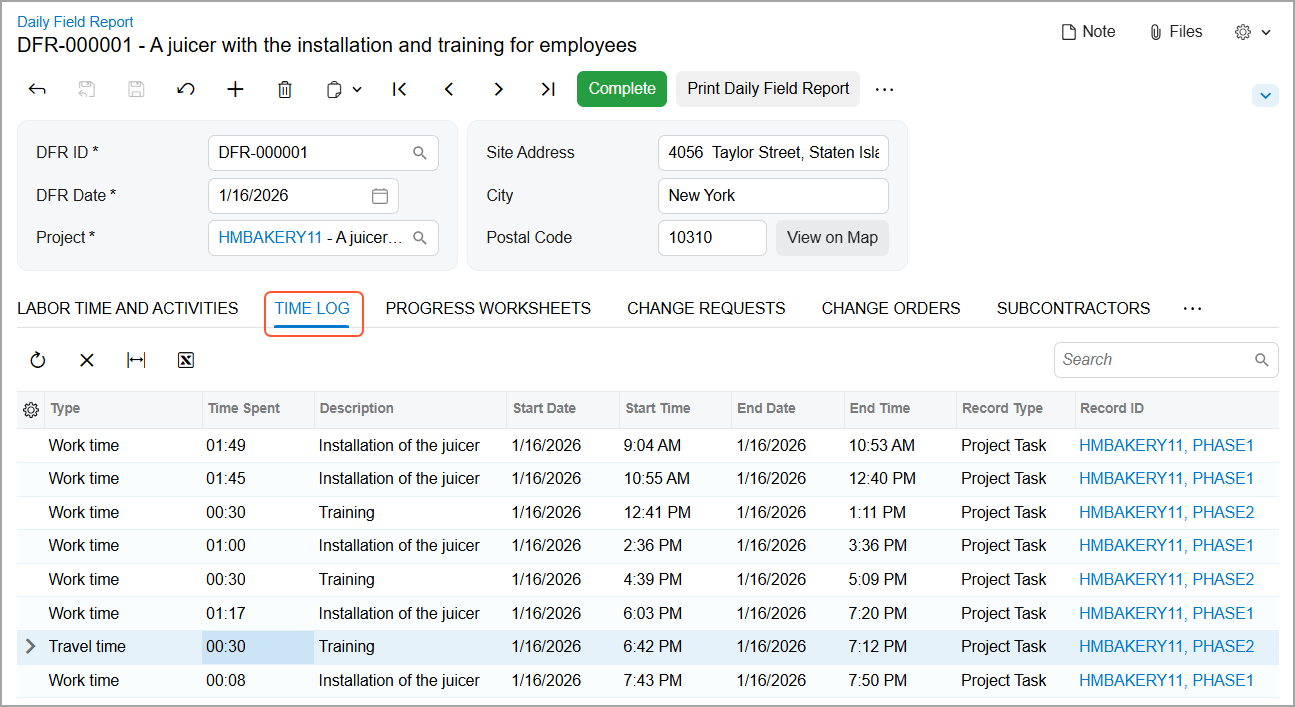
In the MYOB Acumatica mobile app, time logs are displayed on the same tab of the following screens:
- Daily Field Report
- Time Card
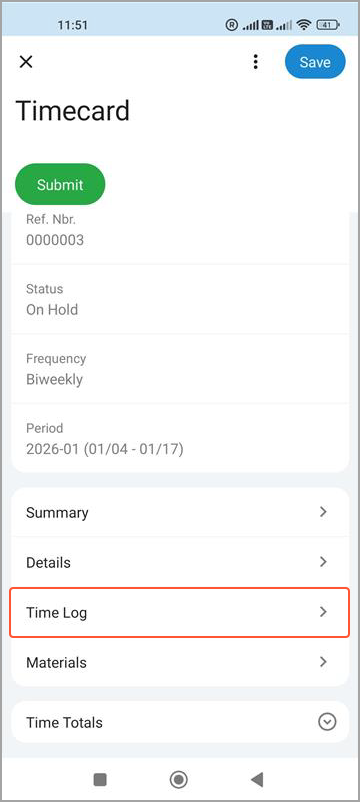
The system displays time logs of all employees whose time log date range includes one of these:
- The selected DFR Date in a daily field report
- The selected period in a time card
Creating Time Activities from Time Logs
You can create time activities from time logs by clicking Load from Time Log on the Daily Field Report (PJ304000) form or the following mobile app screens:
- Daily Field Report
- Timecard
The Load from Time Log button is available if both of the following conditions are met:
- At least one time log exists on the Time Log tab.
- The status of the daily field report or time card is On Hold.
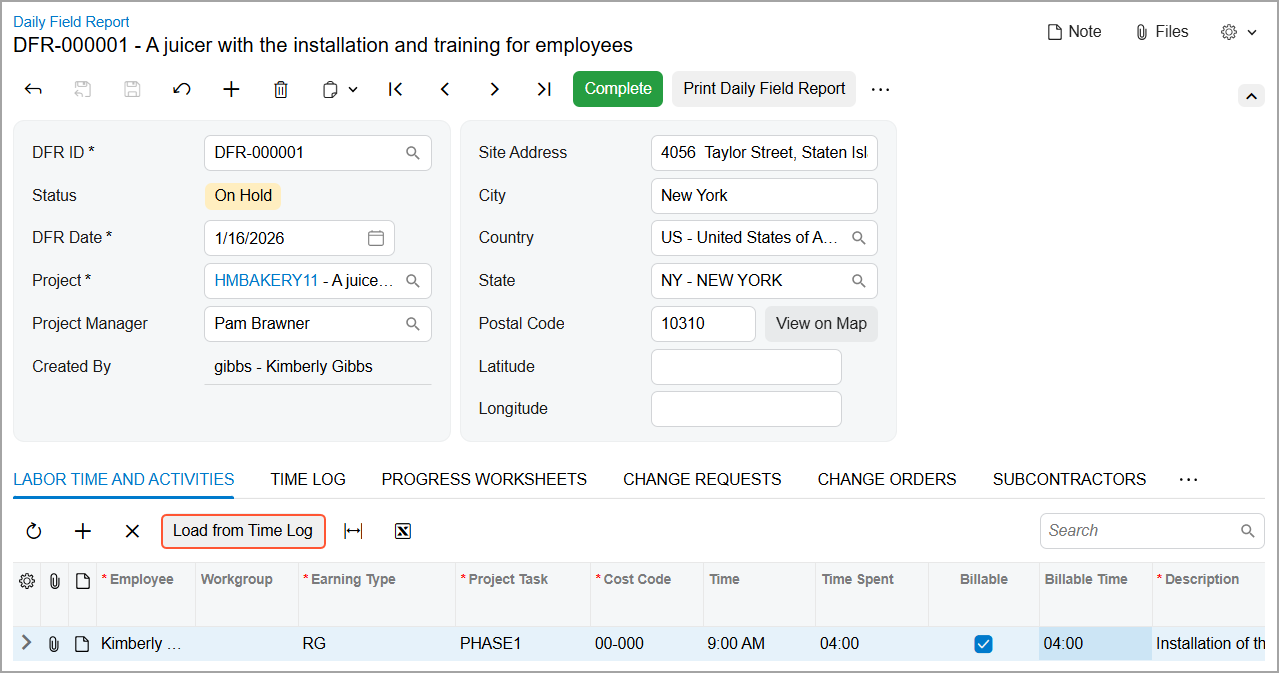
When you click Load from Time Log, the system creates time activities for only the unrecorded portion of a time log that belongs to the DFR Date of the daily field report or the time card period. After the time activity is created, the corresponding time log becomes read-only.
Example: Suppose that a time log for a particular project task starts at 8:00 PM on January 20 and ends at 1:00 AM on January 21. When you click Load from Time Log in the daily field report for January 20, the system does the following:
- Creates a time activity for four hours on January 20
- Makes the time log read-only
When you click Load from Time Log in the daily field report for January 21, the system creates a time activity for the remaining one hour if no time activity has already been created from this time log.
Key Tips for Cost Codes
For the smoothest time tracking experience, keep the Cost Codes feature disabled on the Enable/Disable Features (CS100000) form.
To minimize manual selection, make sure a default cost code is specified in advance. The default cost code can be defined in either of the following places:
- On the Non-Stock Items (IN202000) form for the employee’s labor item
- On the Project Tasks (PM302000) form for the project task
These settings help ensure that time is recorded correctly and applied to project costs automatically.
Access Rights
The following user roles have the listed access rights to the Time Logs and Time Log screens of the MYOB Acumatica mobile app:
- Administrator, Acumatica Support, and Internal Employee: Delete
- PM Viewer: View Only
Learn More
See these topics for more information: