
Projects and Construction: Streamlined Change Order Processing
Project teams often need to keep work moving while they're waiting for the project owner to approve a submitted project change. In MYOB Acumatica 2026.1.1, streamlined change order processing lets you continue work without delays by releasing cost changes independently of revenue changes.
Also, you can track the project owner’s approval of a change order directly in the system. And after reversing an incorrect change order, you can reuse its change requests by adding them to another change order.
This functionality helps you maintain project momentum while accurately reflecting a change’s approval status and financial impact.
- Change Orders for working with change orders
- Change Orders and Change Requests for working with change requests
Tracking the Approval Process with Owner-Related Statuses
As part of a real-world approval cycle, you can track the project owner's approval process for change orders.
When a change order is ready for the project owner’s review, you remove it from hold on the Change Orders (PM308000) form and click the new Send to Owner command on the More menu (Item 1 below). The system:
- Creates an email on the Email Activity (CR306015) form.
- Attaches the Change Order (PM643000) report to the email.
- Sends the email to the project owner (the customer contact) based on the mailing settings defined for the change order’s project.
- Changes the status of the change order to Sent to Owner.
When you've received the owner's response about the change order, you can change its status by clicking one of these new commands on the More menu:
- Mark as Accepted (Item 2): Changes the status to Accepted by Owner
- Mark as Declined (Item 3): Changes the status to Declined by Owner
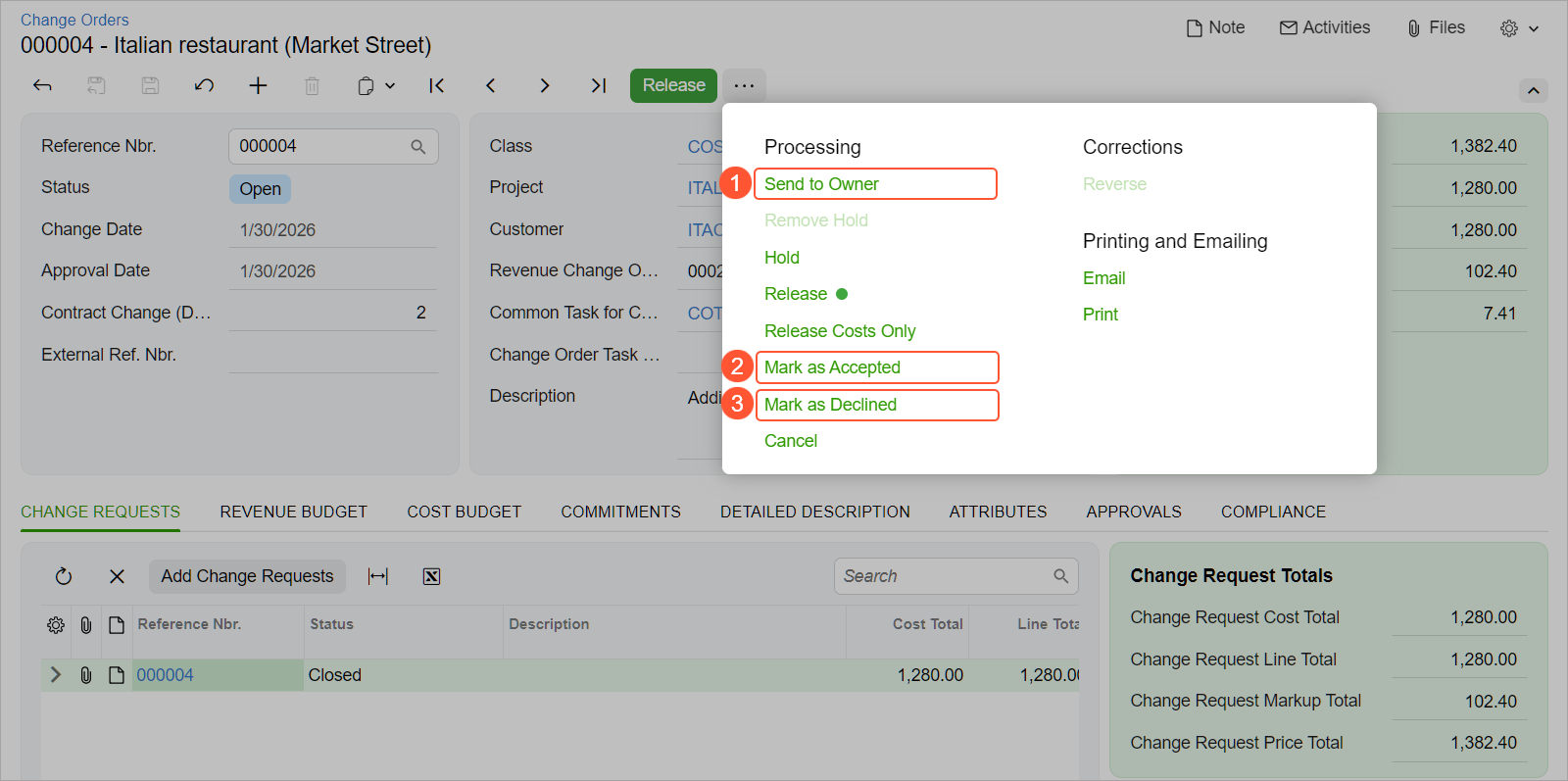
When a change order has the Accepted by Owner or Declined by Owner status, you can change the settings on the Revenue Budget tab of the Change Orders form. All other settings are unavailable for editing.
Releasing Cost Changes Before the Owner's Approval
In some cases, you may want to release the cost part of the change order before the project owner formally approves the revenue part of the change order so that project work can stay on schedule.
To do this, you click the new Release Costs Only command on the More menu of the Change Orders (PM308000) form. For the change order's cost budget lines, the system:
- Moves amounts and quantities from the Potential CO Amount and Potential CO Quantity columns to the Budgeted CO Amount and Budgeted CO Quantity columns for the affected project budget lines on the Projects (PM301000) form
- If commitment lines have been specified on the Commitments tab,
does one of these:
- Adds to a new document a line associated with the project and project task
- Updates an existing commitment line associated with the project and project task
- Changes the status of the change order to Cost Budget Released
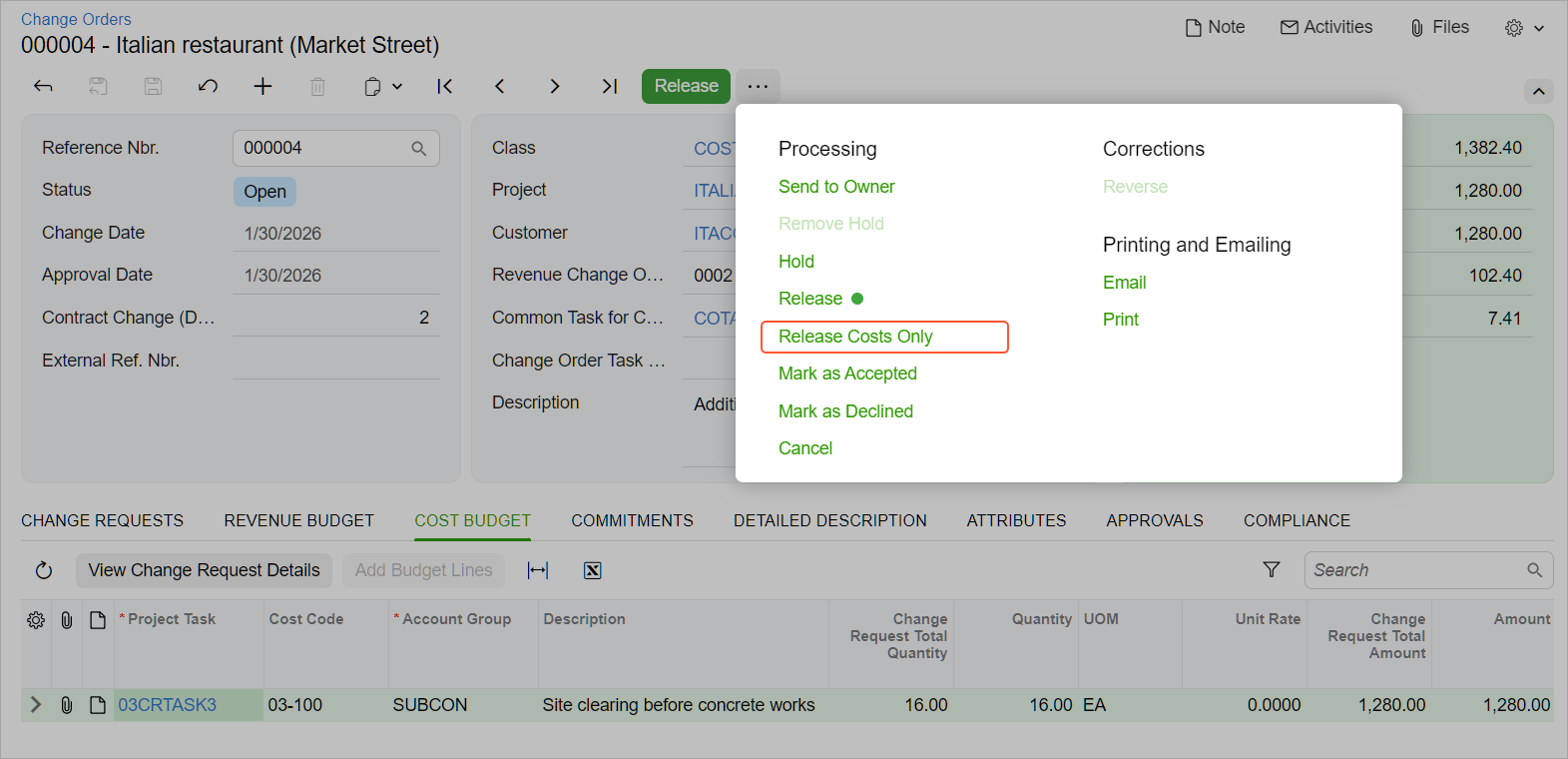
When the cost part of the change order has been released, you can proceed with the release of the revenue part.
When a change order has the Cost Budget Released status, you can edit the settings on the Revenue Budget tab of the Change Orders form. Other settings are unavailable for editing.
Unlinking Change Requests from a Reversed Change Order
If a change order was created in error or contains mistakes, you can reverse it and continue working with its change requests.
When you click Reverse on the More menu of the Change Orders (PM308000) form for the change order and release the reversing change order, the system does the following:
- For the original (reversed) change order:
- Unlinks all associated change requests from the change order
- Keeps all revenue, cost, and commitment lines in the change order, including those generated from the estimation lines of the unlinked change requests
- For each unlinked change request on the Change Requests (PM308500) form, shown below:
- Changes the status to Open
- Removes the link to the reversed change order
- For estimation lines whose commitment documents have already been billed or whose purchase receipt has been released, clears the Create Commitment check box and shows a warning
Figure 3. The reopened change request 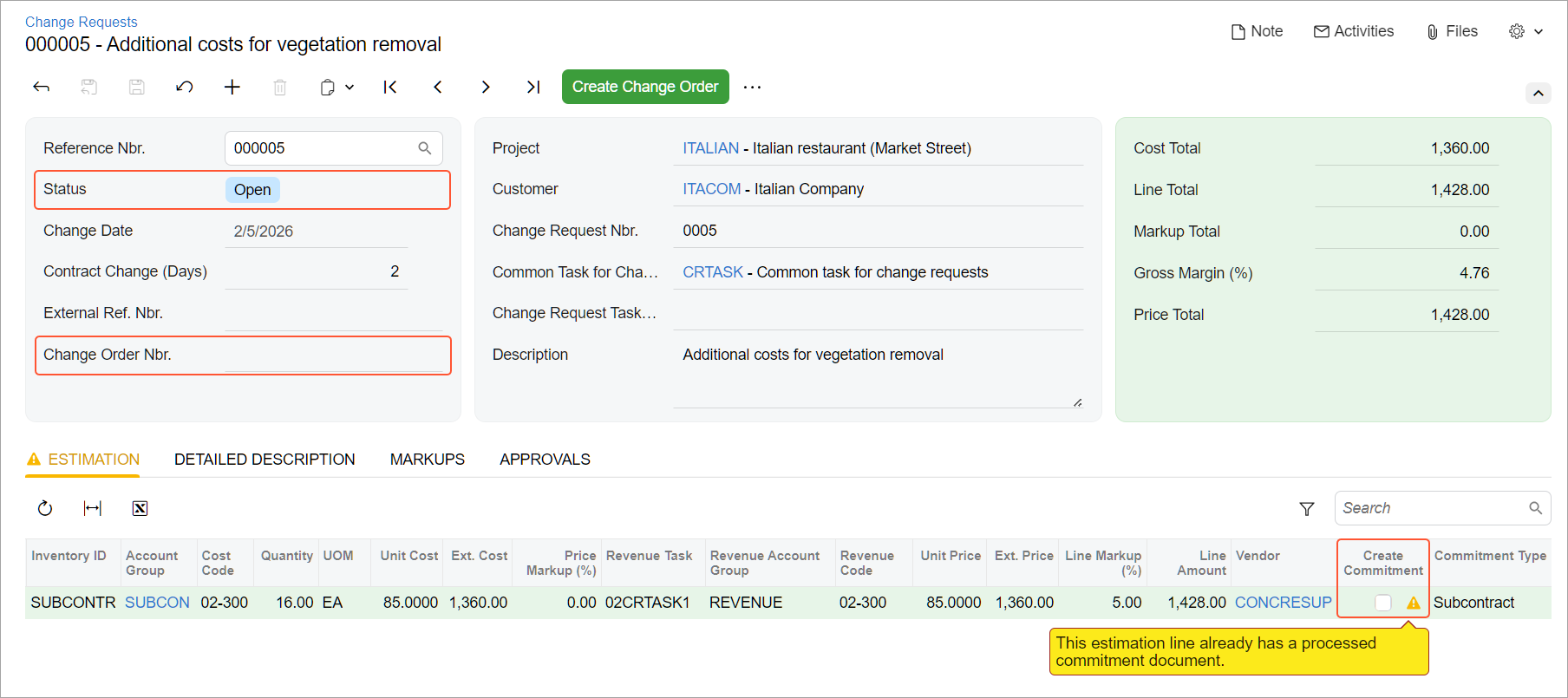
You can continue editing the unlinked reopened change request or add it to a new change order.
Mobile App Enhancements
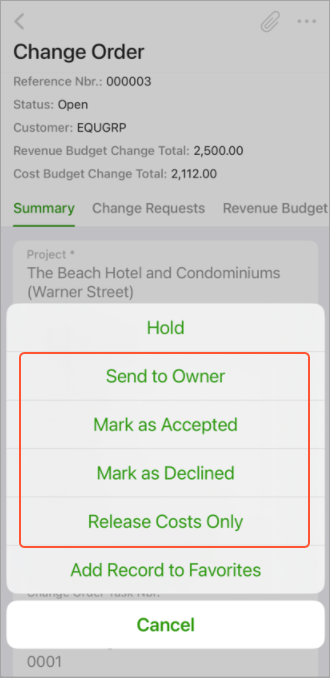
In the MYOB Acumatica mobile app, you can track project budget changes as part of your daily work on the project site. The new commands related to the owner's approval process and release of costs separately are available on the Change Order screen (see below).
Key Takeaways
- You can release cost budget and commitments before releasing revenue budget changes, allowing work to continue while approvals are pending.
- New change order commands and statuses clearly reflect communication with the project's owner and approval outcomes.
- After reversing a change order, you can open and reuse change requests without losing your previous work.
Learn More
Need more details on change orders and change requests? See: