
AI Studio: Nested Generic Inquiries in Anomaly Detection
In MYOB Acumatica 2024 R2, we introduced anomaly detection in generic inquiries. However, you couldn’t use it for a generic inquiry that relied on another generic inquiry as its data source. In Version 2026.1.1, this limitation has been removed.
Read on to learn how anomaly detection now works with more complex generic inquiries.
Detect Anomalies in Complex Generic Inquiries
Suppose that you want to run anomaly detection for the PM-Project Profitability generic inquiry. This inquiry uses the PM-Project Budget History By Date and PM-Project Profit History By Date generic inquiries as its source.
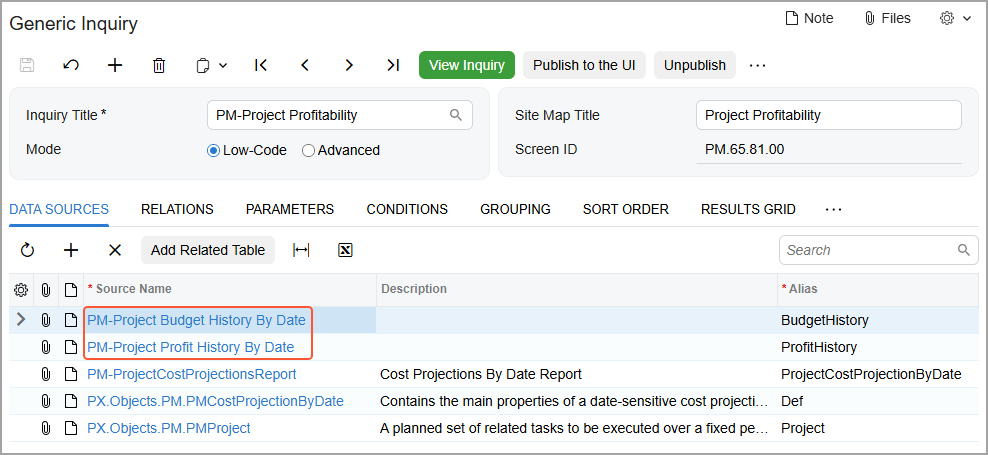
Now you can run anomaly detection by performing the same steps you use for simple generic inquiries. Specifically, you do the following on the Generic Inquiry (SM208000) form:
- Select the Detect Anomalies check box on the Interface Options tab.
- Select a field for analysis on the Anomaly Detection tab.
In the Field for Analysis box (see below), you can select a field from the current generic inquiry or from the source inquiry.
- Optional: Select the data field for the timeline on the Anomaly Detection tab.
- Specify the schedule.
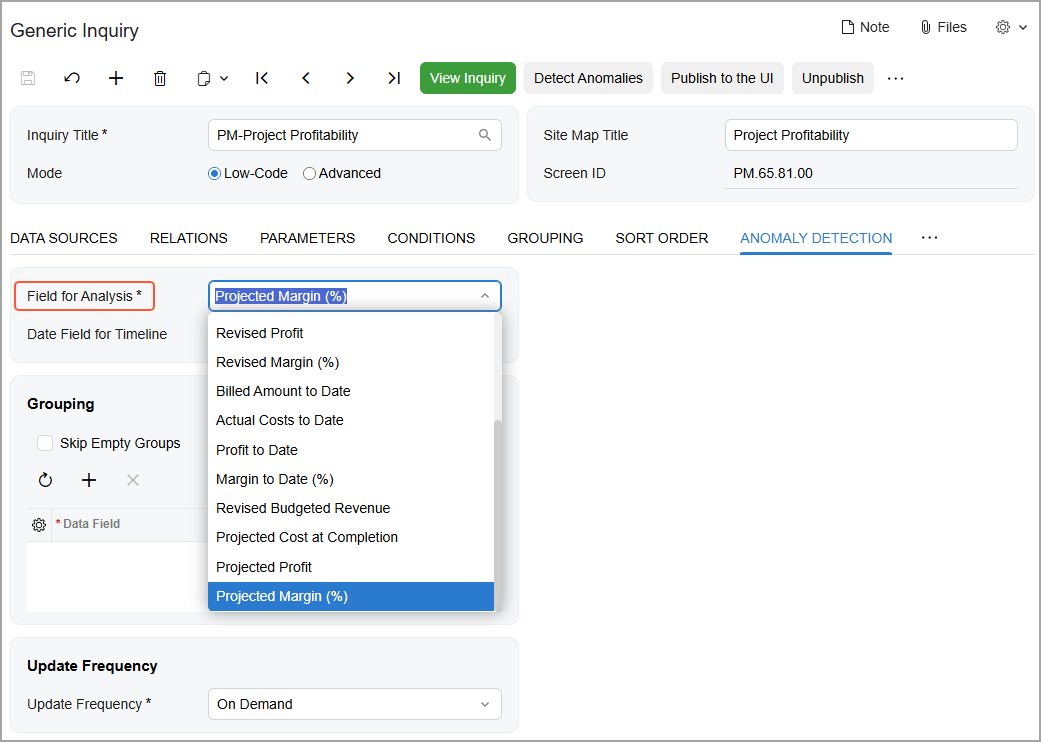
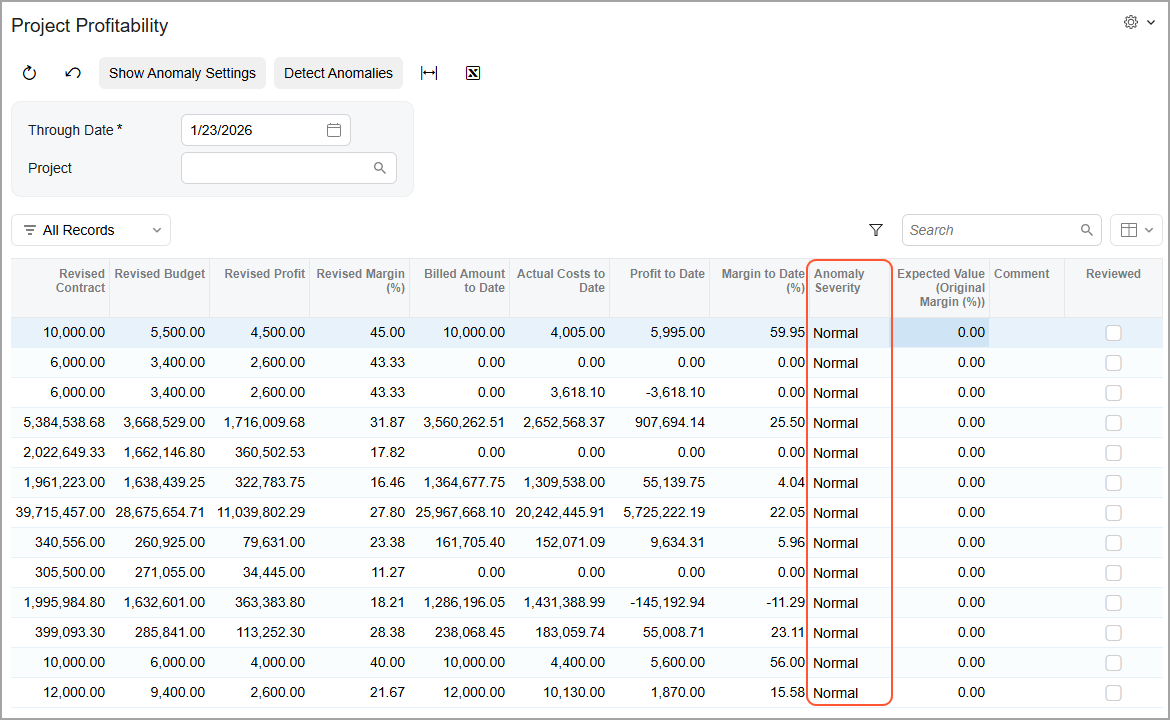
You then click Detect Anomalies on the form toolbar to open the Detect Anomalies in Generic Inquiries (ML502000) form and run anomaly calculation. The result is shown below; in this example, no anomalies were found.
Know the Limitations
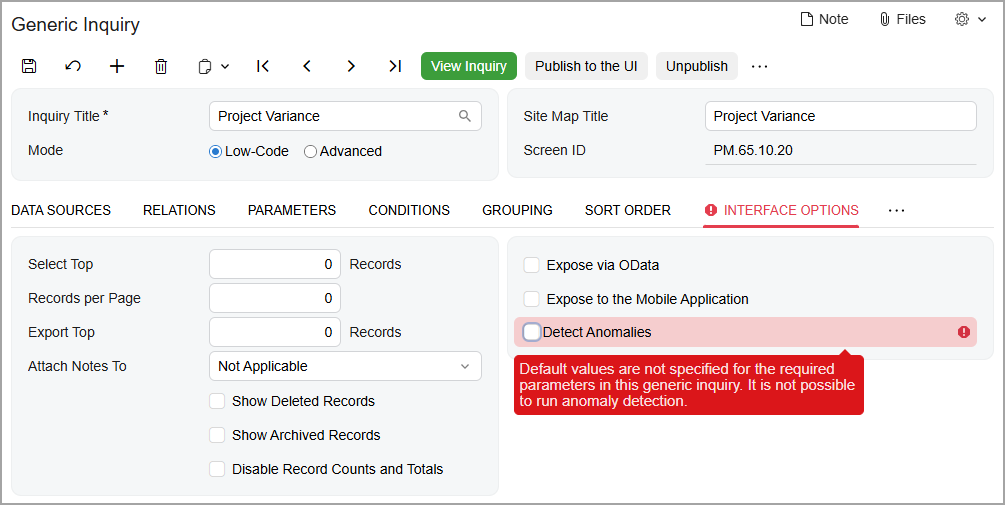
When you add the required parameters to your generic inquiries, you must specify default values for these parameters before using anomaly detection. If default values are not specified and you try to select the Detect Anomalies check box on the Generic Inquiry (SM208000) form, the system displays an error, as shown below.
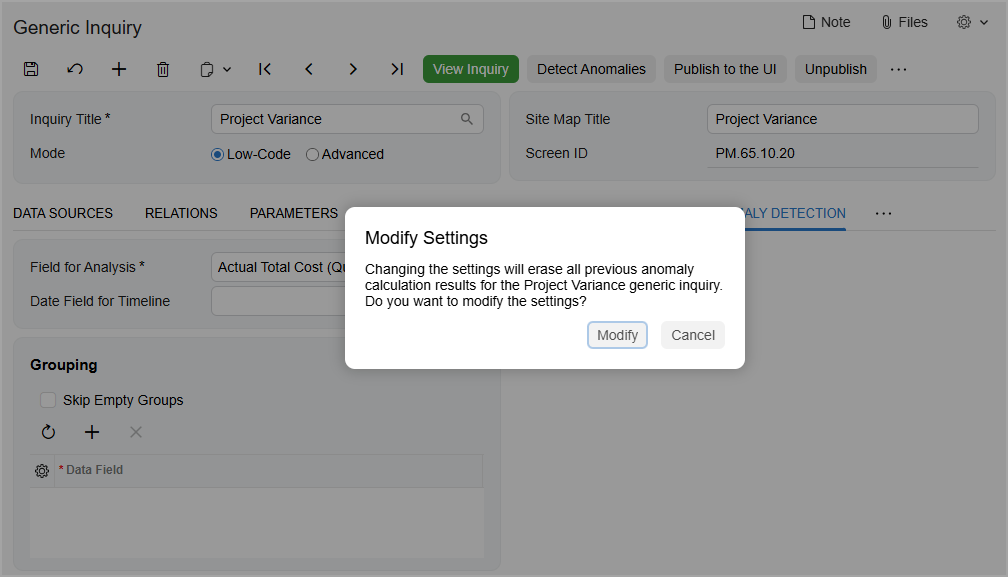
If you’ve already run anomaly calculation for a generic inquiry and you modify its settings on the Anomaly Detection tab, the existing calculation becomes outdated. In this case, you must start a new calculation. If a schedule is already running, the system stops it and then reruns the calculation with the updated values. The system displays a warning.
We recommend not modifying a generic inquiry that’s used as a source. These changes affect the dataset and invalidate existing calculations. If you need to modify a source inquiry, stop the current calculation, make the needed changes, and then run the process again. (To stop the current calculation, select the needed inquiry on the Detect Anomalies in Generic Inquiries form and click Reset Data on the form toolbar.)
Learn More
For more information on anomaly detection and nested generic inquiries, see Anomaly Detection: General Information and Data from Multiple Data Sources: Use of Generic Inquiry as Data Source.