
Retail Commerce: Syncing Sales Quotes with Shopify
Draft orders in Shopify let you apply custom discounts, special shipping rates, and flexible invoice options—making them perfect for custom requests or complex sales scenarios. In MYOB Acumatica 2026.1.1, you can now sync Shopify draft orders as sales quotes, keeping your quote data accurate across platforms.
Read on to discover how to set up this synchronization and start using it.
Configuring the Synchronization
To set up the synchronization of Shopify draft orders as sales quotes, update the store's settings on the Shopify Stores (BC201010) form:
- On the Entities tab, activate the Sales Quote entity.
- On the same tab, select the sync direction for the Sales Quote entity that fits
your workflow:
- Import: Create and maintain draft orders in Shopify and import them as sales quotes to MYOB Acumatica
- Export: Create and maintain sales quotes in MYOB Acumatica and export them to Shopify as draft orders
- Bidirectional: Synchronize sales quotes in both directions to keep data consistent across both systems
- In the new Sales Quote Orders section on the
Orders tab, specify the following settings, as shown below:
- Quote Order Type for Import: The order type to be used to create sales quotes when draft orders are imported from Shopify. You can select an order type that has the Quote automation behavior and the Issue operation specified on the Template tab of the Order Types (SO201000) form.
- Quote Order Type for Export. The order types to be used to
export sales quotes created in MYOB Acumatica as draft orders to Shopify. You can select multiple order types that have the Quote automation behavior
and the Issue operation specified.Tip:Even if no order type for export is specified, the system can still export sales quotes of the type defined for import.
- Earliest Quote Order Date: The earliest date for sales quotes to be synced. The system will import draft orders from Shopify or export sales quotes from MYOB Acumatica that were created on or after this date.
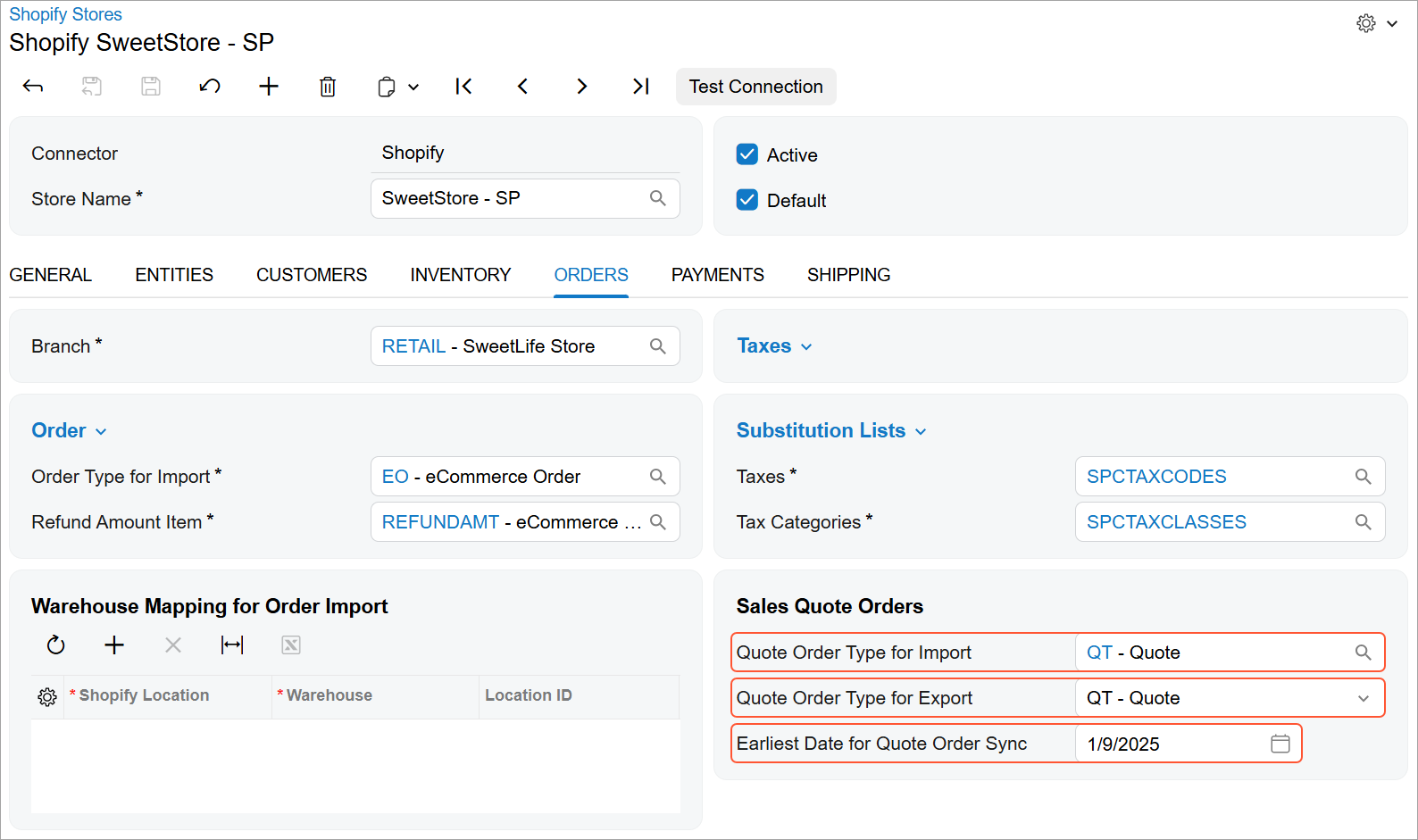
Importing Sales Quotes
To import draft orders from Shopify, prepare and process the data for the Sales Quote entity by using the Prepare Data (BC501000) and Process Data (BC501500) forms. The system imports draft orders that:
- Aren't yet completed
- Were created on or after the earliest quote order date specified in the store's settings
For each imported draft order, the system creates a sales quote on the Sales Orders (SO301000) form with the order type specified for quote import in the store's settings.
Exporting Sales Quotes
To export sales quotes to Shopify, prepare and process the data for the Sales Quote entity by using the Prepare Data (BC501000) and Process Data (BC501500) forms. The system exports sales quotes that:
- Have the order type specified for quote export (or import) in the store's settings.
- Aren't completed, canceled, or on hold
- Were created on or after the earliest quote order date specified in the store's settings.
For each exported sales quote, the system creates a draft order in the Shopify store. The connector doesn't synchronize canceled or completed sales quotes. When synchronizing a quote that was already exported and then completed or canceled, the connector assigns the Canceled or Completed tag to the corresponding draft order in Shopify.
Working with Imported Sales Quotes
To finalize a sales quote—that is, to convert it to a sales order and complete the quote in the process—choose one of the following workflows.
Option 1: Finalize It in MYOB Acumatica
- Create a sales order by copying the sales quote on the Sales Orders form.
By default, the new sales order is assigned the type specified in the Order Types for Export box on the Orders tab of the Shopify Stores (BC201010) form. When you create the sales order, the sales quote is assigned the Completed status in MYOB Acumatica.
- Sync the sales quote in MYOB Acumatica.
The draft order in Shopify remains open but is marked with the Completed tag. You can filter these orders by tag. Also, you can manually delete the order from Shopify, if necessary. When you delete the order, the sync record in MYOB Acumatica is assigned the Deleted status and excluded from future syncs.
- Export the created sales order to the Shopify store.
Option 2: Finalize It in Shopify
- Create an order directly from the draft order in your Shopify store, which causes the draft order to get the Completed status there.
- Sync the sales quote in MYOB Acumatica.
The sales quote remains open, but a notification appears below the title bar on the Sales Orders form, as shown below, indicating that the draft order has been completed.
Figure 2. A sales quote for which the draft order has been completed in Shopify 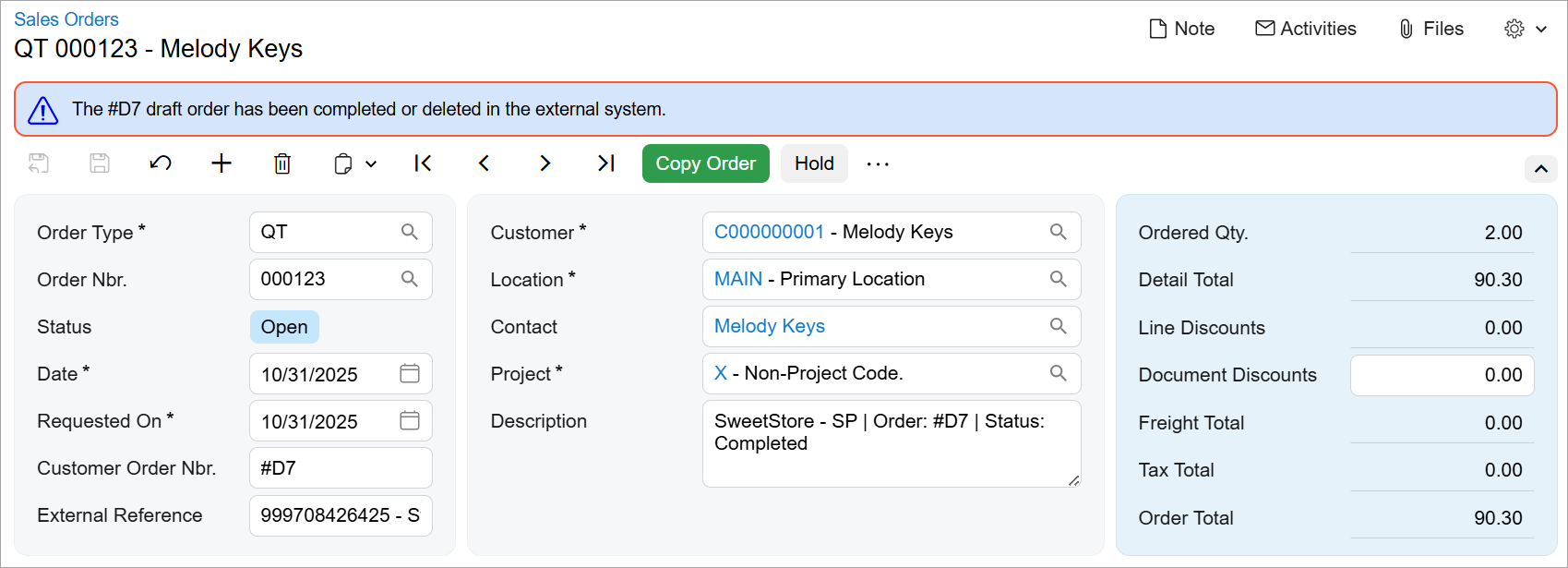
You'll no longer be able to copy this sales quote in MYOB Acumatica to create a sales order.
Key Takeaways
Now you can keep your sales quotes accurate and in sync across platforms. You can import draft orders from Shopify and view them as sales quotes in MYOB Acumatica—as well as create sales quotes in MYOB Acumatica and export them to Shopify. With these flexible synchronization capabilities, you can manage and process these quotes in the system that best fits your workflow.