
Projects and Construction: Project-Related User-Defined Fields
MYOB Acumatica 2026.1.1 intelligently supports user-defined fields across project templates, projects, project quotes, and tasks. When you create records based on other records, the values of shared user-defined fields are automatically carried over as default values, helping you maintain data consistency. The system can copy values across these records only if you've added the user-defined fields to each of the applicable forms.
User-Defined Fields in Project Templates and Template Tasks
You can now add user-defined fields and specify their values in a project template on the Project Templates (PM208000) form. Below you can see user-defined fields that have been added to this form, along with the values specified for the PROGRQ project template.
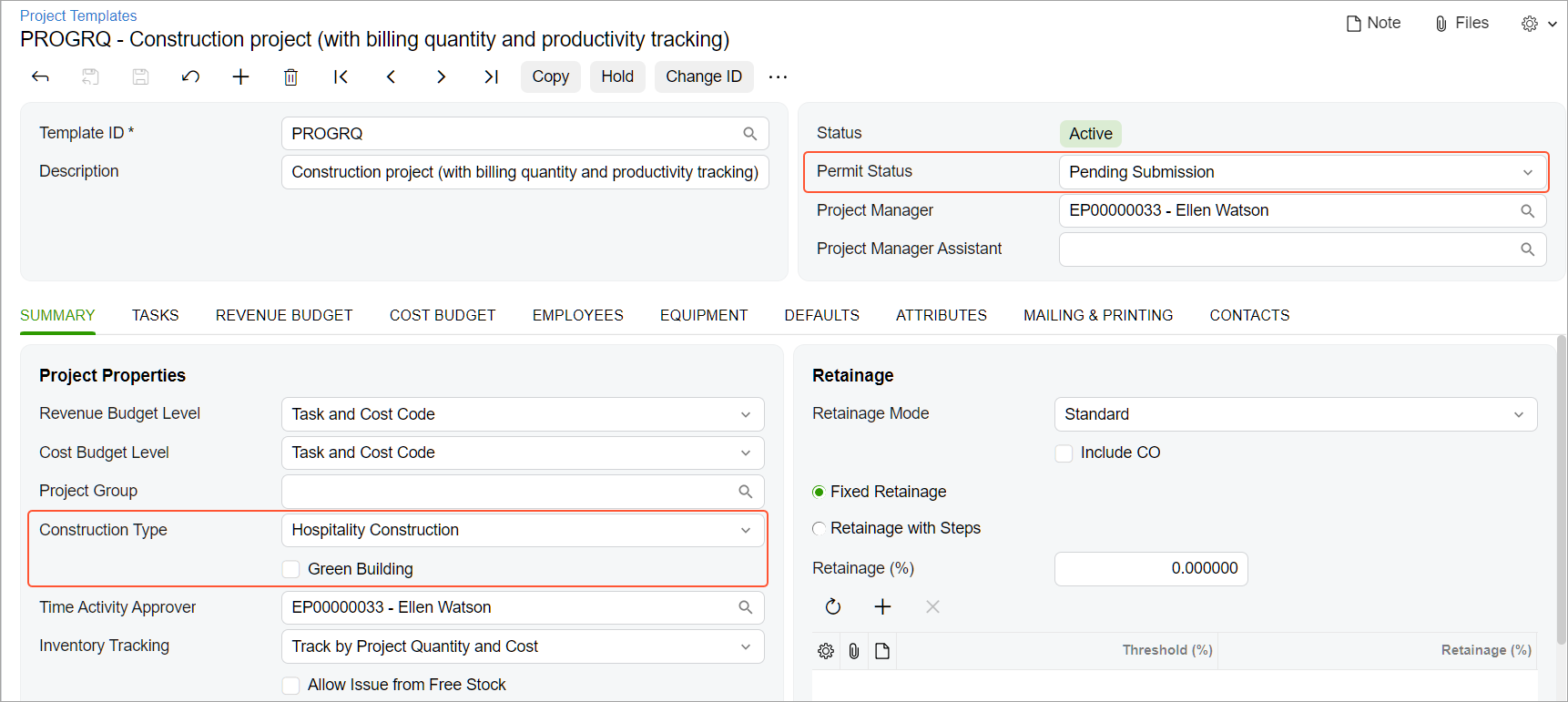
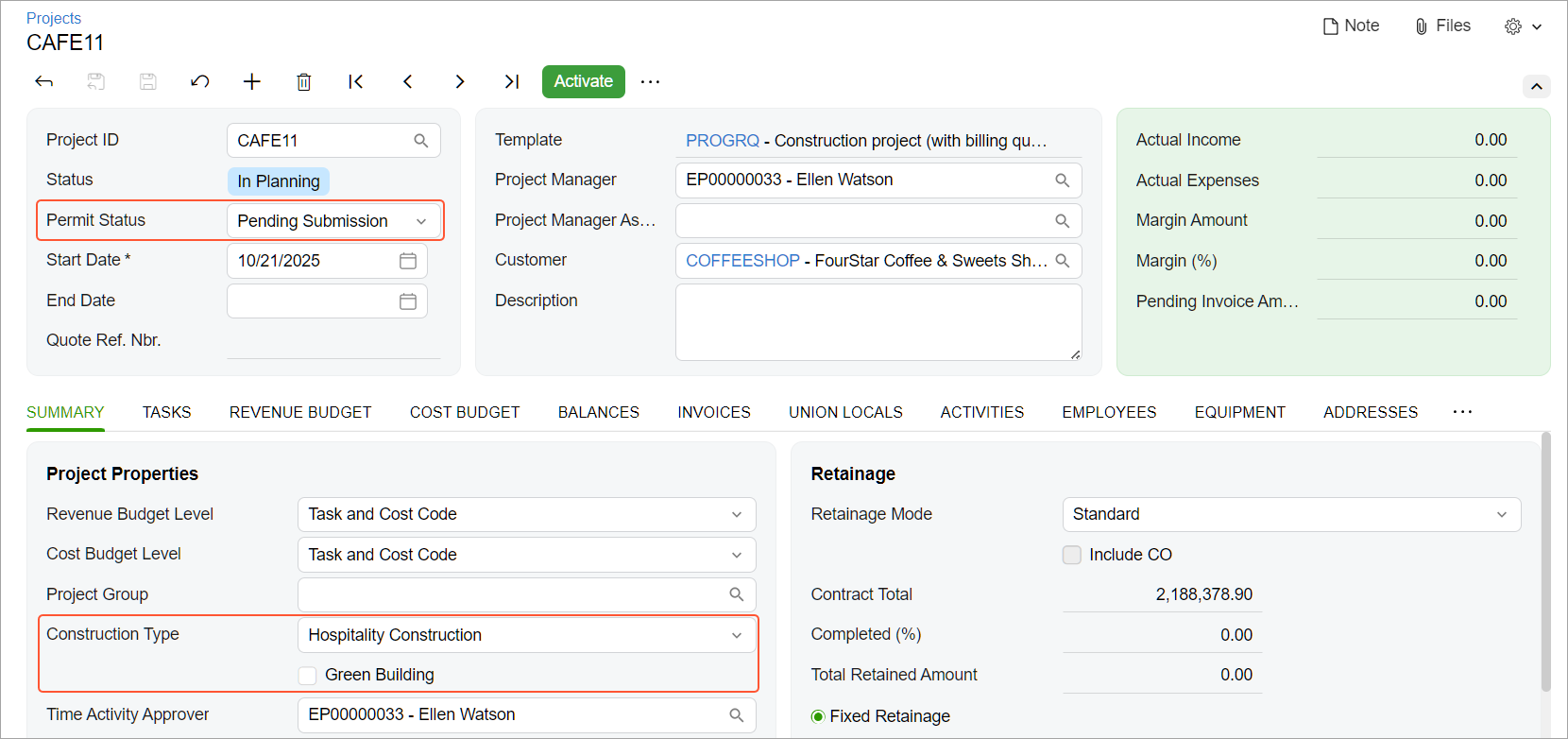
When you create a project on the Projects (PM301000) form and select this template, the system copies the template’s values of shared user-defined fields to the project.
Similarly, you can add user-defined fields to the Project Template Tasks (PM208010) and Project Tasks (PM302000) forms and specify their values in a template task. If a project template includes this template task, the system copies the values of its user-defined fields to each project task created from the task template.
User-Defined Fields in Project Quotes
Consider this scenario:
- You’ve defined the same user-defined fields on these forms: Project Templates (PM208000), Projects (PM301000), and Project Quotes (PM304500).
- The PROGRQ project template has values specified for these user-defined fields.
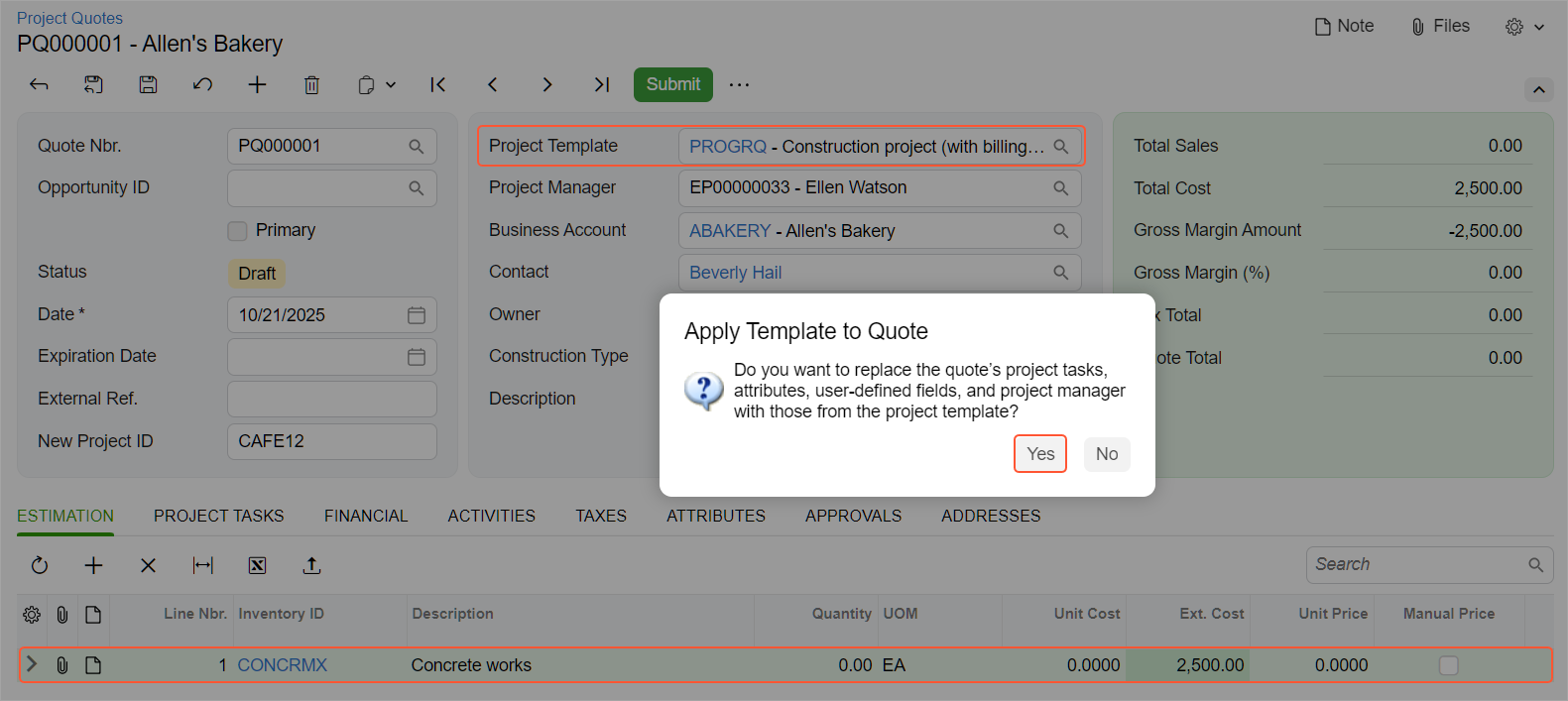
Now you’re selecting the PROGRQ template in a new or existing project quote on the Project Quotes form. The system copies the project template’s user-defined field values to the project quote in either of these cases:
- The Estimation tab has no lines added.
- The Estimation tab has lines, and you click Yes in the Apply Template to Quote dialog box (see below).
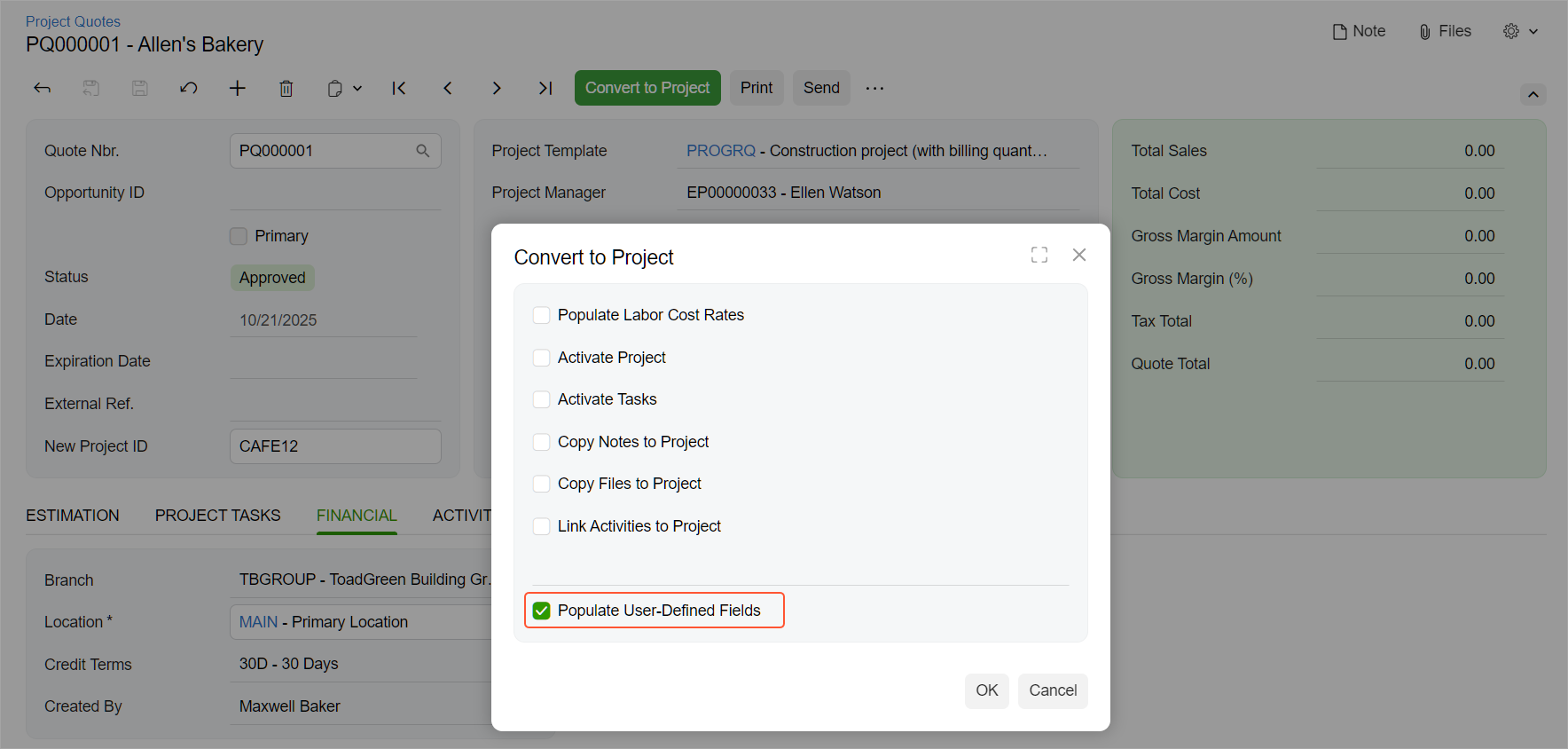
If you then convert the project quote to a project, you can copy the user-defined field values to this project:
- While viewing the project quote on the Project Quotes form, click Convert to Project on the form toolbar.
- In the Convert to Project dialog box, select the new Populate User-Defined Fields check box (see below).
- Click OK. The system creates a project based on the quote, opens it on the Projects form, and populates the project’s user-defined fields with the quote’s values.
Copying of User-Defined Field Values from a Project
When you're working with an existing project on the Projects (PM301000) form, the system copies its default user-defined field values to these newly created records related to the project:
- A project template when you click Create Template
- A project when you click Copy Project
- A common task when you click Add Common Tasks on the Tasks tab
Learn More
Need more details on user-defined fields? See Adjustment of the MYOB Acumatica UI: Managing User-Defined Fields.