Finance: Improvements in Customer and Vendor Payment Methods
Beginning in MYOB Acumatica 2026.1.1, you can control how users enter customer and vendor payment method details. With controls that fit the data being entered, data entry becomes more intuitive and consistent. Users can now enter this data by using drop-down lists and date pickers. As part of setup, you specify which control is used for each payment method detail.
These changes make payment method details easier for users to enter consistently and correctly across AR and AP—reducing errors and improving data quality.
Read on to learn which administrative settings are now available for payment methods and where they can be used.
How Your Users Will Benefit
With structured input options replacing text entry, users can enter payment method details quickly and confidently. Drop-down lists and date pickers guide users to valid values, ensure consistency, and deliver a smarter, smoother user experience.
Defining How Users Enter Payment Method Details
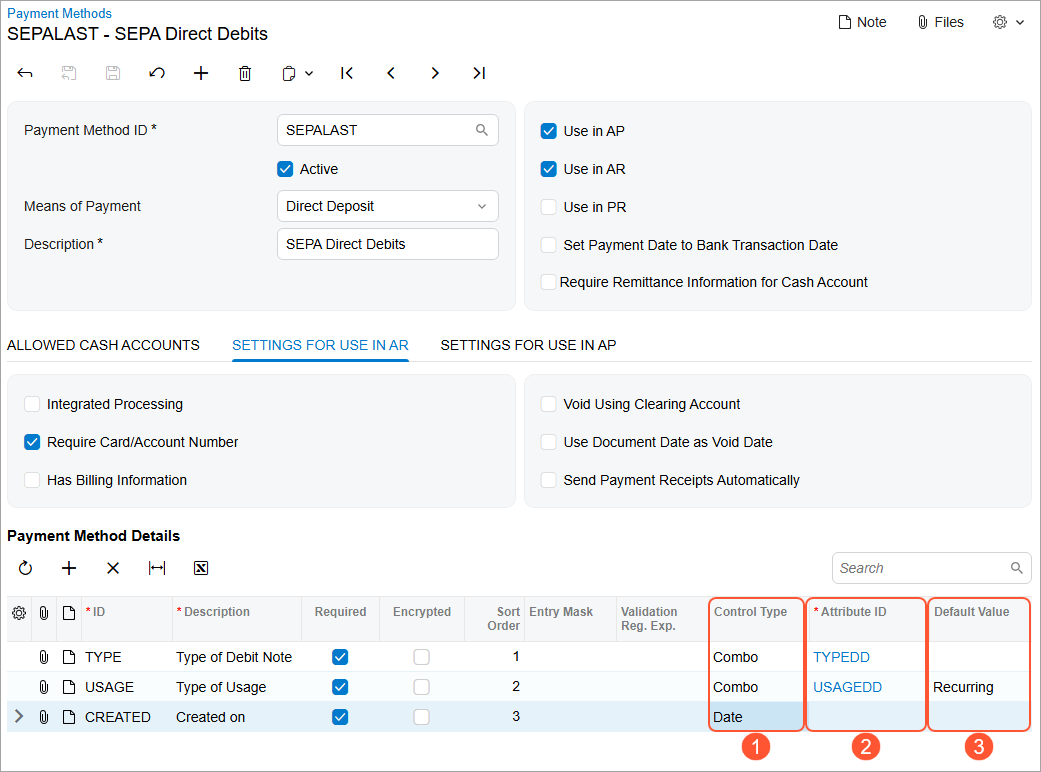
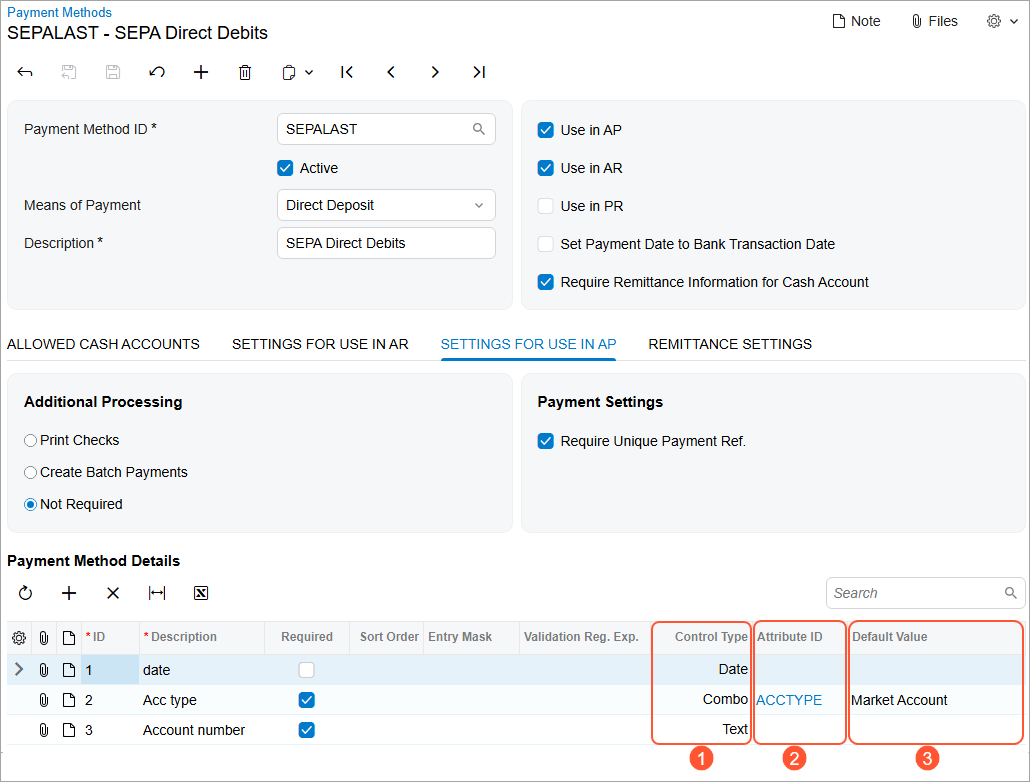
On the Settings for Use in AR and Settings for Use in AP tabs of the Payment Methods (CA204000) form, you can define how users enter payment method details. The columns shown below have been added to both tabs.
- Control Type: In this column, you specify how users enter each
payment setting. The following types are available:
- Text (default): Users enter the value as plain text. This type is used for system-defined payment details, such as encrypted fields or card-related fields, and it can't be changed.
- Combo: Users select the option from a drop-down list.
- Date: Users select a date by using a date picker.
If Combo or Date is selected, formatting-related columns (Entry Mask, Validation Reg. Exp., and Display Mask) are automatically cleared and unavailable.
If plug-ins add additional control types, the system will list these standard types (Text, Combo, and Date) at the top of the list.
- Attribute ID: In this column, you select the attribute that provides values for the Combo control type. When you click the magnifier button, the system opens the lookup table. Here you can link this record to an existing attribute that also uses the Combo control type.
- Default Value: In this column, you can specify the default value for the Combo control type. The drop-down list in this column displays the list of allowed values for the selected attribute.
Where These Settings Are Used
The new configuration applies to payment methods used in AR and AP. When users enter or edit payment method details, the system now uses these settings on the following forms:
- Customer Payment Methods (AR303010) form, Payment Method Details tab
- Vendors (AP303000) form, Payment tab
- Vendor Locations (AP303010) form, Payment tab
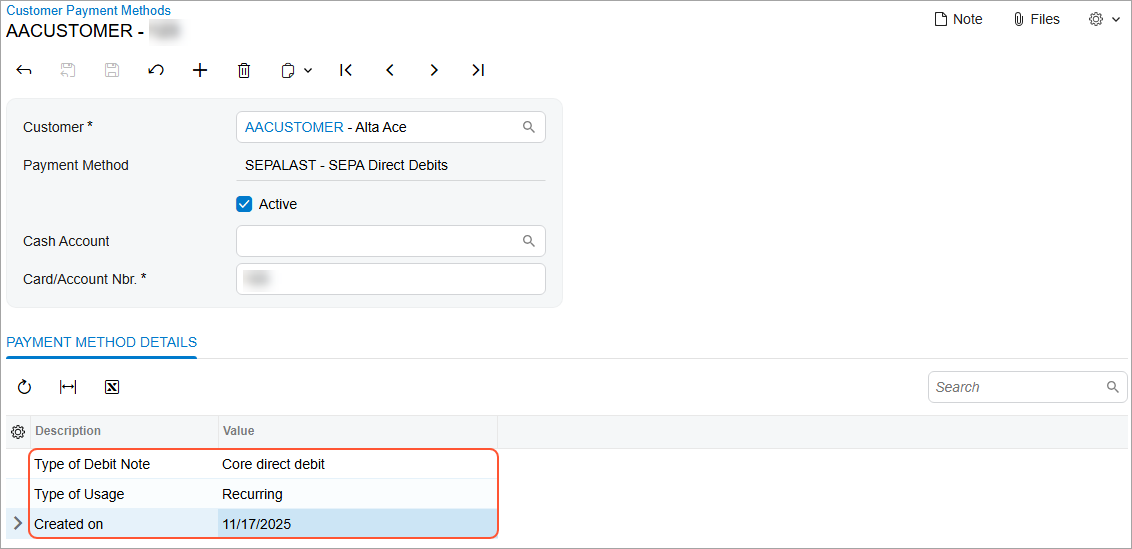
The customer payment method shown below includes the payment method details set up on the Settings for Use in AR tab of the Payment Methods (CA204000) form.
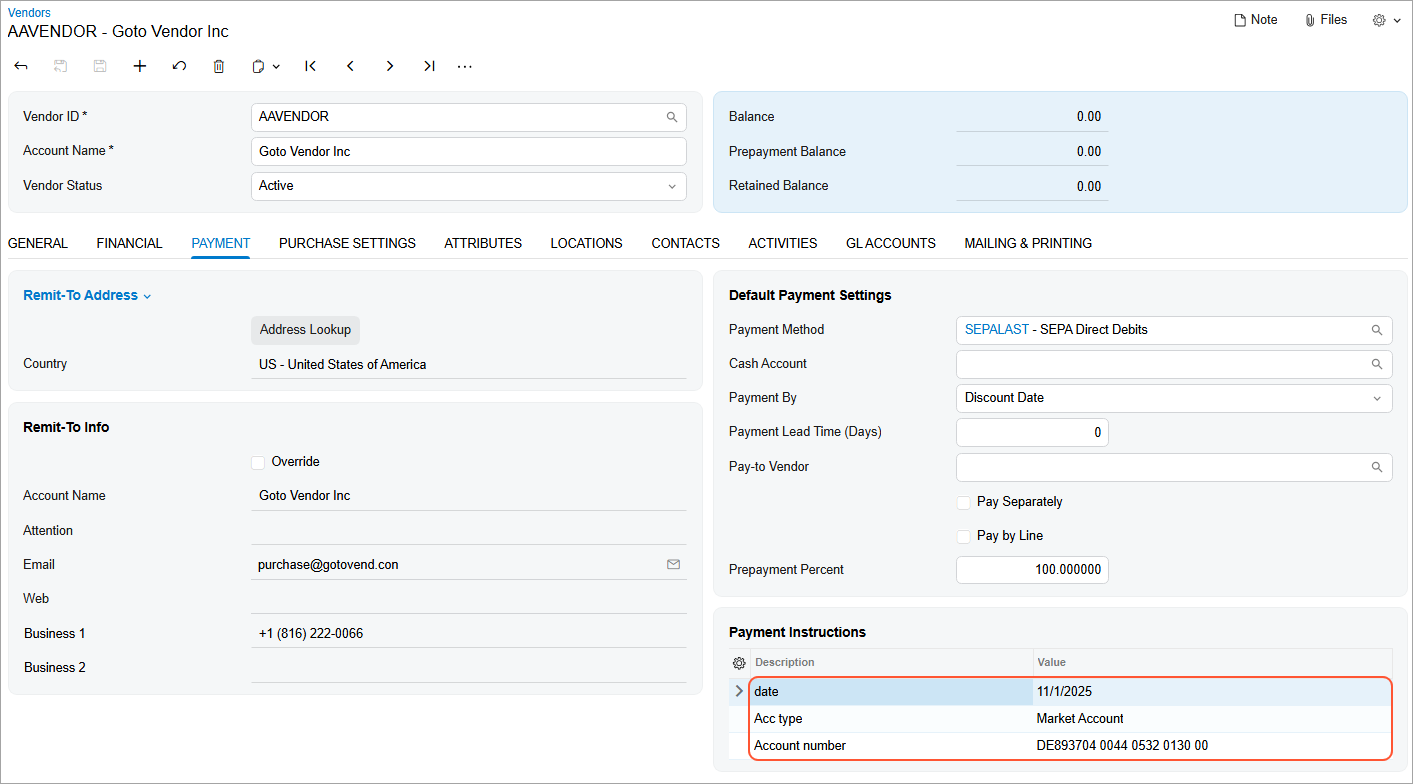
The vendor payment instructions shown below include the payment method details set up on the Settings for Use in AP tab of the Payment Methods form.