
Projects and Construction: Cost Code Population in Project-Related Documents and Their Lines
MYOB Acumatica 2025.2.1 introduces a powerful enhancement to the way cost codes are automatically populated in project-related document lines, providing greater flexibility and control for project-driven and construction-focused businesses. You can now set up the system to automatically use default cost codes from your preferred source: the vendor, project task, or inventory item. This improvement supports MYOB's ongoing commitment to streamlining construction and project accounting workflows, reducing risks, and driving project profitability.
Read on to explore key use cases, the enhanced functionality, and the forms that support automated cost code population.
Key Use Cases for Default Cost Code Sources
You can set up the system so it populates the Cost Code column of project-related document lines with cost codes copied from the vendor, the project task, the inventory item, or both the project task and the inventory item. Here we will look at two common use cases.
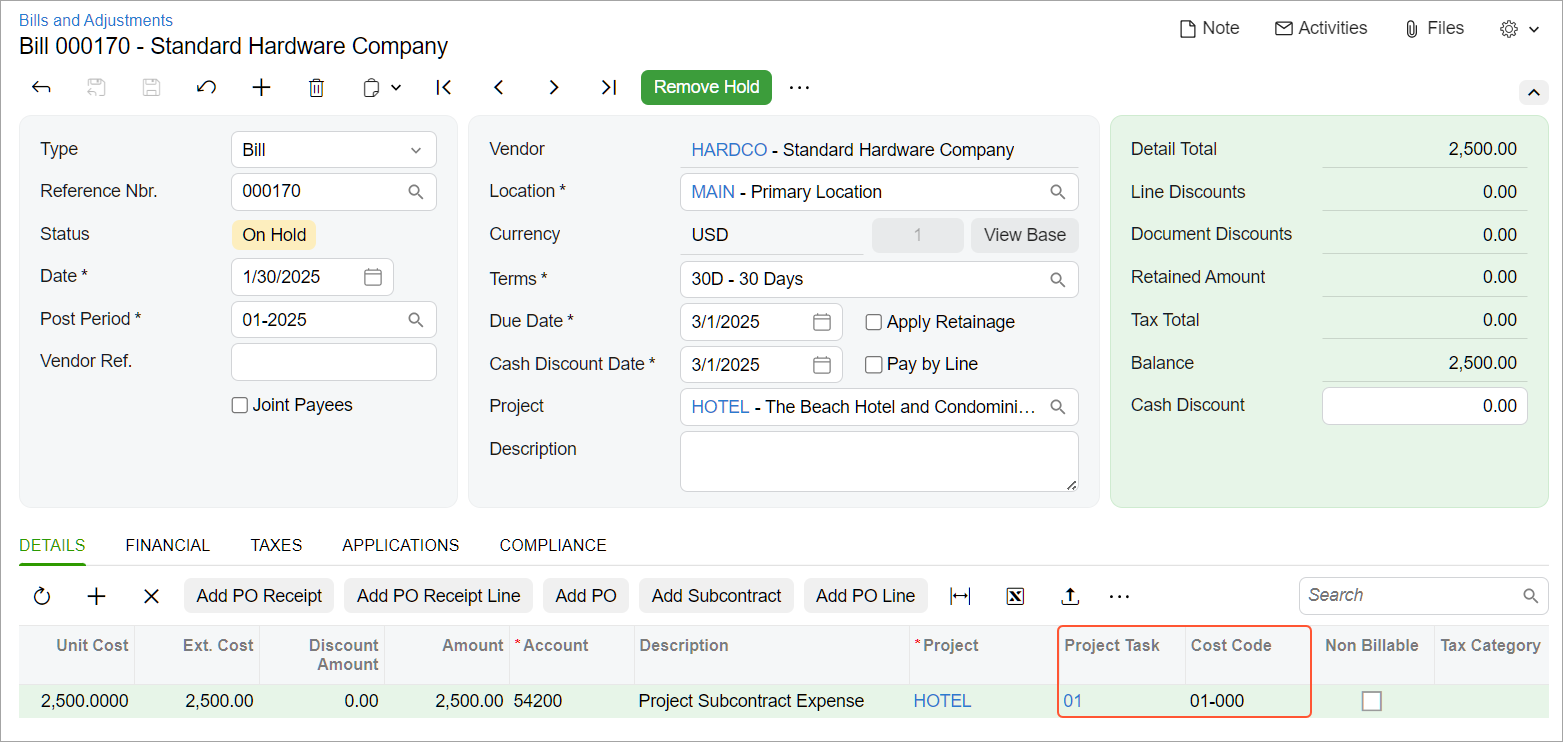
Use Case 1: Project Tasks as the Default Cost Code Source. Suppose that you’re a general contractor working with a basic cost budget. You want to configure the system so that in project-related document lines, the project tasks supply the cost codes—that is, the project task's default cost code is inserted by default.
Now you can do just that. As soon as you select a project task, the system automatically inserts the cost code assigned to the project task (see below). This streamlines data entry and helps you accurately track expenses at the task level.
Use Case 2: Inventory Items as the Default Cost Code Source. Now imagine that you’re a general contractor using a project budget structure with both cost codes and inventory items. You’ve set up the cost codes to provide detailed categorization of expenses, so each project-related document line should use the cost code specified for the selected item.
The system can now use inventory items as the source of default cost codes in project-related documents, which streamlines data entry. If a default cost code is assigned to an inventory item, the system automatically inserts the cost code once you select the project task and inventory item in the document line. With this setup, you can use a single project task in all documents—no need to define separate project tasks.
Before You Start the Setup
- Ensure that the Cost Codes feature is enabled on the Enable/Disable Features (CS100000) form.
- Define your cost codes on the Cost Codes (PM209500) form.
Specifying Default Cost Codes
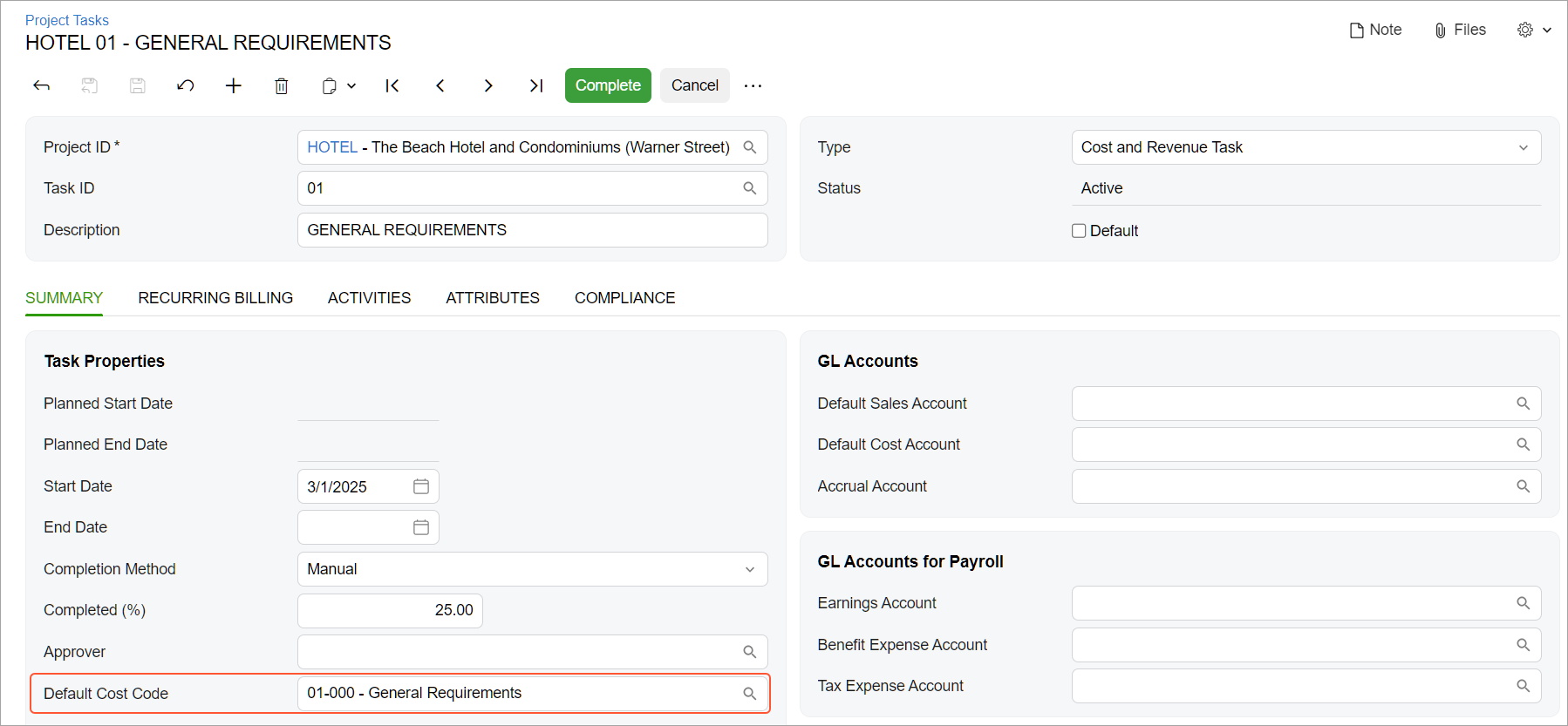
You can now configure the system to populate default cost codes not only from the vendor’s settings, but also from the settings of the project task, inventory item, or both of these. This flexibility gives you the ability to define a more granular, context-sensitive way to allocate costs based on your business processes.
You can now specify default cost codes for records on the following forms:
- Project Tasks (PM302000), which is shown below, for project tasks
- Stock Items (IN202500) for stock items
- Non-Stock Items (IN202000) for non-stock items
- Projects (PM301000), the Tasks tab, for project tasks
- If both a project task and an inventory item have default cost codes, the item’s code takes priority.
- The system doesn’t insert cost codes in documents and document lines where Project is set to the non-project code.
Also, to speed up project creation, you can define default cost codes on these forms:
- Project Template Tasks (PM208010) for project template tasks
- Common Tasks (PM208030) for common tasks
When you create a project task based on a project task template or add a common task to a project, the system assigns the corresponding default cost code to each project task. You can override these default cost codes later, if needed.
Cost Code Population in Imported, Copied, and Related Documents
Here’s how the system populates cost codes in project-related document lines, depending on how the document is created:
- Imported documents: The system takes the cost code from the import source, such as an Excel file. If no cost code is provided, it inserts a default cost code.
- Documents created from source documents: The system copies the cost code from the source document (for example, from an AP bill to a purchase order).
- Copied documents: The system copies the cost code from the original document to the new one.
Explore the sections below to see how cost codes are automatically inserted in project-related documents of various types.
Project Commitments and Project-Related Documents with Cost Codes
A project commitment is an obligation—represented by a purchase order, subcontract, or related document—to incur a future project-related expense. When you’re adding a document line to a project commitment, the system populates the line’s cost code based on this priority:
- Project task
- Inventory item
- Vendor
This applies to the following forms: Purchase Orders (PO301000), Subcontracts (SC301000), Bills and Adjustments (AP301000), Cash Purchases (AP304000), Generate Intercompany Documents (AP503500), and the Commitments tab of the Change Orders (PM308000).
If the system finds no applicable cost code, the Cost Code column remains empty for the line.
Project Transactions with Cost Codes
When you’re entering a project-related row of a project transaction on the Project Transactions (PM304000) form, the system populates the cost code based on the following priority:
- Project task
- Inventory item
If the system finds no applicable cost code, the Cost Code column remains empty.
Time and Expense Documents with Cost Codes
Suppose that you’re entering a line of a project-related record on the Expense Claim (EP301000), Expense Receipt (EP301020), Employee Time Activities (EP307000), or Employee Time Cards (EP305000) form. The system populates the cost code based on the following priority:
- Project task
- Labor (non-stock) item
If the system finds no applicable cost code, the Cost Code column remains empty.
Tasks and Activities with Cost Codes
When you’re entering a task or activity on the Activity (CR306010), Email Activity (CR306015), or Task (CR306020) form, the system populates the cost code of each project-related line based on the following priority:
- Project task
- Labor (non-stock) item
- Default cost code (for example, 00-000) defined in the system
Project Quotes with Cost Codes
When you’re entering an estimation detail of a project quote on the Project Quotes (PM304500) form, the system inserts the default cost code specified in the inventory item. If no default cost code is specified, the Cost Code column remains empty.
Production Orders with Cost Codes
Suppose that you’re entering a project-related line of a production order on the Production Order Maintenance (AM201500) or Estimate (AM303000) form, or in the Create Production Order dialog box of the Projects (PM301000) form. To populate the Cost Code column of the line, the system searches for the default cost code specified for the project task. If none is specified for the project task, the column remains empty.
Key Takeaways
The improved logic of inserting default cost codes delivers the following benefits for companies managing projects by using cost codes:
- Smarter automation: Reduces manual input and ensures consistent cost code assignment
- Improved cost tracking: Accurately allocates expenses to the right task or item, supporting precise job costing
- Enhanced reporting and insights: Supports more reliable project financials for better forecasting and decision-making
- Fewer errors, faster workflows: Minimizes misapplied cost codes and the resulting rework and delays, keeping your business focused and productive
List of Forms with Automated Cost Code Population
The system can automatically populate cost codes on the following forms:
- Activity (CR306010)
- Bills and Adjustments (AP301000)
- Cash Purchases (AP304000)
- Change Orders (PM308000), the Commitments tab
- Email Activity (CR306015)
- Employee Time Activities (EP307000)
- Employee Time Cards (EP305000)
- Estimate (AM303000), the References tab
- Expense Claim (EP301000)
- Expense Receipt (EP301020)
- Generate Intercompany Documents (AP503500)
- Journal Transactions (GL301000)
- Purchase Orders (PO301000)
- Production Order Maintenance (AM201500)
- Project Quotes (PM304500), the Estimates tab
- Project Transactions (PM304000)
- Projects (PM301000), the Create Production Order dialog box
- Subcontracts (SC301000)
- Task (CR306020)
Learn More
Need more details about cost codes? See Cost Codes: General Information.