
CRM: Work Smarter with Redesigned Activity Management
MYOB Acumatica 2025.2.1 brings you a refreshed experience for managing tasks, activities, and emails. You can concentrate on key priorities, access information more quickly, and boost your productivity, thanks to forms’ consistent layouts and more intuitive design.
Let’s take a closer look at what’s new.
Work with Activities More Efficiently
With the regrouped UI elements on the Activity (CR306010) form, you’ll find it easier to focus on what matters most and work efficiently. Here’s how the updated layout of the Activity form supports you:
- In the Summary area (Item 1 below): Access the activity's settings, such as type, status, project details, and billing and labor-related information.
- On the Description tab (Item 2): Quickly access the activity’s
description.
Figure 1. The Description tab 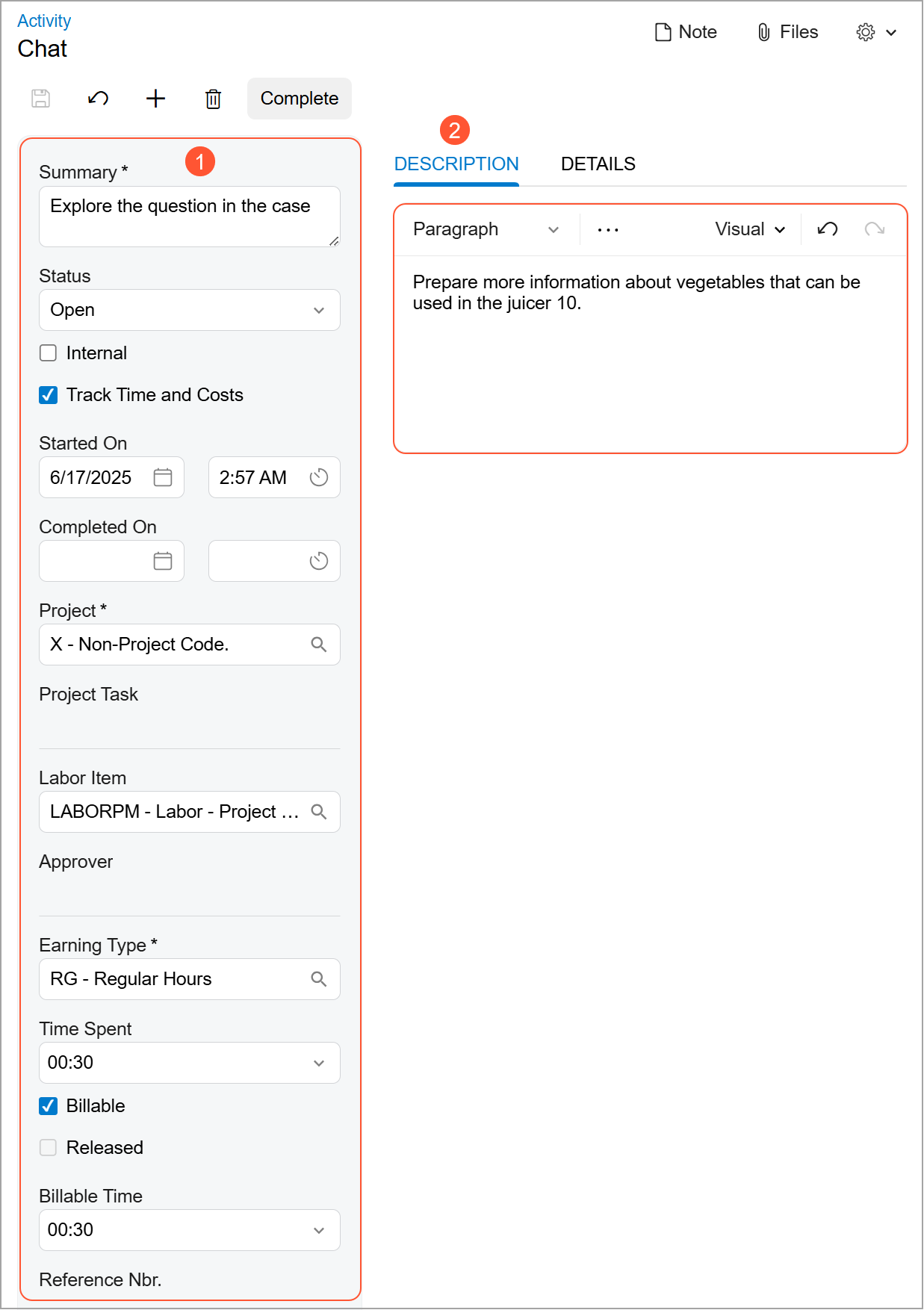
- On the Details tab (shown below): Easily find ownership details
and related entity information (such as the related case, company, and contact).
Figure 2. The Details tab 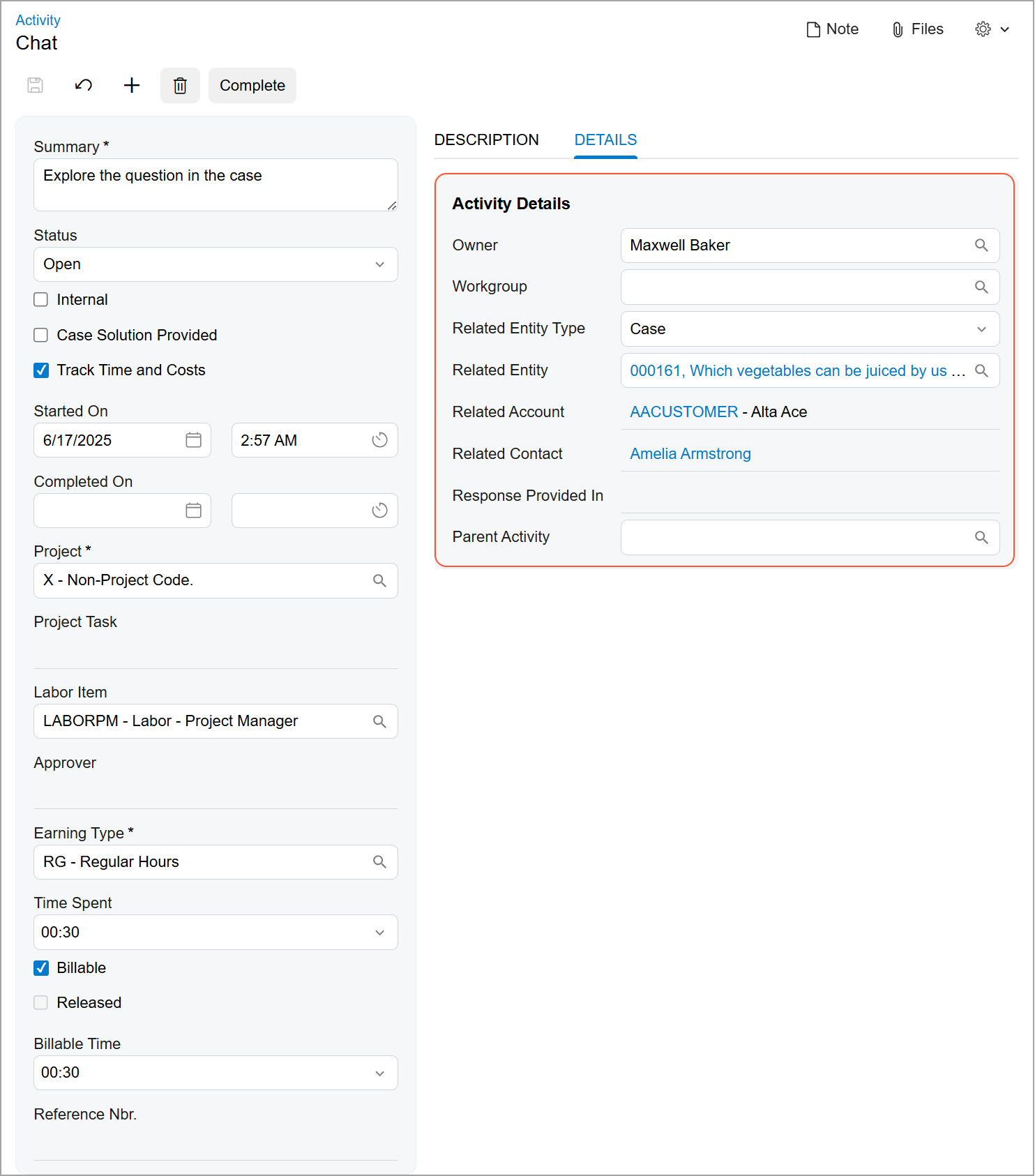
Manage Tasks with Greater Clarity
With a smarter, more intuitive layout, the Task (CR306020) form helps you get to the right information faster. With the new design, you’ll find managing tasks easier, with less friction:
- In the Summary area (Item 1 below): View essential task settings—such as priority, status, progress information, project details, the billing information
- On the Description tab (Item 2): Quickly review the task
description.
Figure 3. The Description tab 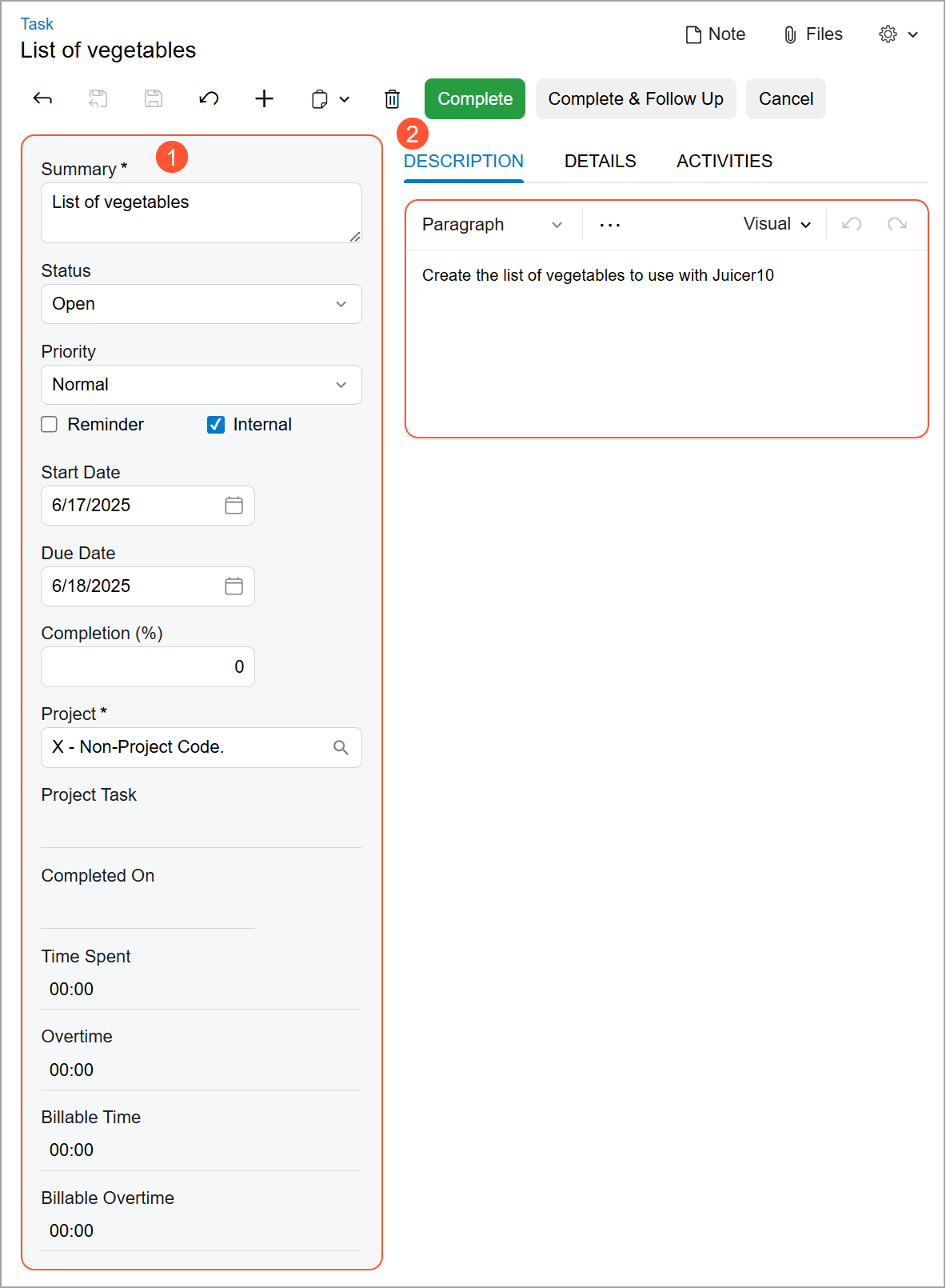
- On the Details tab (see below): Dive deeper into additional task
details, such as ownership and related entity information, in a clean layout. You’ll learn
which people and records are related to the task without digging through unrelated
information.
Figure 4. The Details tab 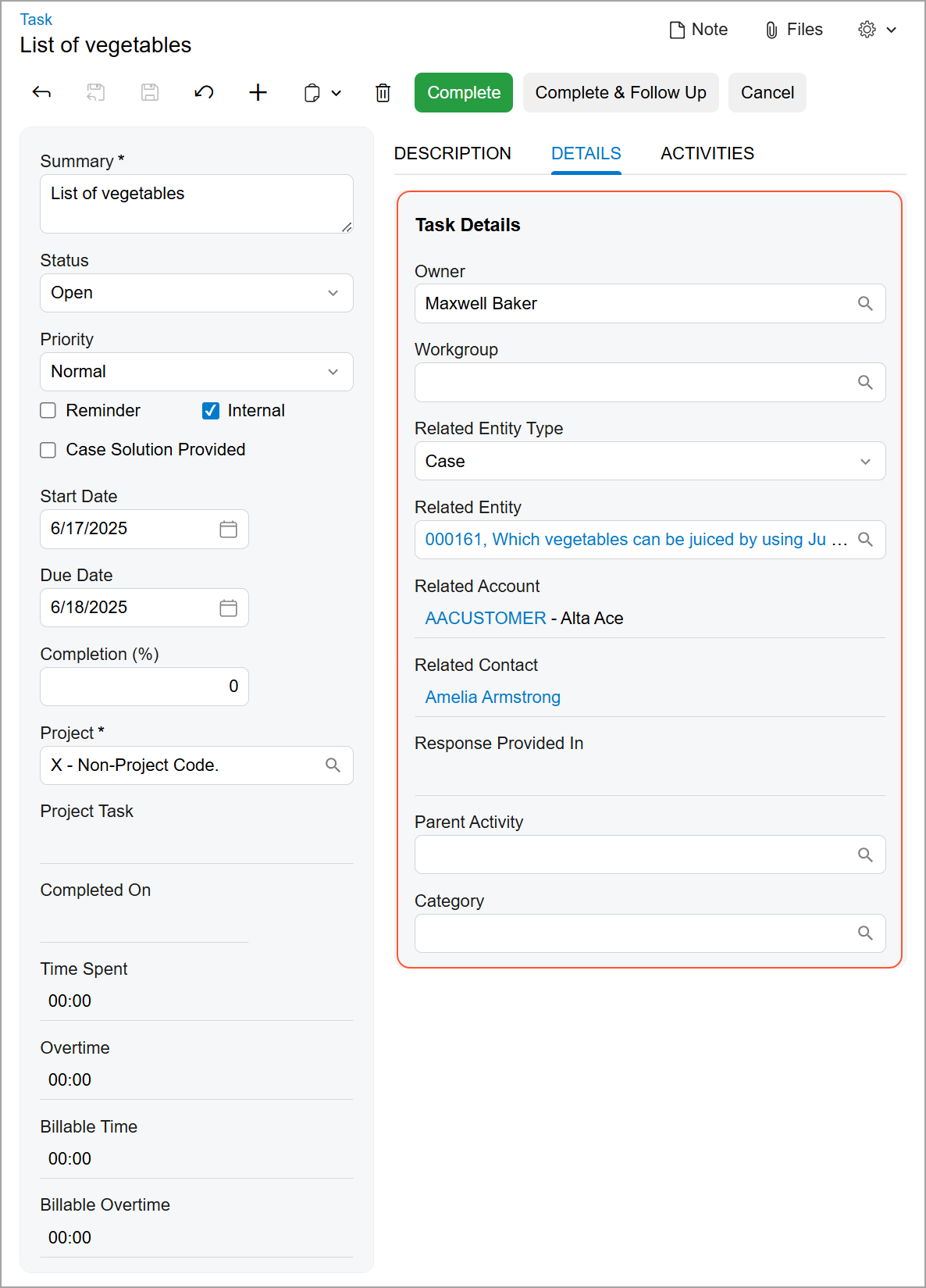
- On the Activities tab (shown below): Easily create and track
activities related to your task in one place.
Figure 5. The Activities tab 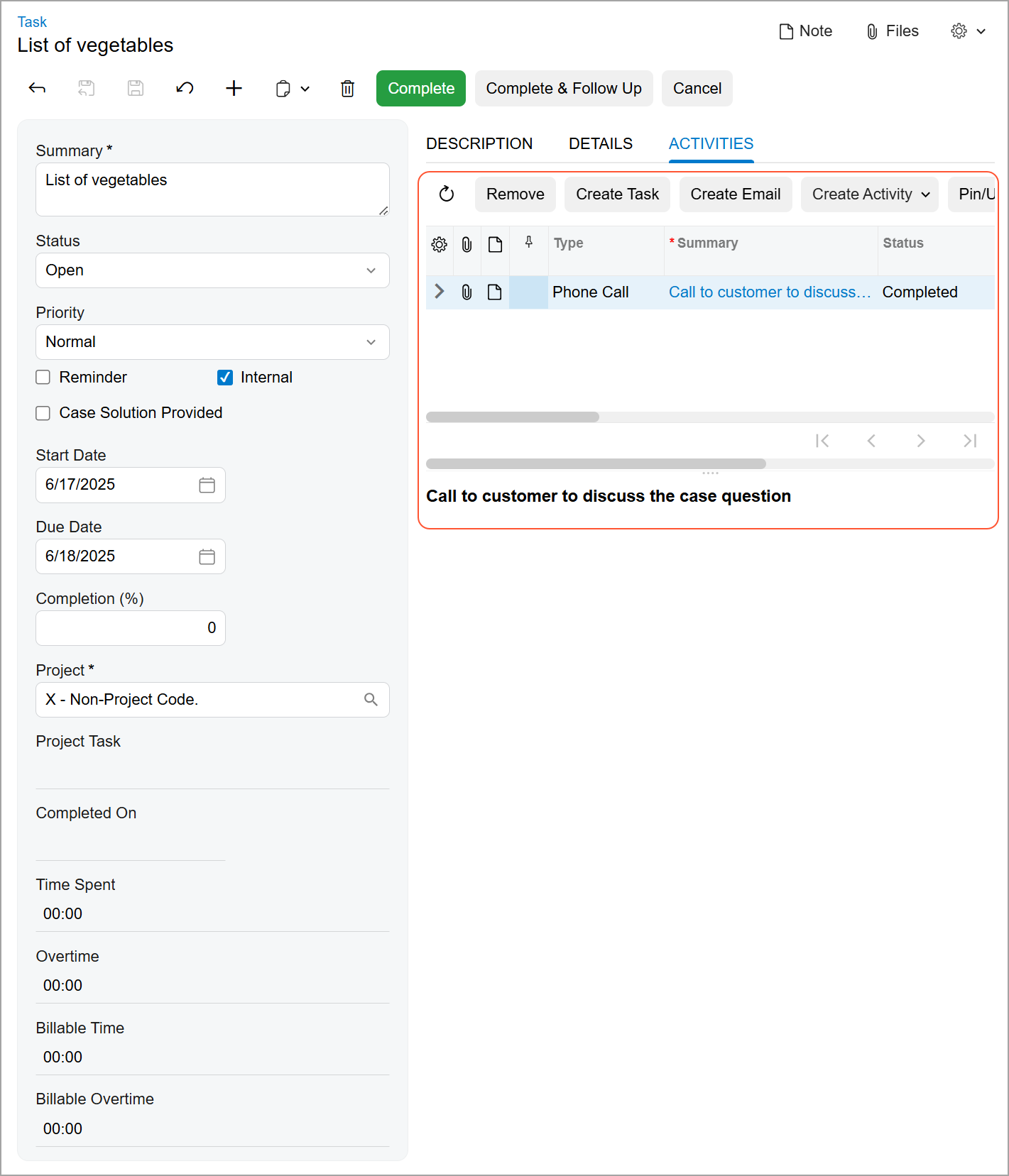
Stay on Top of Email Interactions
With a more thoughtful arrangement of UI elements on the Email Activity (CR306015) form, you can more easily manage email-based interactions with clarity and speed. The layout has been refined to show the right details, where you need them:
- In the Summary area (Item 1 below): View key email settings like address and subject,
along with important details such as status, creation date, and related entity.
Figure 6. The Summary area and Message tab 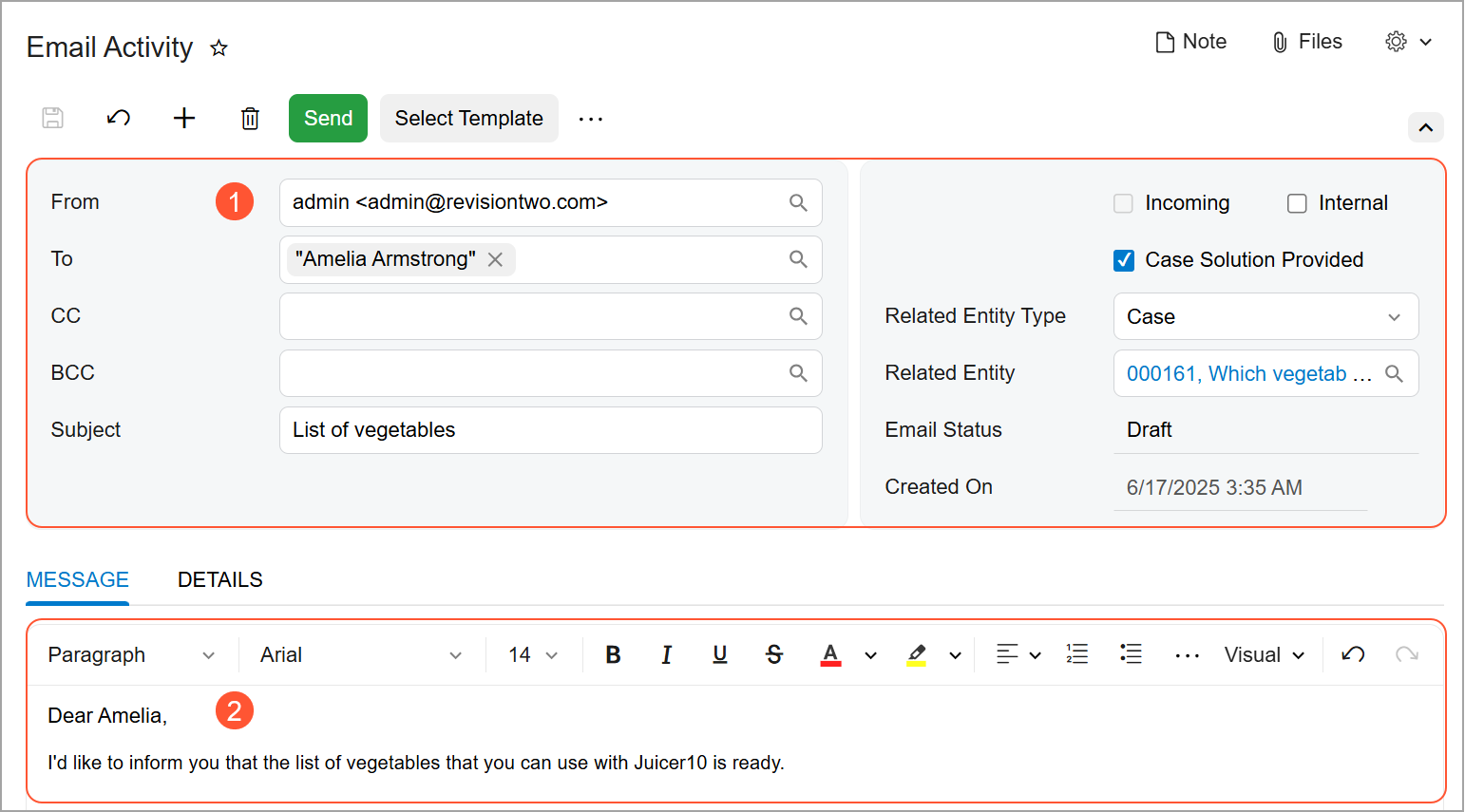
- On the Message tab (Item 2 above): Compose the email body on this tab, as you have previously.
- On the Details tab (see below): Find project, billing, labor, and
ownership information.
Figure 7. The Details tab 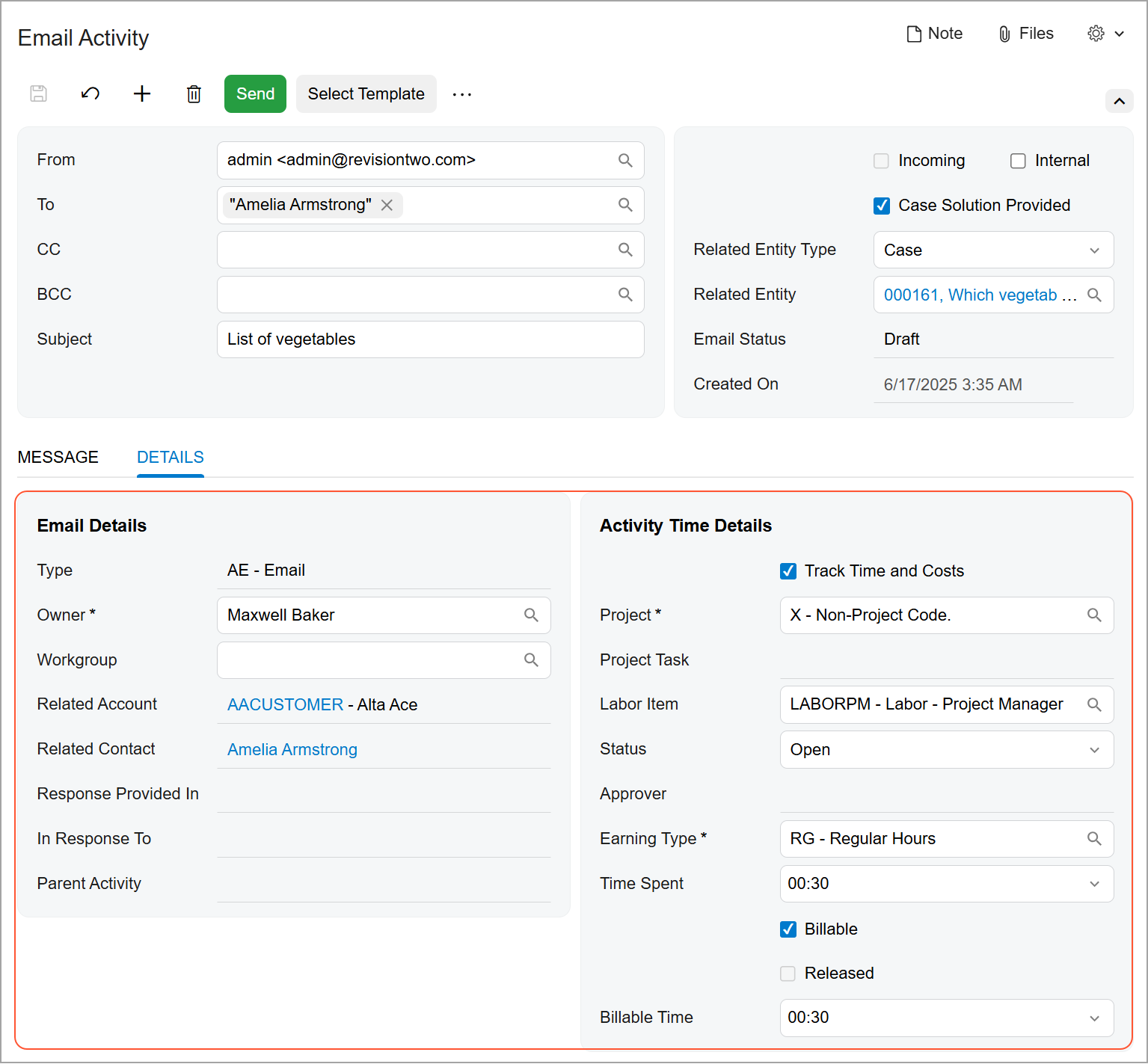
See Only the Activity Data You Need
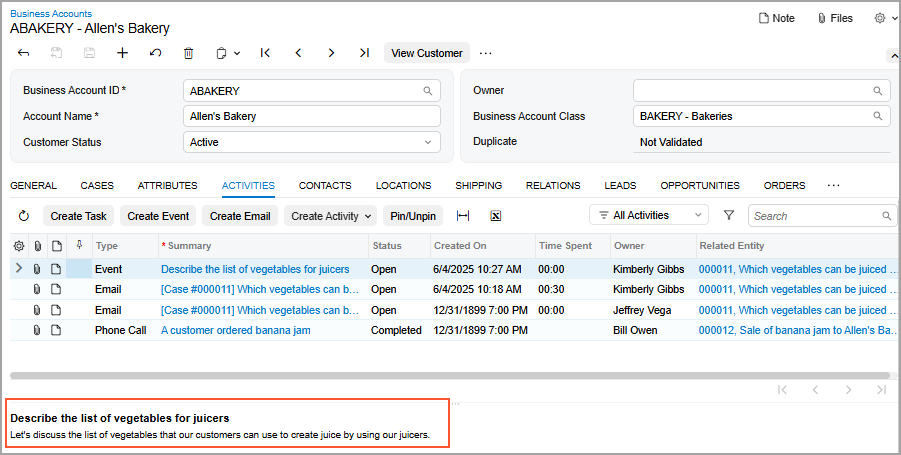
To enhance clarity and help you focus on the most relevant data, we've refined the default visibility of columns on the Activities tab across multiple forms. By default, you'll now see only the most useful columns:
- Files
- Notes
- Is Pinned
- Type
- Summary
- Status
- Created On
- Time Spent
- Owner
- Related Entity
Need to see different columns? You can still tailor the visible columns by using the Column Configuration dialog box.
Quicker Activity Creation
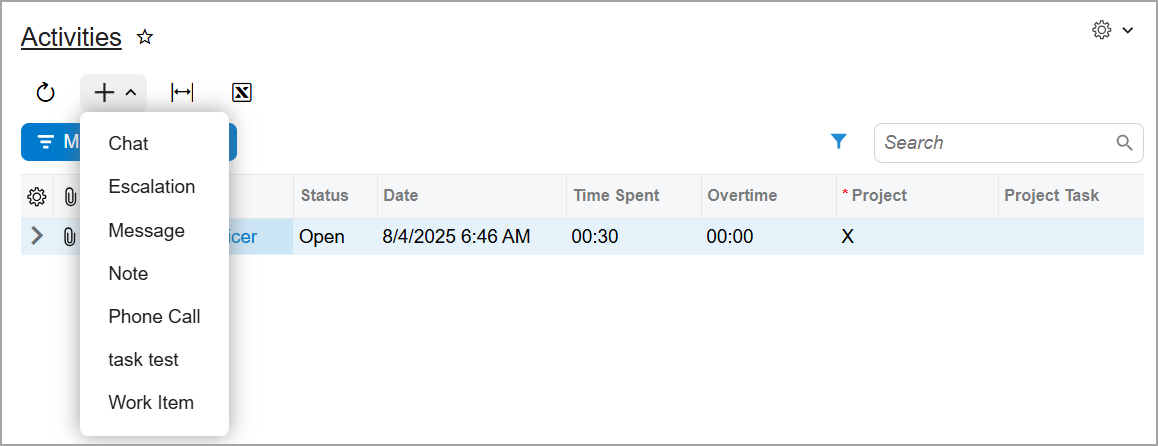
To simplify your workflow, we’ve introduced a new activity type menu on the Activities (EP404300) inquiry form. You select the type of activity you want to create (see below), and the Activity (CR306010) form opens with the layout of the activity type.
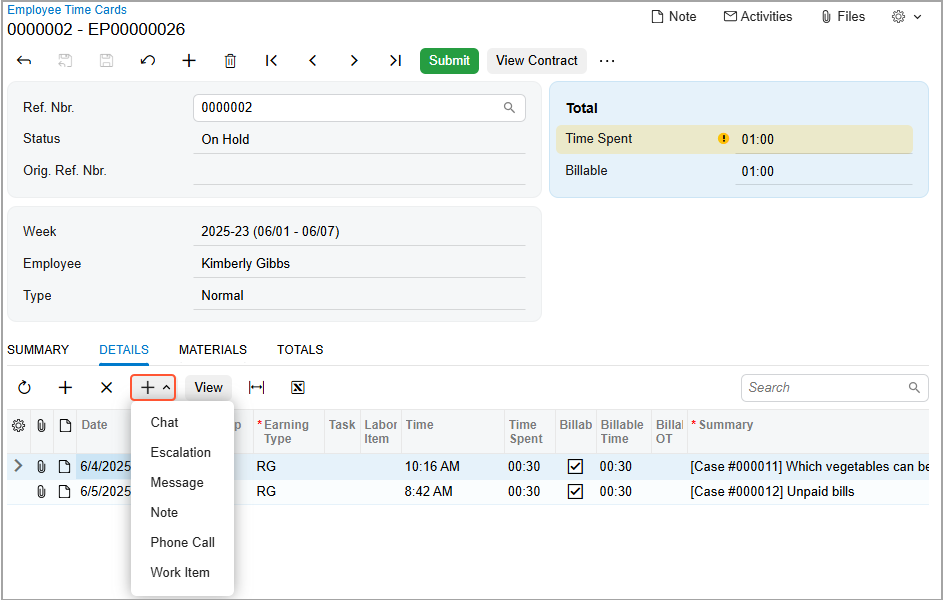
You'll also find the activity type menu on the table toolbar of the Details tab of the Employee Time Cards (EP305000) form, as shown below. You can add activities related to the time card more flexibly by using this menu.
The Type box has been removed from the following forms, so you can focus on what really matters while working with activities:
- Activity (CR306010)
- Email Activity (CR306015)
- Task (CR306020)
- Event (CR306030)