
Time and Expenses: Flexible Creation of Time Cards
You can now create employee and equipment time cards for any week—past or future—without following a strict weekly sequence. This added flexibility makes it easier to log time only when it's actually needed, aligning time card entries with real activity periods and reducing unnecessary administrative overhead.
Read on to simplify your time card management.
Create Employee Time Cards for Any Week
Starting in MYOB Acumatica 2025.2.1, time card creation on the Employee Time Cards (EP305000) form is more flexible. As an employee, you can still create only one time card per working week, but you're no longer limited to selecting a week in the past or future.
By default, when you create a new time card, the system inserts the current week number in the Week box (see below) as long as the selected employee has no time card for this week. If a time card for the current week already exists, the system inserts the next available week (based on the most recent existing time card).
This functionality supports both regular weeks and custom weeks configured on the Time and Expenses Preferences (EP101000) form.
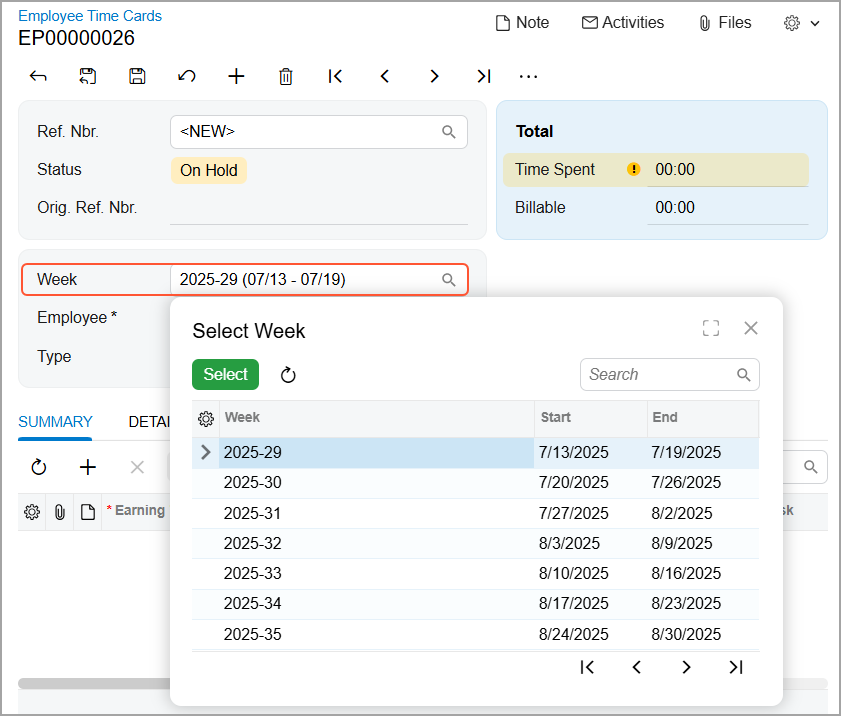
After you’ve saved a time card with the On Hold status, you can't change its work week.
Now if you create a time card based on the previous one, the system copies the relevant information into a new time card—even if time cards weren’t created consecutively. When you click Preload from Previous Time Card on the table toolbar of the Summary tab, the system finds the most recent time card prior to the selected week and copies the data. For example, if time cards exist for week 1 and 3 and you create one for week 2, the system preloads data from week 1.
Flexible Selection of Weeks in Equipment Time Cards
Just like employee time cards, equipment time cards on the Equipment Time Card (EP308000) now support flexible selection of weeks. When you specify an equipment ID in a new time card, you can select any week in the Week box (see below). This box works the same way as it does in employee time cards.
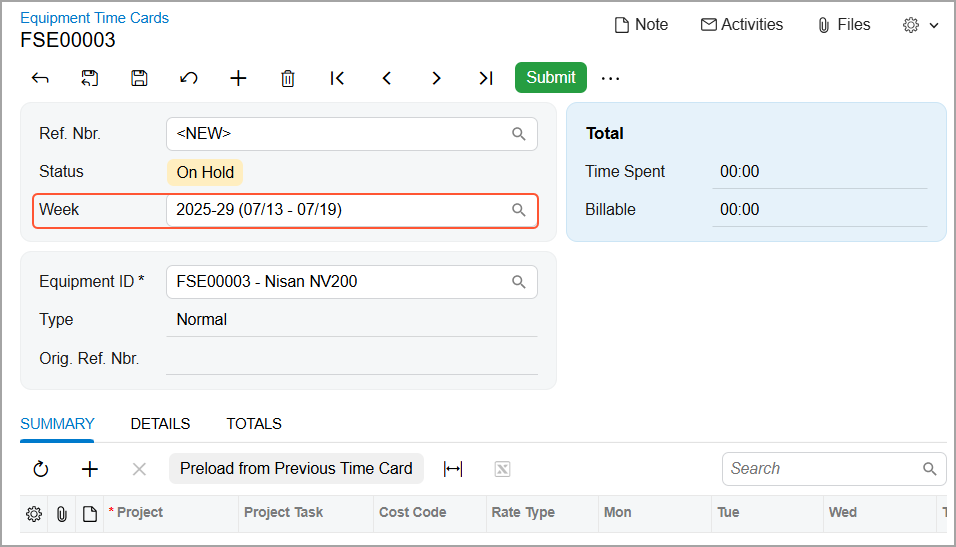
If you create a new equipment time card and click Preload from Previous Time Card, the system copies the data from the most recent time card created prior to the selected week.