CRM: Creation of Support Cases for Vendors
We're excited to introduce the ability to create and manage support cases for vendors in MYOB Acumatica 2025 R2. Now your company’s personnel can create and process cases on the Cases (CR306000) form for business accounts that have been extended as vendors.
This enhancement streamlines collaboration with vendors and extends case management capabilities to all your business partners. Now we'll take a closer look at how it all works.
Easy Case Setup for Vendor Accounts
You can make it possible to create cases for vendors of a particular case class. To do this, you select the Require Vendor check box on the Case Classes (CR206000) form for the class, as shown below. This makes business accounts of the Vendor and Customer & Vendor types available for selection in the Business Account box of the Cases (CR306000) form. That is, for a case of this class, you must select a vendor.
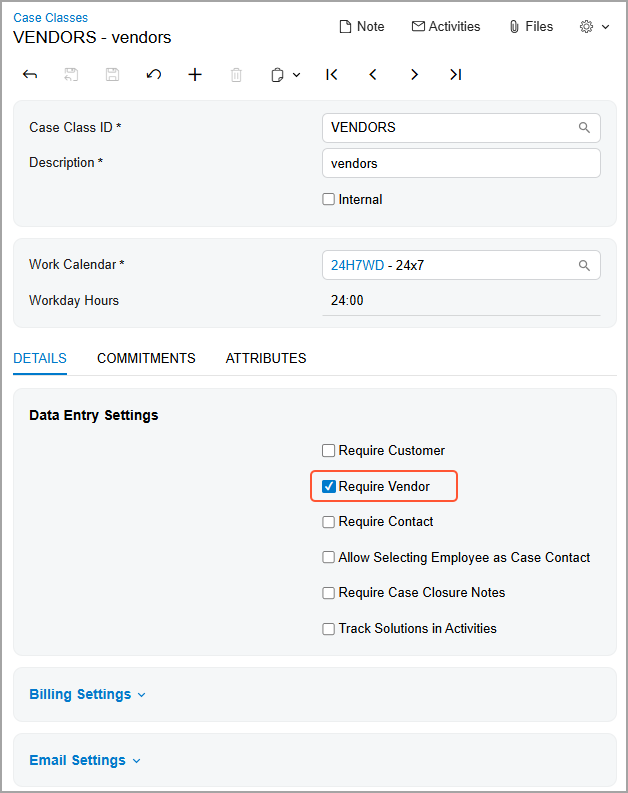
With the Require Vendor check box selected, you’ll create a case more quickly on the Cases form:
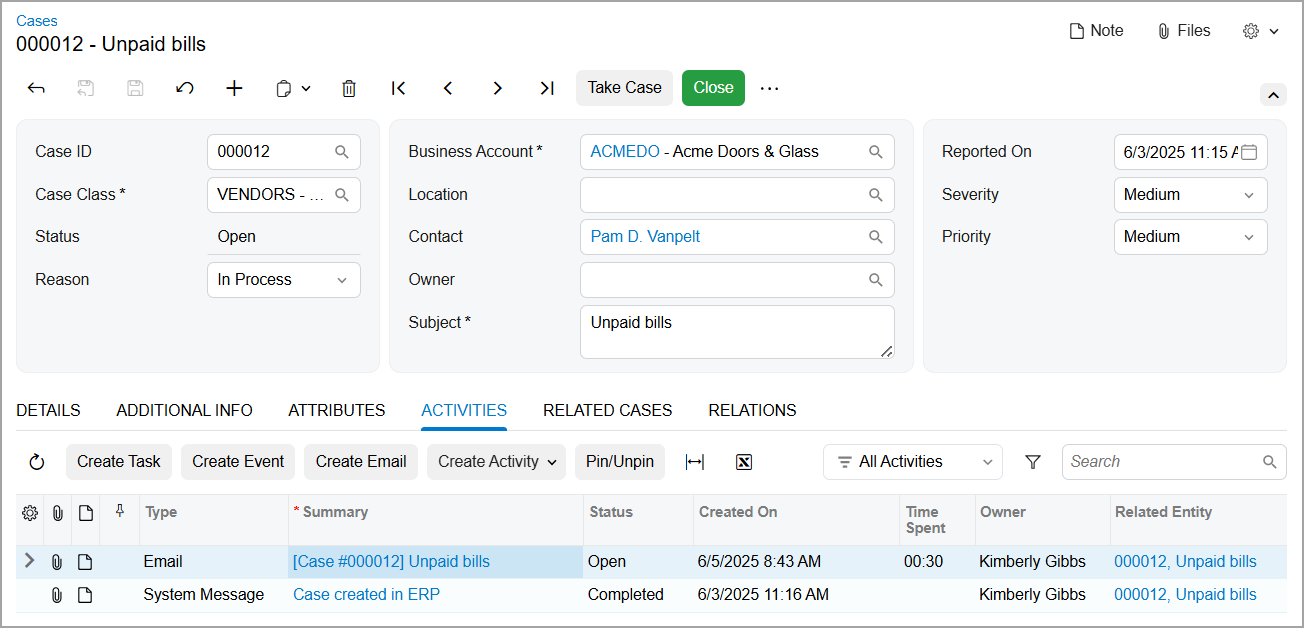
- When you select a vendor in the Business Account box, the system populates the Location box with the vendor’s default location and the Contact box with the vendor's primary contact (if one has been specified).
- When you select a vendor-associated contact in the Contact box, the system populates the Business Account box with the vendor account and the Location box with the vendor’s default location.
If both the Require Vendor and the Require Customer check boxes are selected on the Case Classes form, you can create cases of this class only for business accounts of the Customer & Vendor type. As with cases from customers, you can bill these cases by selecting the Billable or Manual Override check box (or both of them), which are available on the Cases form.
Flexible Creation of Vendor-Related Cases
Suppose that you’re a purchasing manager, and your vendor has submitted a follow-up request by email about some unpaid bills. You create a case for this request on the Cases (CR306000) form, as shown below.
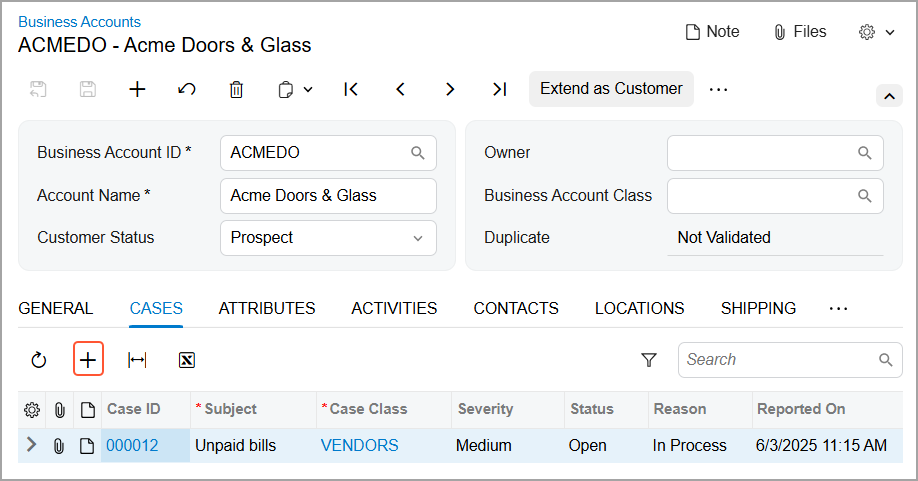
For business accounts extended as vendors, the Cases tab is now shown on the Business Accounts (CR303000) form. On the tab, you can view all cases related to the selected vendor. You can also create new cases by clicking the Plus button (see below) on the table toolbar.