
Inventory and Order Management: Drop Shipping in Intercompany Purchases
Enhance your workflows: Intercompany purchases now support drop shipping. Starting in MYOB Acumatica 2025.2.1, your colleagues in another branch can create an intercompany sales order for your drop-ship purchase order.
Ready to go deeper? Here’s what you need to know.
Intercompany Sales and Purchases
Let's start with a brief refresher on intercompany purchases and sales in MYOB Acumatica. With this functionality, two companies under the same tenant can trade with each other—one places a purchase order, and the other fulfills it as a sales order. It works like this:
- The purchasing company enters the purchase order.
- The selling company generates the related sales order in just a couple clicks by using the Generate Intercompany Sales Orders (SO504000) form. The system automatically pulls in the settings and line details from the original purchase order and creates a sales order with the Open status—no need for duplicate data entry.
Then it's just a matter of confirming the shipment, receiving the goods, and releasing the financial documents on both sides. MYOB Acumatica automatically adds all required links and fills in the details.
Intercompany Sales and Returns with Drop-Shipping
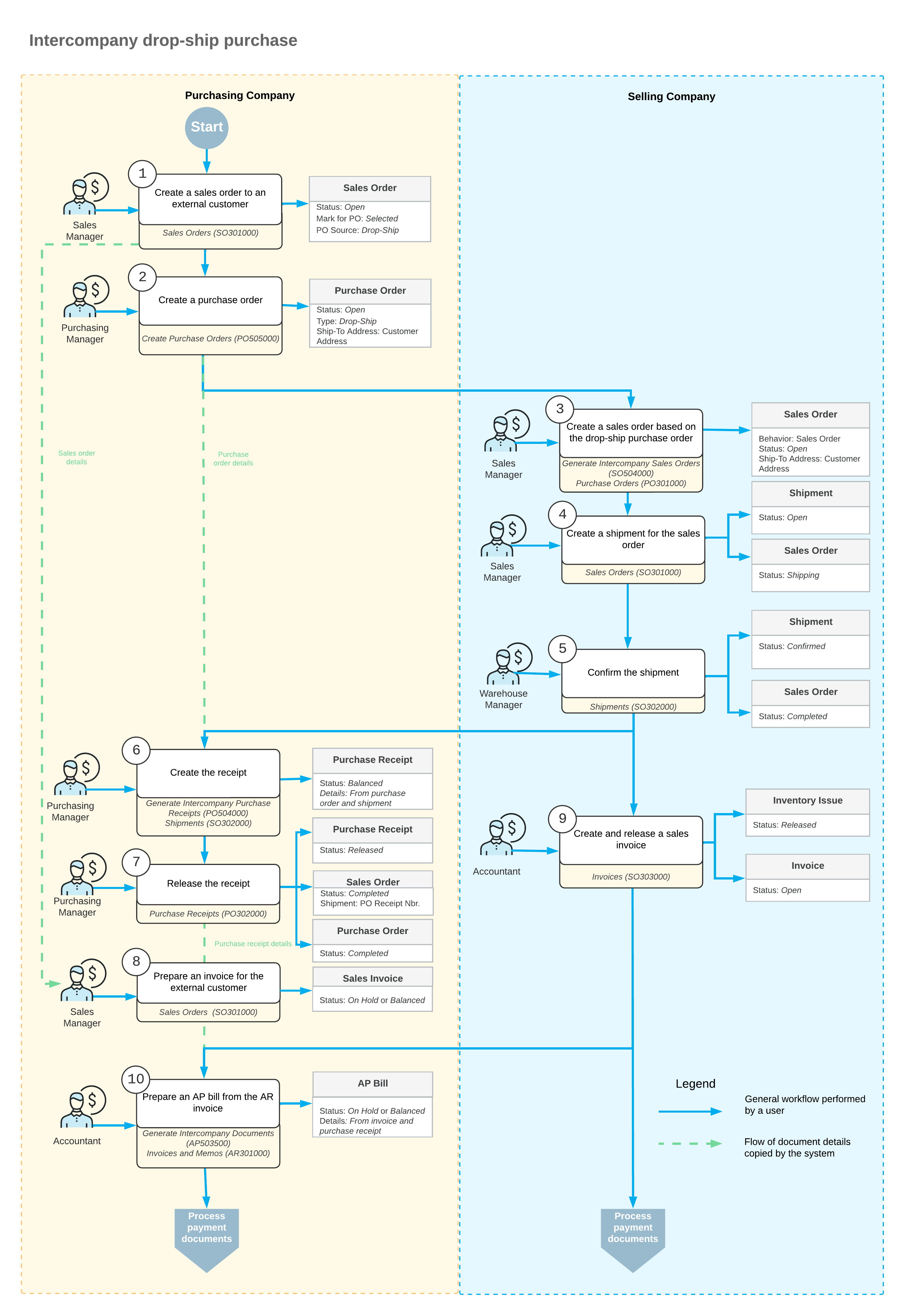
In Version 2025.2.1, you can also handle intercompany purchases through drop shipping. For companies in the same tenant, the typical process involves the actions and generated documents shown in the following diagram.
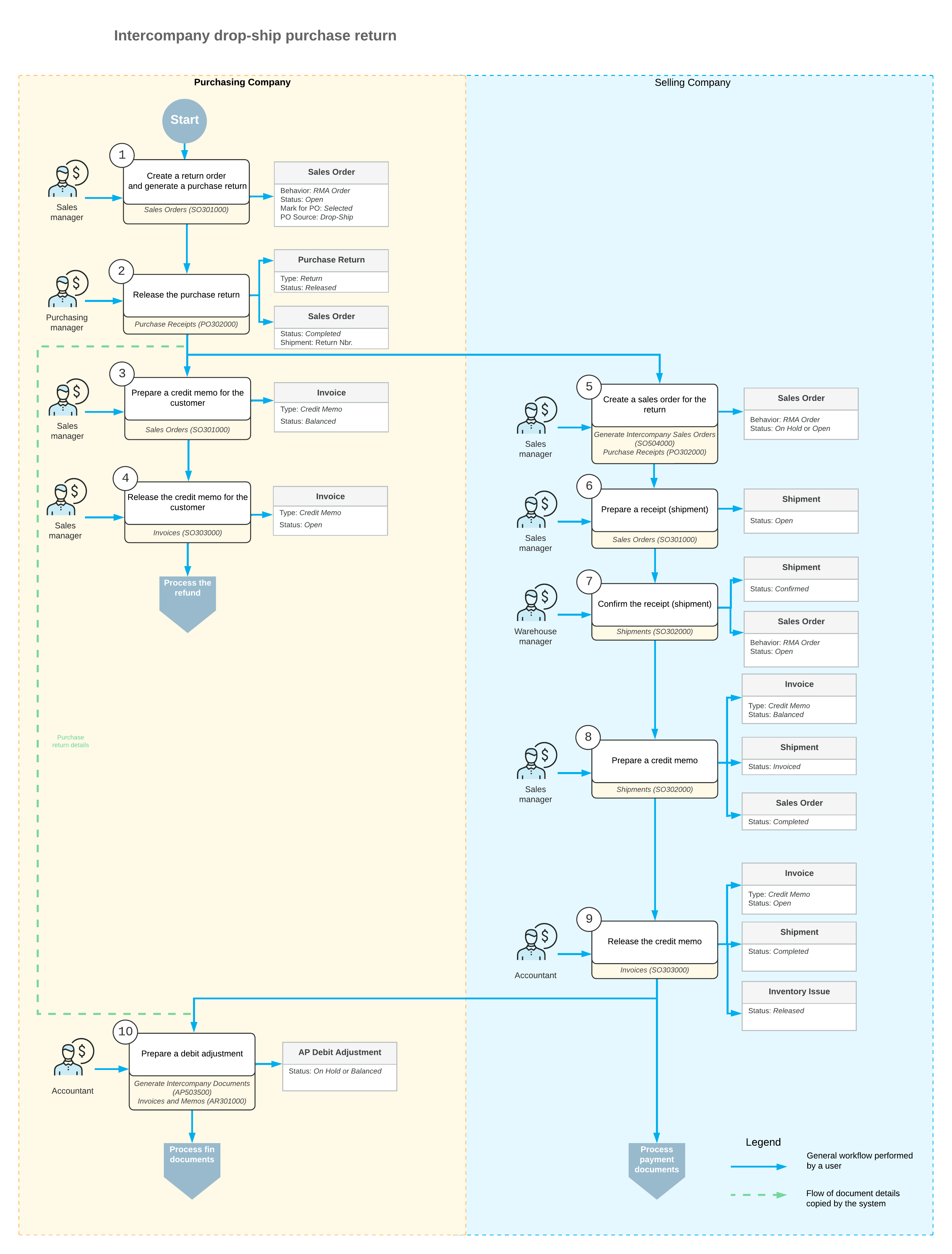
You can also handle a return of the goods from the customer directly to your vendor’s warehouse. The diagram below illustrates the customer return.
Example of an Intercompany Sale with Drop-Shipping
To understand the new intercompany capability, consider the example of two companies that share the same tenant:
- Elterra US, located in New York
- Elterra Canada, located in Quebec, Canada
Both companies sell computer devices and accessories.
Suppose that Elterra US receives a large order from an external customer for 200 units of a computer with the Computer1 ID. A sales manager of Elterra US realizes that the requested number of Computer1 is missing in the company's warehouse. What should they do?
Luckily, Elterra Canada has the required quantity of the item. Here’s how the process unfolds:
- Elterra US: The sales manager does the following:
- Creates a sales order for the external customer on the Sales Orders (SO301000) form.
- Adds a line with 200 units of Computer1.
- Selects the Mark for PO check box in the line, indicating that the order line was marked for purchasing, and selects Drop-Ship as the PO Source.
The purchasing manager of the same company does the following:
- Generates a purchase order with Elterra Canada as the vendor on the Create Purchase Orders (PO505000) form.
- Removes the purchase order from hold on the Purchase Orders (PO301000) form.
- Elterra Canada: As soon as the purchase order is assigned the Open status,
the sales manager does the following:
- Opens the Generate Intercompany Sales Orders (SO504000) form and generates
a sales order for the purchase order.
On the Addresses tab of the Sales Orders form, the system inserts the address of the external customer into the new sales order.
- Creates a shipment for the intercompany sales order.
- Confirms the shipment when the external customer receives the computers from the Elterra Canada warehouse.
- Opens the Generate Intercompany Sales Orders (SO504000) form and generates
a sales order for the purchase order.
- Elterra US: On confirmation of the shipment to the external customer, the
purchasing manager does the following:
- Opens the Generate Intercompany Purchase Receipts (PO504000) form and generates a purchase receipt for this shipment.
- Releases this purchase receipt on the Purchase Receipts (PO302000) form.
The sales manager of the same company prepares an invoice for the external customer on the Invoices (SO303000) form.
- Elterra Canada: The sales manager does the following:
- Prepares a sales invoice for Elterra US based on the intercompany sales order on the Sales Orders form.
- Releases the sales invoice on the Invoices
form.
The AR invoice becomes available on the Invoices and Memos (AR301000) form.
- Elterra US: As soon as the AR invoice is available, the accountant does the
following:
- Opens the Generate Intercompany Documents (AP503500) form and generates an AP bill based on this invoice.
- Releases the AP bill on the Bills and Adjustments (AP301000) form.
At this point, the intercompany drop-ship purchase is completed.
Key Capabilities
- Start intercompany purchases directly from drop-ship purchase orders
- Easily handle drop-ship returns to external customers
Learn More
For more information about intercompany purchases and sales, see Intercompany Purchases and Returns: General Information.