
CRM: Sending Multiple Documents in One Email
Good news for sales and project managers: You no longer need to send multiple invoices, quotes, and orders one by one to a customer or prospect. In MYOB Acumatica 2025.2.1, you can attach multiple documents to one email for each customer—and even combine multiple documents into one PDF to save time for everyone.
Now you can print and email multiple sales and project quotes at once from these forms:
- Print/Email Sales Quotes (CR504545)
- Print/Email Project Quotes (PM504545)
- Print/Email Sales Quotes form: The Sales Quotes feature
- Print/Email Project Quotes form: The Project Quotes feature
Read on to learn how these updates simplify customer communication.
Emailing Multiple Documents with Ease
When you’re ready to email documents, just open one of these forms and select the action you need:
- Invoices: Print/Email AR Documents (AR508000)
- Sales invoices: Process Invoices and Memos (SO505000)
- Sales quotes: Print/Email Sales Quotes (CR504545), described below
- Project quotes: Print/Email Project Quotes (PM504545), described below
- Sales orders and quotes: Print/Email Orders (SO502000)
You can select one of these actions: Send or Email. For example, you might select Email Invoices on the Print/Email AR Documents form. Then you select the Send Documents in One Email check box, which appears on the form (see below).
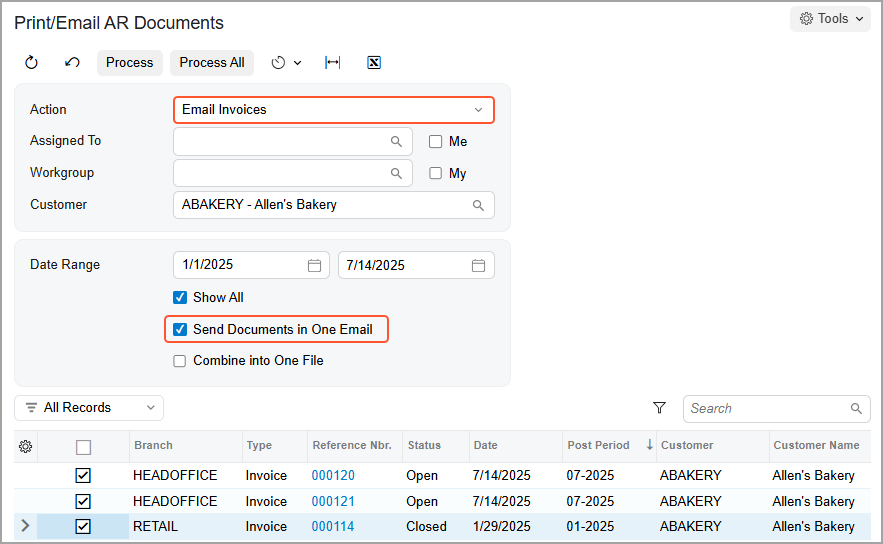
When you click Process or Process All, the system creates one email, attaches the selected documents (or all documents) to it, and sends the email to the customer. If you're working with documents for multiple customers, the system groups them accordingly and sends a separate email for each customer.
Let’s say you need to send all invoices (except the Cash Sale and Cash Return types) in one email. On the Print/Email AR Documents form, select both the Send Documents in One Email check box and the Show All check box (to show all invoices) and start the mass processing.
- You can attach up to 100 documents to a single email.
- If you select more, the system creates multiple emails, each within this limitation.
Combining Multiple Documents into One File
You can combine the selected documents into one PDF file to make it easier for recipients to review everything at once. After you select the Send Documents in One Email check box (Item 1 below), you select the Combine into One File check box (Item 2), which becomes available on these forms:
- Print/Email AR Documents (AR508000)
- Process Invoices and Memos (SO505000)
- Print/Email Sales Quotes (CR504545)
- Print/Email Project Quotes (PM504545)
- Print/Email Orders (SO502000)
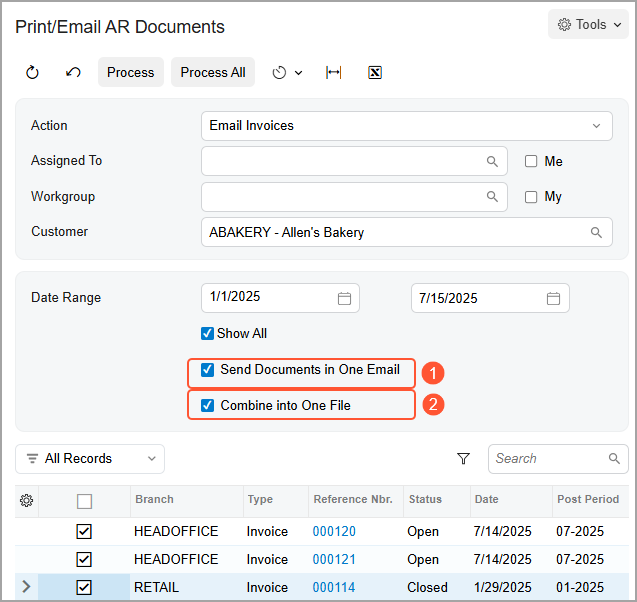
The system creates a PDF file with the selected documents and attaches it to the email. The file name depends on the selected action and the form where you process the documents:
- Print/Email AR Documents (AR508000): Invoices and Memos {System date in YYYYMMDD}.pdf
- Process Invoices and Memos (SO505000): Invoices and Memos {System date in YYYYMMDD}.pdf
- Print/Email Sales Quotes (CR504545): Sales Quotes {System date in YYYYMMDD}.pdf
- Print/Email Project Quotes (PM504545): Project Quotes {System date in YYYYMMDD}.pdf
- Print/Email Orders (SO502000): Orders {System date in YYYYMMDD}.pdf
- Print/Email Orders (SO502000): Quotes {System date in YYYYMMDD}.pdf
New Email Templates for Multi-Document Emails
To ease the sending of multiple documents in a single email, you can use predefined email templates with the following mailing IDs on the noted preference forms. Each template uses a specific report.
| Preference Form | Mailing ID | Document Type | Report |
|---|---|---|---|
| Accounts Receivable Preferences (AR101000) | Invoice Multiple | Invoice | Invoice/Memo (AR641000) |
| Sales Orders Preferences (SO101000) | SO Invoice Multiple | Sales Invoice | Invoice & Memo (SO643000) |
| Sales Order Multiple | Sales Order | Sales Order (SO641010) | |
| Quote Multiple | Quote | Quote (SO641000) | |
| Customer Management Preferences (CR101000) | CRQuote Multiple | Sales Quote | Sales Quote (CR604500) |
| Projects Preferences (PM101000) | PMQuote Multiple | Project Quote | Project Quote (PM604500) |
Printing and Emailing Sales and Project Quotes
You can quickly mass-print or mass-email sales or project quotes without opening each one manually on these new forms:
- Print/Email Sales Quotes (CR504545)
- Print/Email Project Quotes (PM504545)
Suppose that you want to email sales quotes, and you’d like to combine multiple quotes into one file:
- Open the Print/Email Sales Quotes form.
- In the Summary area, select Send in the Action box, and specify other settings to narrow down the list of sales quotes (Item 1 below).
- Select the Send Documents in One Email and Combine into One File check boxes (Item 2).
- To process only some of the listed sales quotes, select the needed quotes in the table (Item 3) and click Process on the form toolbar (Item 4).
- To process all listed sales quotes, click Process All.
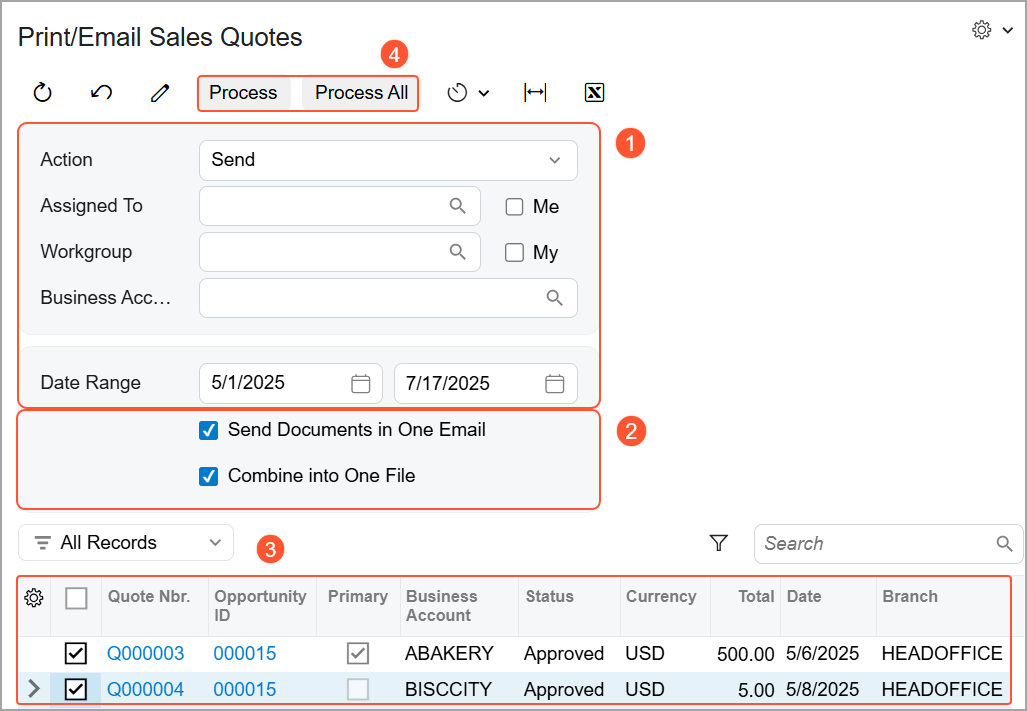
The system processes the selected sales quotes and sends them to the customer. If you want to send project quotes, you perform these steps on the Print/Email Project Quotes form.
Now suppose you need to print multiple project quotes. Do the following:
- Open the Print/Email Project Quotes form.
- Select Print in the Action box.
- Optional: Filter project quotes by using the UI elements in the Summary area (Item 1 below).
- Optional, if the DeviceHub feature is enabled on the Enable/Disable Features (CS100000) form: In the printing settings that appear on the form (Item 2), specify the printer manually and enter the number of copies to print for each selected project quote.
- To process only some of the listed project quotes, select the needed quotes in the table (Item 3) and click Process on the form toolbar (Item 4).
- To process all listed sales quotes, click Process All.
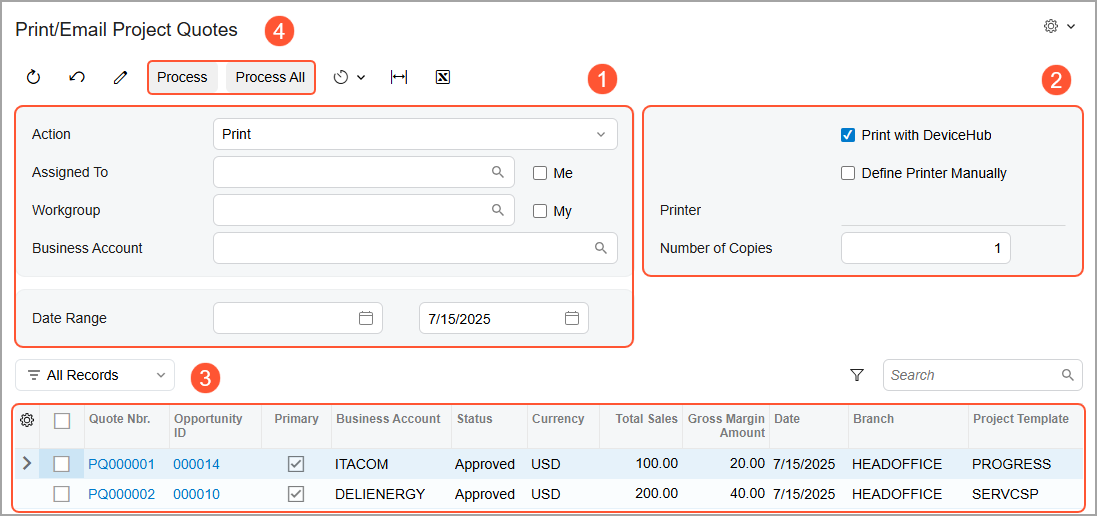
To print sales quotes, do the same on the Print/Email Sales Quotes form.
Access to the Print/Email Sales Quotes and Print/Email Project Quotes form is granted based on the following user roles:
- AcumaticaSupport, Administrator, CR Sales & Marketing Admin, and CR Sales Representative: Delete access rights
- CR Viewer: View Only access rights
Key Capabilities
- Send multiple documents in one email per customer.
- Attach documents separately or as one PDF.
- Mass-print and -email sales and project quotes with ease.