
Manufacturing: Smarter Production Scheduling with the Modern UI
Efficient scheduling is essential in manufacturing, where delivery timelines and resource availability must align precisely. Whether you're a production manager, planner, or customer service representative, you need fast answers and a clear, real-time view of every order.
With MYOB Acumatica 2025.2.1, you now have access to two powerful scheduling tools designed to help you:
- Spot delays earlier
- Understand dependencies more clearly
- Make smarter scheduling decisions
First, the new Production Order View (AM215580) form provides a graphical overview of material and scheduling statuses at every level of the production process—from top-level orders to subassemblies.
Second, the Production Schedule Board (AM215555) form—originally enhanced in Version 2025 R1—is now fully supported in the Modern UI. This tool offers an improved master planning view of all production orders across your operation.
Track Production Progress with a Single, Actionable View
The Production Order View (AM215580) form gives you a consolidated, real-time look at every level of a product’s manufacturing process, so you can stay ahead of issues and keep operations on track.
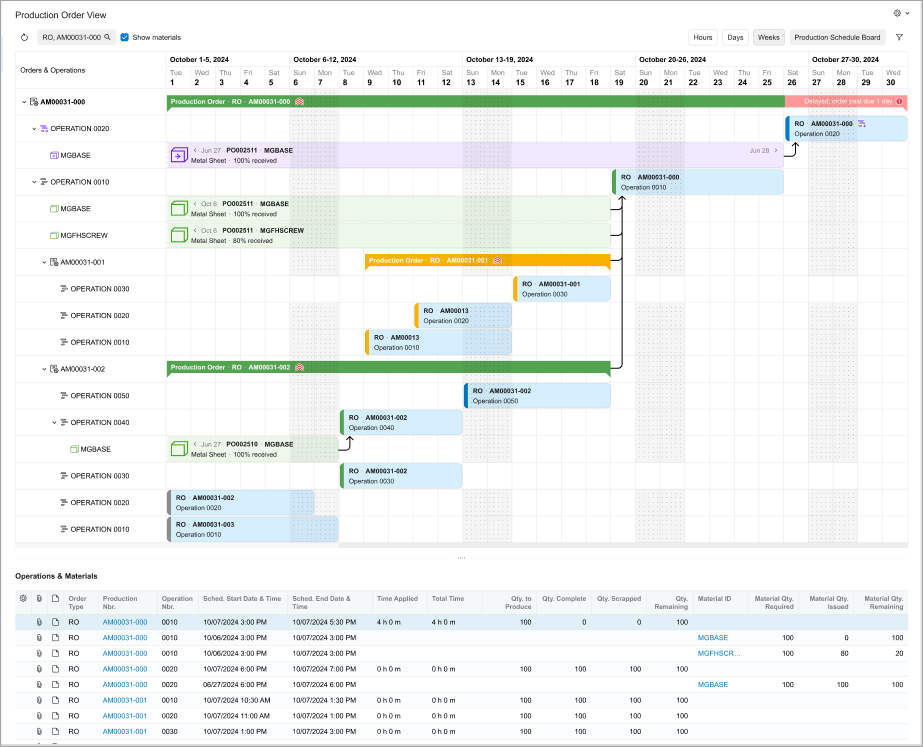
With this enhanced view, you can:
- Quickly review unissued material and operation statuses across all child and parent production orders right from a single form
- Take immediate action, such as firming or rescheduling child orders, based on the latest supply or timing changes
- Spend less time fielding status requests because customer service representatives can access the same view and handle most inquiries themselves
This means fewer disruptions, faster decisions, and more time to focus on what matters most.
Manage Scheduling and Dependencies with One Clear View
With the enhanced Production Schedule Board (AM215555) form you gain a clearer, faster, and more actionable view of your production schedule.
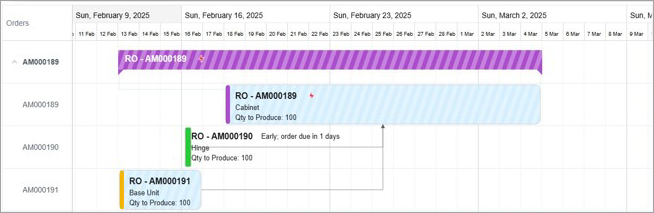
Here’s how this upgrade helps you stay in control:
- See the full timeline at a glance: A single graphical bar represents a top-level production order and all its dependent subassemblies. Expand or collapse the view to show or hide child orders.
- Quickly spot delays and progress: Visual indicators show you whether production orders are late, early, or on time.
- Understand dependencies instantly: Arrows connect related operations, making it easier to spot relationships and manage scheduling exceptions.
- Streamline data visibility: Filter production orders by key attributes, such as schedule status, lateness, or customer.
- Find what matters most: Use a secondary sort option to organize orders by completion dates, keeping your priorities in view.
- Track all orders: The board displays both finitely and infinitely scheduled orders.
- Stay proactive: Gantt chart icons reflect the timing status of each order relative to its linked demand’s due date.
- Assess capacity at the operation level: Use the operation view in the lower panel of the board to review the work centers and machines involved in production. This view helps you assess availability and scheduled capacity across all resources, making it easier for you to effectively adjust workloads.
Act on Orders Without Leaving the Board
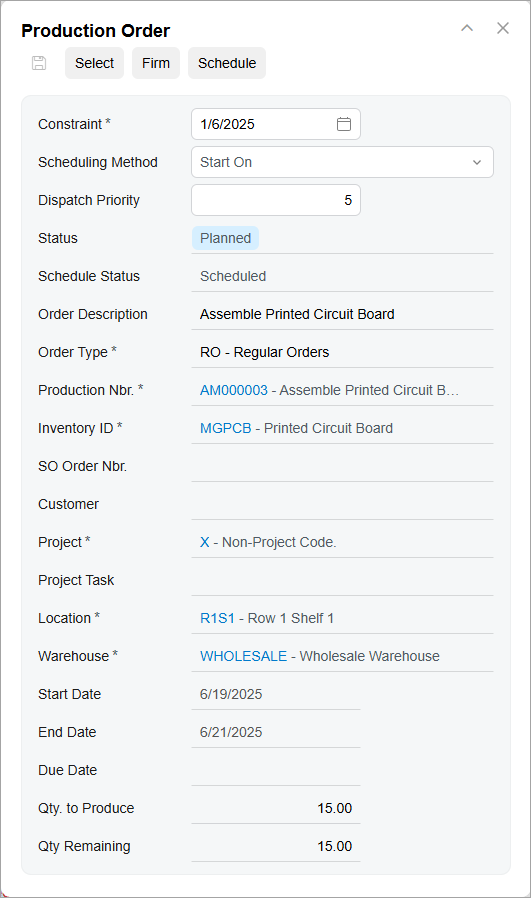
Take immediate action directly from the Production Schedule Board (AM215555) form—right-click any production order and select the needed command to schedule, reschedule, or firm the order. You can also click View to open the Production Order panel (shown below), where you can:
- See all order details at a glance
- Quickly update the constraint date or dispatch priority
- Schedule or firm the order without leaving the panel
Use Visual Indicators to Stay Ahead of Delays
The new scheduling views use consistent colors and icons to reflect the current status, scheduling state, and priority of each production order. Use the visual guide below to quickly interpret these indicators and identify orders that may require your attention.
| Indicator | Description | Meaning |
|---|---|---|
| Production order statuses | ||
 |
Yellow bar | The production order is On Hold. |
 |
Purple bar | The production order is Planned. |
 |
Blue bar | The production order is Released. |
 |
Green bar | The production order is In Progress. |
 |
Gray bar | The production order is Completed. |
 |
Diagonal stripes overlaying the status color bar | The order is unscheduled. |
| Standard icons | ||
 |
Green information icon | The order has a future due date and is early. |
 |
Yellow warning icon | The order is due today. |
 |
Red error icon | The order has a past due date and is delayed. |
 |
Lock icon | The order has been firmed. |
 |
Lightning icon | Material is insufficient to complete the order. |
| Priority icons | ||
 |
Up arrow | The dispatch priority is high. |
 |
Down arrow | The dispatch priority is low. |
| N/A | No arrow | The dispatch priority is medium. |
Key Capabilities
- Get a clear, real-time overview of production orders and subassemblies in one place.
- Use color-coded indicators to quickly identify delays, early orders, and potential exceptions.
- Schedule, reschedule, or firm orders right from the board.
- See material and operation statuses at all levels.
- Empower customer service teams to check order progress independently.