
Inventory and Order Management: Directed Putaway
MYOB Acumatica 2025.2.1 introduces smarter, more efficient ways to tackle familiar warehouse tasks. With the new directed putaway capabilities—where the system guides workers to the correct storage location—you can streamline the automated putaway process by specifying a default putaway location for each stock item. This means warehouse workers no longer have to check storage assignments every time they put away received items.
Curious how this works? Let's break it down step by step.
Specifying the Default Putaway Location
If you receive a stock item in multiple warehouses, you can specify a default putaway location for each warehouse to which you receive the stock item. For this item and each warehouse where you may receive the item, do the following:
- Open the Item Warehouse Details (IN204500) form.
- In the Inventory ID box in the Summary area, specify the stock item.
- In the Warehouse box, specify the warehouse.
- In the new Default Putaway To box (shown below), specify the default putaway location.
- Save your changes.
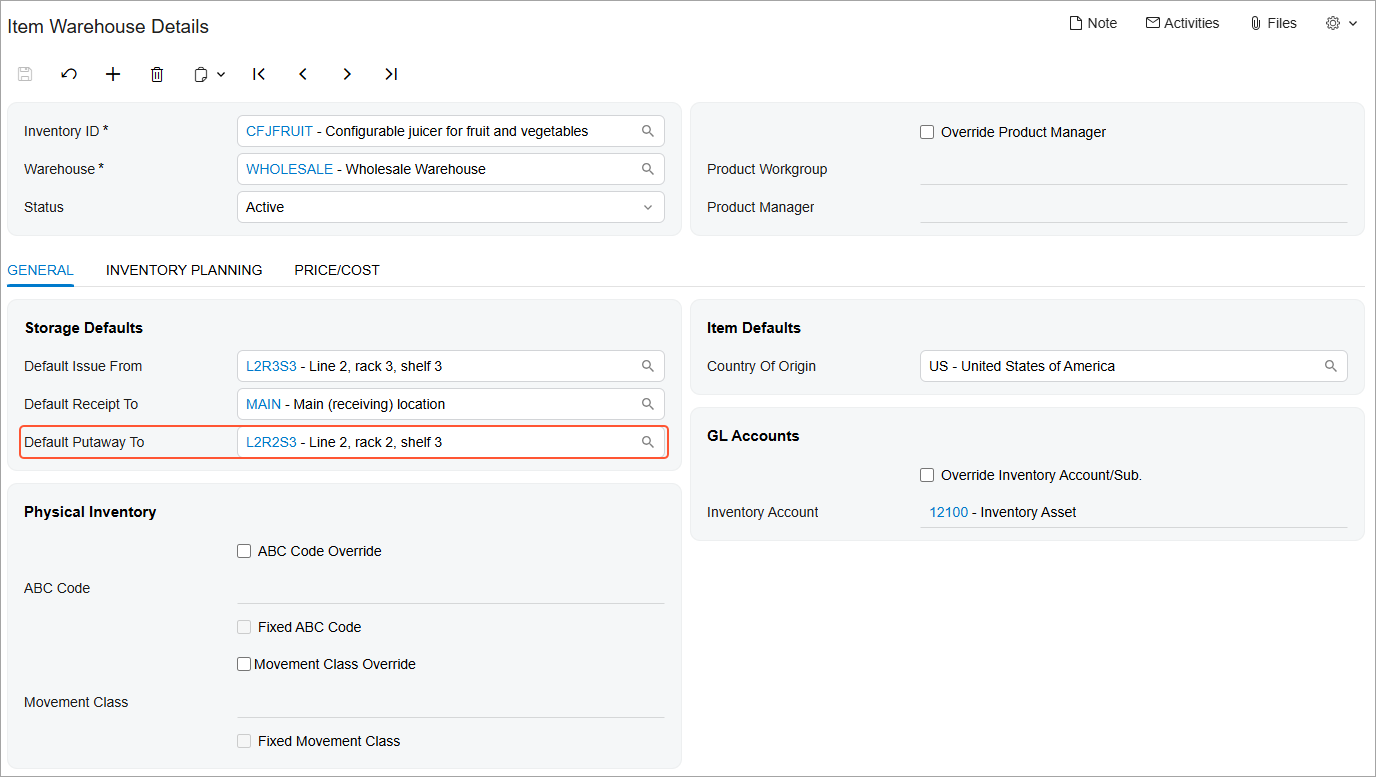
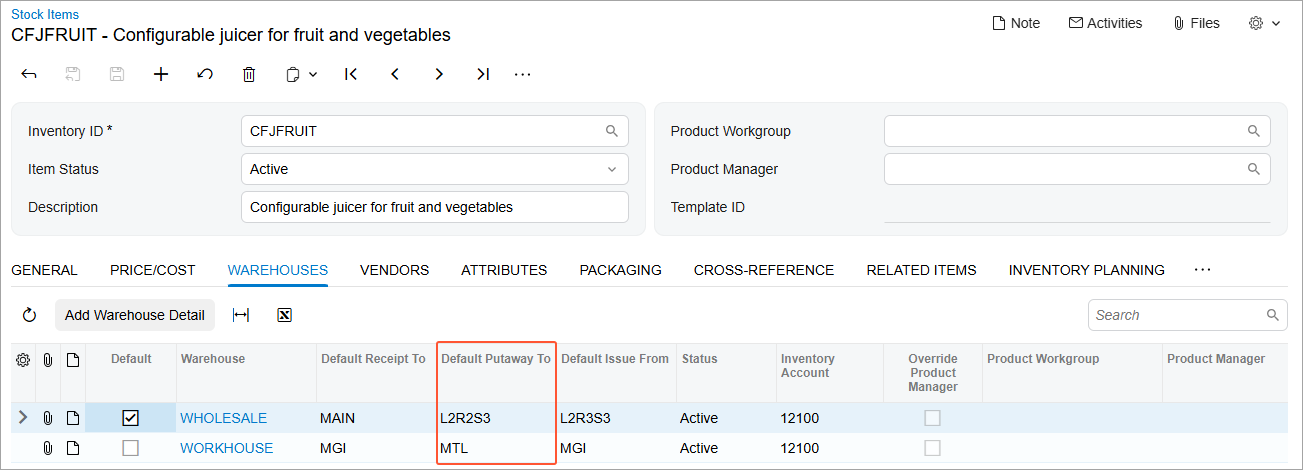
You can easily view all default locations for putaway of a stock item across your warehouses. Select the item on the Stock Items (IN202500) form and go to the Warehouses tab to see the complete list, as shown below.
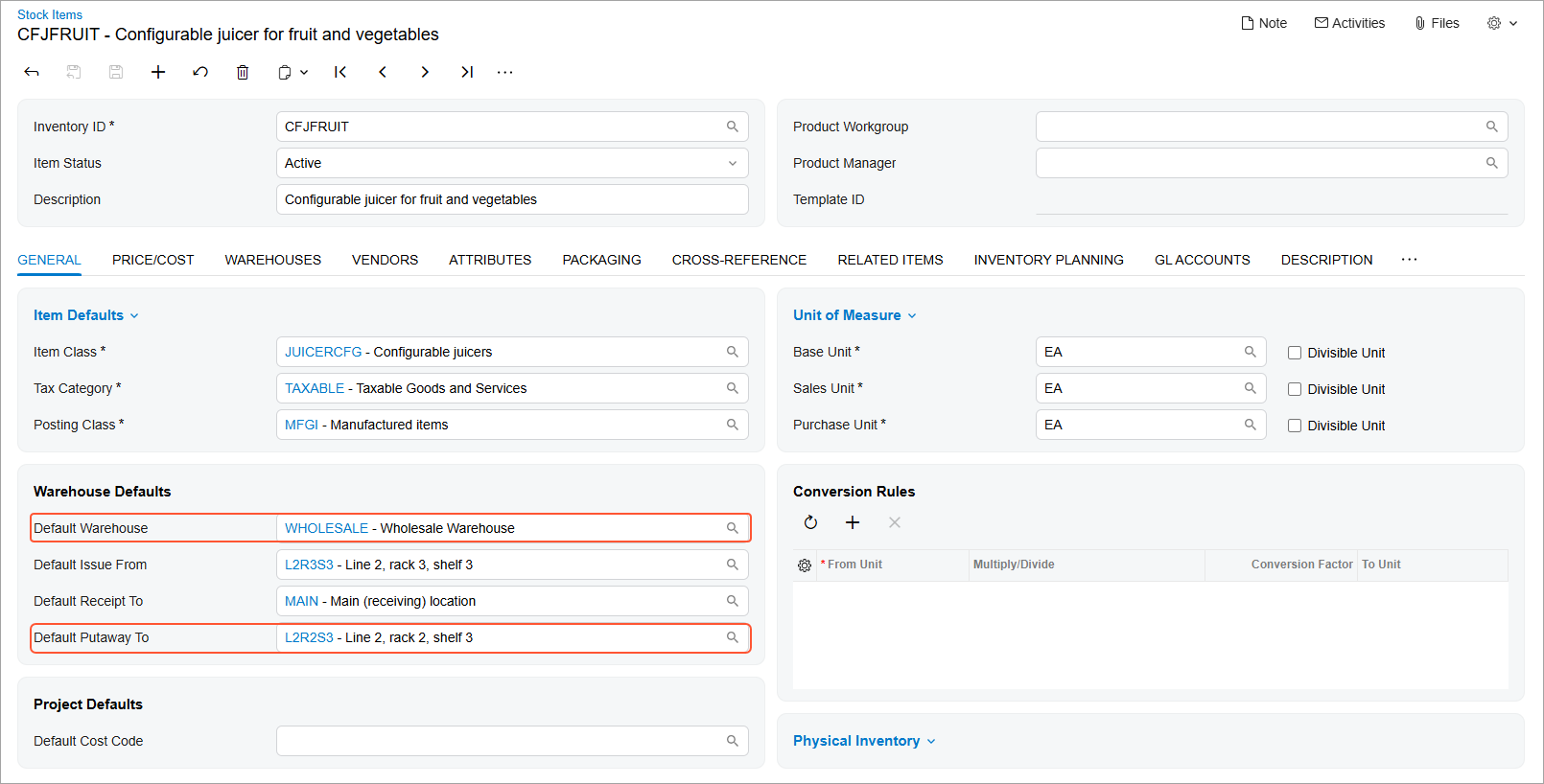
You can also specify a stock item's default putaway location directly at the item level. First make sure its Default Warehouse is specified on General tab, as shown below. Then select a location in this warehouse in the new Default Putaway To box.
Configuring the Directed Putaway
Warehouse workers will have the directed putaway workflow only if you select the Request Location for Each Item on Putting Away check box on the Purchase Orders Preferences (PO101000) form, as shown below.
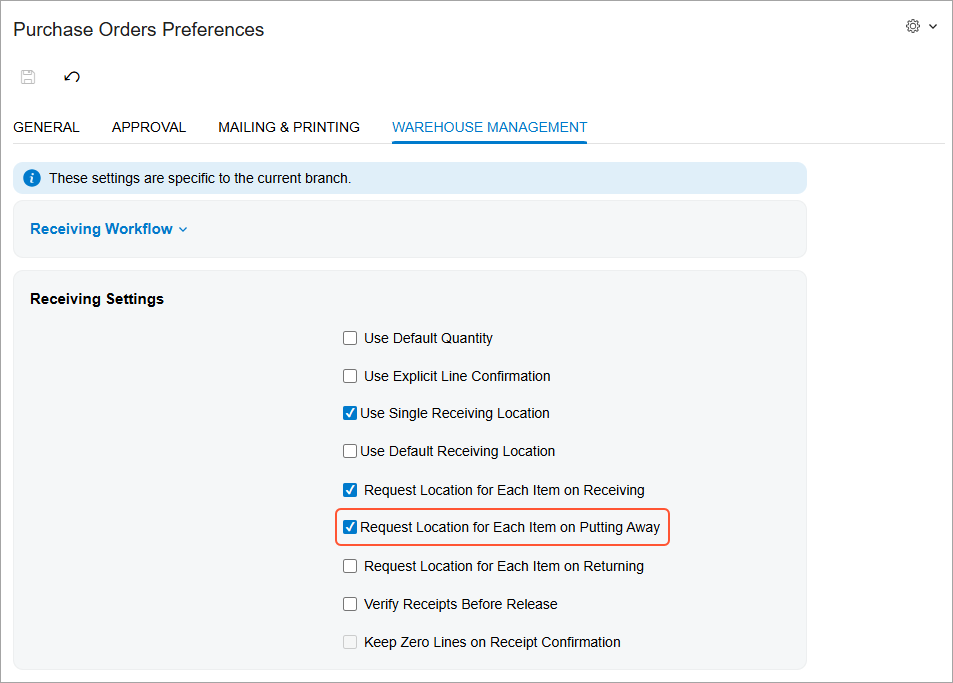
With this check box selected, the MYOB mobile app prompts the warehouse worker to:
- Scan the item.
- Scan the warehouse location. The prompt suggests the item’s default putaway location, as shown below. The worker can scan this location or a different one.
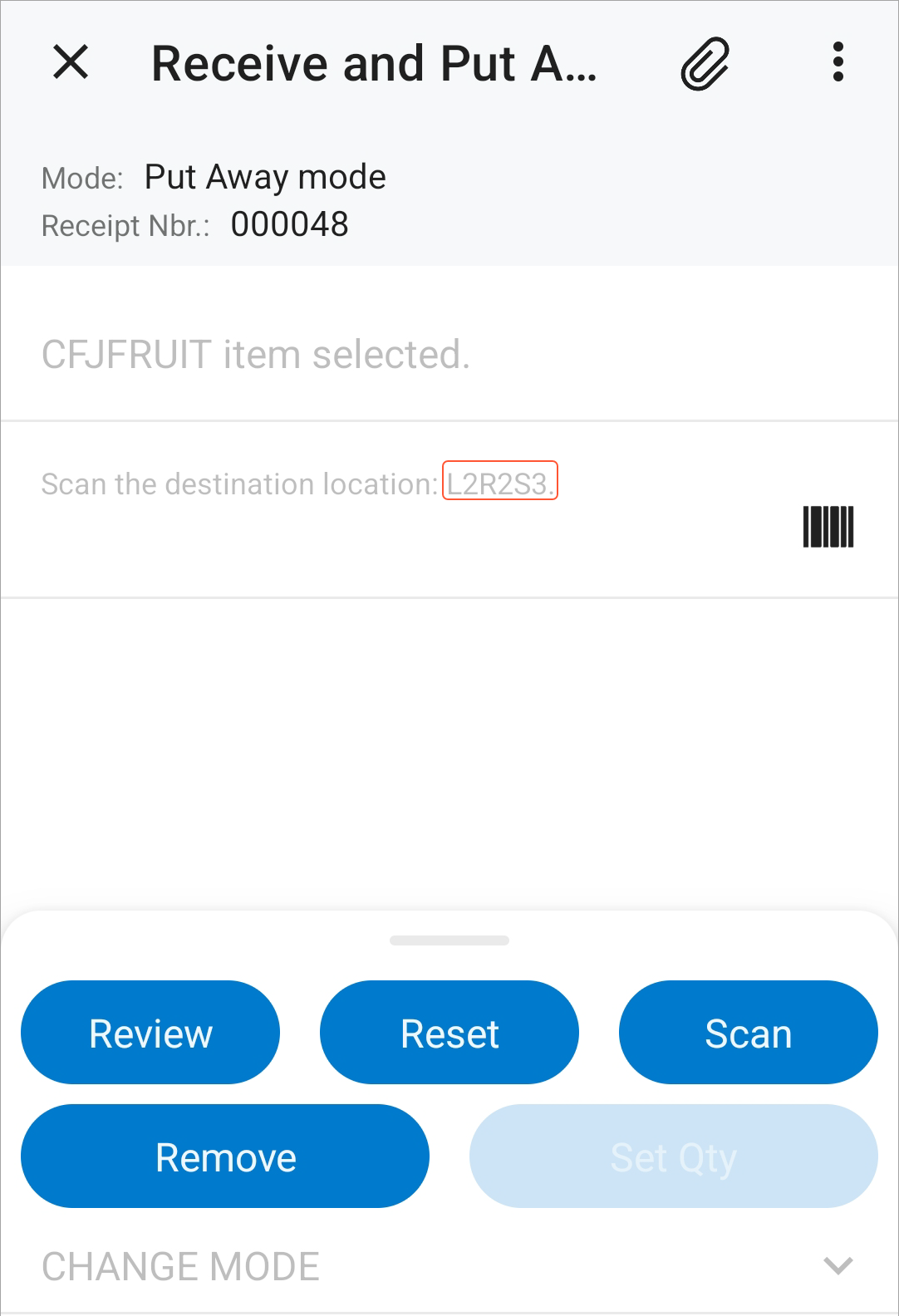
If you haven't specified the default putaway location on the level of the item's warehouse, the system suggests scanning any location.
Specifying the Default Putaway Location for Non-Stock Items
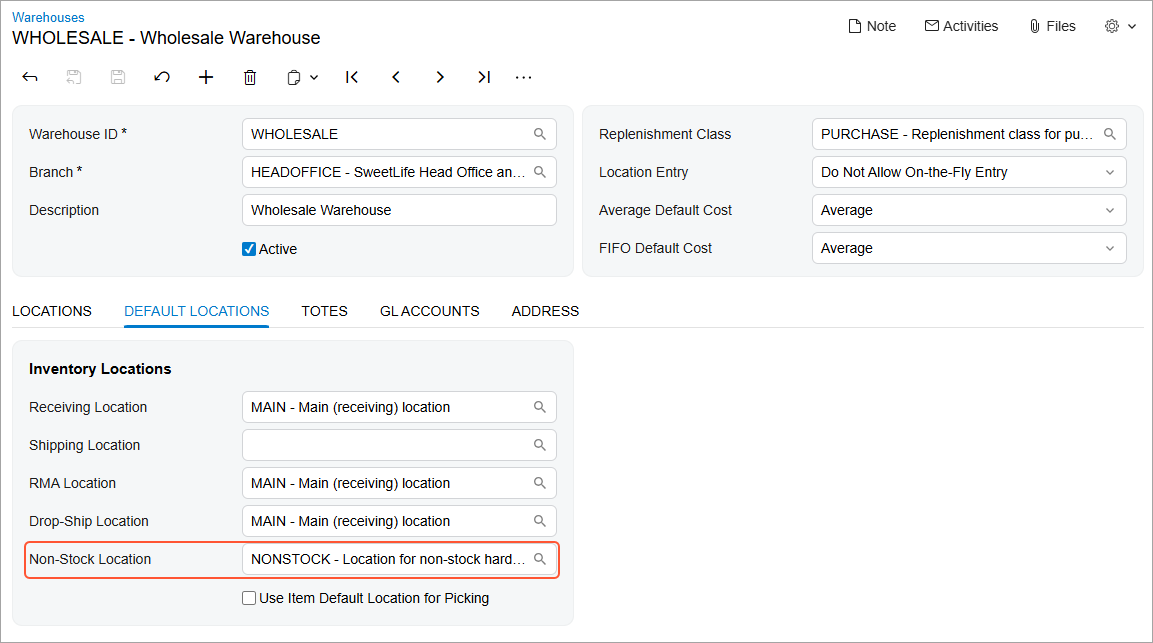
In MYOB Acumatica 2025.2.1, you can also specify the default putaway location for non-stock items that require receiving and putaway. You specify this location in the new Non-Stock Item Location box (shown below) on the Warehouses (IN204000) form.
Directed putaway for non-stock items is turned on if you select the Request Location for Each Item on Putting Away check box on the Purchase Orders Preferences (PO101000) form—just as it is for stock items.
Key Takeaways
- You can now specify default putaway locations for a stock item on the Item Warehouse Details (IN204500) and Stock Items (IN202500) forms.
- Directed putaway works if you select the Request Location for Each Item on Putting Away check box on the Purchase Orders Preferences (PO101000) form.
- You can use directed putaway for non-stock items too.
Learn More
For more information about receiving and putting away non-stock items, see Inventory and Order Management: Non-Stock Items in Automated Receipt and Putaway.