
Projects and Construction: Project Contact List and Roles
Tired of trying to figure out who has worked on or is currently working on a project? In MYOB Acumatica 2025.2.1, you can directly manage a project’s contact list while viewing the project and add contacts to projects on the fly. This enhancement helps project teams to collaborate more smoothly.
Let’s explore the new ways MYOB Acumatica supports project team management.
See Who’s Involved in the Project
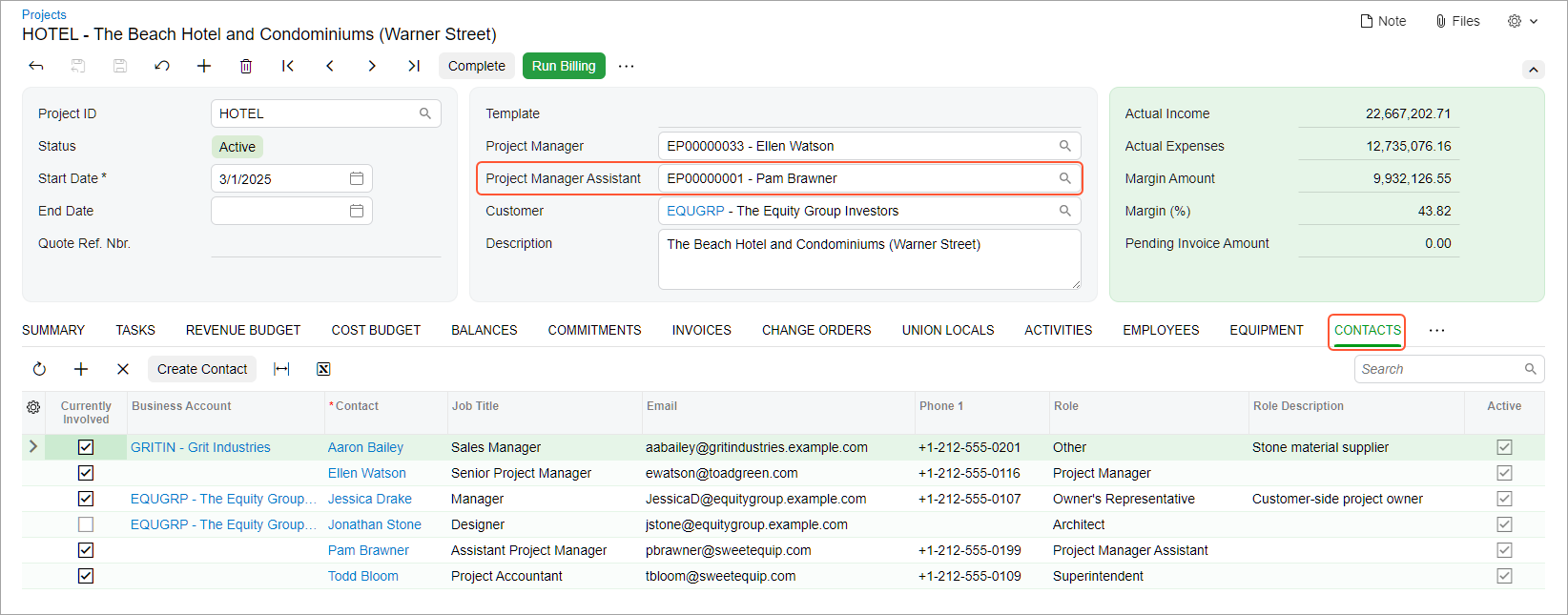
While viewing any project on the Projects (PM301000) form, it’s now easy to see who’s the project manager assistant and who else is involved in the project, as shown below. The Contacts tab shows the complete list of project participants—subcontractors, suppliers, and employees. You can view each contact’s key data, such as name, job title, role, email address, and phone number.
Easily Add Project Contacts
As a project manager, you may need to add a new supplier or another contact to the project's contact list on the Projects (PM301000) form. Just click Create Contact and enter the contact’s main settings in the Create Contact dialog box.
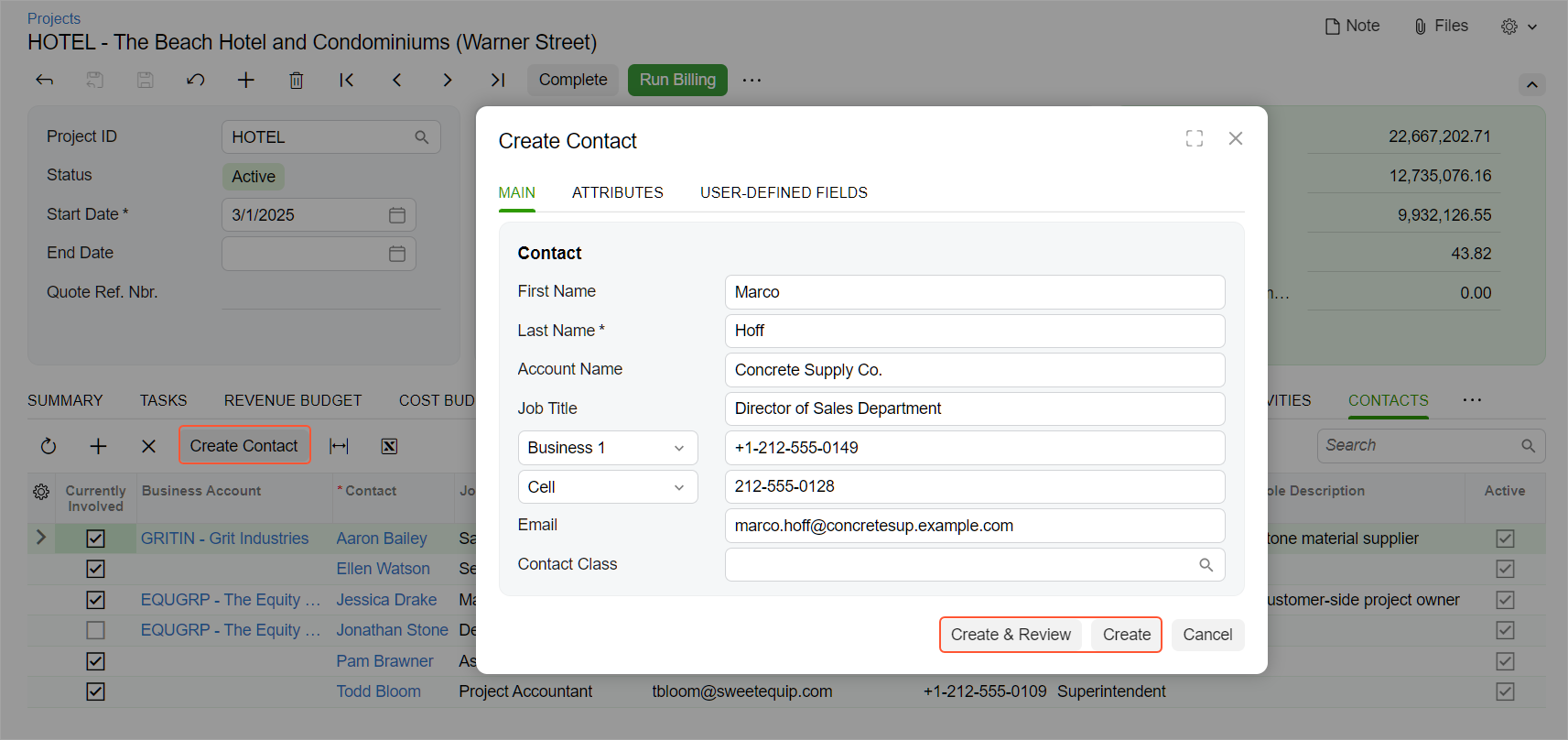
Then do either of these:
- Click Create to add the contact with only the basic information. The system creates the contact on the Contacts (CR302000) form and adds a row for it on the Contacts tab of the Projects form.
- Click Create & Review to open the new contact on the Contacts form and enter additional data, such as the website, address, or business account.
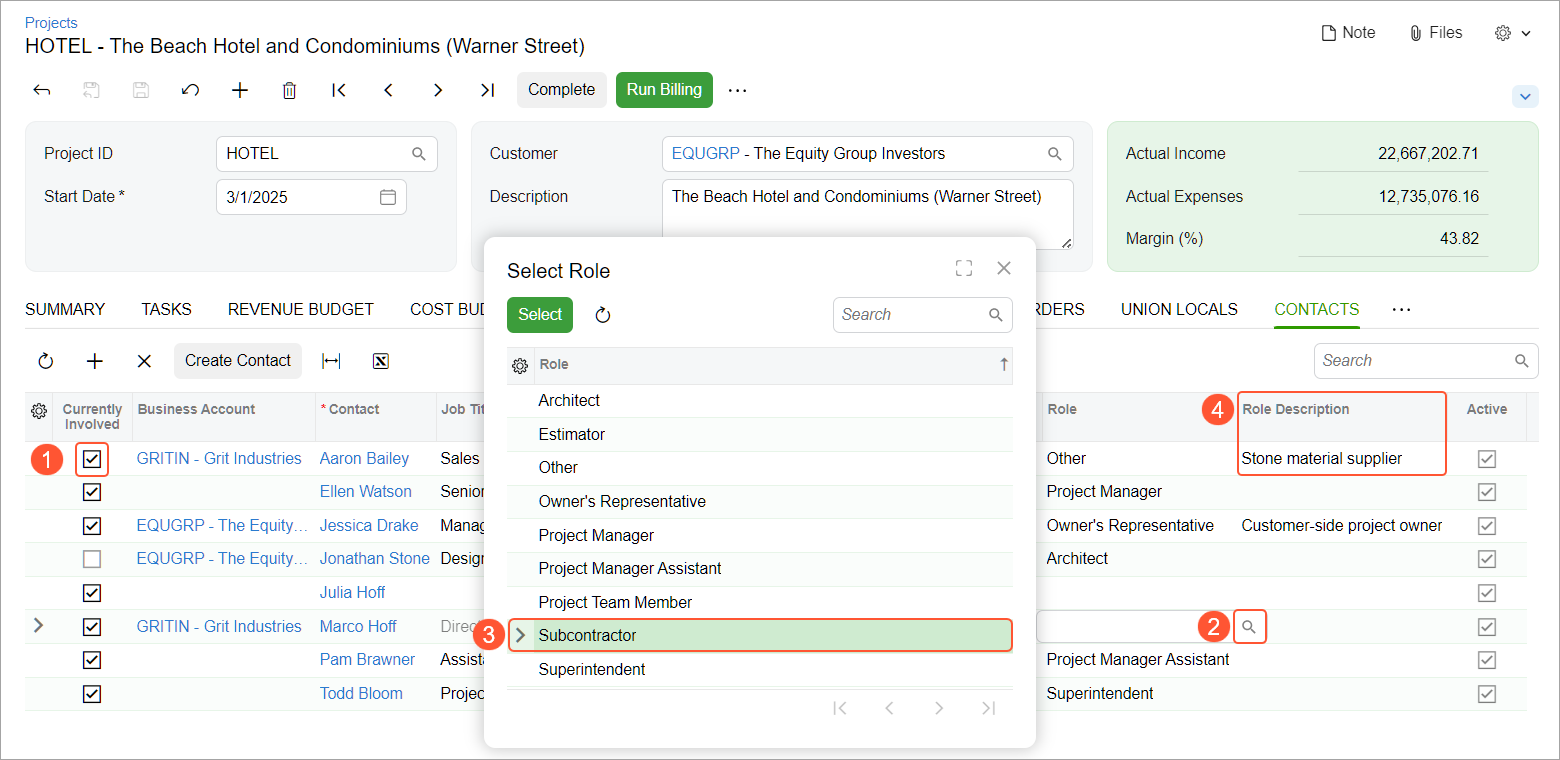
Once added to the list on the Projects form, the contact has the Currently Involved check box in the line (Item 1 below) to indicate active participation in the project. If the contact pauses or stops their work on the project, clear the check box to reflect this.
In the Role column, select the contact's role in the project (Items 2 and 3) and enter the role description. If none of the predefined project roles apply, select Other, and summarize the role in the Role Description column (Item 4).
Preload Contacts from a Project Template
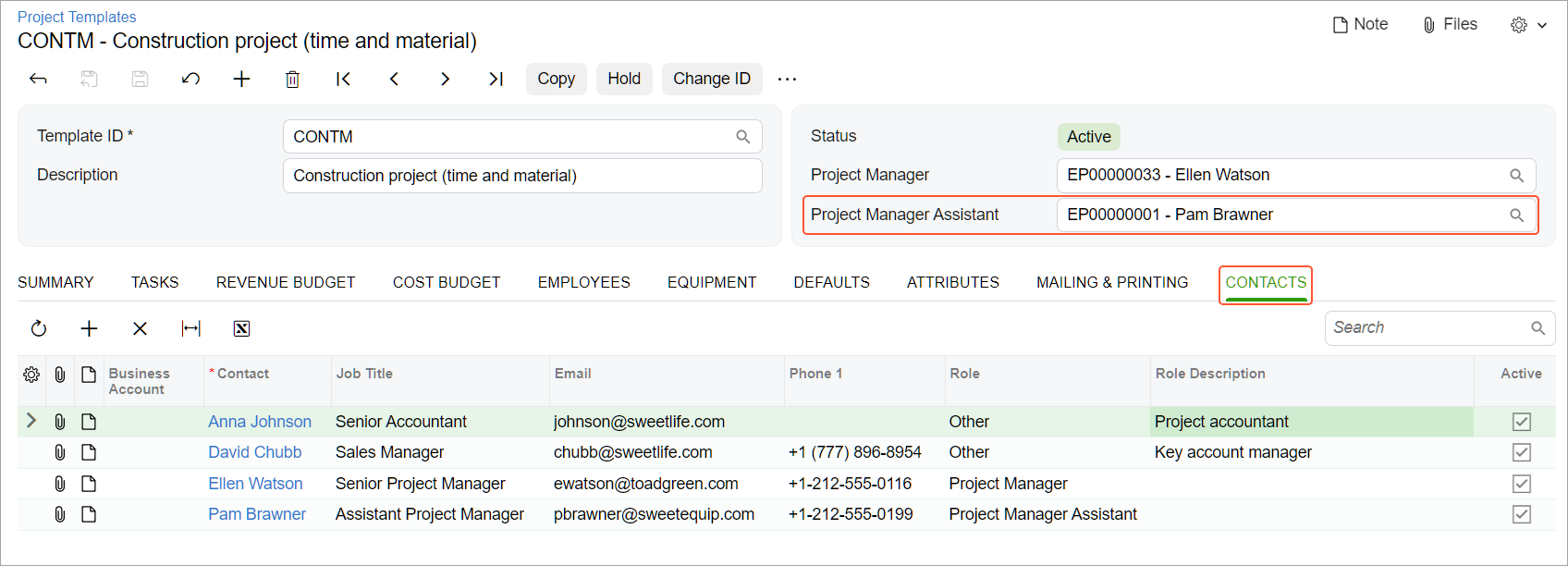
If the same teams often work on similar projects, you can save time by specifying contacts—as well as the project manager assistant—directly in a project template (see below). On the Project Templates (PM208000) form, you set up a project template and add employees and vendors to the Contacts tab.
When you create a new project based on the template, all the involved contacts are automatically added. You can fine-tune the final list of the project's contacts on the Projects (PM301000) form.
View a Contact or Employee's Projects
Need to know which projects a contact or employee is involved in? While viewing a contact on the Contacts (CR3020PL) or an employee on the Employees (EP2030PL) list of records, you can quickly check this. You select a row in the list (Item 1 below) and open the Projects tab (Item 2) to view the related projects in the side panel (Item 3).
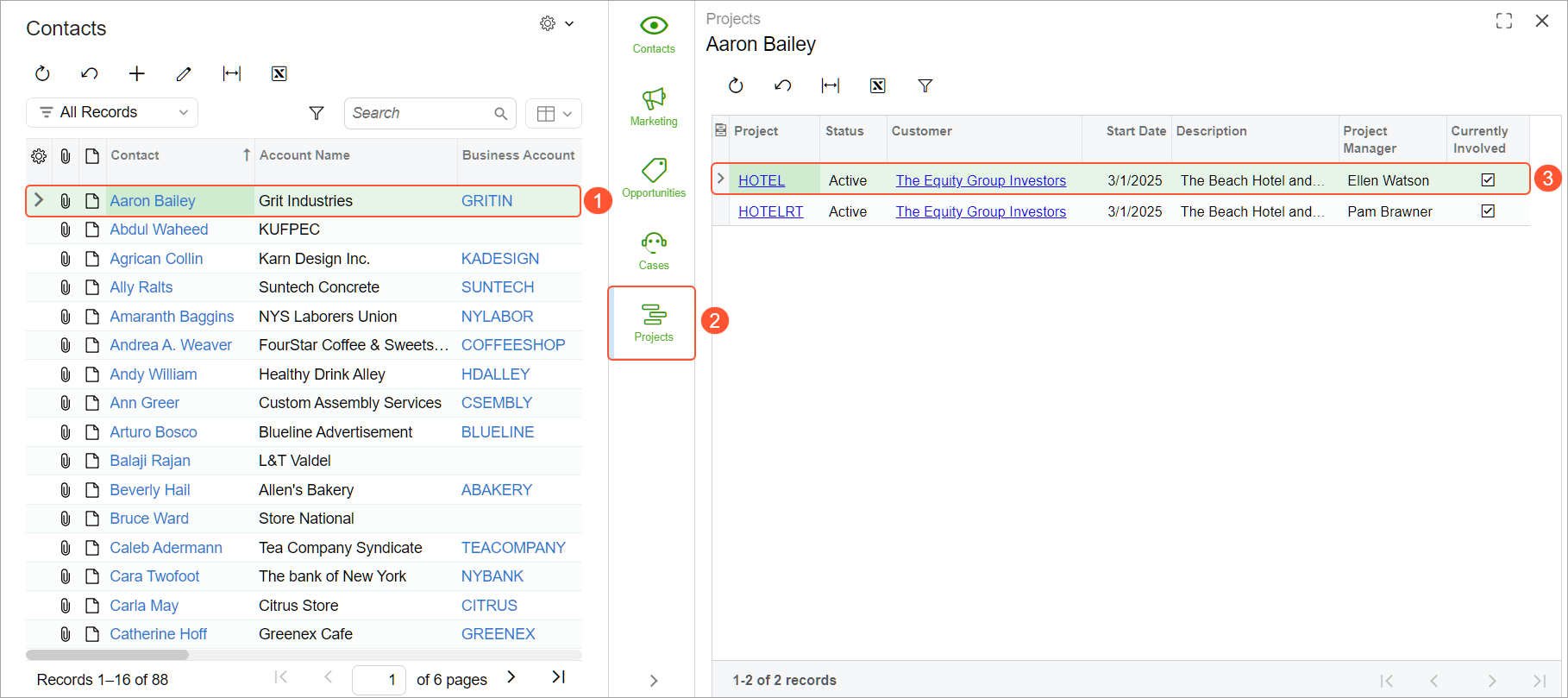
Similarly, you can use the Contacts (CR302000) or Employees (EP203000) form to see which projects a person is involved in. You click Projects in the side panel to see the related projects.
Capabilities at Your Fingertips
- Track project participants in one place
- Add contacts to a project on the fly
- Reuse contact lists from project templates
- Assign clear roles to contacts
- View related projects from contact and employee records