
Platform: Business Event Improvements
In MYOB Acumatica 2025.2.1, you can now preview emails generated by business events before they’re sent and modify their content. You can review and edit the content of the emails, add or remove the attached files, manage recipients and so on.
Other improvements include:
- The ability to resume business events that were previously completed with errors.
- The automatic addition of data fields whose values the system will track for the events triggered by data changes (such as record insertions or deletions).
Configure Business Events to Preview Emails
Historically, the system processes business events asynchronously. This allows you to process the events in the background and not wait until the event is fully processed. However, with asynchronous processing, you cannot preview the results of the event processing. Now you can configure business events of the Trigger by Action type that relate to non-inquiry forms to process their subscribers synchronously — so you can open the draft of the generated message after processing.
To check what email message will be generated by a business event, you should select the Process Synchronously check box (Item 1 below) on the Business Events (SM302050) form. This will automatically select the new Open After Processing (Item 2) check box for all active subscribers of the Email Notification type.
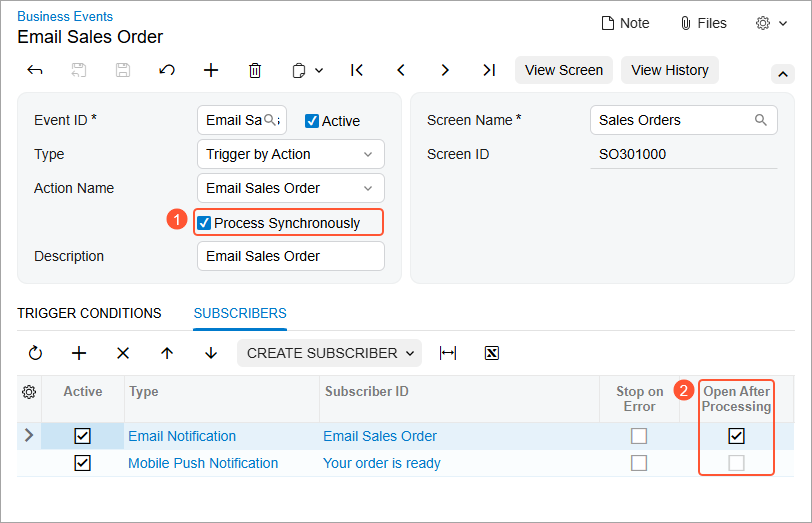
Preview Emails
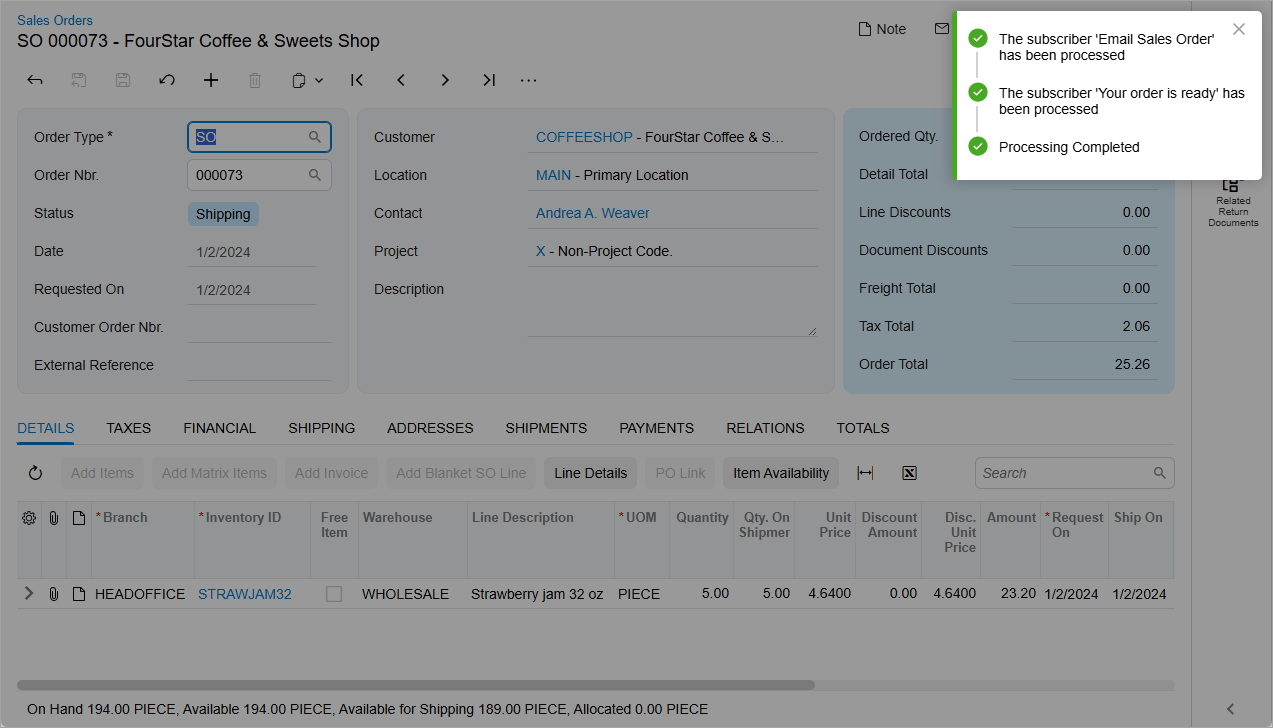
When the system triggers events that are configured this way, the processing results appear in the notification, as shown below.
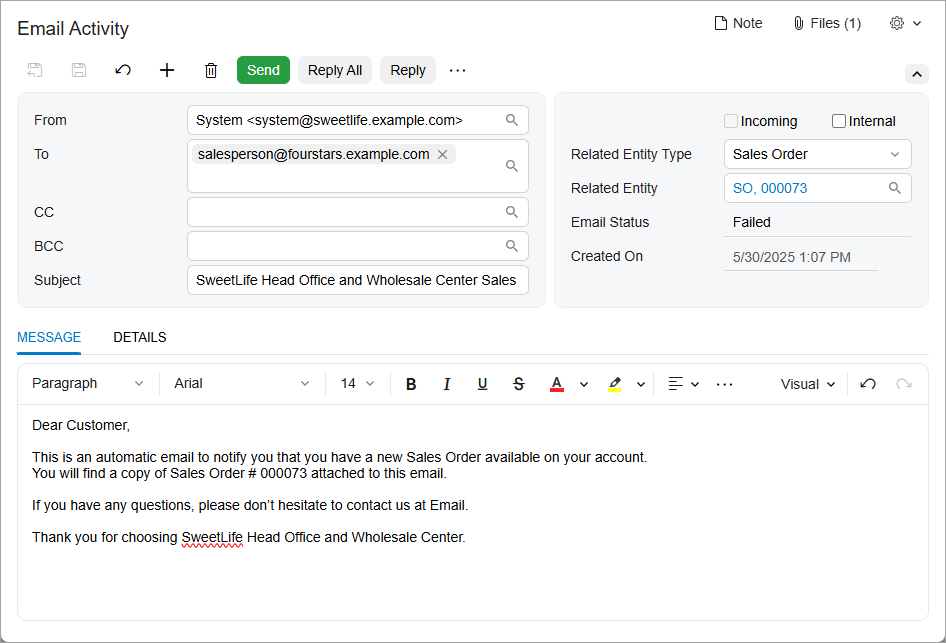
For each email notification subscriber, a new browser tab opens showing the Email Activity (CR306015) form with the draft of the message (see below).
Resume Business Events That Completed With Errors
Starting in MYOB Acumatica 2025.2.1, you can resume the processing of business events that completed with errors. By clicking the Resume Processing button on the Business Event History (SM502030) form, as shown below, you reprocess business events with the Failed and Completed With Error statuses.
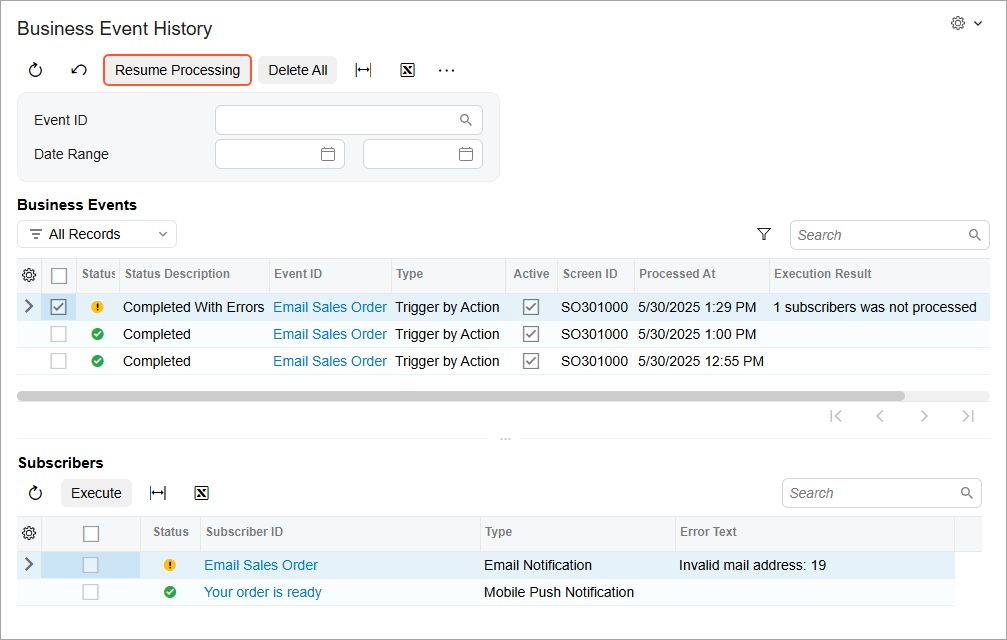
Resuming the processing of business events is particularly useful if the error wasn’t related to the event data itself (for instance, if email template problems caused the error): You can make needed adjustments and use this command to retry processing without starting from scratch.
Automatic Addition of Tracked Fields
In MYOB Acumatica 2025.2.1, for business events triggered by data changes, the following fields will be automatically added to the Fields to Track tab on the Business Events (SM302050) form:
- Key fields
- Fields used in the
whereconditions of generic inquiries or within the primary views of data entry screens
These fields will be included when you create a new business event of the Trigger by Record Change type, or when you enable the Record Inserted or the Record Deleted trigger conditions for an existing business event.
This enhancement will minimize performance issues caused by selecting the Track All Fields check box and will help prevent situations where a business event fails to trigger due to an irrelevant field being tracked.