
Inventory and Order Management: Order Orchestration
Now you can let the system make fulfillment decisions for you. MYOB Acumatica 2025.2.1 introduces order orchestration—a capability that automatically selects the best warehouse—or combination of warehouses—to fulfill sales orders. If your company has multiple warehouses, it can transform your daily fulfillment routine by:
- Reducing manual intervention when you’re fulfilling sales orders
- Optimizing fulfillment efficiency
- Reducing time spent on order fulfillment
Choose Your Fulfillment Strategy
As the implementation manager, your first step is choosing the fulfillment strategy for your shipping process:
- Prioritizing the destination: The system uses the customer's shipping address and predefined shipping zones to select the best fulfillment warehouse or warehouses. This strategy works best for companies that have similar inventory across warehouses.
- Prioritizing the warehouse: The system uses the warehouse specified in each sales order line as the source warehouse. Based on your manually prioritized list of warehouses, the system selects the most appropriate warehouse for fulfillment. This strategy works best for companies that have varying quantities of items in different warehouses or sell perishable goods.
You can define multiple orchestration plans and select the fulfillment strategy of each plan. You can also select a fulfillment strategy for any order type.
Define Shipping Zones
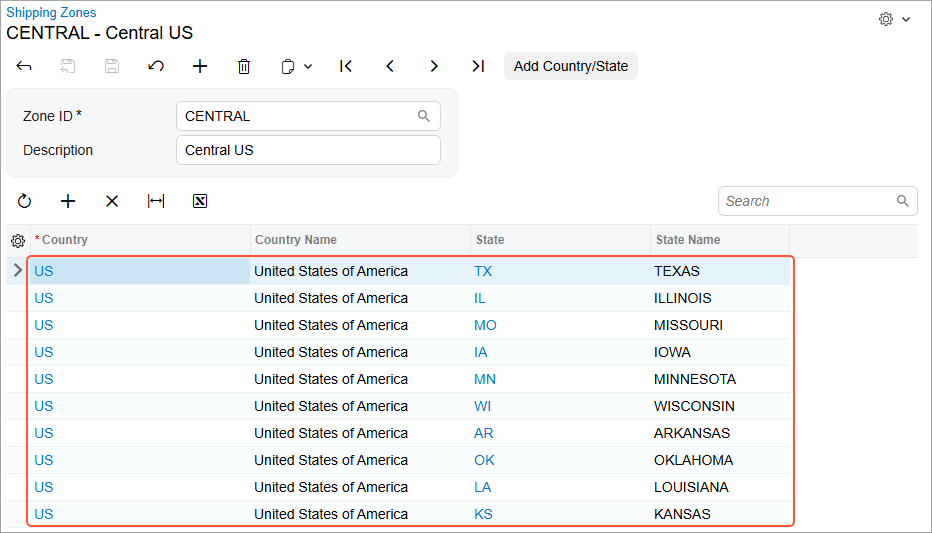
If you plan to use the destination priority to orchestrate any orders, you’ll need to have shipping zones defined. You add or modify shipping zones on the new Shipping Zones (CS209500) form, shown below. On this form, you specify the countries and states for each geographic zone you define.
Define Your Orchestration Plans
Next, you add each orchestration plan you want to use on the new Orchestration Plans (SO304600) form. The system uses the orchestration plan to fulfill orders according to your specifications.
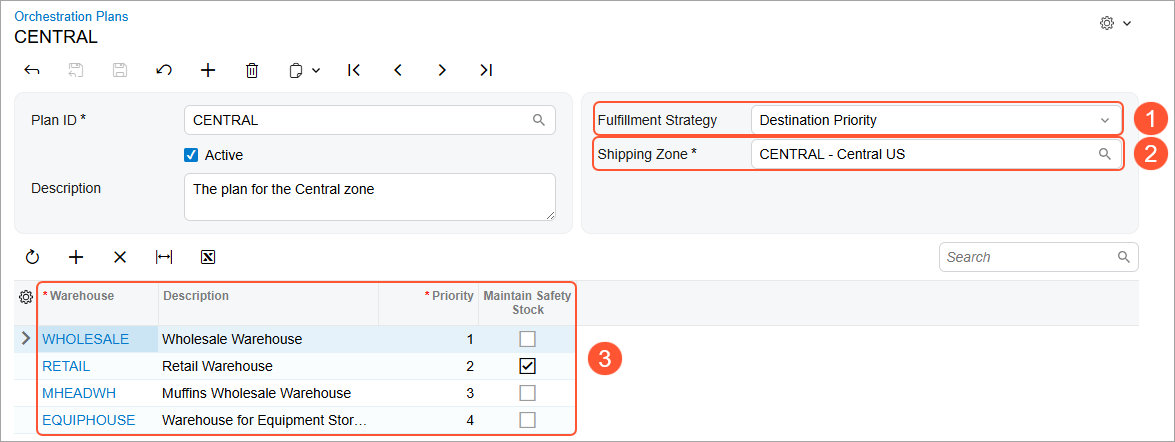
You select the plan’s strategy in the Fulfillment Strategy box (Item 1 below). If you select Destination Priority:
- In the Shipping Zone box (Item 2), select the shipping zone this orchestration plan covers.
- Add warehouses and their priority rankings to the table (Item 3).
- Optional: Select the Maintain Safety Stock check box for any warehouse. The system will exclude this warehouse from orchestration if it would violate the safety stock specified on the Item Warehouse Details (IN204500) form for any item in a sales order.
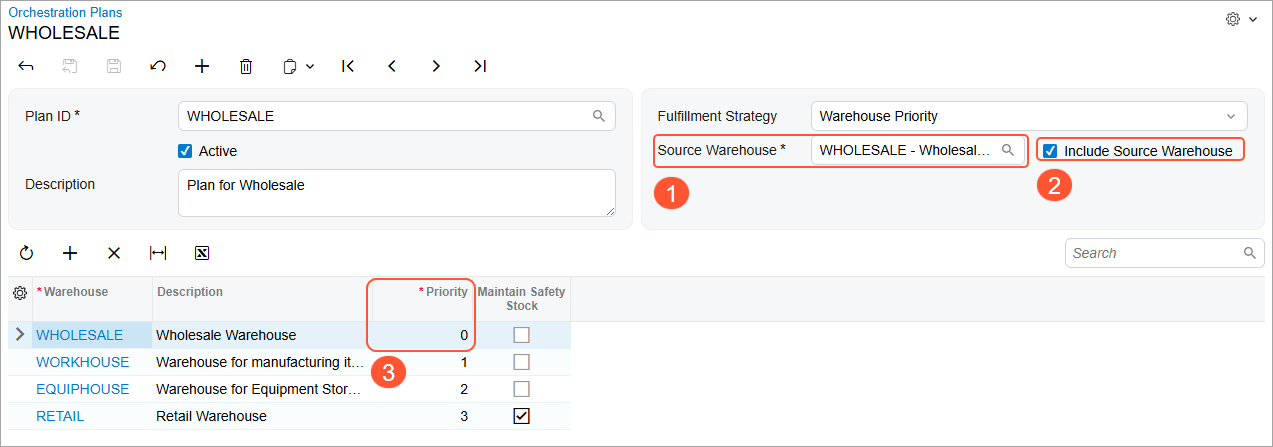
If you select Warehouse Priority:
- Select a warehouse in the Source Warehouse box (Item 1 below), which the system shows instead of the Shipping Zone box for this fulfillment strategy.
- Optional: Select the Include Source Warehouse check box (Item 2). If you do, the system adds the source warehouse to the table with priority 0—the highest priority level (Item 3).
Set Up Sales Order Types
To complete the implementation of order orchestration, you need to set up the order types of the sales orders you’re going to orchestrate. The order orchestration settings appear for only order types with the following settings on the Template tab of the Order Types (SO201000) form:
- Automation Behavior: Sales Order or RMA Order
- Process Shipment: Selected
- Default Operation: Issue
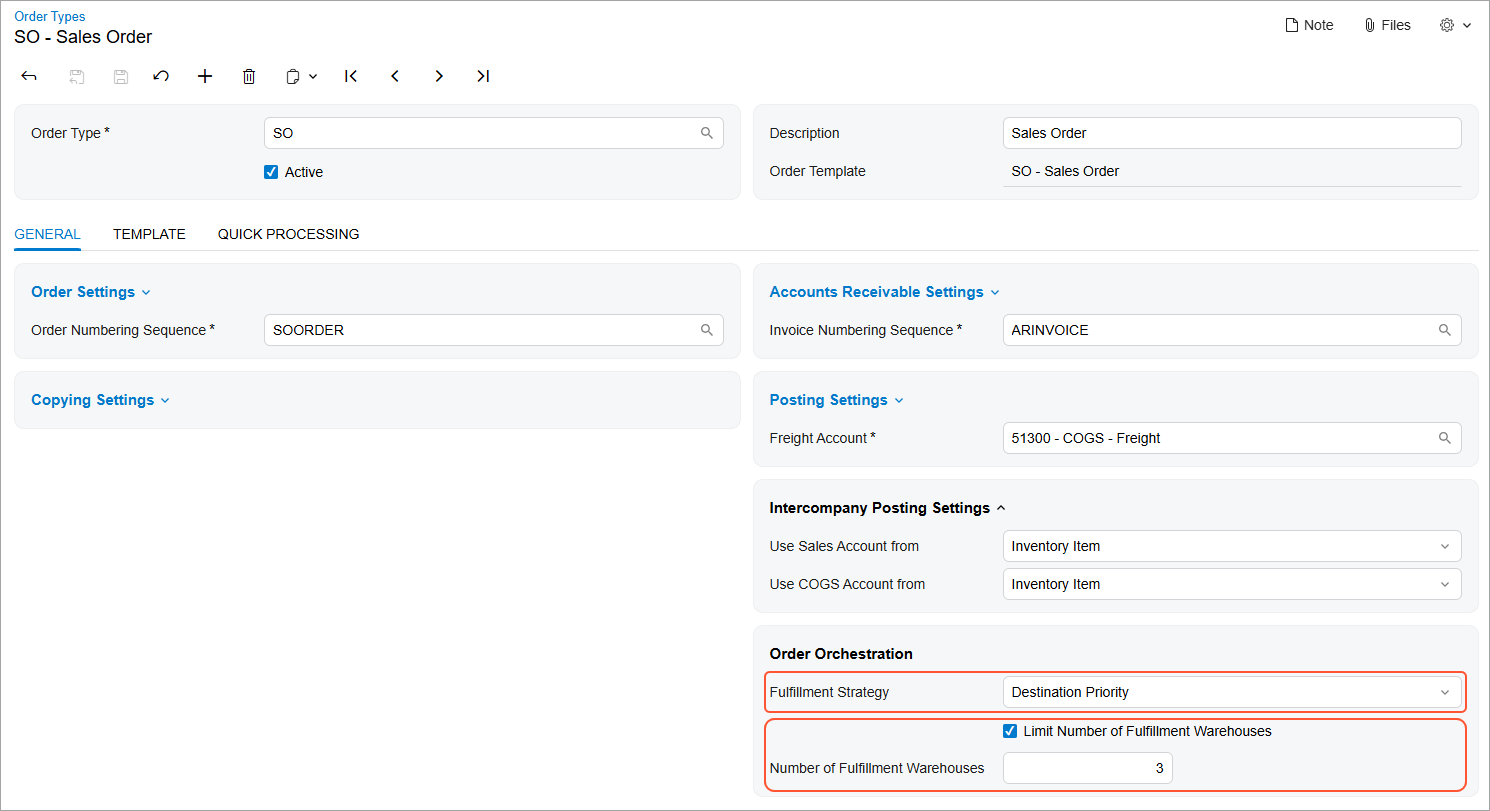
For each order type you plan to orchestrate, specify these settings (see below) on the General tab (Orchestration Settings section) of the Order Types form:
- Fulfillment Strategy: Select the strategy of orchestration plans
the system will use for fulfilling orders of this type:
- Destination Priority: The system uses plans with the Destination Priority strategy specified and orchestrates sales orders by the customer's shipping zone.
- Warehouse Priority: The system uses plans with the Warehouse Priority strategy specified and orchestrates sales orders by the source warehouse in the lines of the order.
- Do Not Orchestrate (default): The system doesn’t orchestrate orders of this type.
- Limit Number of Fulfillment Warehouses: Select this check box if you want to specify the maximum number of fulfillment warehouses.
- Number of Fulfillment Warehouses: Enter the maximum number of warehouses the system can use to fulfill a single sales order. This box becomes available for editing only if you’ve selected the Limit Number of Fulfillment Warehouses check box.
Now you’ll see the steps a user would typically take to orchestrate a sales order.
Review and Orchestrate a Sales Order
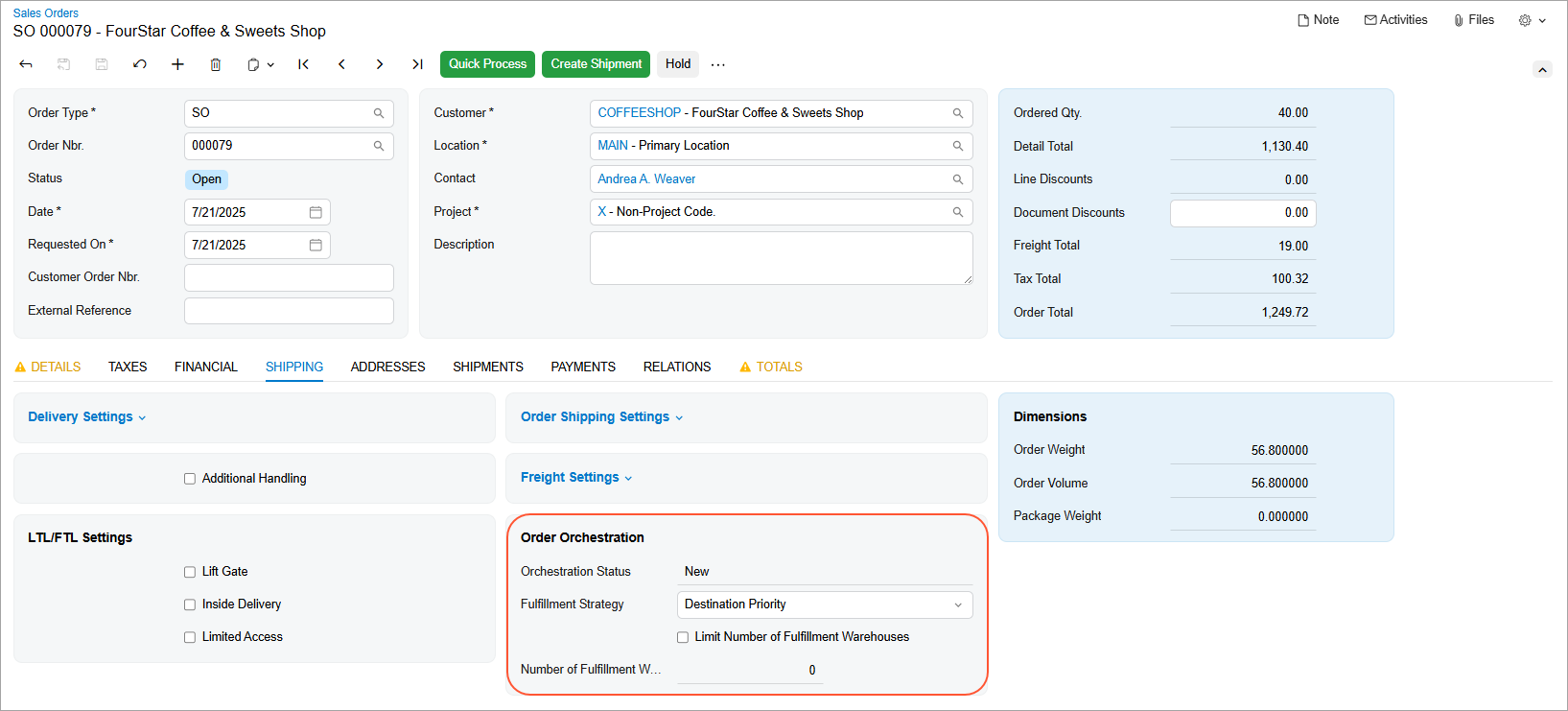
On the Shipping tab of the Sales Orders (SO301000) form, you can review the orchestration status and settings of the sales order in the new Order Orchestration section, shown below.
To orchestrate a sales order, you click Orchestrate Order on the More menu (shown below).
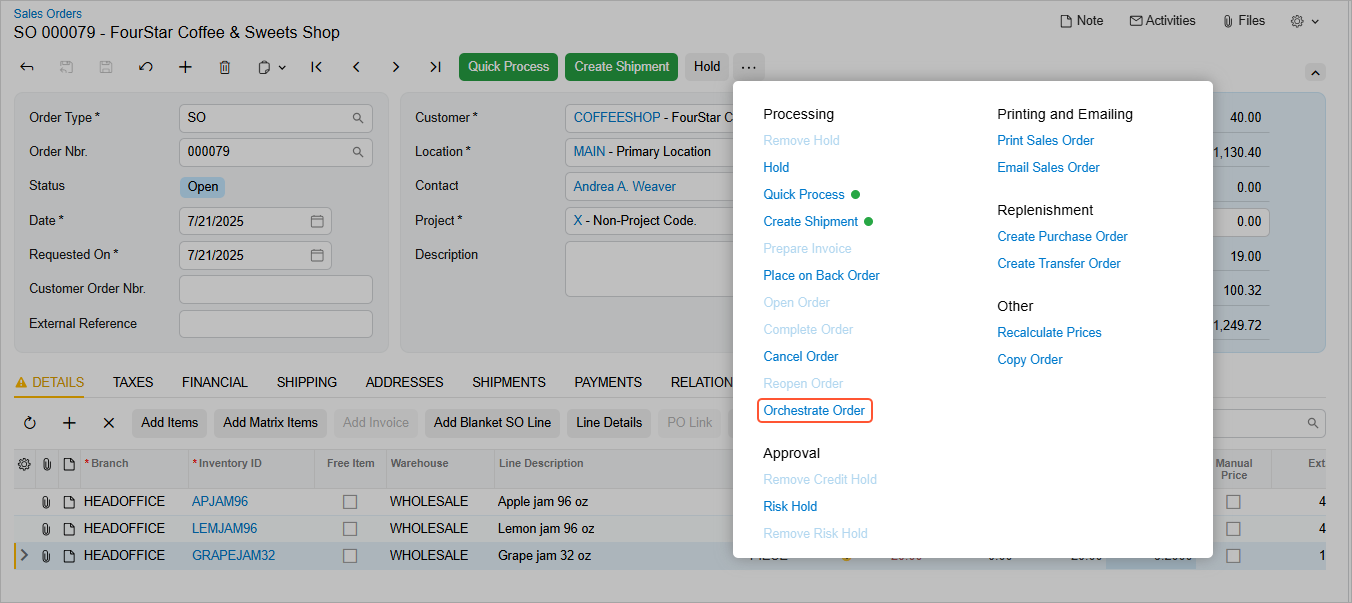
The Orchestrate Order command is available only if the sales order meets the following conditions:
- The settings of the order type of this order support orchestration.
- The order type has the Destination Priority or Warehouse Priority selected as Fulfillment Strategy on the Order Types (SO201000) form.
- The order's Orchestration Status is New or Unsuccessful.
- The order's status is On Hold, Open, or Back Order.
- On the Shipping tab of the Sales Orders form, the Will Call check box is cleared.
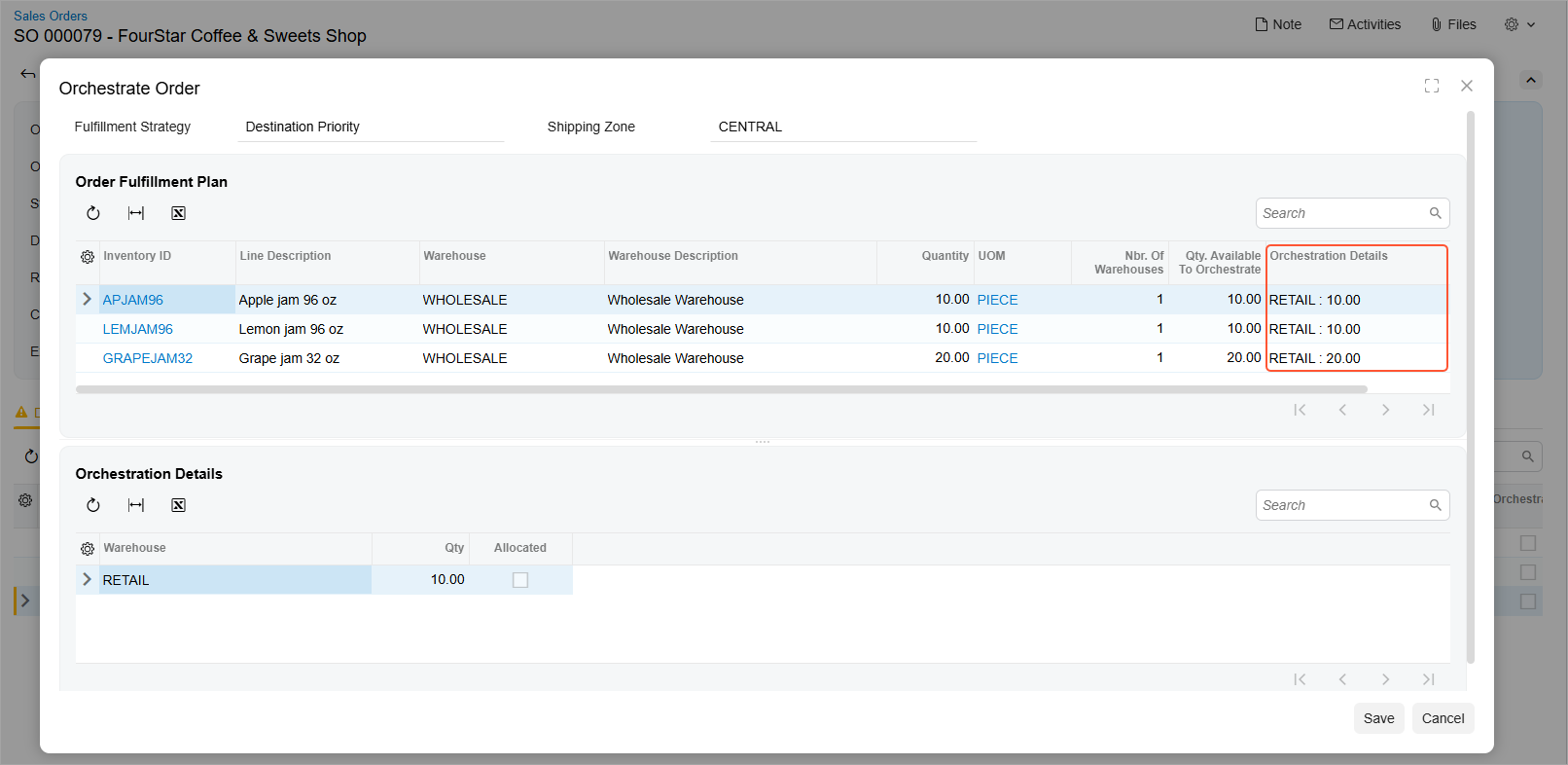
When you click the command, the system analyzes your inventory and opens the Orchestrate Order dialog box. It inserts the recommended warehouse or warehouses into the Orchestration Details column for each item, as shown below.
The system excludes sales order lines from orchestration based on the following settings on the Details tab of the Sales Orders form:
- Operation Type is Receipt.
- The Orchestrated check box is selected.
- The Mark for Production check box is selected.
- The Mark for PO check box is selected.
- The Open Qty. is 0.
The system also excludes lines with the following items:
- Non-stock kit
- Non-stock
Complete the Orchestration
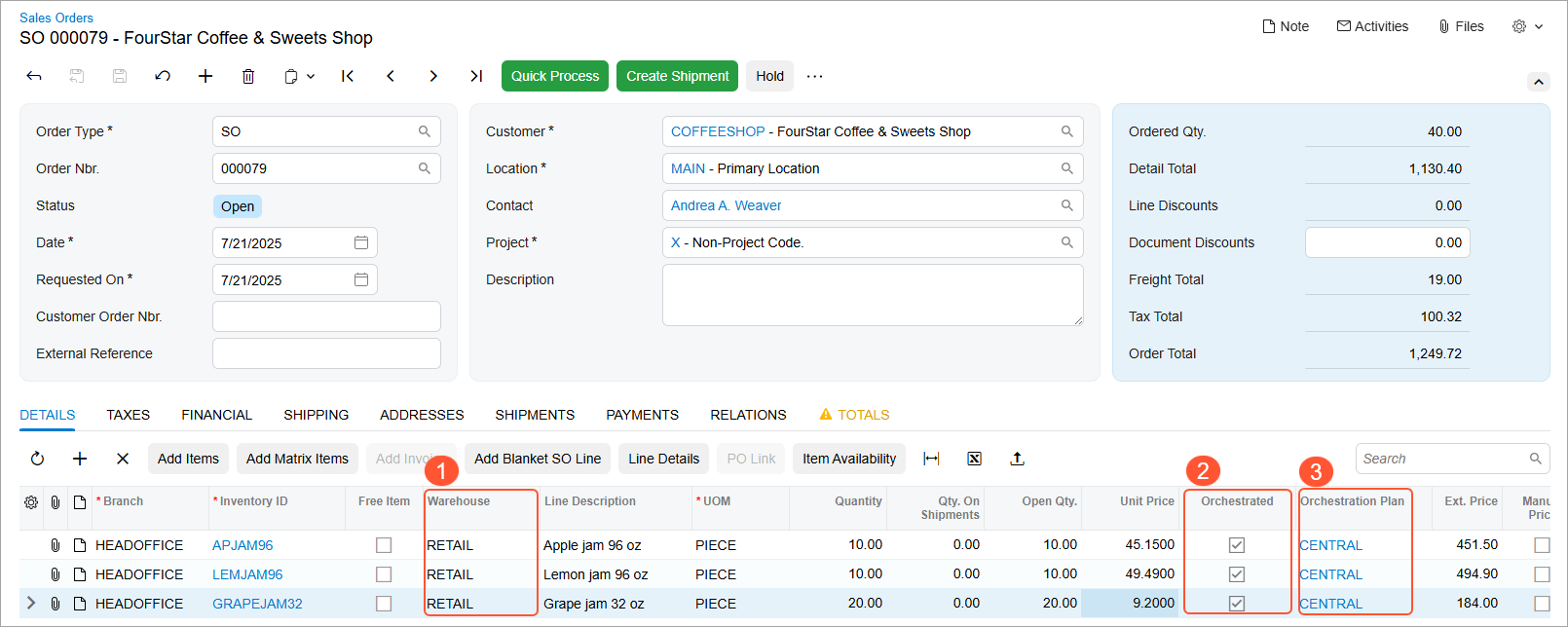
If you agree with the suggestions in the Orchestrate Order dialog box of the Sales Orders (SO301000) form, you click Save. The system closes the dialog box and does the following in the sales order:
- Inserts the suggested warehouse into the order lines (Item 1 below)
- Does the following for each orchestrated sales order line:
- Selects the new Orchestrated check box (Item 2)
- Inserts the ID of the orchestration plan used for the item into the Orchestration Plan column (Item 3)
- Selects the Allocated check box in the Line Details dialog box
- Changes the orchestration status on the Shipping tab to Processed
You’ve saved a bit of time. But there’s an even better way to save time—keep reading.
Mass-Orchestrate Orders
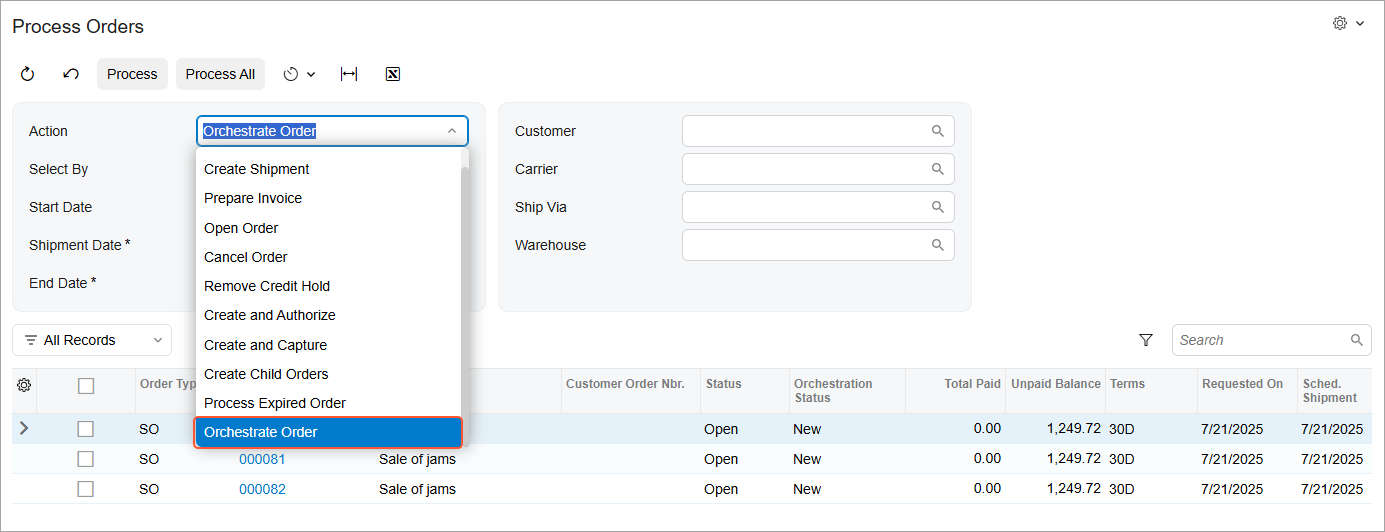
You can also orchestrate multiple sales orders simultaneously on the Process Orders (SO501000) form, which is shown below. To do this, you select Orchestrate Order in the Action box and do one of the following:
- Select the unlabeled check box for each listed order that you want to process and then click Process on the form toolbar
- Click Process All on the form toolbar
Order Orchestration Highlights
- Intelligent automation: Let the system choose the best warehouse—automatically.
- Strategic flexibility: Pick the fulfillment strategy that fits your business: based on the customer's location or the source warehouse.
- Set-and-forget simplicity: Set up the orchestration once—then rely on it daily.
- Scalable orchestration: Orchestrate orders individually or process many orders at once.