
Time and Expenses: Smarter Time Tracking
When you’re reviewing logged working time, it's important that the reported date and time remain unchanged, regardless of time zone differences.
In MYOB Acumatica 2025.2.1, you can now view the reported date and time in a time activity both in the original time zone and in your current time zone. This improvement helps you manage time activities more easily and accurately. Let’s explore how it works.
Accurate Time Across Time Zones
When you create a time activity on one of the following forms, the system inserts the applicable time zone:
- Employee Time Cards (EP305000)
- Employee Time Activities (EP307000)
- Activity (CR306010)
- Email Activity (CR306015)
- Daily Field Report (PJ304000)
- Weekly Crew Time Entry (EP307100)
- Appointments (FS300200)
- Create Labor Time Activities (AM513000)
Based on that time zone, the system shows the time activity's date and time. To determine the most relevant time zone, the system checks the following forms in order and applies the first time zone it finds:
- User Profile (SM203010): The time zone
you’ve specified for your user account.Tip:You can enter or change this time zone at any time.
- Work Calendar (SC209000): The time zone of the calendar specified for your employee account, if such an account has been associated with your user account.
- Site Preferences (SM200505) form: The system-wide default time zone set by a system administrator.
If no time zone is found, the system uses UTC+0 without time zone adjustments. UTC (Coordinated Universal Time) is a global time standard, that is not affected by daylight saving time or geographic location and ensures consistency across time zones.
In the MYOB mobile app, the system uses the time zone specified in your device’s settings when you:
- Create an activity on the Case screen
- Create a time activity on the Employee Time Card screen
- Log time on the Appointment screen
Visibility of the Original Time Information
To ensure that the date and time in the original time zone are visible in time activities, we’ve added these read-only columns to multiple forms:
- Reported On: The date in the original time zone
- Reported At: The time in the original time zone
When you create a time activity, the system stores the date and time in UTC. It shows time-related data in these columns:
- Date and Time in your current time zone
- Reported On (Item 1 below) and Reported At (Item 2) in the original time zone
- Reported in Time Zone (read-only), which shows the original time zone (Item 3)
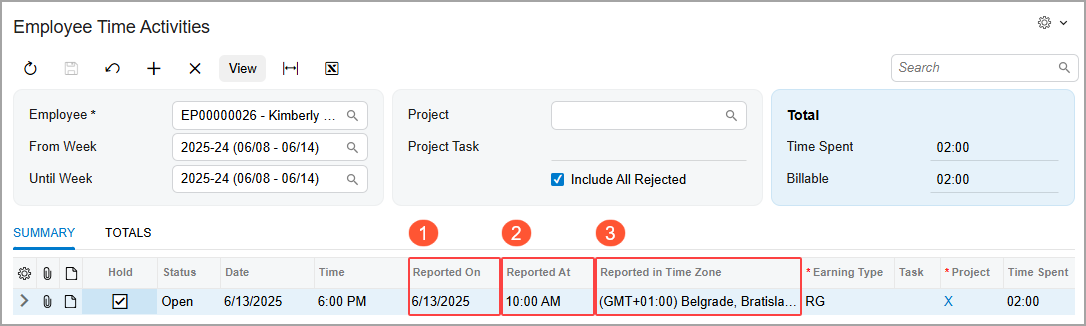
These columns can be shown on the following forms:
- Employee Time Cards (EP305000)
- Employee Time Activities (EP307000)
- Daily Field Report (PJ304000)
- Weekly Crew Time Entry (EP307100)
- Approve Time Activities (EP507010)
- Release Time Activities (EP507020)
The columns are hidden by default, but you can make them visible by using the Column Configuration dialog box.
Example: Time Zone Changes in Action
Here’s how it works. Suppose that you’ve specified the GMT+1 (Belgrade) time zone for your user account on the User Profile (SM203010) form.
When you create a time activity on the Employee Time Activities (EP307000) form:
- The Date and Time columns display the date and time based on your user account's time zone (GMT+1)
- The Reported On date and Reported At time match the Date and Time (as shown below) because you’re viewing the activity in the same time zone it was reported in.
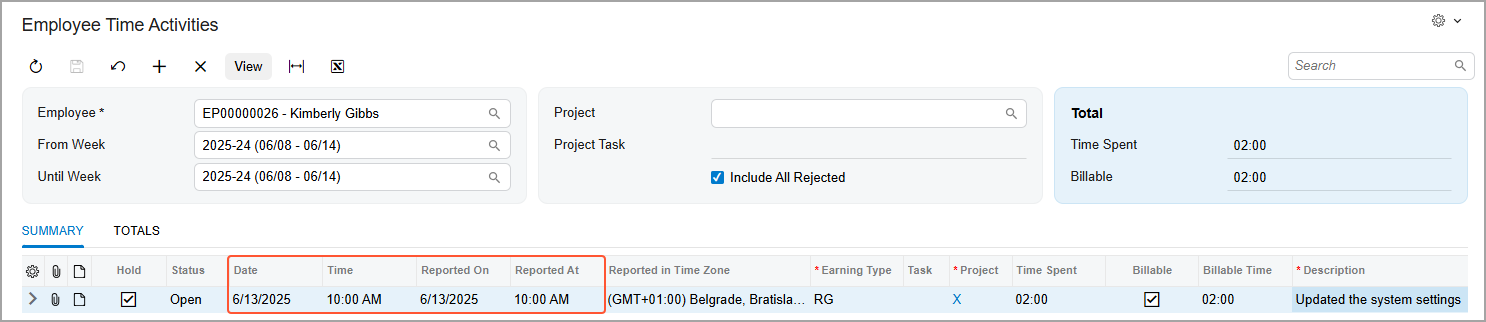
Later, while traveling for business, you manually change your time zone on the User Profile form to GMT-8 (Pacific Time US & Canada). When you open the same time activity again, the system displays (as shown below):
- Date and Time in your current time zone (GMT-8)
- The Reported On date and Reported At time in the original time zone (GMT+1)
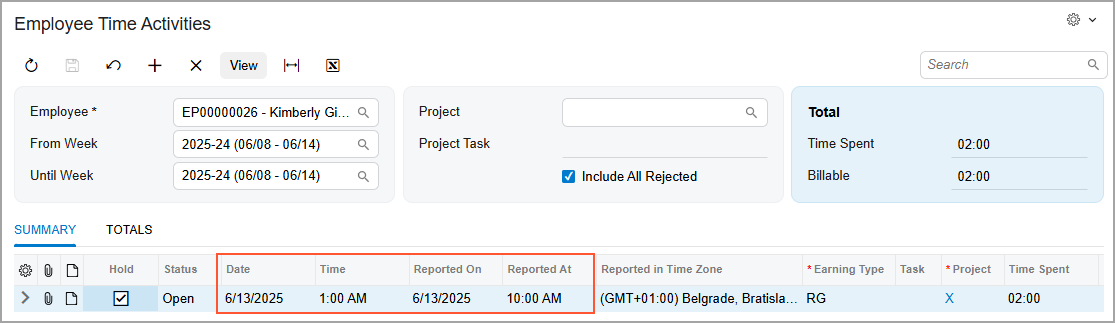
In the next sections, you’ll see how Reported in Time Zone and Reported On improve your workflow in different areas.
Original Time Zones for Correction Time Cards
The system now applies the time zone from the original time card to the correction time card. Suppose that you're creating a correction time card on the Employee Time Cards (EP305000) form while working in a different time zone. The system copies the original time zone to the Reported in Time Zone column in the correction time card. This ensures consistency between the original and correction time cards.
Smarter Weekly Time Tracking
Now the system determines the week to which a time activity belongs based on the time activity's date in its original time zone. When you filter time activities by starting and ending weeks on the following forms, the system displays the time activities if their Reported On date falls within the specified week range, as shown below:
- Employee Time Cards (EP305000)
- Employee Time Activities (EP307000)
- Weekly Crew Time Entry (EP307100)
This ensures more accurate filtering and consistent results across time zones.
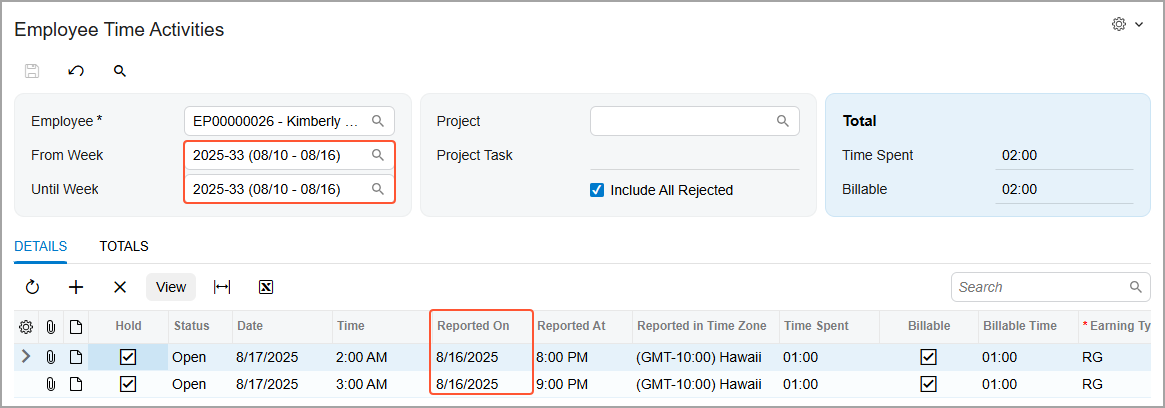
Time Tracking in Project Transactions
To improve consistency and accuracy in project transaction generation, the system now uses the Reported On date of the time activity to:
- Apply the correct labor rate based on the effective date on the Labor Rates (PM209900) form
- Specify the date in the project transactions generated on the Project Transactions (PM304000) form
This change supports more accurate job costing and smoother project billing when you use the Time and Material billing rule.
Learn More
Need more details? See Employee Time Entry: Time Zones in Time Activities.