
Projects and Construction: One-Click Reversal for Project Transactions
In MYOB Acumatica 2025.2.1, you can now reverse direct and imported project transactions with the PM source in just one click—no need to manually create a reversal transaction. You can also now reverse project transactions with the AR source that were uploaded in migration mode. These enhancements streamline error correction during manual entry and give you more control when cleaning up historical data.
Let's see how it works.
Reversal of Transactions with the PM Source
Imagine that you’ve recorded labor, overhead, or warranty costs by manually creating and releasing a project transaction with the PM source. Later, you analyze the budget of the corresponding project and discover an incorrect amount.
Or perhaps during data migration, some incorrect project transactions with the PM source were uploaded to the system via an Excel file, an import scenario, or a third-party system.
Now you can quickly reverse the erroneous transaction by clicking Reverse on the form toolbar of the Project Transactions (PM304000) form, as shown below.
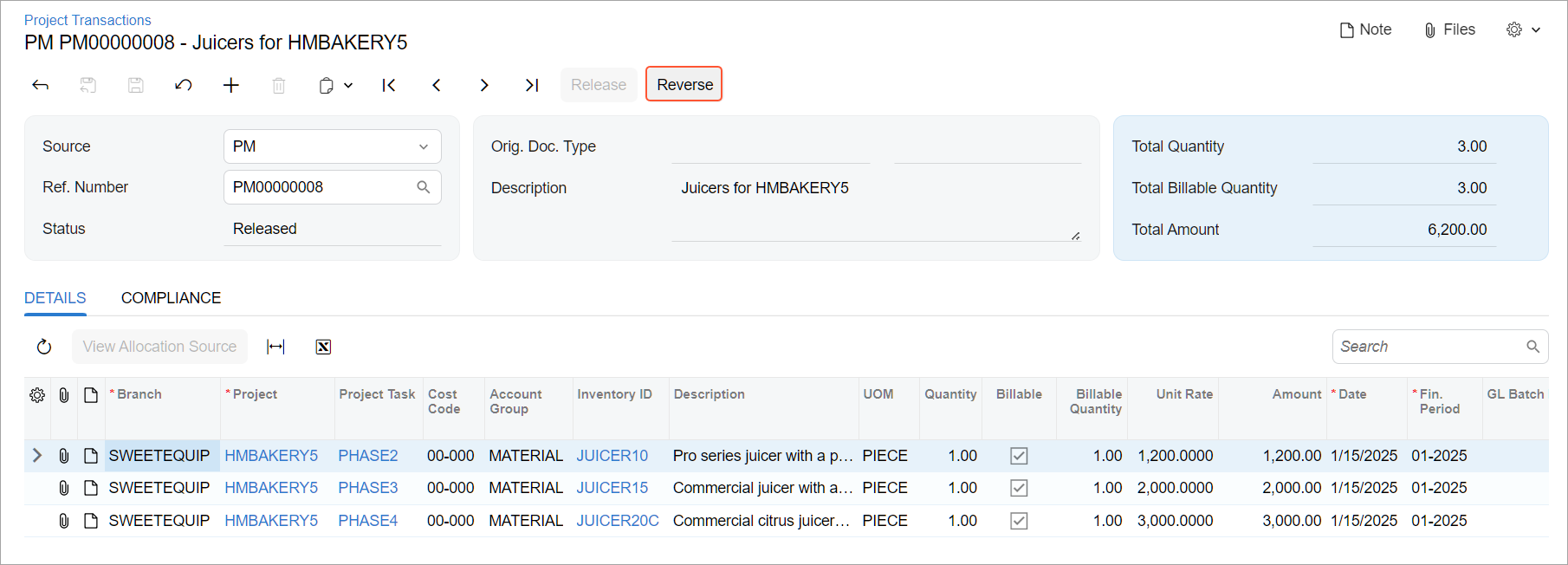
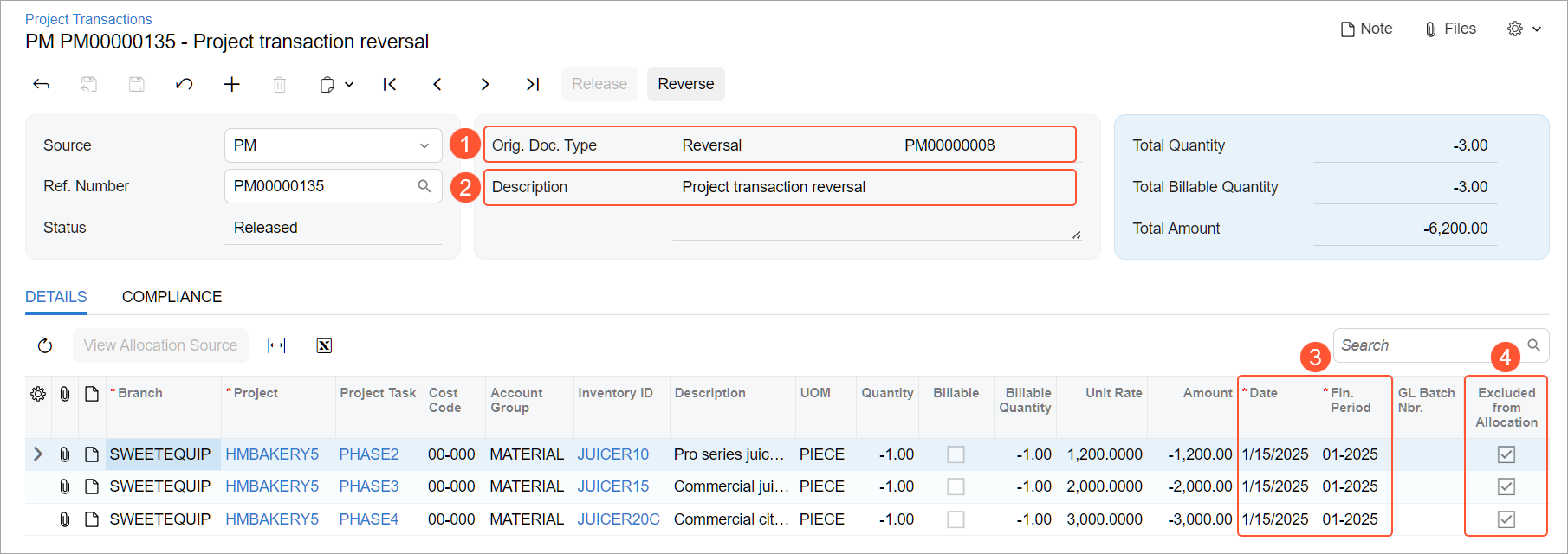
When you click Reverse, the system creates and releases the reversal transaction and excludes the reversed transaction from billing and allocation. Here what you'll see in the reversal transaction:
- The number of the original project transaction in the Orig. Doc. Nbr. box (Item 1 below)
- The Project transaction reversal description so that you can quickly identify the reversal record (Item 2)
- Each line with the amount opposite of the original
- The date and the post period matching those of the original project transaction (Item 3)
- The selected Excluded from Allocation check box (Item 4)
Reversal of Historical Transactions with the AR Source
Suppose that migration mode was activated on the Projects Preferences (PM101000) form. In this mode, some incorrect project transactions with the AR source were uploaded to the system from an Excel file or through an import scenario. Now you can reverse these transactions by clicking Reverse on the form toolbar of the Project Transactions (PM304000) form.
Minor UI Changes for the Allocation Transactions
Allocation transaction reversal works as before, but note that the Reverse Allocation button has been renamed to Reverse on the Project Transactions (PM304000) form.