
Modern Customer Portal: A Reimagined Experience
MYOB Acumatica 2025.2.1 introduces the Modern Customer Portal—a complete reimagining of how your customers’ portal users interact with your business online. Built on our Modern UI framework, this new portal delivers sleek performance and an intuitive experience.
This functionality is available only if the Modern Customer Portal feature is enabled on the Enable/Disable Features (CS100000) form. At this stage, the feature is available by request for testing and feedback purposes only and is not yet intended for production use.
Based on your feedback, we’ll continue enhancing the functionality in future releases.
Let’s explore what's new and how it benefits you.
For brevity, we use portal users to refer to your customers’ employees—regardless of their role—who use the Modern Customer Portal.
What This Means for Your Business
With the Modern Customer Portal, you’ll save administrative time while giving your customers a superior experience:
- The new centralized management approach means you no longer need to sign in to each customer portal separately to set up and maintain it; you can do this from a single form. Flexible configuration lets you tailor each portal to fit your brand and your customers’ needs. And role-based access for your customers’ portal users ensures security without complexity.
- Portal users enjoy a modern, streamlined interface that reduces support requests, increases satisfaction, and provides a more inviting shopping experience.
Here's how the Modern Customer Portal transforms your workflow.
Managing All Your Portals in One Place
As an MYOB Acumatica administrator, you can use the new centralized Portals (SP701000) form, shown below, to create and configure any number of portals directly in MYOB Acumatica. No need to sign in to each portal individually for setup or maintenance.
On the General tab, you can manage financial, payment, case, and order settings from a single form.
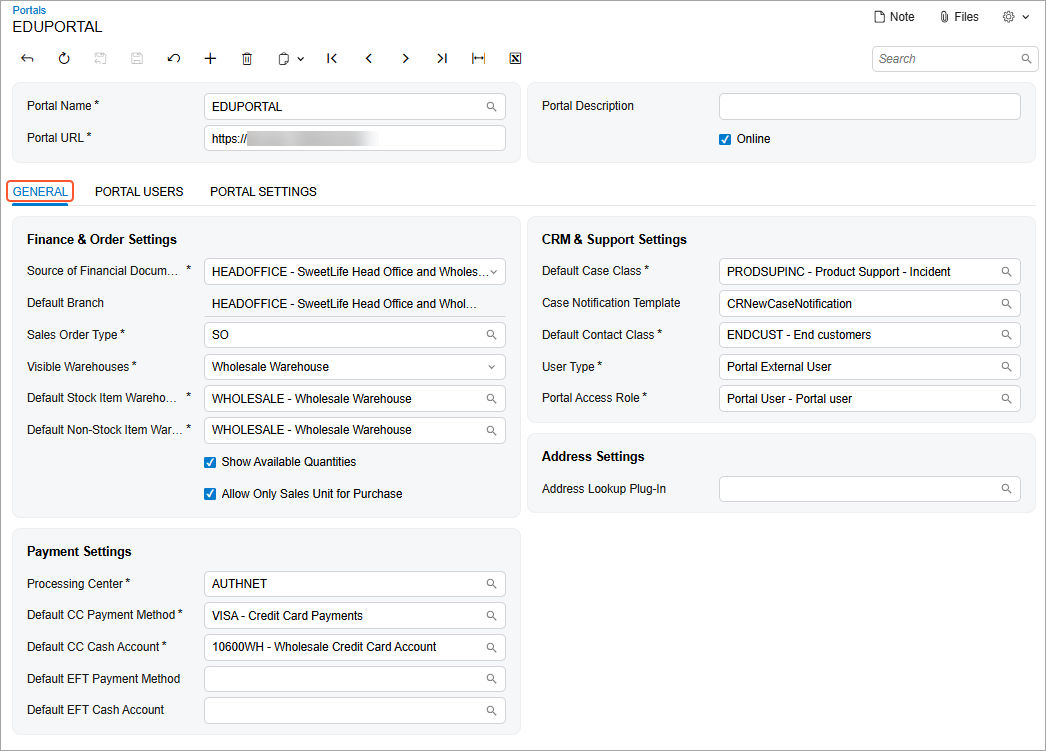
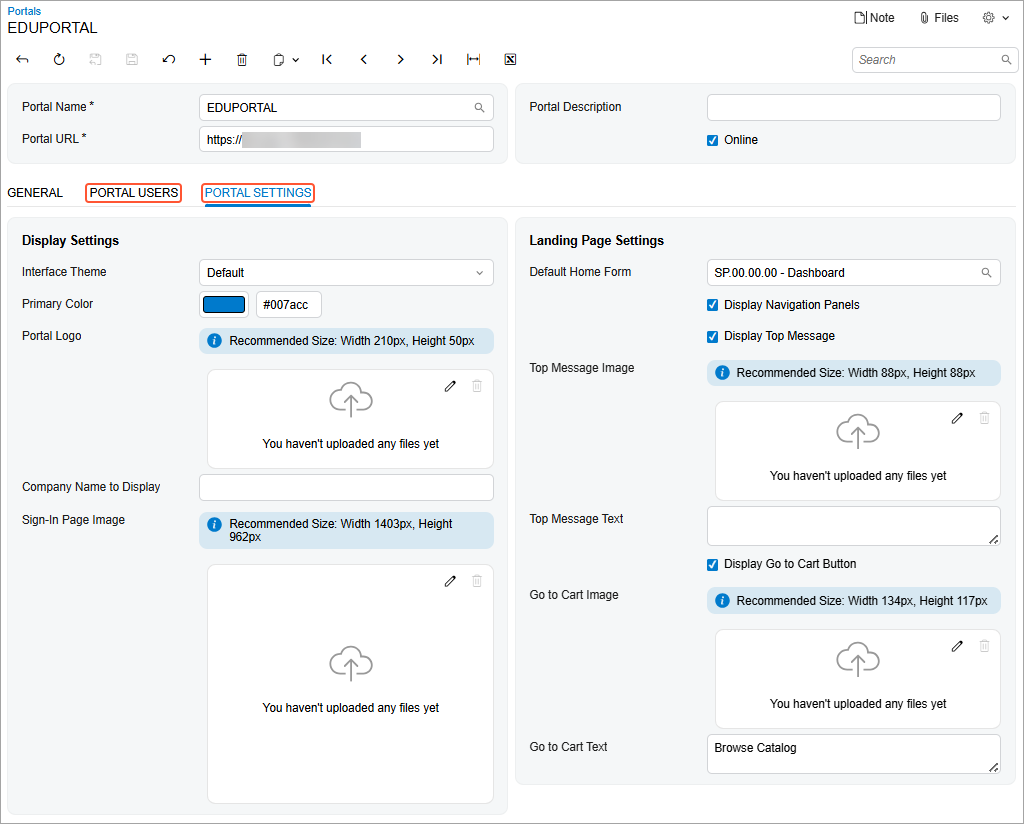
The Portal Users tab shows a list of this portal’s users. Here you can view their roles, email addresses, and activity status. On the Portal Settings tab (shown below), you can specify the display and landing page settings to apply consistent branding.
Controlling Users’ Access with Ease
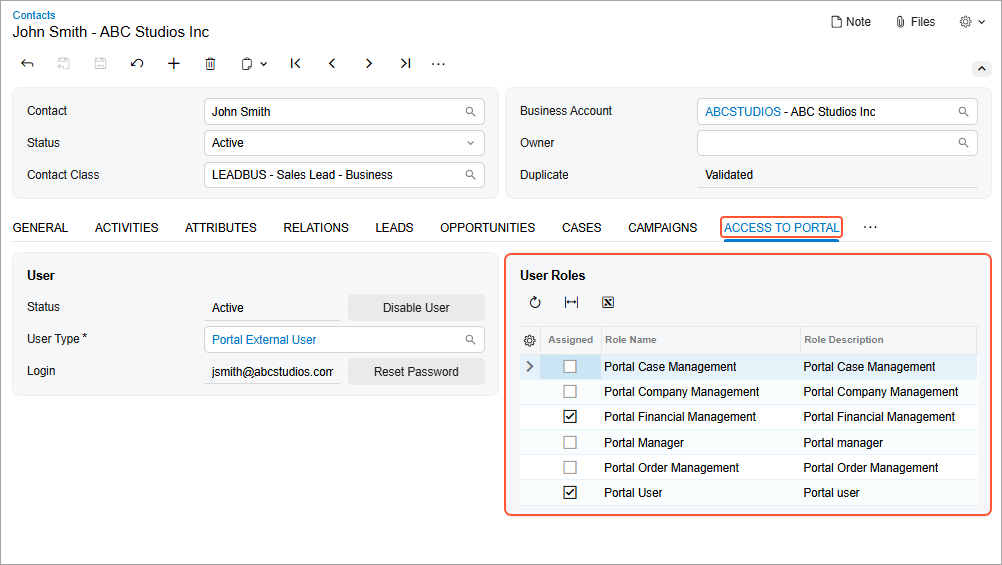
As an MYOB Acumatica administrator, you can use the smart role-based access model to control what each portal user—defined in your system as a contact—can see and do in the portal, based on their job responsibilities.
You can manage each portal user’s access on the Access to Portal tab of the Contacts (CR302000) form. In the User Roles table (shown below), you can assign each predefined role that matches this user’s job duties—giving them access to the right forms in the portal. If needed, you can assign them more than one role.
Beyond administrative efficiency, the portal transforms the customer experience itself.
Starting from a Modern, Comprehensive Home Page
Designed with the Modern UI, the Modern Customer Portal delivers a fresh, contemporary look and feel. But the new portal isn’t just visually appealing—it’s smarter, providing better performance and greater flexibility.
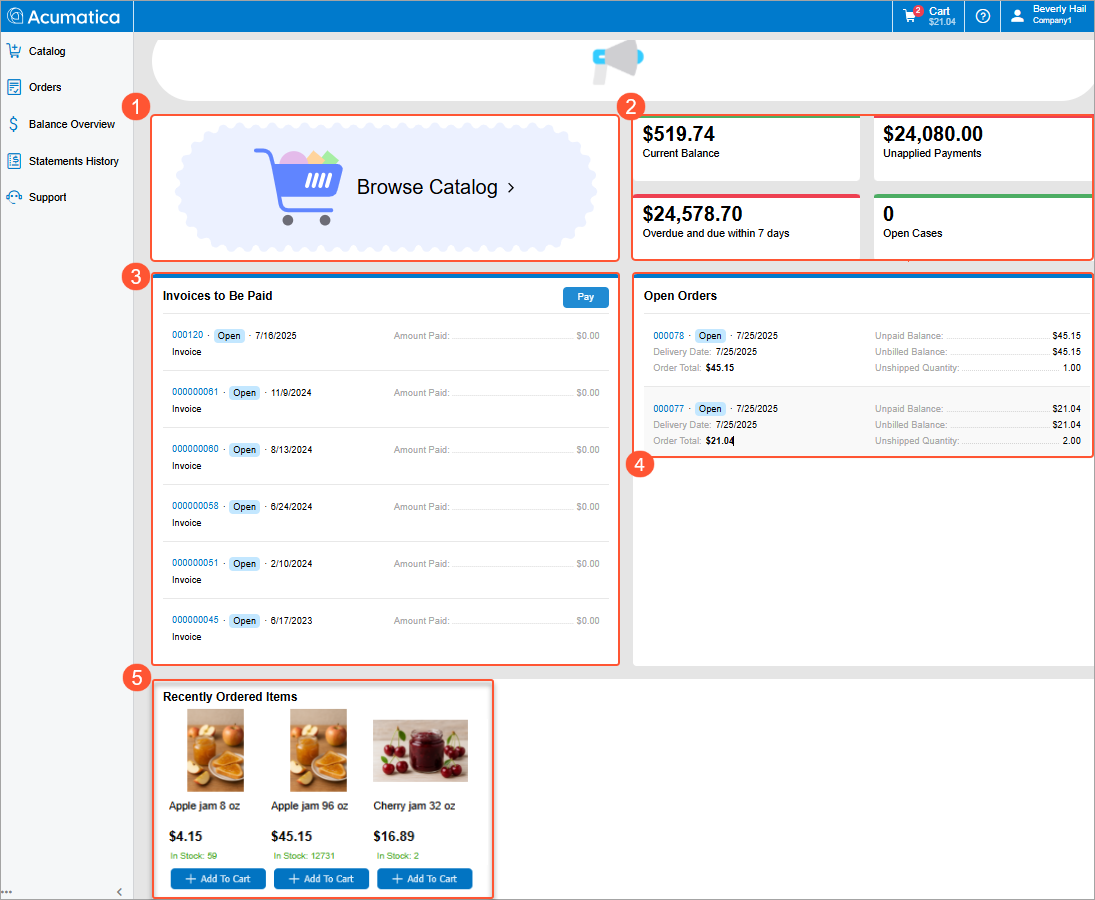
When a portal user signs in, they’ll see the home page, which gives them the tools and information they need to get started. This page, shown below, displays key buttons and data:
- Browse Catalog (Item 1 below). This button gives the portal user one-click access to the catalog.
- Current Balance, Overdue and Due Within 7 Days, Unapplied Payments, and Open Cases (Item 2). These widgets show key financial data at a glance. By clicking any of the first three widgets, the portal user opens the Balance Overview (SP314010) form. If the portal user clicks Open Cases, the Cases (SP401010) form opens.
- Invoices to Be Paid (Item 3). This list shows invoices and payments with the Open status. By clicking any invoice number, a portal user opens the printable invoice to review or print it. If the portal user clicks Pay, the Balance Overview (SP314010) form opens, showing invoices and payments with Open status. The portal user can make partial or full payments.
- Open Orders (Item 4). In this list, a portal user can view open orders. By clicking any order number, they can jump to the Order (SP504000) form to review the order’s details, print it, or even copy it to the cart.
- Recently Ordered Items (Item 5). Here a portal user can click any previously ordered item to open it in a dialog box, view its details, and add it to the cart.
Shopping with the Enhanced Catalog
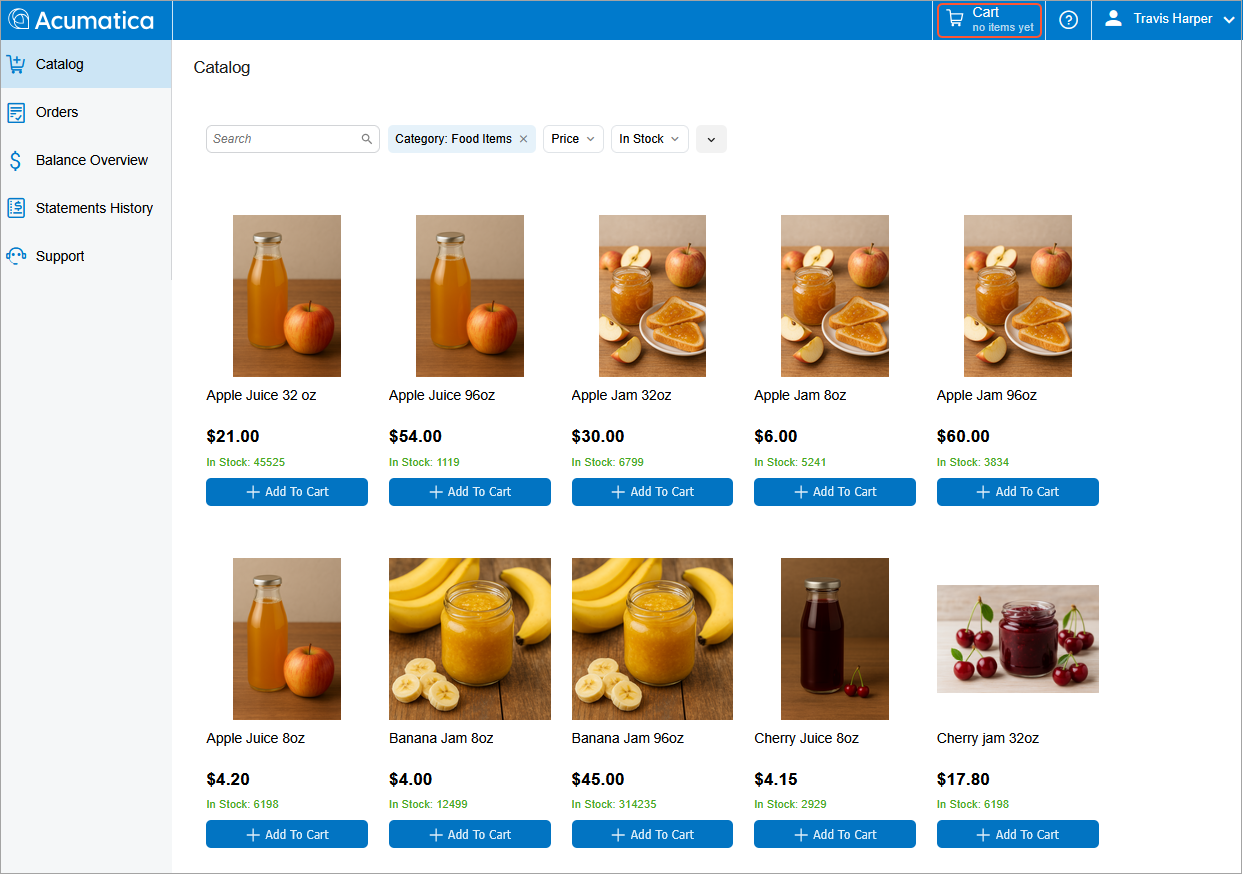
A portal user can now browse the catalog in the Modern Customer Portal and purchase products more efficiently than ever. To do this, the portal user adds products directly to the cart on the Catalog (SP504001) form by clicking the Add to Cart button.
The Cart area always appears in the top pane (see below), regardless of which form is open and whether the cart contains items. When the portal user adds an item to the cart, the Cart area instantly shows the updated quantity and total with no page reload.
In addition, the portal user can add products to the cart by using the Item Details dialog box (see below), which opens when they click the product image in the catalog or in the Recently Ordered Items section of the home page. In the dialog box, they can view an item’s description, specify additional settings, and add the item to their cart.
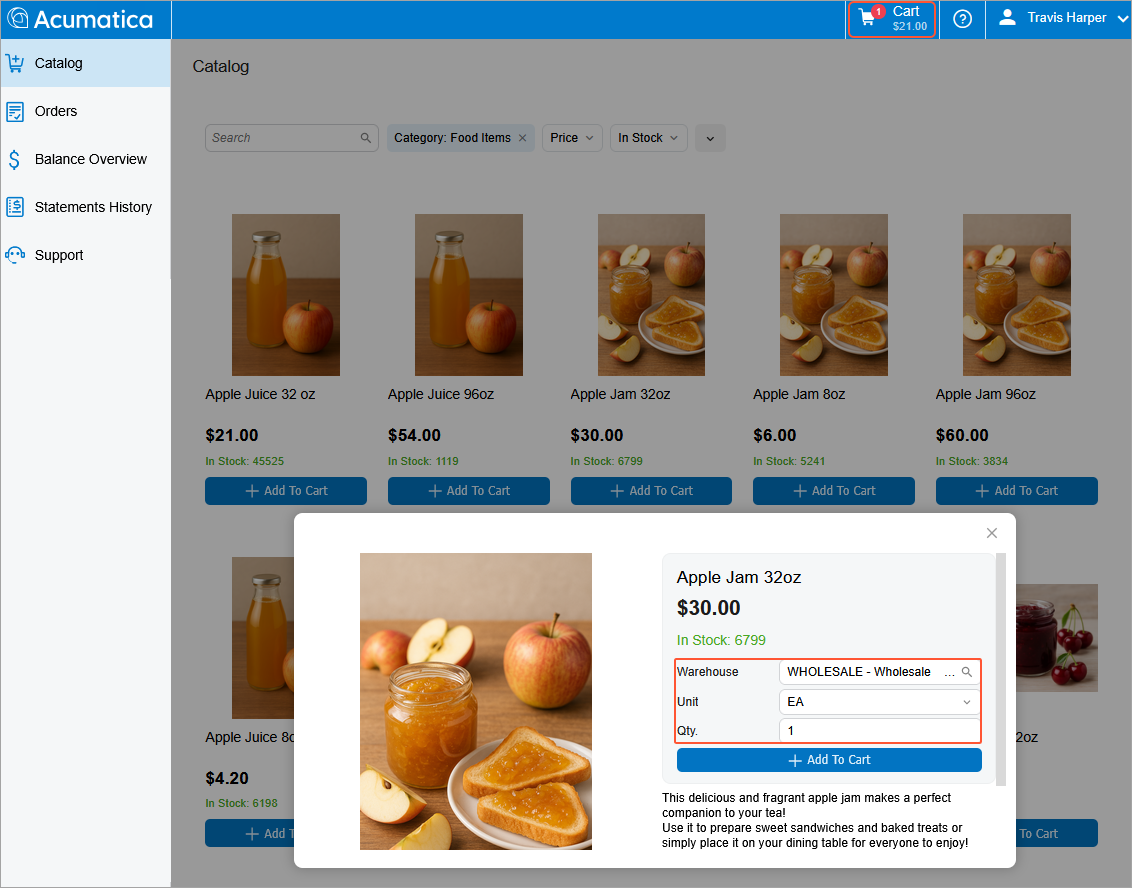
In this dialog box, the item quantity to be added is always shown; a portal user can change the default quantity before clicking Add to Cart.
The other boxes are shown conditionally, based on the features enabled on the Enable/Disable Features (CS100000) form of MYOB Acumatica:
- Warehouse appears if the Multiple Warehouses feature is enabled.
- Unit appears if the Multiple Units of Measure feature is enabled.
Paying Invoices and Sales Orders with Credit Cards
In the Modern Customer Portal, a portal user can make payments by using saved or new credit cards. This powerful capability is now available directly in the portal.
A portal user can add a credit card on the Company Profile (SP201000) form by clicking Add New Record (Item 1 below) and filling in the Create New Card dialog box (Item 2).
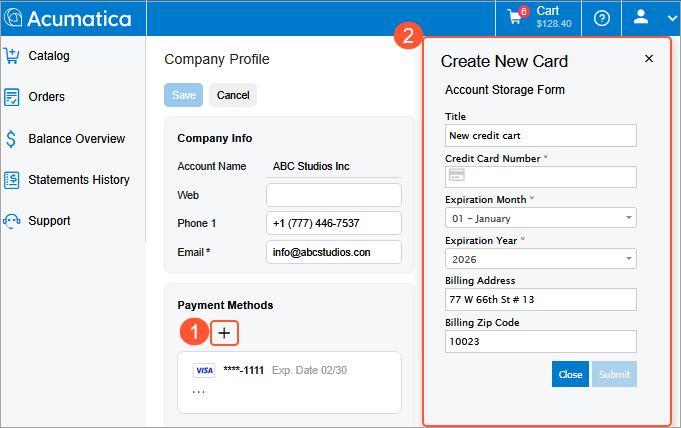
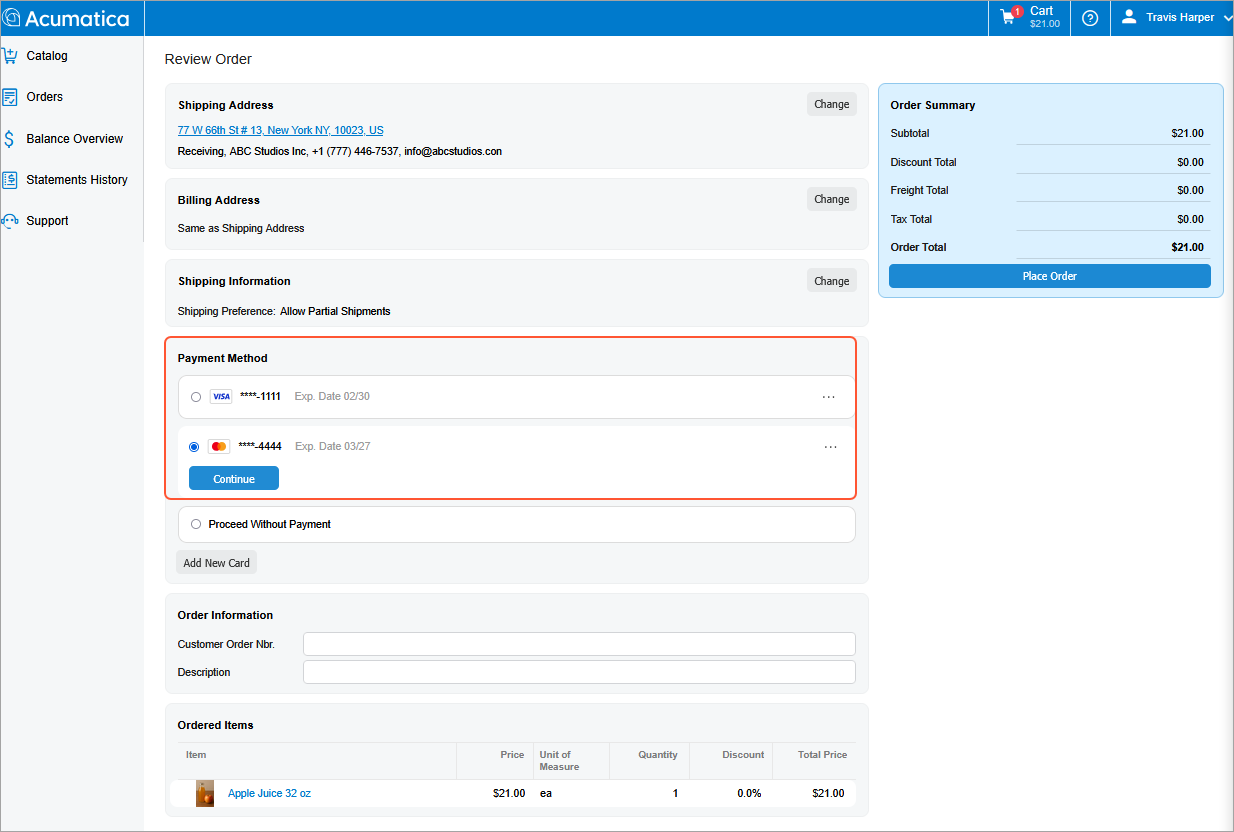
After the portal user submits changes, the new card appears in the portal. On the Review Order (SP504004) form (see below), they can select the appropriate credit card as the payment method for a new order.
Managing Financial Documents in One Place
A portal user with the appropriate access rights can work with financial documents and make payments in one place.
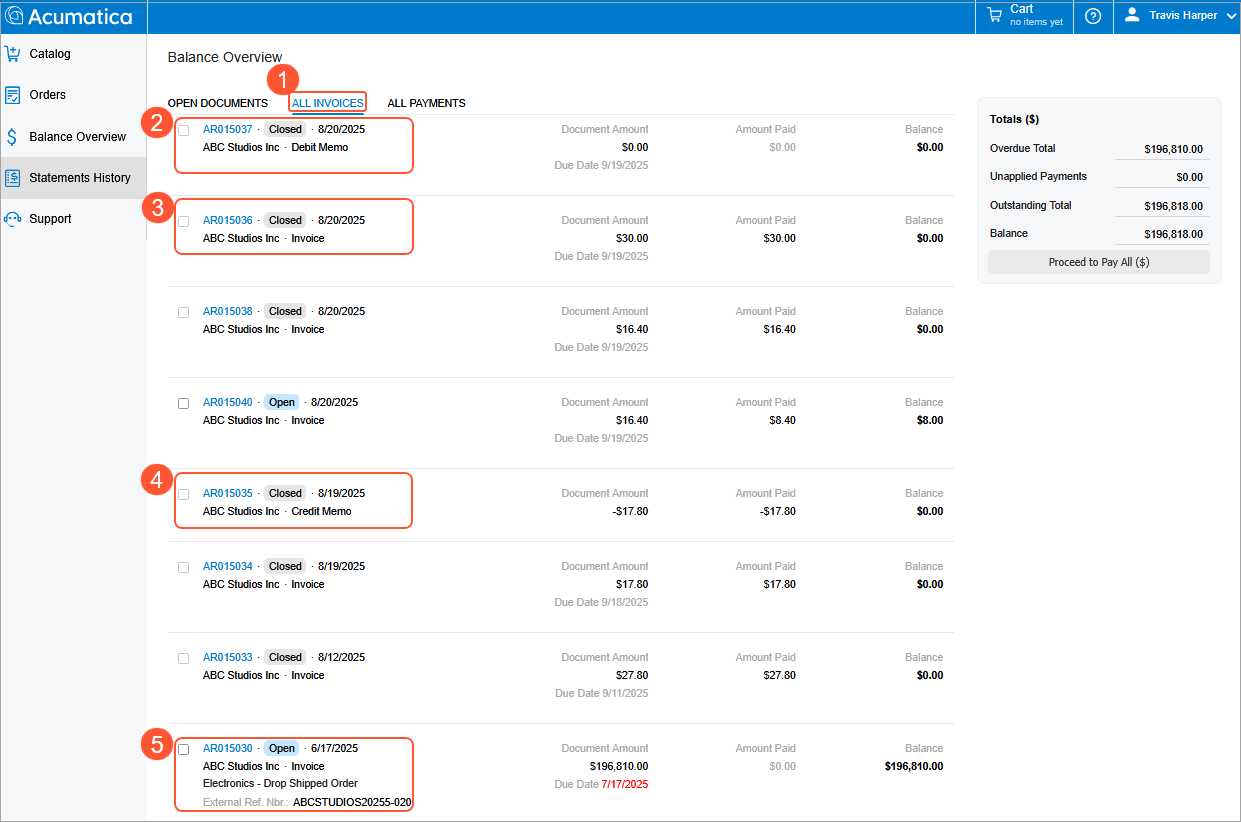
On the All Invoices tab (Item 1 below) of the Balance Overview (SP314010) form, they can access invoices (Item 3), credit and debit memos (Items 2 and 4), and overdue charges (Item 5).
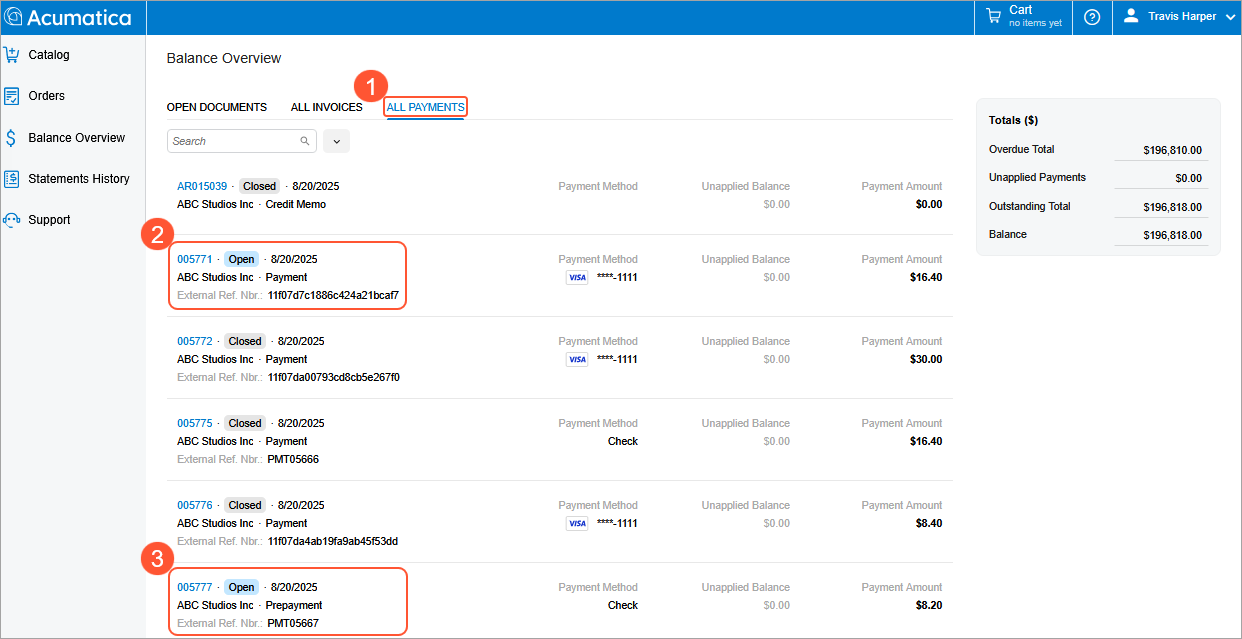
On the All Payments tab (Item 1 below) of the Balance Overview (SP314010) form, they can access payments (Item 2) and prepayments (Item 3).
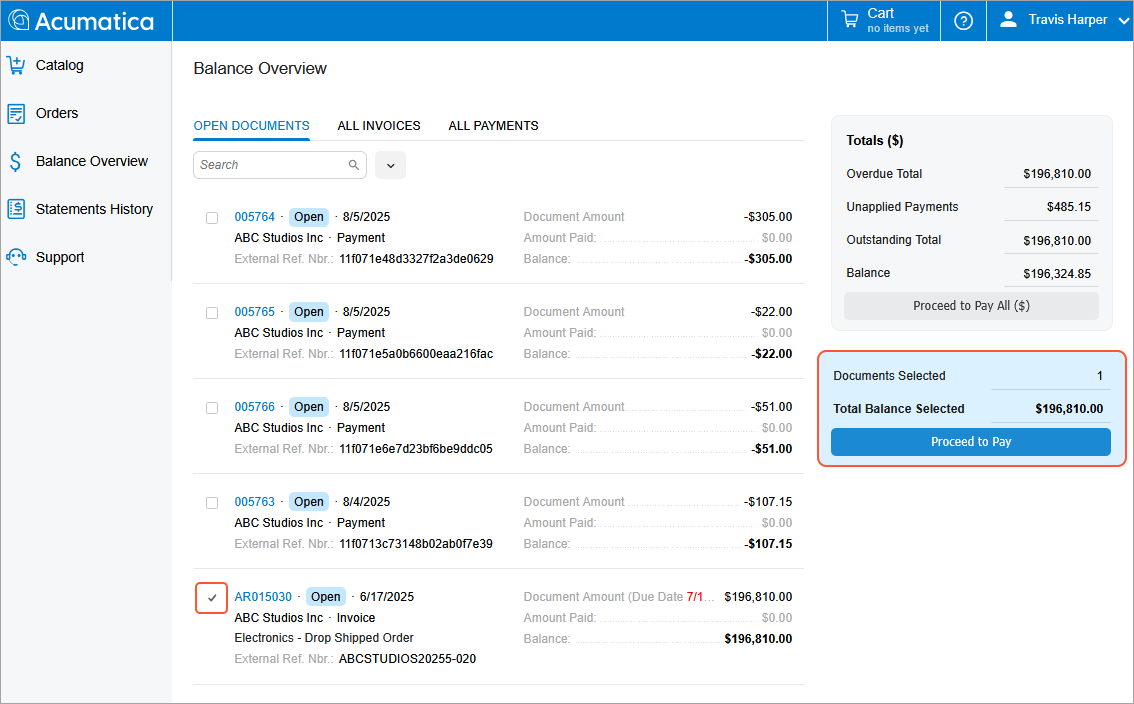
From the Open Documents tab of the Balance Overview (SP314010) form, a portal user can initiate partial or full payments: They simply select the document or documents to be paid and then click Proceed to Pay, as shown below.
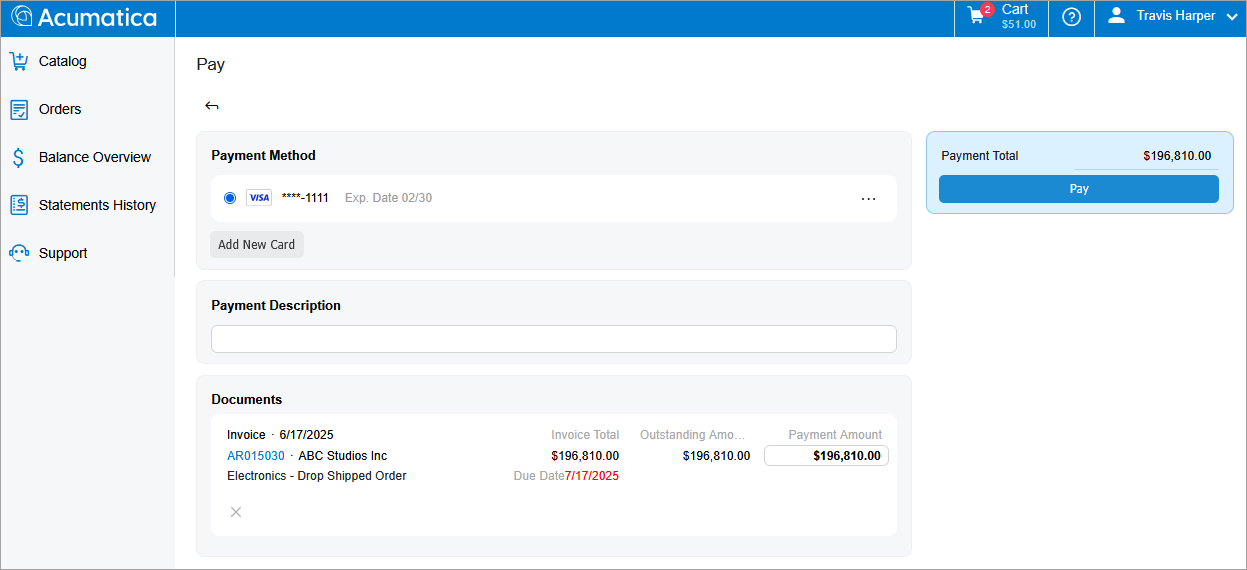
The system opens the Pay (SP314002) form, where the portal user can complete the payment.
Finding Financial Information Faster
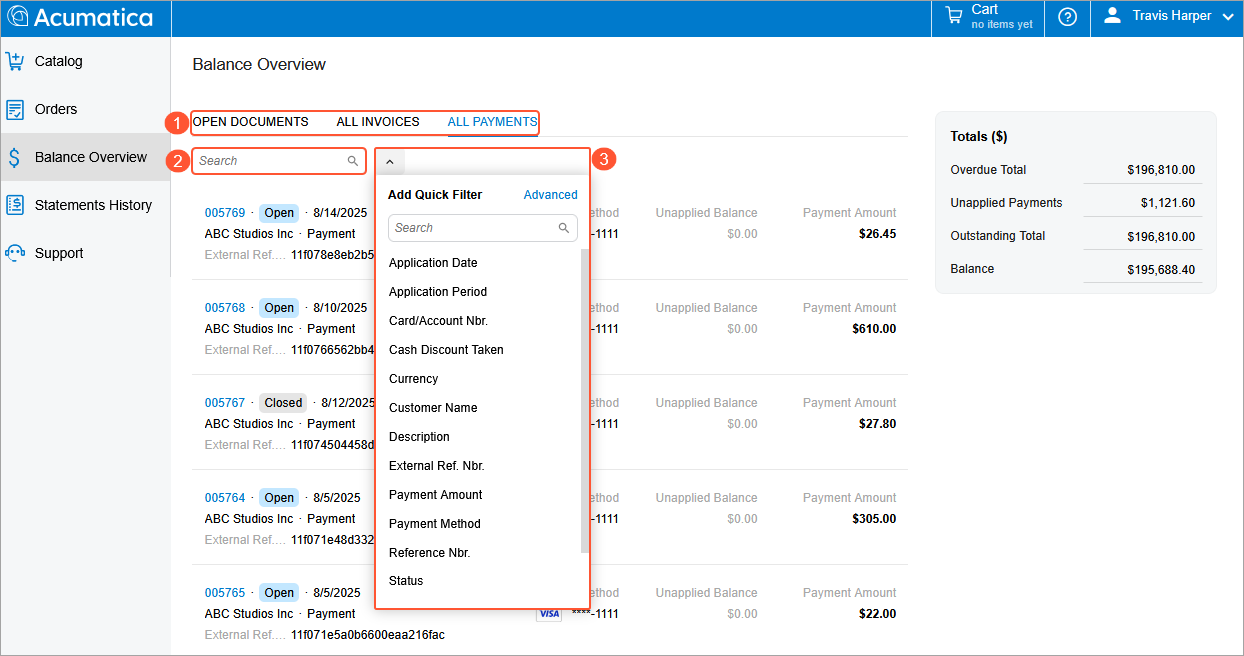
On the Balance Overview (SP314010) form, a portal user can view the relevant documents without switching pages. They can use intuitive tabs (Item 1 below) to view open documents, all invoices, or all payments. A search box (Item 2) and filters (Item 3) also help them find the documents they need.
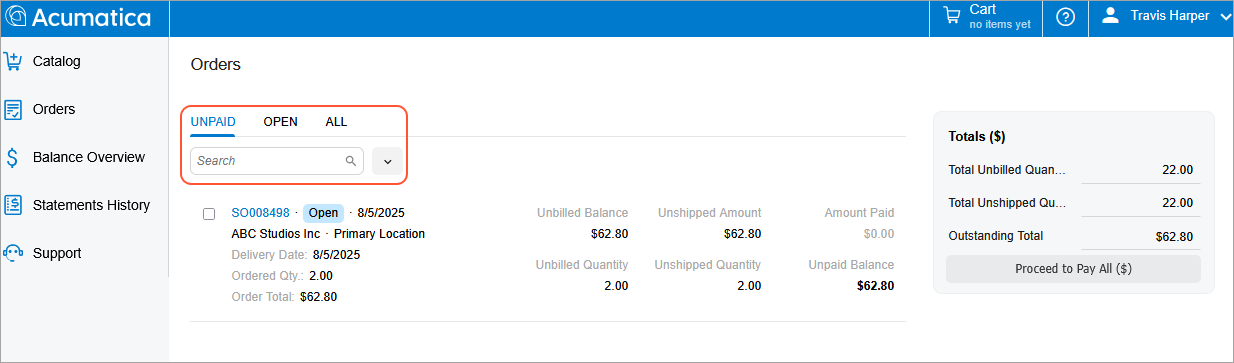
Also, on the Orders (SP504010) form, a portal user can use tabs, filters, and a search box to view orders with unpaid and open statuses—or to view all orders in the system.
Reviewing Payment, Shipment, and Tracking Details in One Place
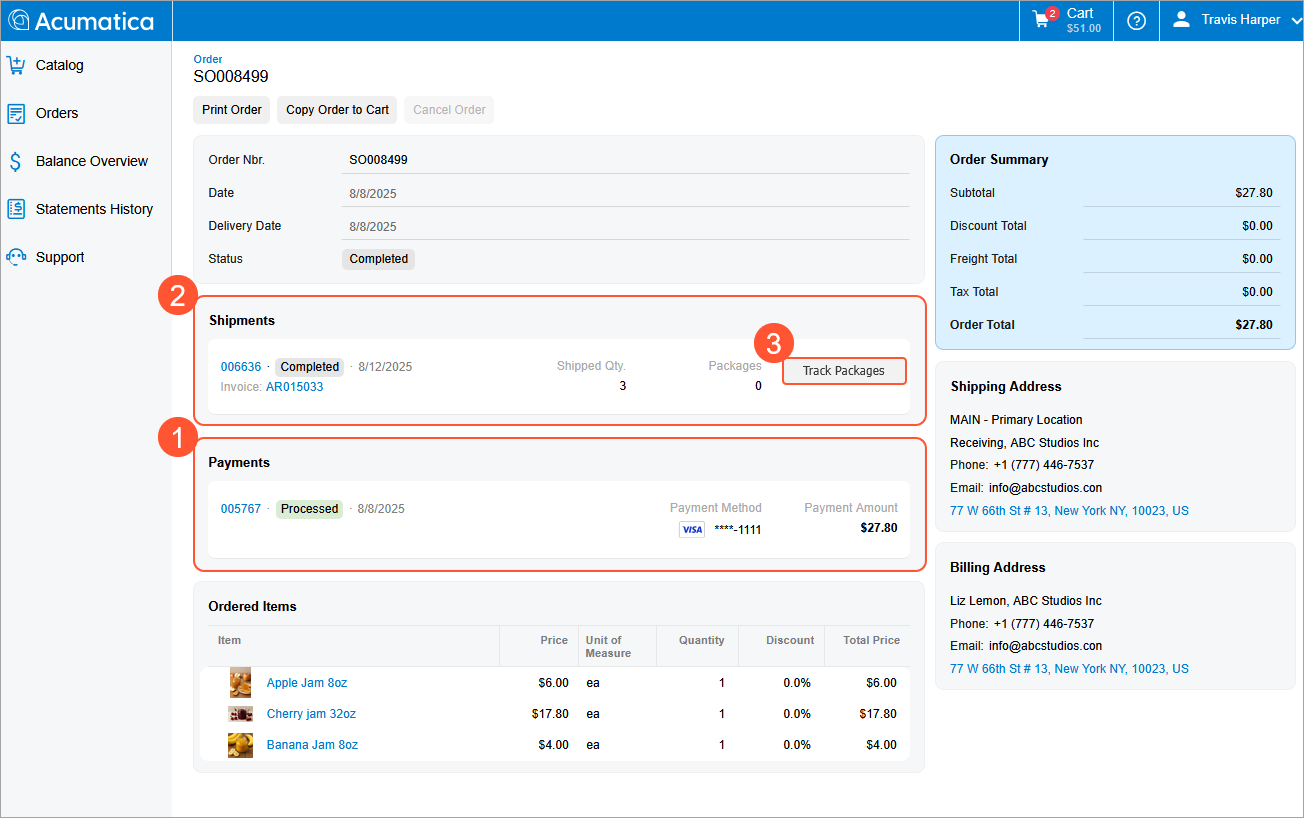
The Orders (SP504010) form also makes provides a central place for a portal user to review the payments applied to any order (Item 1 below), check the shipments created for the order (Item 2), and find their tracking numbers (Item 3).
Creating and Reviewing Cases
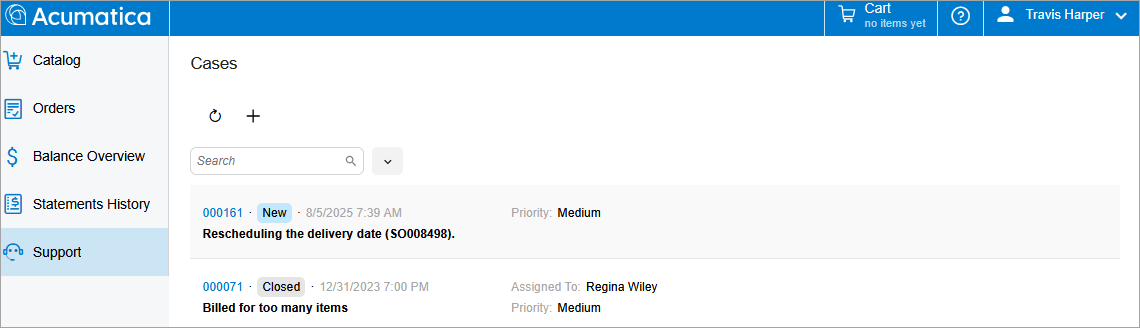
In the Modern Customer Portal, the Cases (SP401010) form is integrated with the case management capabilities of MYOB Acumatica, which a portal user can use to create cases.
On the Cases (SP401010) form, a portal user can submit a case to the MYOB Acumatica support team, check the status of any case, and use messages to communicate within the case.
Know the Limitations
- The Modern Customer Portal doesn't yet support the adding of any forms, dashboards, generic inquiries, and pivot tables.
- An administrator can configure the form's view by using the Screen Configuration button (under Configure Quick Menu) on the Catalog (SP504001) form only. On other portal forms, this capability is not supported because the administrator is not linked to the customer account, so customer's data (order details, financial data, and cases) is not visible to them.
- Configurable items are not supported in the Modern Customer Portal.
- Form filters are still under development. Currently, on some forms, numeric fields are treated as text fields, duplicate filters appear, and some filters that should be removed are still present. We do not recommend using them at this time.
- Be aware that the portal forms and functionality may be revised and changed in future releases.
In future releases, you'll see many changes and improvements to the Modern Customer Portal forms and functionality. Stay tuned for details!
Key Benefits
For administrators:
- Centralized portal management saves hours of setup and maintenance time.
- Role-based access and predefined portal roles ensure security while simplifying user management.
- Portal management provides branding across all customer touchpoints.
For your customers:
- A streamlined catalog and cart experience makes it faster and easier to browse items and place orders.
- Integrated payments let portal users manage and complete all their payments in one place.
- Enhanced search capabilities help portal users find what they need quickly.
- Self-service capabilities empower portal users and reduce support requests.
For everyone:
- The modern, responsive design provides a fresh, smooth experience.
- Intuitive navigation reduces the learning curve and support needs.