
Projects and Construction: All Key Project Metrics at Your Fingertips
If you manage construction projects, you know how hard it is to get a clear, complete picture of a project without switching between multiple forms.
In MYOB Acumatica Construction Edition 2025.2.200, the new Project Status (PM301500) form puts all of a project’s information in one place—from high-level metrics to financials, documents, and project reports. These reports help you stay on top of the project’s cash flow, committed and forecasted costs, variance versus plan, work in process (WIP), and much more.
Now you can monitor KPIs, review supporting records, and drill down into details—all without jumping to different forms. This streamlines decision-making and helps teams stay focused on what matters: project outcomes.
Let's uncover the power of the new capabilities!
Explore a Full Project View
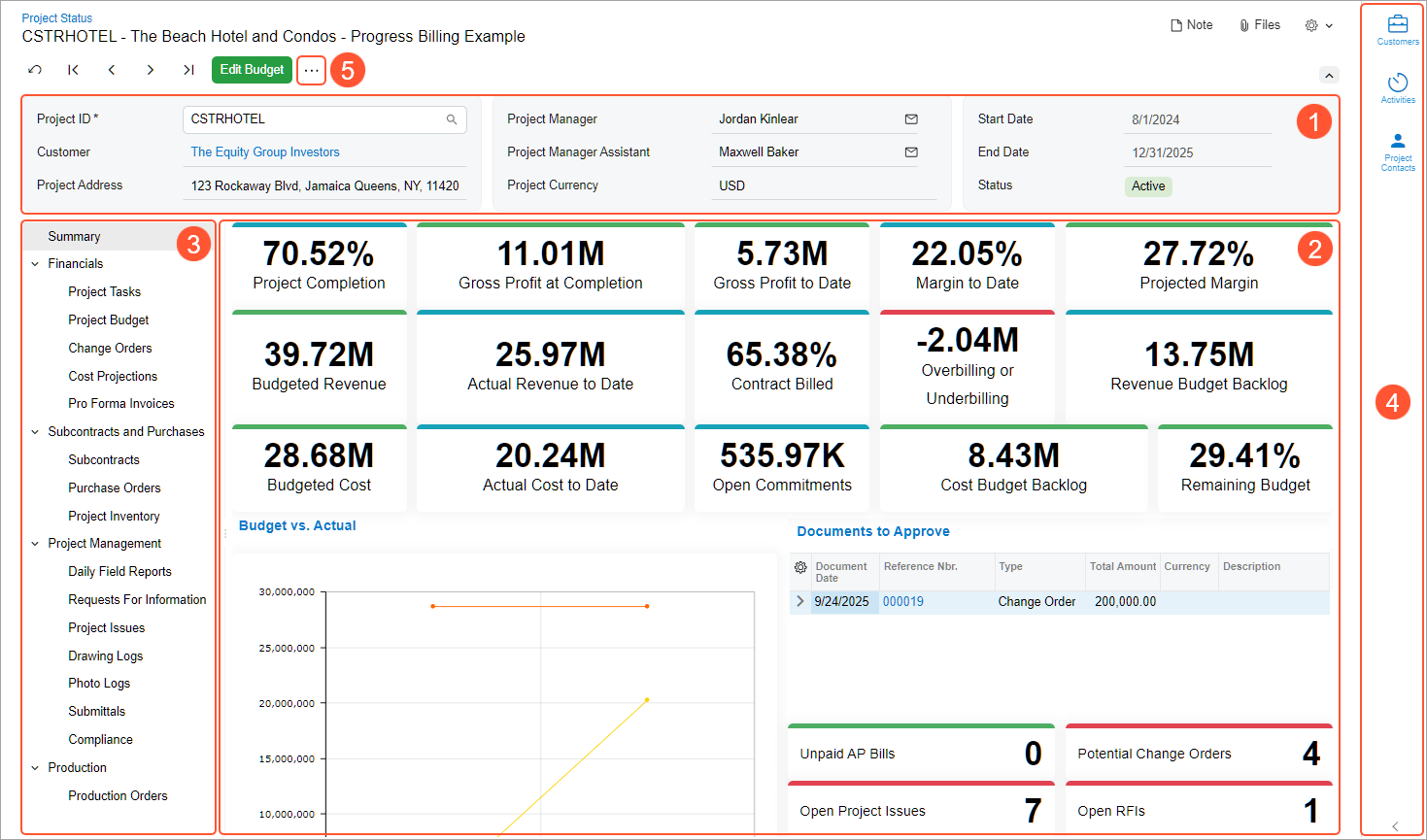
No need to visit multiple forms to gather complete information about a project. With the Project Status (PM301500) form, you have a unified view that offers you access to:
- An overview of the project (Item 1 below)
- The Summary dashboard with key project metrics and drill-down capabilities (Item 2)
- Various records related to the project by using the navigation pane (Item 3)
- Customer, project contact list, and activity details via the side panel (Item 4)
- Key financial reports, documents, and transactions through the More menu (Item 5)
- Make this form your home page: Click My Profile on the User menu, and in your user profile, select Project Status in the Home Page box
- Open the project for editing: Click Edit Budget to open the Projects (PM301000) form
- Email key contacts: Click the envelope icon next to the project manager's or assistant's name to open the Email Activity (CR306015) form with the project settings filled in automatically
View Key Metrics at a Glance
On the Summary dashboard of the Project Status (PM301500) form, you can track the selected project’s performance. The upper part of the dashboard shows general, revenue, and cost metrics (see below). You can instantly grasp the status of your budget, profit, and project completion.
Here's what you can do:
- Monitor general KPIs such as completion percentage, projected margin, and gross profit to date
- Compare budgeted to billed revenue to identify overbilling or underbilling
- Stay on top of budgeted versus actual costs, commitments, and remaining available budget
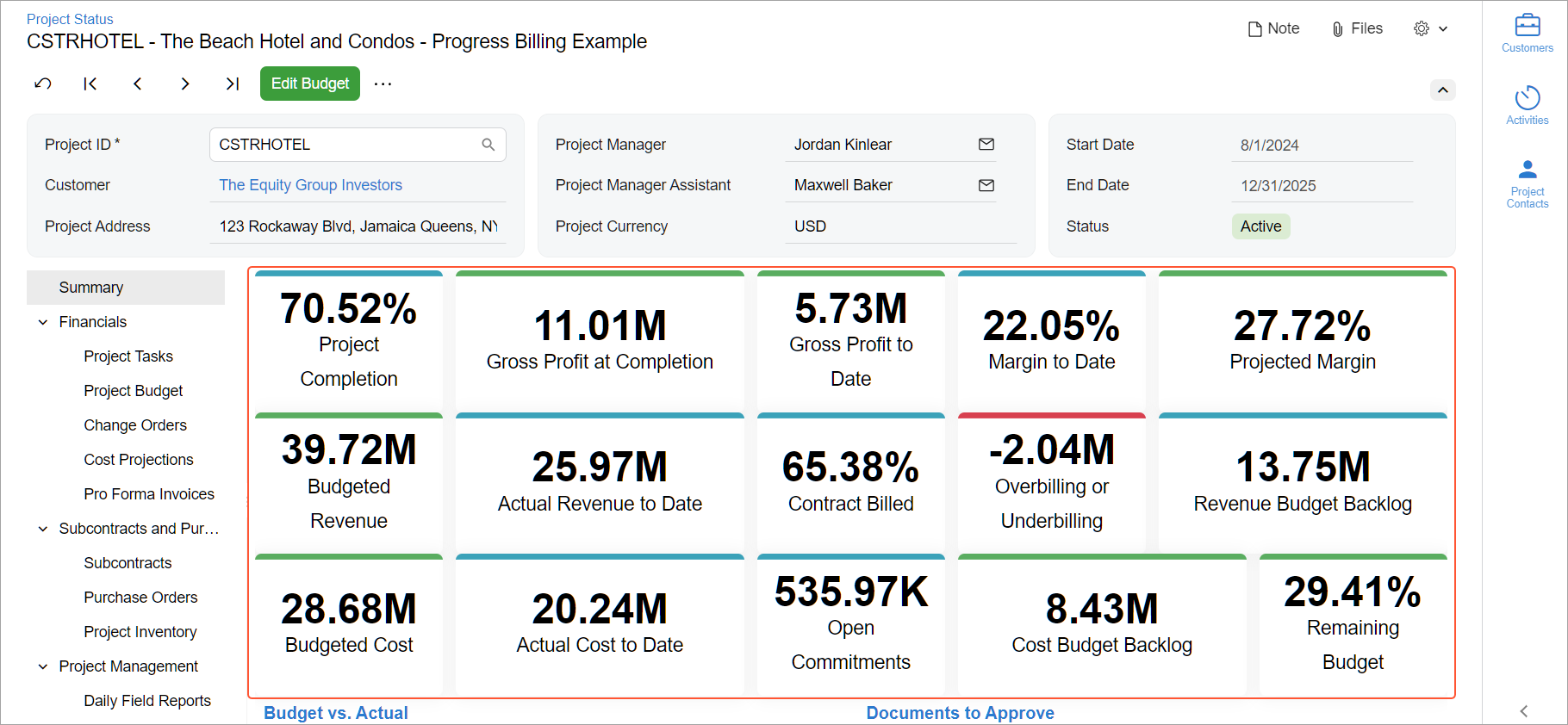
Each scorecard displays a key metric about the selected project and has a link to the full data, so you can quickly check it. The following tables provide more information about where you can go by clicking the scorecard.
| Scorecard Caption | Shows | Goes To |
|---|---|---|
| Project Completion | The Completed (%) of the cost projection for the current business date |
|
| Gross Profit at Completion | The rounded Projected Margin amount | |
| Gross Profit to Date | The rounded Profit to Date amount | The Project Profitability (PM658100) generic inquiry form for the current business date |
| Margin to Date | The Margin to Date (%) | |
| Projected Margin | The Projected Margin (%) |
|
| Scorecard Caption | Shows | Goes To |
|---|---|---|
| Budgeted Revenue | The rounded Revised Contract amount for the current business date | The Project Profitability (PM658100) generic inquiry form for the current business date |
| Actual Revenue to Date | The rounded Billed Amount to Date | |
| Contract Billed | The percentage of the contract amount that is billed, which is calculated as
Billed Amount to Date / Revised Contract |
|
| Overbilling or Underbilling | The rounded Overbilling or Underbilling amount for the current business date |
|
| Revenue Budget Backlog | The rounded Revenue Budget Backlog amount | The Cost Projections by Date Report (PMGI3055) form for the current business date |
| Scorecard Caption | Shows | Goes To |
|---|---|---|
| Budgeted Cost | The rounded Revised Budgeted Cost amount for the current business date |
|
| Actual Cost to Date | The rounded Actual Cost to Date amount for the current business date | |
| Open Commitments | The rounded Open Commitments amount for the current business date | |
| Cost Budget Backlog | The rounded Cost Budget Backlog amount for the current business date | The Cost Projections by Date Report (PMGI3055) form for the current business date |
| Remaining Budget | The percentage of the remaining budget, which is calculated as (Revised
Budgeted Cost - Actual Cost to Date) / Revised Budgeted Cost |
|
Follow Up on Operational Details
Looking for the project’s operational details beyond the core KPIs? The Summary dashboard (shown below) gives you quick access to additional insights that help you stay on top of project activity, follow up on pending items, and respond to open questions or delays.
Here's what you can do on the dashboard (Items 1 and 2):
- Assess cost performance by timeline by using the Budget vs. Actual chart.
- Review Unpaid AP Bills to track and manage a company's outstanding obligations.
- Track Potential Change Orders that haven’t been approved yet—including those on hold or still open.
- Check Open Project Issues and Open RFIs and take action to avoid delays.
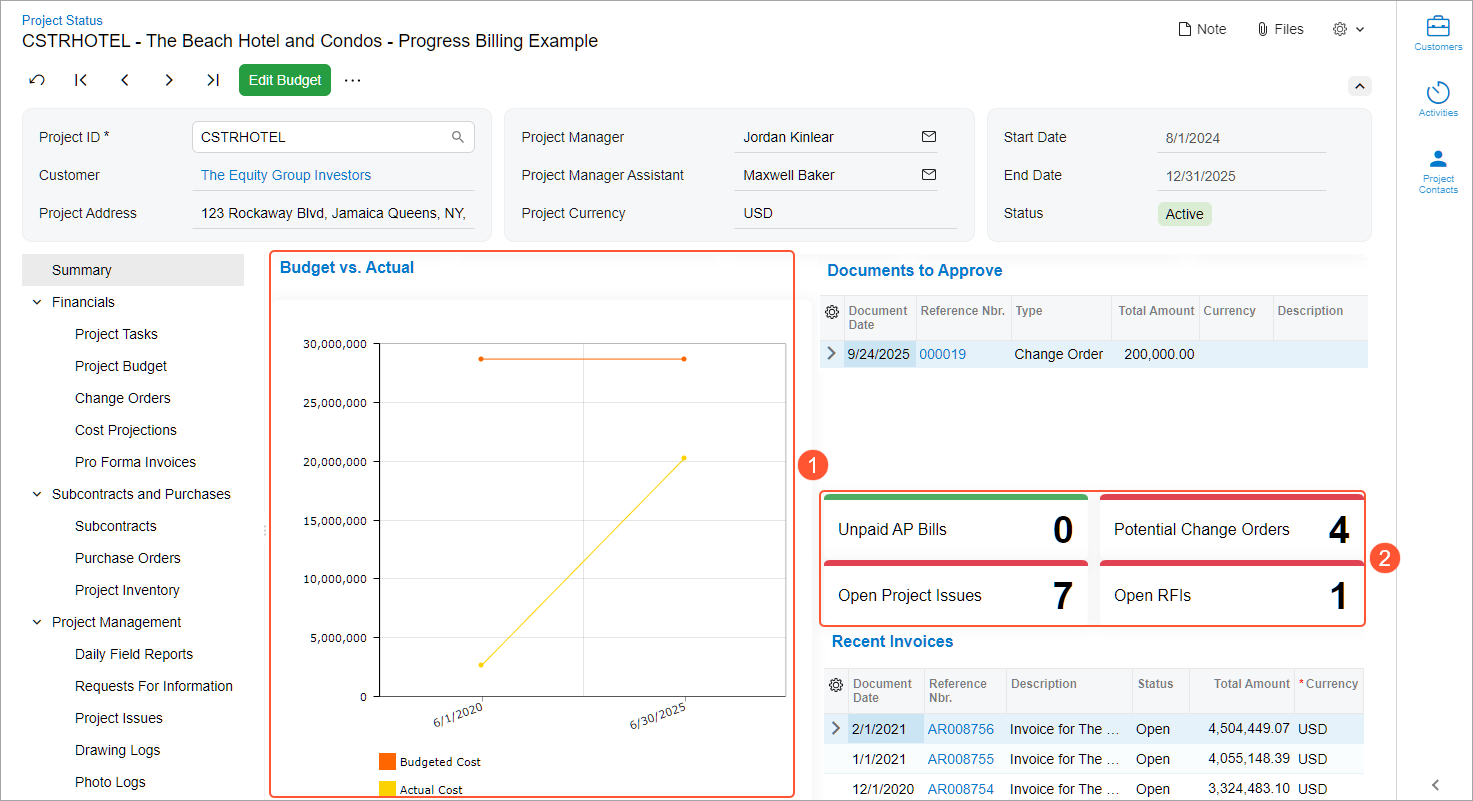
If you click Budget vs. Actual, the system opens the project’s most recent released cost projection—based on the current business date—on the Cost Projection by Date (PM305500) form. Clicking each scorecard opens the list of related documents so that you can quickly move from overview to action (see below).
| Scorecard | Goes To |
|---|---|
| Unpaid AP Bills | The list of the open AP bills on the Unpaid AP Bills (AP3011DB) form |
| Potential Change Orders | The change orders with the On Hold, Open, or Pending Approval status in the Change Orders (PM3080PL) list of records |
| Open Project Issues | The project issues with the Open status in the Project Issues (PJ3020PL) list of records |
| Open RFIs | The RFIs with all statuses except Closed in the Requests for Information (PJ3010PL) list of records |
Review Approvals and Invoices
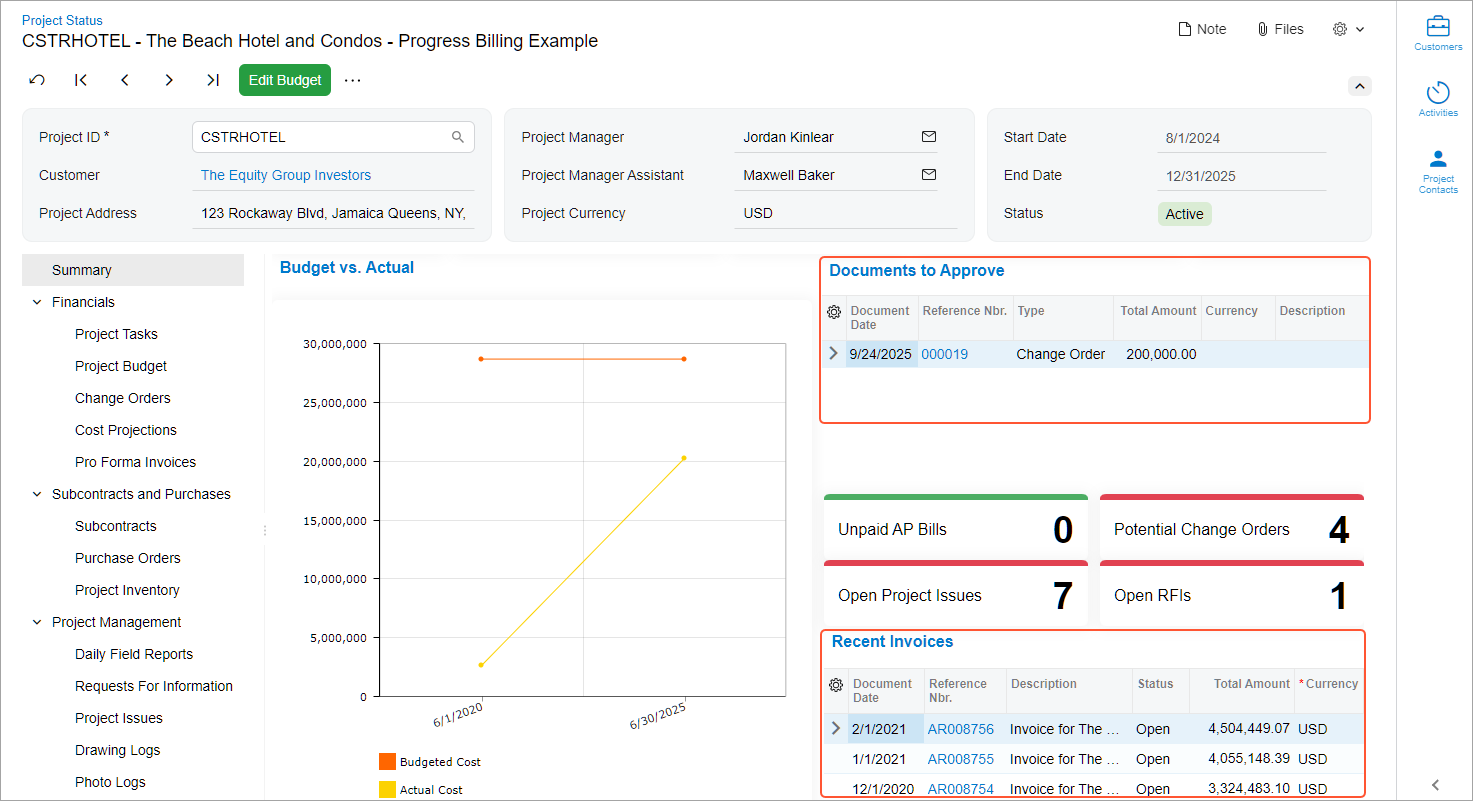
Need to follow up on approvals or view the latest invoices created for the project? The Summary dashboard gives you a quick view of both (see below).
Here’s what you can do:
- Use the Documents to Approve table to see which project-related documents are still waiting for approval. Click the table title to open the full list on the Approvals (EP503010) form. The table is shown only if the Approval Workflow feature is enabled on the Enable/Disable Features (CS100000) form.
- Review the Recent Invoices table to see the last five invoices created for the project. Click the table title to open the full list of invoices and follow up, if needed.
Access Key Financial Details and Reports
You can analyze the selected project’s key financial details, review transactions, and open reports from the Project Status (PM301500) form. Use the commands on the More menu to open related forms and reports in new browser tabs.
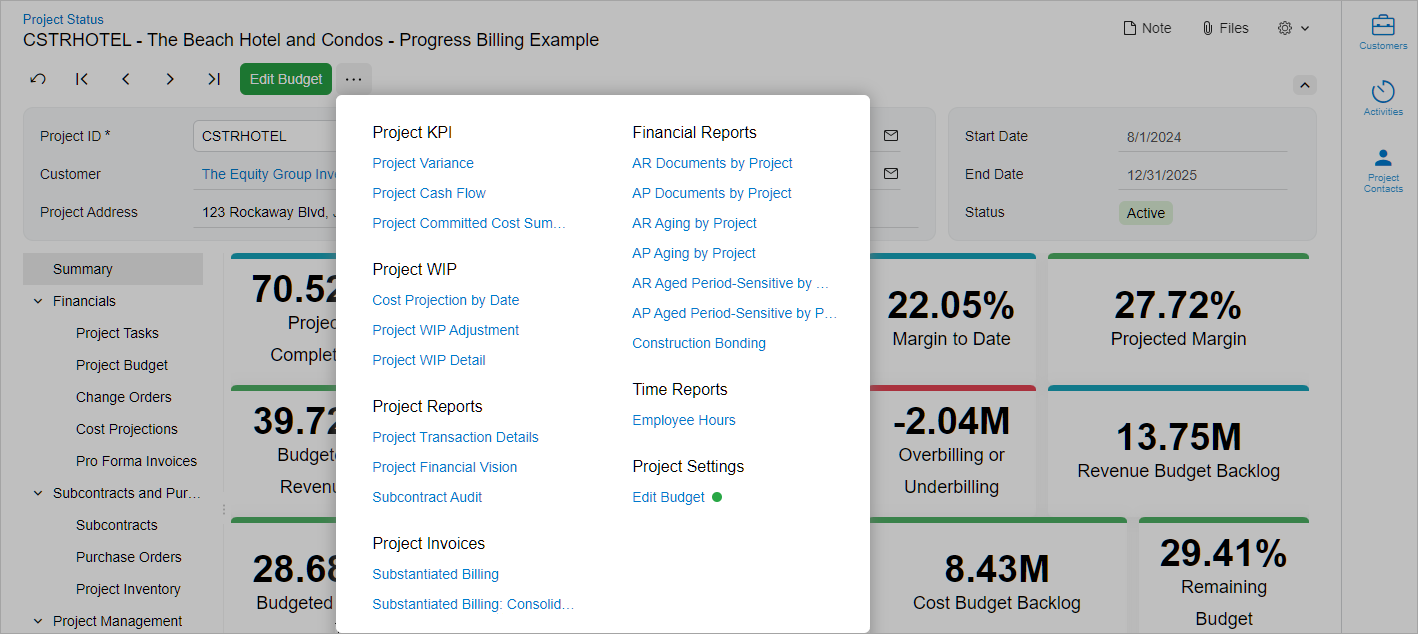
Here are the forms and reports you can open:
- The AP Aged Period-Sensitive by Project (AP630600) report
- The AP Aging by Project (AP631200) report
- The AP Documents by Project (AP634100) report
- The AR Aged Period-Sensitive by Project (AR630600) report
- The AR Aging by Project (AR631200) report
- The AR Documents by Project (AR634100) report
- The Construction Bonding Report (PM650500) report
- The Cost Projection by Date (PM305500) form with the most recent released cost projection shown
- The Project Cash Flow (PM651010) generic inquiry form
- The Project Committed Cost Summary (PM658200) generic inquiry form
- The Project Variance (PM651020) generic inquiry form
- The Projects (PM301000) form (when you click Edit Budget)
- The Employee Hours (PM622000) report
- The Project Financial Vision (PM405000) form
- The Project Transaction Details (PM401000) form
- The Project WIP Adjustment (PM305600) form with the most recent document shown
- The Project WIP Detail (PM652500) report
- The Subcontract Audit (SC644000) report
- The Substantiated Billing (PM650000) report
- The Substantiated Billing: Consolidated (PM650050) report
Dive into Project Financials and Documents
On the Project Status (PM301500) form, you can click the nodes on the navigation pane to access pages with the corresponding documents related to the selected project—such as change orders, purchase orders, or daily field reports. The nodes are organized by the following project areas:
- Financials: Review cost and revenue budgets (Item 1 below),
manage project tasks, and access lists of change orders, change requests, cost
projections, and pro forma invoices. In tables that show document amounts, you’ll find
totals in the first row for quick reference (Items 2 and 3).
Figure 6. Project budget details 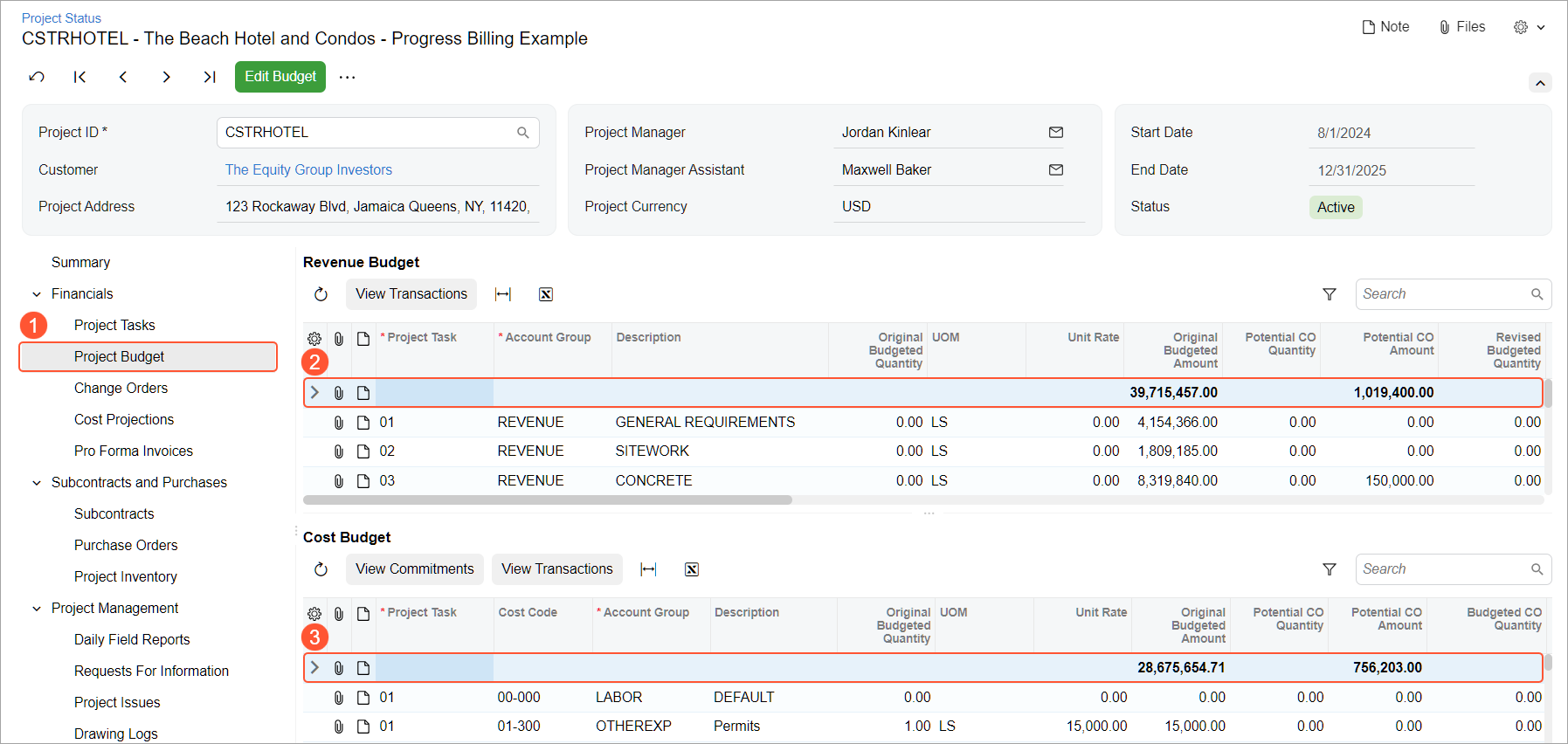
- Subcontracts and Purchases: View lists of subcontracts, purchase orders, and inventory items linked to the project.
- Project Management: Access project progress records, including daily field reports, RFIs, project issues, drawing logs, photo logs, submittals, and compliance documents.
- Production: View the list of production orders related to the project.
Create Documents on the Fly
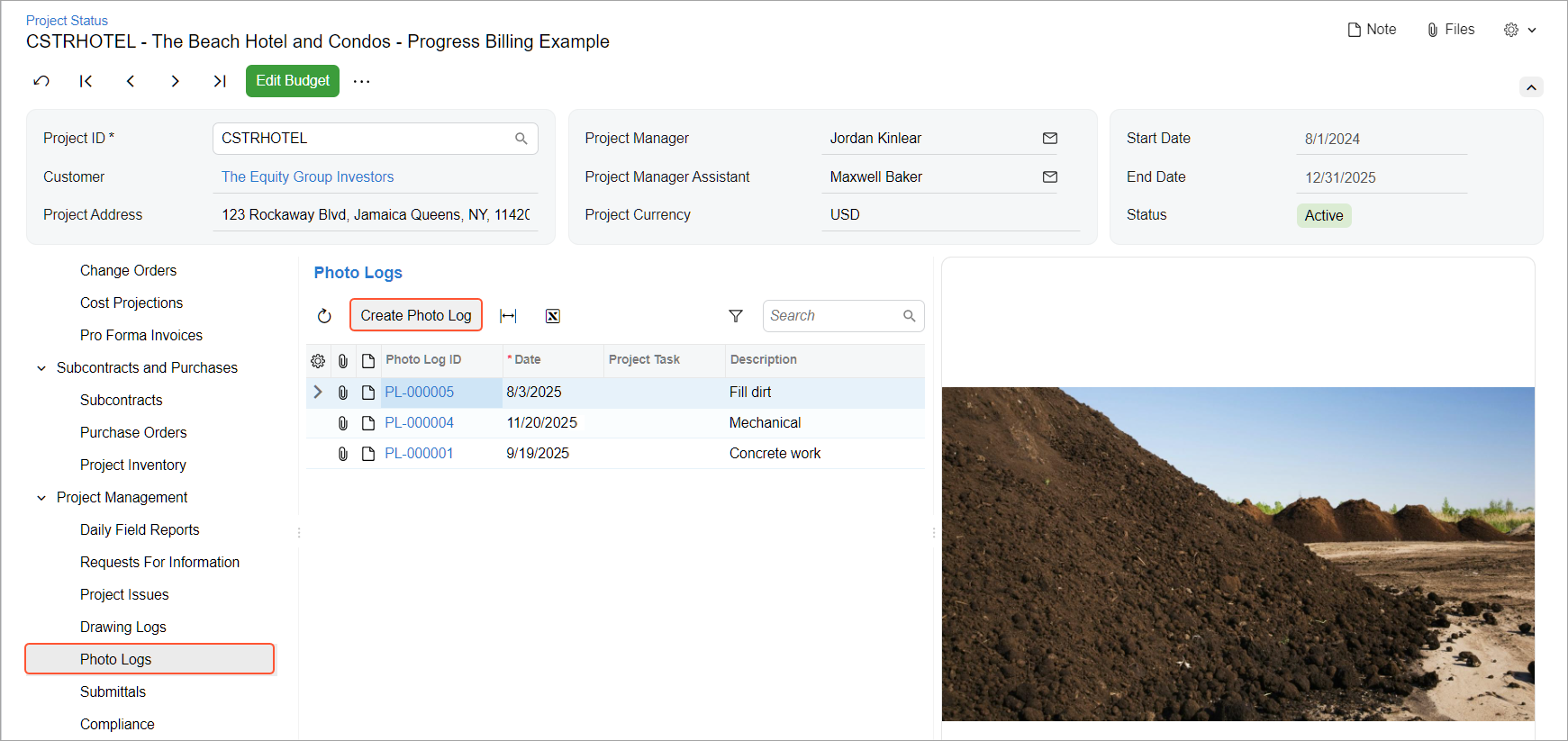
While viewing the list of project tasks or a list of project-related documents, you can create a record on the fly by clicking the needed button on the table toolbar (for example, see below). The project-related documents include change orders, change requests, subcontracts, purchase orders, daily field reports, RFIs, project issues, drawing logs, photo logs, submittals, and production orders.
Check Who’s Involved in the Project
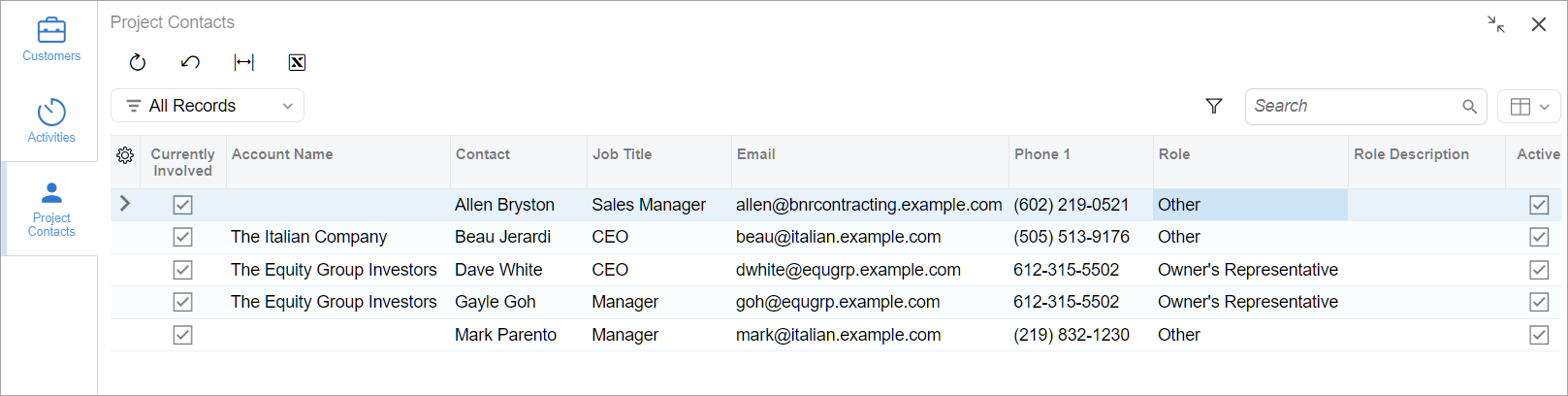
On the Project Status (PM301500) form, you can view the Project Contacts side panel tab to see who currently participates in the project, as shown below. In the list of project contacts, you’ll see their roles and their contact settings so you can reach out to them.
Need more details about the project contact list? See Projects and Construction: Project Contact List and Roles.
Fine-Tune the Form Layout
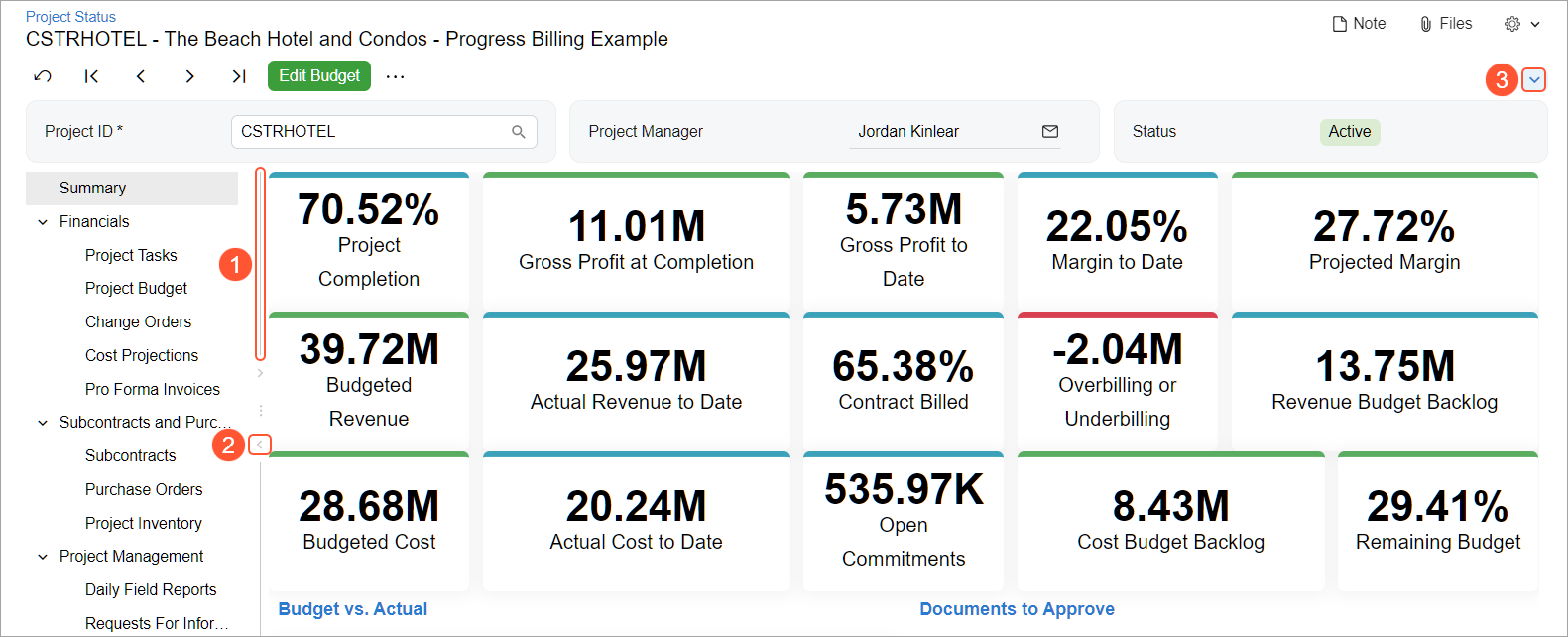
You can fine-tune the form layout, which extends the size of the Summary dashboard, as follows:
- Make the navigation pane wider or narrower by dragging it (Item 1 below).
- Expand or collapse the navigation pane by clicking the arrow icon (Item 2); the navigation pane is expanded.
- Expand or collapse the Summary area by clicking the arrow icon (Item 3); notice that the Summary area is collapsed.
Why Some Tables, Pages, or Menu Commands May Not Appear
The Project Status (PM301500) form shows only the pages, tables, menu commands, and forms that are relevant to your organization’s setup. What you see depends on the features enabled on the Enable/Disable Features (CS100000) form:
- Change requests appear if the Change Requests feature is enabled.
- Change orders appear if the Change Orders feature is enabled.
- Purchase orders appear if the Inventory and Order Management feature group is enabled.
- Project inventory appear if the Project-Specific Inventory feature is enabled.
- Production orders appear if the Manufacturing feature group is enabled.
- Daily field reports, RFIs, project issues, drawing logs, photo logs, submittals, and compliance documents appear if the Construction Project Management feature is enabled.
- The Project Profitability (PM658100) generic inquiry form opens if the Extended Financial Data Collection feature is enabled.
The Project Variance, Project Cash Flow, and Project Committed Cost Summary commands appear if the Extended Financial Data Collection feature is enabled.
If a table, page, form, or menu command is missing from your view, check with your system administrator whether the corresponding feature is enabled.
Key Benefits
A unified view of the project’s performance delivers these benefits for companies managing construction projects:
- Complete visibility: Consolidates KPIs, budgets, documents, and financials in one place for faster decision-making
- Smarter navigation: Reduces clicks by connecting dashboard metrics to relevant forms
- Faster access to records: Makes it easy to open reports, documents, and contact details through one access point
- Streamlined project workflows: Enables on-the-fly creation of key records to keep field and office teams aligned