
MYOB IMS Payroll 6.10 release notes
IMS is pleased to enclose the latest release, V6.10, of MYOB IMS Payroll containing enhancements and the addressing of all known issues in line with our commitment to the on-going development of our software packages.
INSTALLATION PROCEDURES:
-
Prerequisites:
Ensure all applications on your PC have been closed prior to performing the following installation procedures.
Un-installing an earlier version of the application prior to installing this version is not recommended or required as any custom payroll software and modules will need to be reinstalled.
All ‘Open’ Payroll Periods in your payroll companies have been closed.
You have BACKED UP each of your payroll companies, via the ‘Tools’ menu, after closing the last payroll period processed in each company.
-
Electronic Link Installation: Download the executable file (.exe as contained in the link) to your hard drive and run this program on every computer which has the MYOB IMS Payroll application installed.
-
CD Installation: Place the CD in the drive, wait a few seconds and the installation should automatically commence. If you do not have ‘AutoPlay’ enabled browse the CD via ‘My Computer – Explore’ and double click on the file IMSInstaller.exe.
-
Once this version has been installed, and you have logged on to a payroll company, it is recommended that you access ‘Help – About IMS Payroll Partner’ and check that the version stated is ‘Version 6.10 November 2016’.
-
Please Note: If you did not receive the non-mandatory release v6.00 despatched in July 2016 the release notes pertaining to this release (v6.00 July 2016.pdf) will be available in your IMS Payroll application directory (C:\Program Files\IMS\IMS Payroll Partner or C:\Program Files (x86)\IMS\IMS Payroll Partner by default) once version 6.10 has been installed.
-
ENHANCEMENTS:
-
Bank of China: Validation for the ‘Bank of China’ (Bank Code 10) payment method has been introduced and this bank can now be assigned, where appropriate, within the application.
-
‘NSW’ Tax Code with no IRD Number: Recent changes mean an employee employed by a RSE employer (Recognised Seasonal Employer) can use the ‘NSW’ (Recognised Seasonal Worker) tax code for 1 month after starting work if they haven’t yet completed the IRD number application process. If the employee didn’t apply for their IRD number through their visa application, they will need to fill out and submit the IR742 application form. They can have up to 1 month to do this from when they started work or else you will need to start deducting tax at the higher rate by assigning them the ‘ND’ (No-notification) tax code. Note that only RSE employers can assigned a NSW tax code with no associated IRD Number.
-
Employee Leave Earnings History retention extended: The Employee Leave Earnings History, as available on the Employee Information – History – Leave Earnings tab, now has a retention period of 7 years to avoid the need to refer to previous backups for earlier leave earnings history. Previously this history was retained for only 2 years.
The Data File Extracts available in the following standard reports now include a column containing Costing Code Descriptions:
-
Costing Detail Analysis Report
-
Costing Employee Detail Report
-
Costing Summary Report
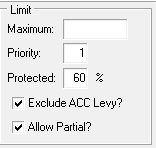
New Deduction ‘Exclude ACC Levy?’ indicator: For the purposes of applying an attachment order under Section 84I of the District Courts Act 1947, the ACC Earners’ Levy component of the tax calculation is to be excluded when calculating protected net earnings. Section 84I (3) references the application of an attachment order working alone or in conjunction with one of a number of possible notices (child support, tax arrears, parentage test costs, social security debts), and specifically notes that the protected net earnings rule applies in all situations upon these attachment orders - whether included with a CS notice or not.
-
Currently the calculation of the standard system reserved ‘Child Support’ and ‘Child Support (NCP)’ protected earnings deductions excludes the ACC Earners’ Levy component automatically however other user defined attachment order deductions with a protected earnings condition will not be excluding this component. Therefore, the new indicator should be utilised when a Protected % has been entered for an attachment order. We suggest that once this version has been installed any deductions created for attachment order purposes with a protected net earnings percentage are flagged to ‘Exclude ACC Levy’.
-
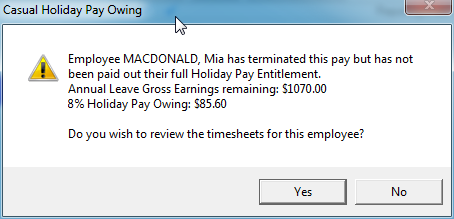
‘Casual’ employee termination warning message: If a residual value remains in a Casual Employee’s Annual Leave Gross Earnings accumulator after a final pay calculation, a warning message will now be displayed in the ‘Calculation’ process. This could occur due to a fixed amount on a Casual or Holiday Pay Owing transaction on termination.
-
The employee’s Timesheets may be reviewed and adjusted as required at this point or the calculation may continue indicating acceptance of this situation.
ACC Levy Report: An additional 5 Payment selection panels, utilised to identify ‘ACC First Week Payments’, have been introduced in the report options.
Tools – Files Export – Vizual Personnel: This export now populates the following bank account related fields at the end of the record if the employee has a bank account payment method:
-
PayeeReference
-
PayeeParticulars
-
PayeeCode
Standard Reports – Printing of a Payslip with a Zero gross value: Payslips with valid non-zero positive and negative payments resulting in a zero gross pay value will now be included in the Payslip print facility. Currently these payslips are printed within the ‘Sundry Reports - Historical Payslip’ print facility.
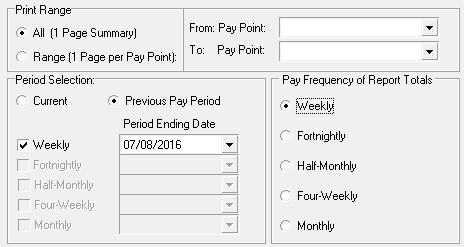 Department of Statistics Report by nominated previous Pay Period Ending Date(s): It is now possible to generate a ‘Department of Statistics Report’ by a nominated Pay Period Ending Date if the payroll is in an ‘Open’ or ‘Closed’ state.
-
This has been introduced by new ‘Period Selection’ options in conjunction with a ‘Current’ period option which can be used to report on an open period or, if the pay period is closed, the last pay period processed. If the ‘Previous Pay Period’ option is selected, then Pay Frequency Period Ending Dates for any Pay Frequency can be selected from a dropdown list of available dates pertaining to that Pay Frequency. The report headings section will now include a description of the options selected.
New ‘Parental Leave Rates’ report option: When an applicant applies to Inland Revenue for Parental Leave payments they may be required to declare the following:
-
their Ordinary Weekly Pay, and/or
-
their Average Weekly Income
The applicants weekly parental leave payments will equal the greater of the two rates up to the current maximum weekly amount of $527.72 gross (gross means before any deductions e.g. income tax) per week.
Employees with more than one job: Some employees qualify for parental leave payments by adding together their hours from more than one job to meet the 10 hours a week criteria. For these employees, the Ordinary Weekly Pay or Average Weekly Income from their different employers will be added together to work out their total Ordinary Weekly Pay or Average Weekly Income.
.
-
Working out the ‘Ordinary Weekly Pay’: For each employment, Ordinary Weekly Pay is the amount of pay that the employee receives under their employment agreement for an ordinary working week.
-
It includes:
productivity or incentive-based payments (including commission) if they are a regular part of the employee’s pay, and
payments for overtime if these are a regular part of the employee’s pay, and
the cash value of any board or lodgings provided by the employer to the employee.
-
It doesn’t include:
productivity or incentive-based payments that aren’t a regular part of the employee’s pay, and
payments for overtime that aren’t a regular part of the employee’s pay, and
any one-off or exceptional payments, and
any discretionary payments that the employer is not bound, under the terms of the employee’s employment agreement, to pay the employee, and
any payment of any employer contribution to a superannuation scheme for the benefit of the employee.
-
If it isn’t possible to determine an employee’s Ordinary Weekly Pay as above, the pay must be calculated in accordance with the following formula:
a – b
c where:
-
‘a’ is the employee’s gross earnings for the four calendar weeks before the end of the pay period immediately before the calculation is made, or if the employee’s normal pay period is longer than four weeks, that pay period immediately before the calculation is made, and
-
‘b’ is the total amount of payments which are not to be included (as above), and
-
'c' = 4
Working out the ‘Average Weekly Income’: To work out Average Weekly Income, total the employee’s gross weekly earnings for the 26 weeks out of the relevant 52-week period during which they earned the most money. (The relevant 52-week period is the period ending just before the child’s due date/birthdate or the date the employee or their spouse or partner becomes the primary carer of the child under six years.)
The weeks don’t have to be concurrent, for example, some of the weeks where the employee earned the most might be in April-May, some in July, some in October, with the rest in December-February etc., but they must have a total of 26 weeks’ worth. This total is then divided by 26 to get the Average Weekly Income.
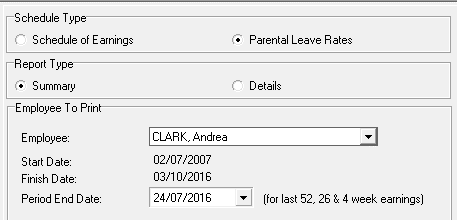 The current ‘Sundry Reports - Schedule of Earnings’ report has been enhanced with a new ‘Parental Leave Rates’ report option to assist with the Average Weekly Income calculation, if and when requested by an employee going on Parental Leave.
The employee’s Ordinary Weekly Pay is also calculated and printed and the 26 pay periods with the highest monetary value over the last 52 weeks will be identified by an * in both the Summary and Detail formats.
Please note:
-
The Ordinary Weekly Pay, as calculated, should only be relevant if it is not possible to determine what the employee’s Ordinary Weekly Pay should be as per their employment agreement.
-
If any Pay Period gross utilized for rate calculations encompasses more than 1 pay period, you will need to adjust the 52 week and/or the 4 week pay period total gross and divide by 52 and/or 4 weeks to get the correct weekly rate. The 'Details' option lists pay period individual payments and values.
-
As it is not possible to determine what period a non-standard pay run may or may not relate to, non-standard pay runs are printed and identified by ‘NS’ (Non-standard) and are not included in the Average Weekly Income Rate gross earnings.
Time Import Module v3.02: If you are a registered user of the Time Import Module then v3.02 will be automatically installed when you install the payroll application. Your Time Import Module will then be qualified to run with v6.10 of the payroll application.
MYOB AccountRight API Interface: A new General Ledger interface to the ‘MYOB AccountRight’ product has been introduced within the ‘Tools – General Ledger Export’ facility. Please refer to the document ‘Integrating IMS Payroll Partner with MYOB AccountRight’ for an in depth overview of this facility. This document will be available within the IMS Payroll application folder (C:\Program Files\IMS\IMS Payroll Partner or C:\Program Files (x86)\IMS\IMS Payroll Partner by default) once version 6.10 has been installed.
ISSUES ADDRESSED:
-
Historical Trial Balance: Reimbursement payments are now included in the ‘Non-taxable Payment’ column and totals.
-
The issue where headings on a Full ‘Employee Payroll Summary’ report may revert to Summary report headings during the print has been addressed.
-
Bank electronic files can now be generated in folders which contain a comma in their name.
-
The ‘Sundry Reports - Company Audit’ report will now report on the user who disables ‘User Security’ on the Company Controls tab.