
MYOB IMS Payroll 6.71 release notes
Introduction
What’s new in this release?
The 6.71 release adds new options for reports, as well as adding a new family violence leave report. It also adds the ability to automatically calculate salary per pay for new employees. Other minor improvements make the user interface easier to use. This release also resolves issues identified in previous releases.
Installing your upgrade
Before installing the desktop upgrade, you must close all Open payroll periods in your payroll companies
To install the desktop upgrade
Before you install the desktop version:
-
Close all Open payroll periods in your payroll companies.
-
Back up each of your payroll companies via the Tools menu.
-
Close all IMS applications on your PC.
Uninstalling an earlier version of IMS Payroll prior to installing this version is not recommended or required, as you’ll need to reinstall any custom payroll software or modules.
If you’re downloading the installer:
-
Double-click the executable file (.exe) that you downloaded.
-
Install the new version on every computer that has MYOB IMS Payroll installed.
To install the IMS Payroll Cloud upgrade
-
Log in to IMS Payroll Cloud.
-
At the bottom left, click the gold Upgrade button.
The Upgrade button only appears after you click on a company with the Closed status.
-
Repeat steps 1–2 for each payroll company you manage.
New Features
Family violence leave report
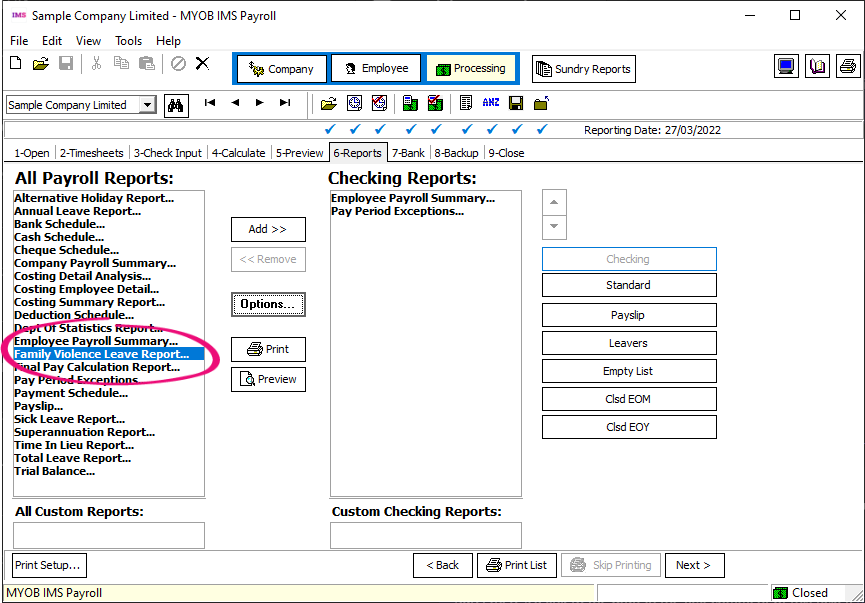
The new Family Violence Leave Report lets you see how much family violence leave your employees are entitled to. You can run the report from the 6-Reports tab of the Processing screen.
Printing payslips and reports for selected employees
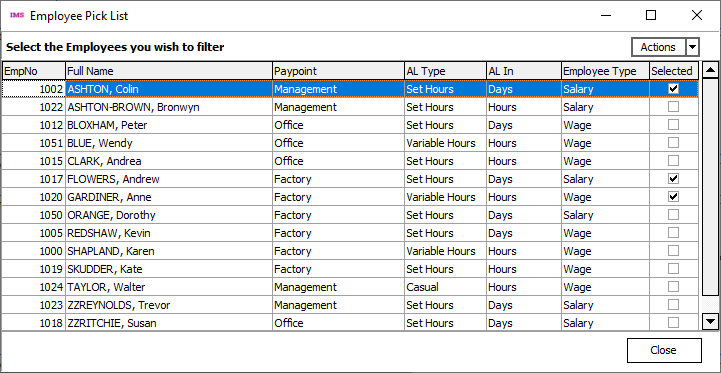
When printing a payslip or the leave rate report, you can now choose which employees you want to include by selecting Pick List in the Print Range section. This opens the new Employee Pick List screen.
Saving the certificate of earnings
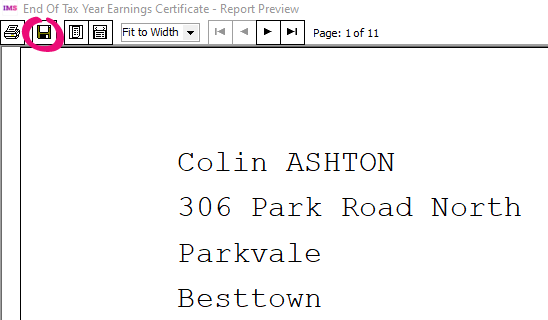
You can now save a copy of end of tax year earnings certificates.
After opening the report preview from Tools > End Of Tax Year > Certificate of Earnings, click the new Save button on the top left.
Displaying outstanding annual leave in weeks on payslips
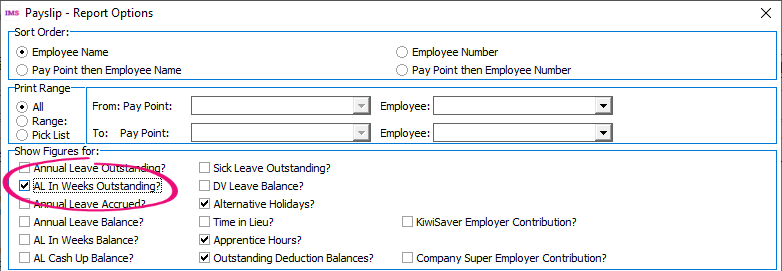
When creating a payslip or historical payslip, you can now choose to display annual leave in weeks outstanding. In the Report Options window, select the AL In Weeks Outstanding checkbox.
Automatically calculated salary per pay
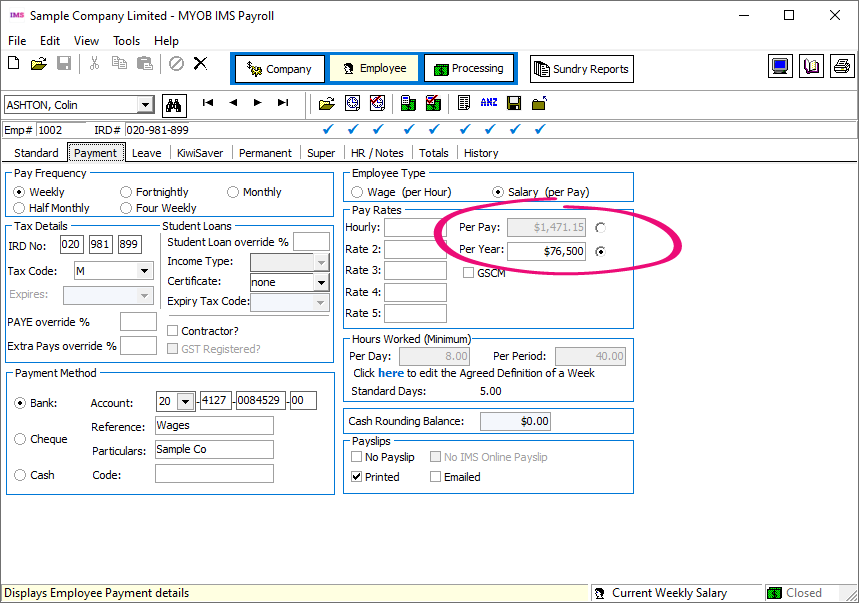
You no longer need to manually work out how much an employee earns per pay. Now, on the Payment tab of the Employee screen, you can enter an employee’s salary in the Per Year field, which automatically updates the Per Pay field.
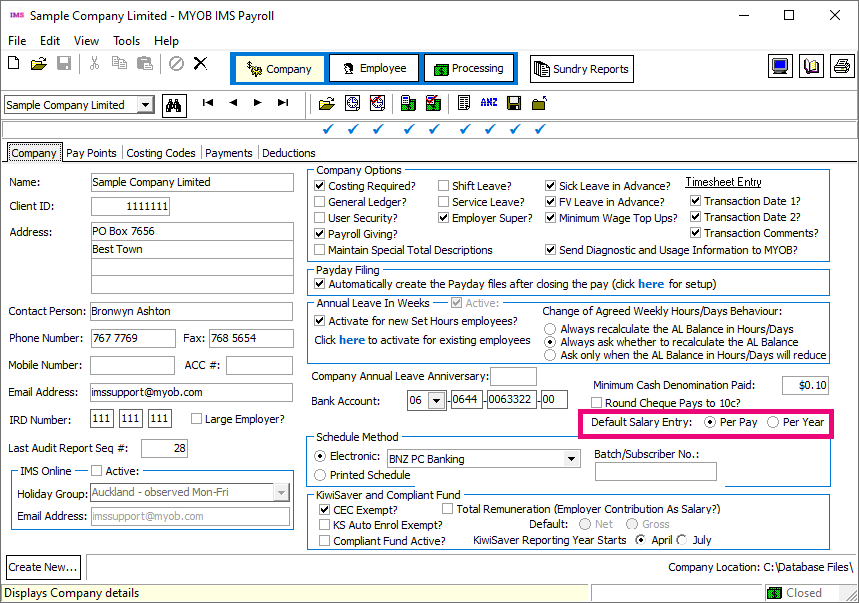
Additionally, you can now choose how you want to enter salaries for new employees, as a per pay amount or a per year amount. On the Company tab of the Company screen, set the Default Salary Entry option to either Per Pay or Per Year.
Historical trial balance report update
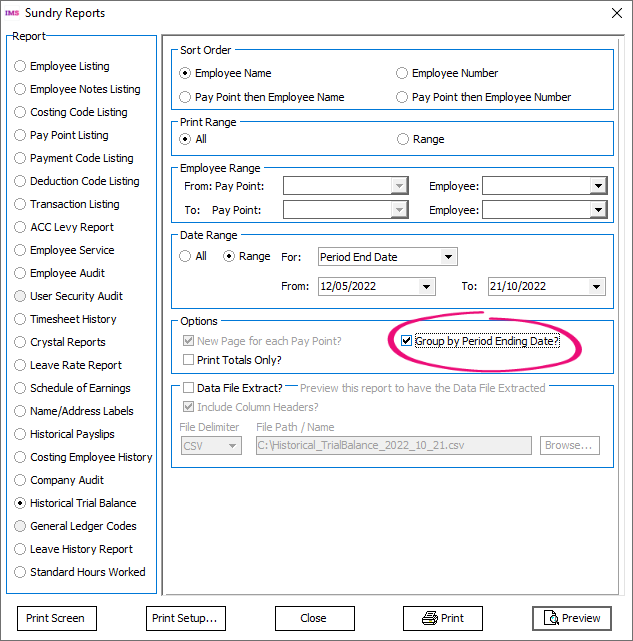
When running the Historical Trial Balance report, you can now choose to display pay periods breakdowns by selecting the Group by Period Ending Date? checkbox. This displays amounts per closed pay period, where the period end date falls within the date range you selected in the Date Range section.
Minor improvements
Updated AL Days Balances Recalculated screen
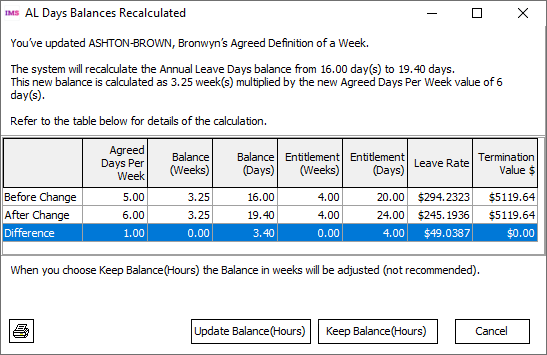
After updating an employee’s agreed definition of a week, the AL Days Balances Recalculated screen now shows the name of the employee you’ve updated. This makes it easier to audit your records after you’ve printed the screen.
Also, if you only recalculated the employee’s accrued annual leave, the buttons at the bottom of the screen are now labelled more descriptively.
Exporting annual leave in weeks information
If you go to Tools > Files Export and choose either Vizual Personnel or Employee List, the exported files now include annual leave in weeks information.
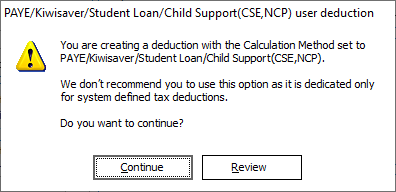
Deduction calculation method warning
When editing an existing deduction or setting up a new one, a warning message appears if you set the Calculation Method to PAYE / KiwiSaver / Student Loan / Child Support (CSE,NCP).
Costing code reminder
When changing an employee’s default costing code, you’re now prompted to check their KiwiSaver and compliant fund costing codes.
You’ll only see the prompt if the employee’s default costing code is the same as their KiwiSaver or compliant fund costing codes.
Relocated average daily pay and standard days information
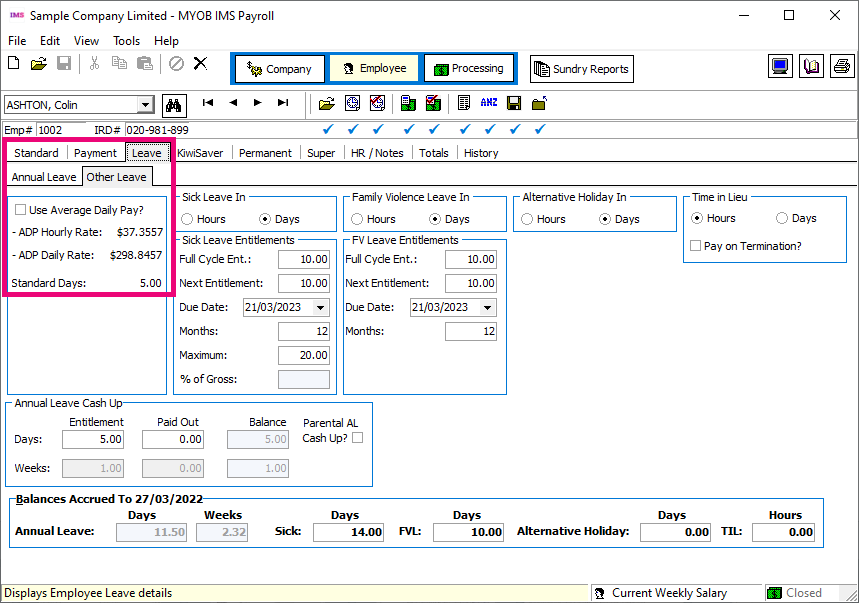
On the Employee screen, average daily pay (ADP) information has moved from the Payment tab to the Leave > Other Leave tab.
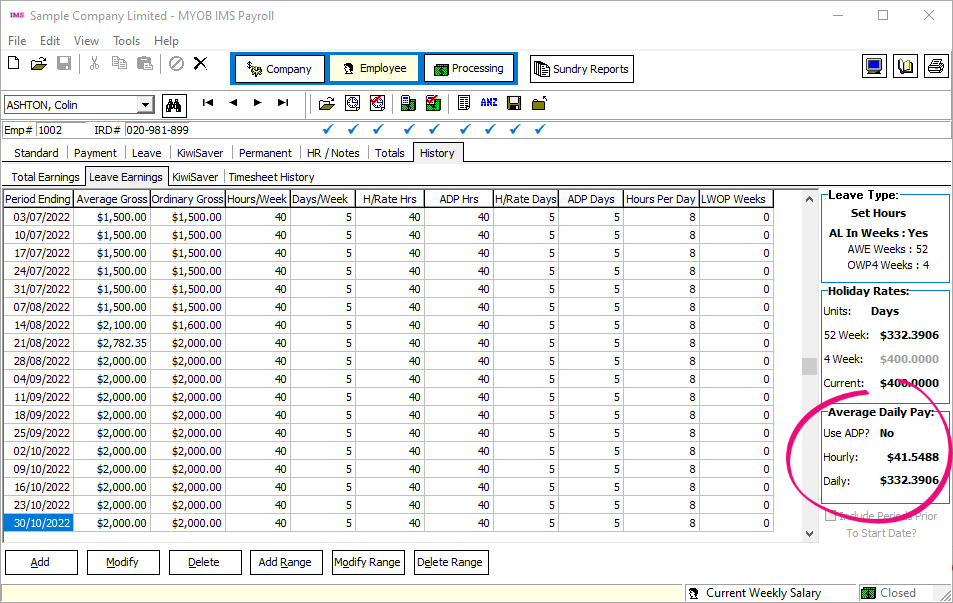
ADP information also now appears on the right side of the History > Leave Earnings tab.
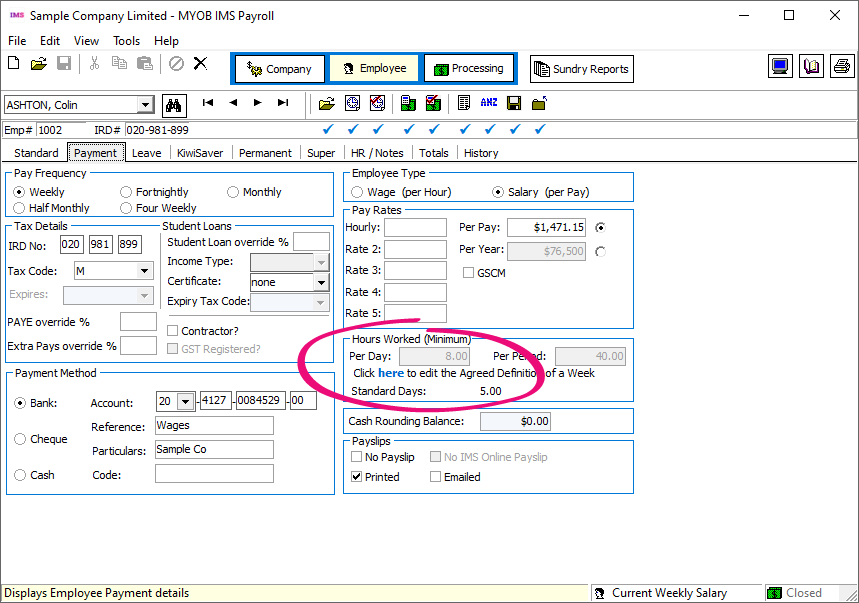
Standard days information is now shown in two places: the Leave > Other Leave tab and the Hours Worked (Minimum) section of the Payment tab.
Default options updating ESCT rates
On the ESCT (Employer Superannuation Contribution Tax) Rate Update screen, the two checkboxes in the Options section are now selected by default: Update Employees with Estimated EST % Rate? and Update Company Superannuation ESCT % Rate?.
Easier-to-understand SLCIR rates
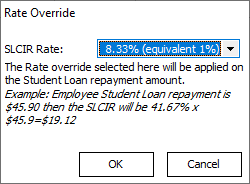
When selecting the rate for an employee’s student loan commissioner (SLCIR) deductions, the SLCIR Rate dropdown now shows the percentage on gross income. For example, 8.33% (equivalent 1%).
Additionally, the Rate Override window now explains how the rate is applied.
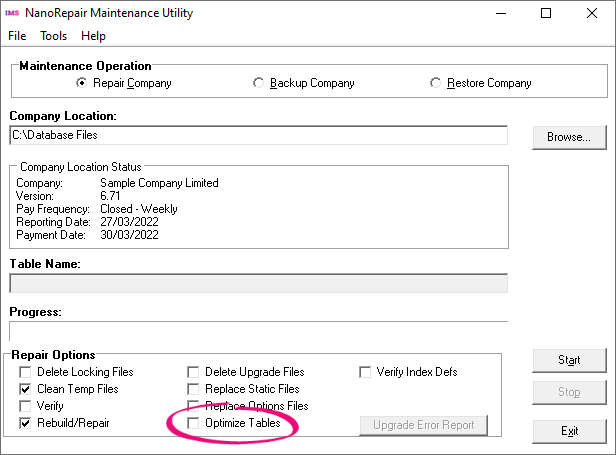
(IMS Cloud only) Optimising tables with NanoRepair
Companies with IMS Cloud can now select the Optimize Tables checkbox when using the NanoRepair Maintenance Utility to repair a company. This helps prevent issues that can occur if backup files become too large.
To be able to see the Optimize Tables checkbox, you first need to go to Tools > Options > Advanced Repair Options.
Negative leave balance warning
When entering timesheets, if any annual leave values become negative, you’ll see a warning message that suggests you should review the values.
Occupation field improvement
On the Standard tab of the Employee screen, clicking the Occupation field now opens a list of options. You no longer need to click the arrow next to the field to open the list.
Resolved Issues
MYOB IMS Payroll and IMS Cloud
|
Issue description |
Resolution |
|
When an employee was on leave without pay for more than 12 months, clicking the Leave tab on the Employee screen for that employee caused an error: “Invalid floating point operation.” |
This has been resolved. |
|
There were issues preventing general ledger integration with Xero Online. |
This has been resolved. |
|
If an employee had been transferred using the Employee Transfer Utility, then you wouldn’t be able to preview historical payslips for them. |
This has been resolved. |
|
For companies using the Employee Transfer Utility module, if you transferred an employee using the module, you wouldn’t be able to run the Leave History Report for that employee. |
This has been resolved. |
|
When exporting a general ledger to Xero Online, an error could occur: “Error creating bill to pay, a validation exception has occurred Xero Online GL Export has not been completed.” |
This occurred if you didn’t enter a name in the Contact Name field. To make it easier to avoid this issue in the future, this release adds a message window that lets you know if you haven’t entered a contact name. The error could also occur if the Contact Name field contained either a < or > character. A separate message window appears if the field contains either of these characters. |
|
When running the Leave History Report in days, values were incorrect for employees with variable hours. |
This has been resolved. As part of this resolution, other updates were made to the Leave History Report: Terminated employees no longer appear on the report. Previously, casual employees with an accumulated leave balance weren’t included in the report unless the Print Zero Balances checkbox was selected. They now appear in the report even if the checkbox isn’t selected. |
|
In the EI Return file, the PAYE amount included payroll giving. |
This has been resolved. |
|
The due date automatically calculated for family violence leave didn’t match the due date automatically calculated for sick leave. |
This has been resolved. |
|
The gross earnings amount used to calculate protected earnings incorrectly included some non-taxable payments. |
This has been resolved. |
Updates to other modules
Employee Transfer Utility
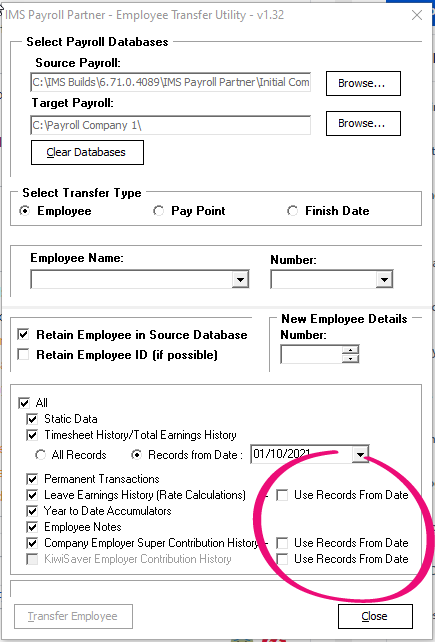
You can now choose whether to transfer full history or only history from a certain date for Leave Earnings History, Company Employer Super Contribution History or KiwiSaver Employer Contribution History. To do so, select the new Use Records From Date checkbox. To be able to select this checkbox, you need to have selected the Records from Date option.
If you need to update this module, contact support.