
MYOB IMS Payroll 7.10 release notes
Introduction
The 7.10 release makes quality-of-life improvements to reporting, importing employees and emailing payslips. We’ve added extra options that streamline your workflows, and we’ve addressed issues identified in earlier versions.
Installing your upgrade
To install the desktop upgrade
Before installing the desktop upgrade, you must close all Open payroll periods in your payroll companies.
Before you install the desktop version:
-
Close all Open payroll periods in your payroll companies.
-
Back up each of your payroll companies via the Tools menu.
-
Close all IMS applications on your PC.
Uninstalling an earlier version of IMS Payroll prior to installing this version is not recommended or required, as you’ll need to reinstall any custom payroll software or modules.
If you’re downloading the installer:
-
Double-click the executable file (.exe) that you downloaded.
-
Install the new version on every computer that has MYOB IMS Payroll installed.
To install the IMS Payroll Cloud upgrade
-
Log in to IMS Payroll Cloud.
-
At the bottom left, click the gold Upgrade button.
The Upgrade button only appears after you click on a company with the Closed status.
-
Repeat steps 1–2 for each payroll company you manage.
What’s new
Override FBAPS rate based on when leave was taken
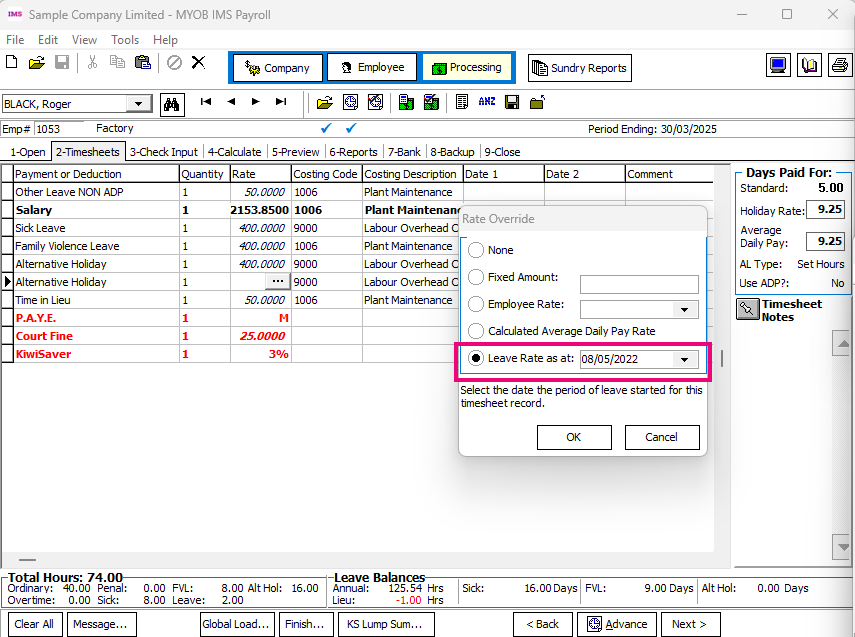
It’s now easier to pay FBAPS leave that an employee took in a previous pay period.
Simply select the date when the employee’s leave started, and their ADP or base hourly/daily rate will automatically reflect what their rate was when they took leave. This saves you the hassle of running a leave rate report to manually check their rate.
In the employee’s timesheet, click the three dots icon in the Rate column to open the Rate Override window, then choose Leave Rate as at.
Employee Import improvements
Including annual salary per year amounts
When importing salaried employees from a CSV file, you can now import annual salaries as a per year amount or as a per pay amount.
In the import file, you can still use the Salary column for per pay amounts, or you can use the new Annual Salary column for per year amounts. You can’t use both columns in one import.
If you don’t enter a value in the per pay Salary column, the import uses Annual Salary instead.
Including 4-week average rate in rate comparison
Employee Import now imports the Include in rate comparison setting for the 4 Week Average Rate (OWP4) when an employee’s entitlement is recorded in weeks.
Emailing payslips improvements
-
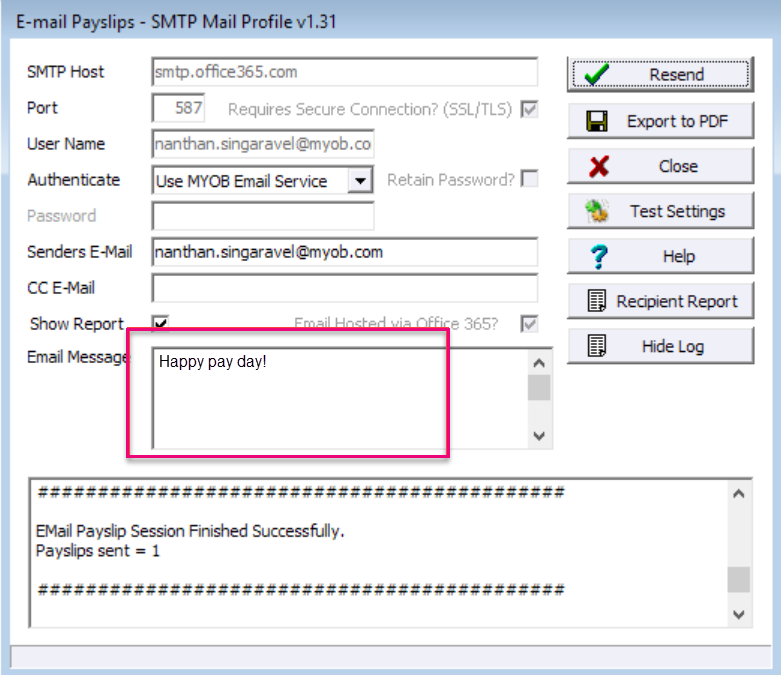
When emailing payslips, you can now customise the message displayed in the body of the email. To customise the message, use the Email Message field on the emailer SMTP Mail Profile window.
-
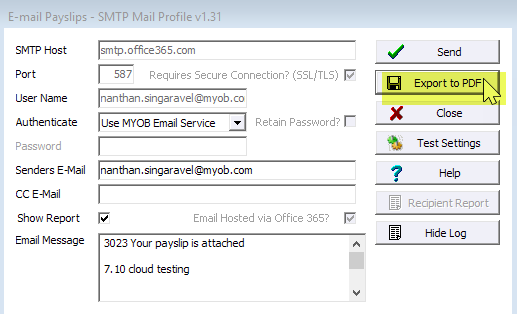
When emailing payslips, you can now also export the payslips as PDFs by clicking Export to PDF. This creates a separate PDF file for each employee with their employee ID and name used as the file name.
-
-
To make it easier to onboard a new employee, when you enter their email address, you’ll get a message asking if you want them to receive payslips by email.
Reporting improvements
Auditing user records and employee notes
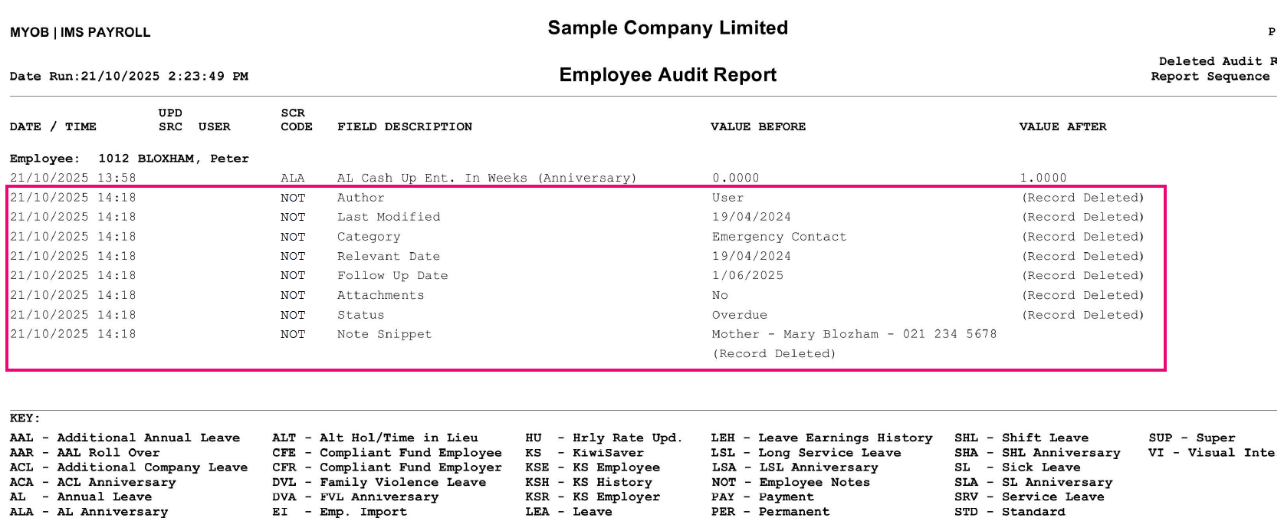
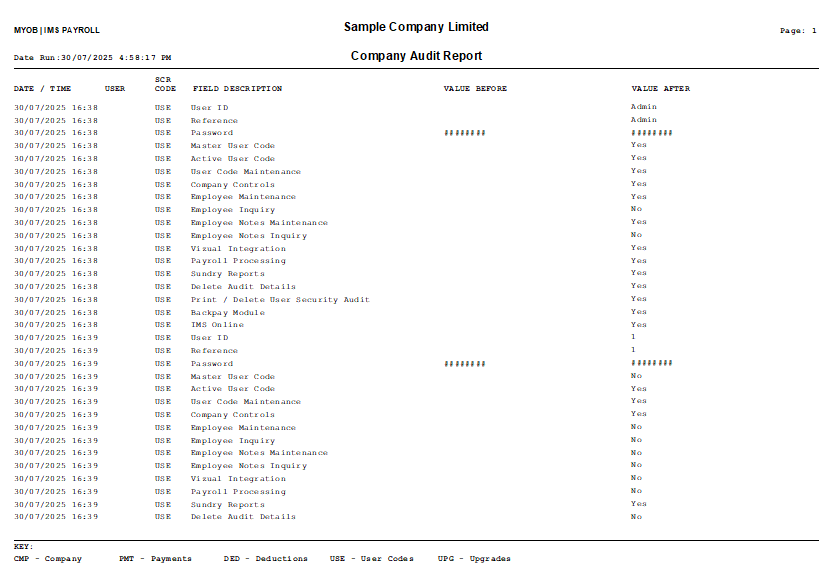
To help you keep track of changes to your records, IMS Payroll now audits employee notes and (for companies with user security) user records.
Whenever these records are added, modified or deleted, the changes will be listed in the auditing sundry reports:
-
The Employee Audit report lists employee note changes. The screen code in the report is NOT. The report won’t display the full possible size of a modified note due to size constraints on the report.
-
The Company Audit report lists User Codes record changes. The screen code in the report is USE. If a password was changed, it’s only displayed using hashes.
Payment dates on payslips
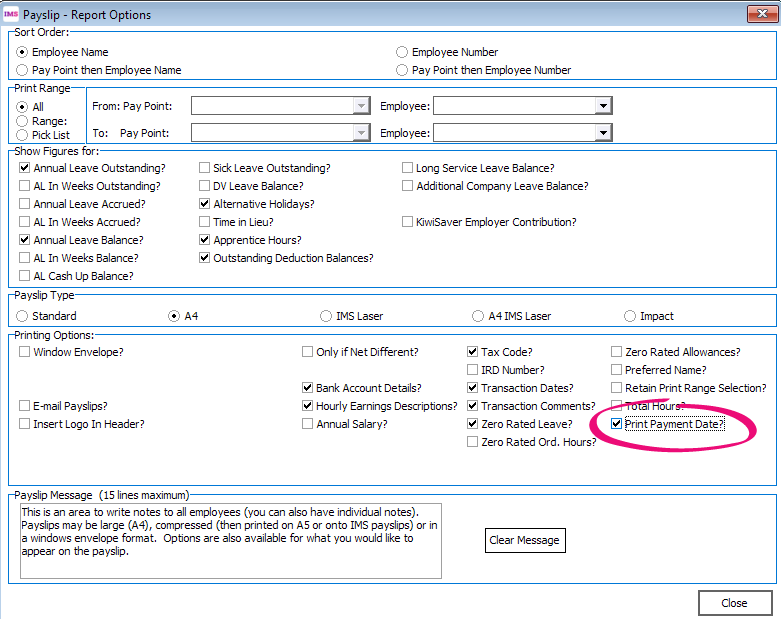
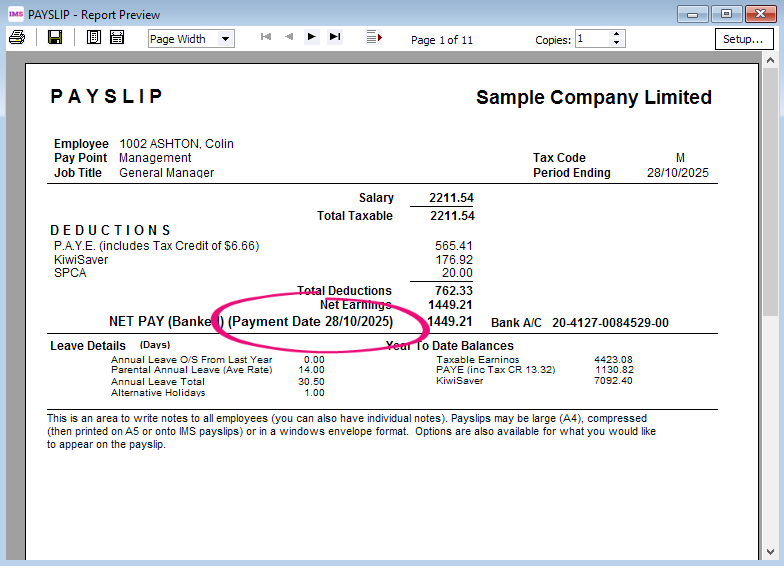
You can now display payment dates on payslips by selecting the Print Payment Date? option. The payment date is displayed next to the net pay amount. The payment date also appears on historical payslips.
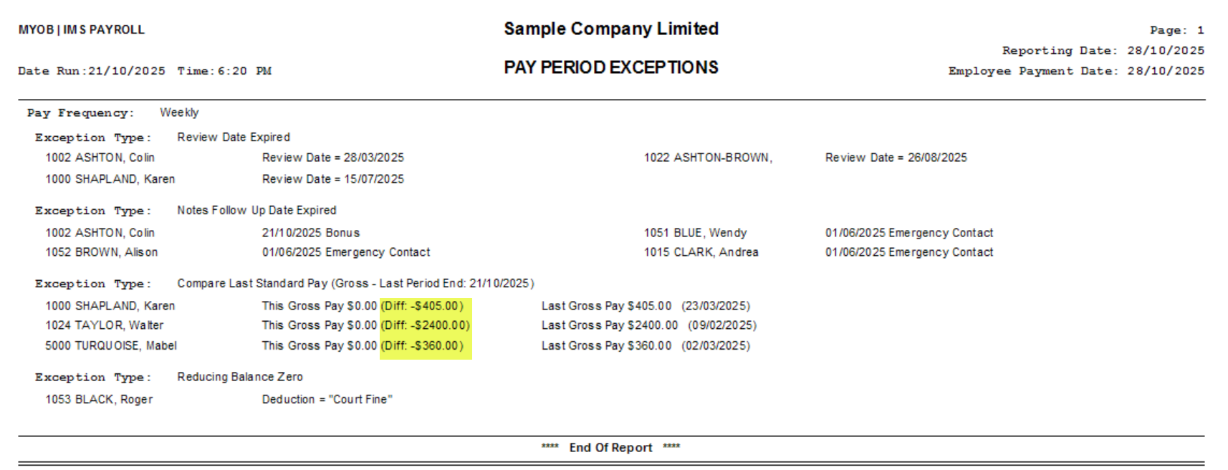
Pay Period Exceptions – Leave totals and differences between pays
We’ve made two improvements to the Pay Period Exceptions report:
-
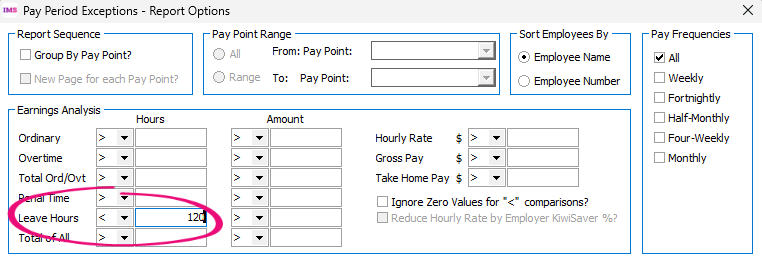
You can now show a total of all leave-related hours that meet the selection criteria for each employee in the pay. In the Earnings Analysis section of the report options, use the new Leave Hours fields.
-
If you set the report to compare with the last standard pay, it now includes the difference between the This Pay and Last Pay columns.
ACC Levy – Now available from payroll processing
-
You can now access the ACC Levy report from the Report tab in payroll processing. Previously, it was only available as a sundry report and end-of-year report. You can also add it to any user report lists.
More descriptive file name when saving reports
When saving a report from the preview screen by clicking Save To File, the file name now defaults to the name of the report plus the date and time when you ran the report.
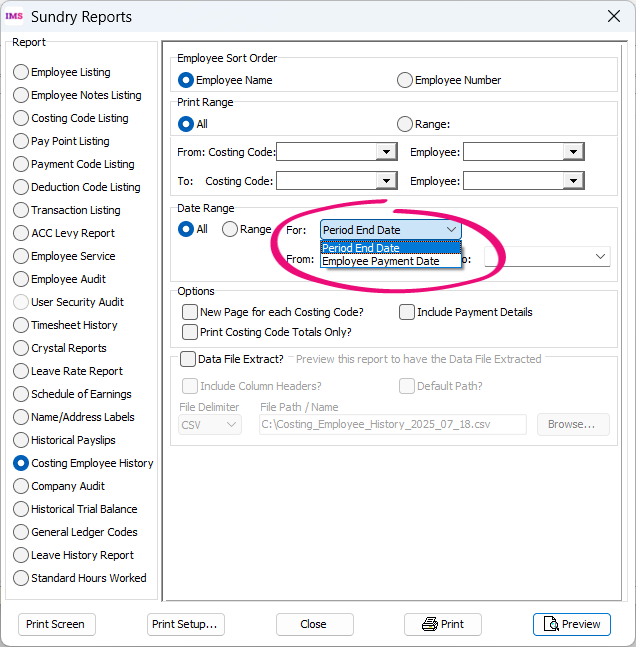
Costing Employee History – Employee payment date range
You can now run the Costing Employee History report for a range of employee payment dates. Previously, you could only run the report for pay period end dates.
To choose which date range to run the report for, select Employee Payment Date or Period End Date from the dropdown.
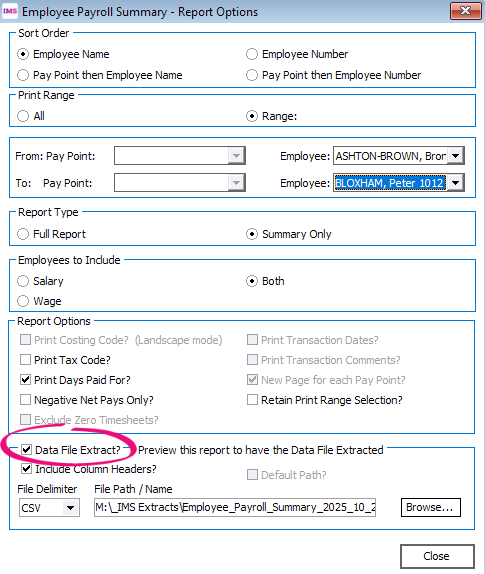
Employee Payroll Summary – Exporting summary version
You can now export a data file extract when running the Summary Only version of the Employee Payroll Summary report. Previously, this was only available for the full report.
Annual Leave – Including leave in weeks and 4-week average rate
When you run the Annual Leave report on static data, the report now includes annual leave in weeks and the 4-week average rate (OWP4). This makes it easier to get all the information you need in one report if you’re auditing your leave setup.
The screenshot below shows the new AL In Weeks and Inc. 4 Week Rate columns. If the employee has one of these settings, there will be a Y in the column. If they don’t have the setting, there will be an N in the column. 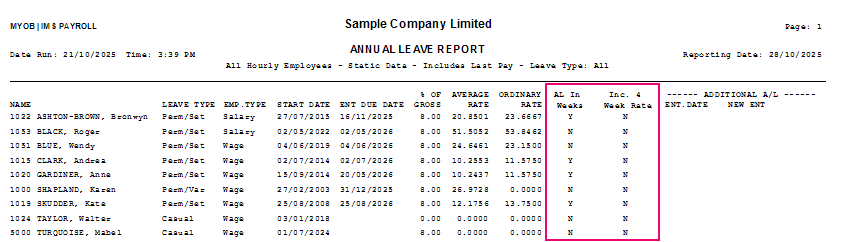
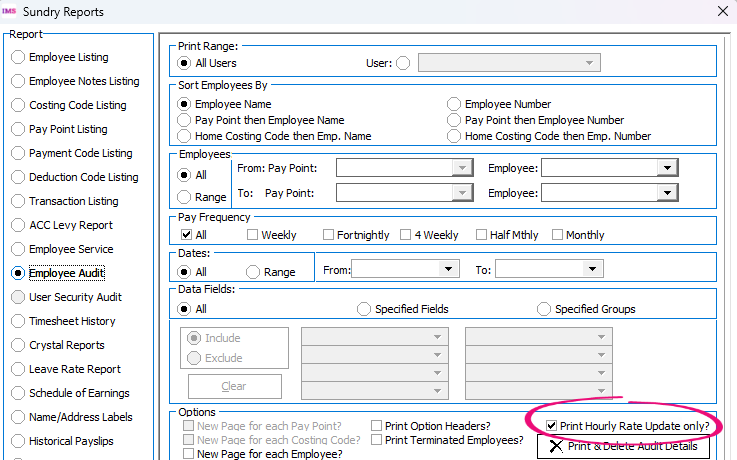
Employee Audit – Printing hourly rate update only
When running the Employee Audit report, you can now choose to only show records and hourly rates updated using the Hourly Rate Update tool.
In the report options, select the new Print Hourly Rate Update only? checkbox.
This only prints updates made after you installed version 7.10.
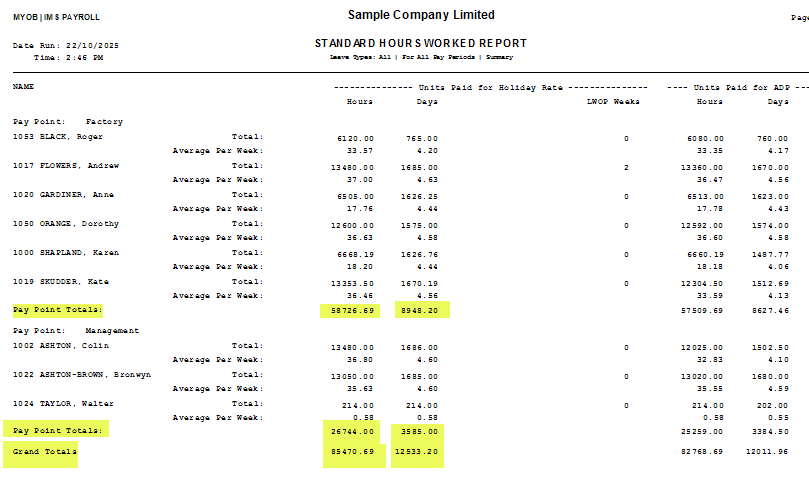
Standard Hours Worked – Including totals
In the Standard Hours Worked sundry report, you can now include sub-totals and grand totals of hours and days for both annual leave and average daily pay.
In the report options, select the new Include Totals? checkbox.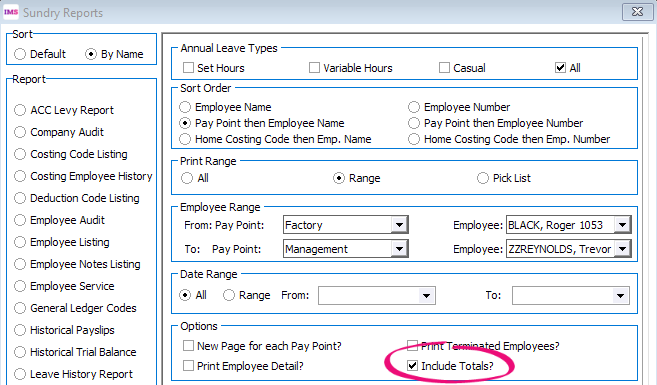
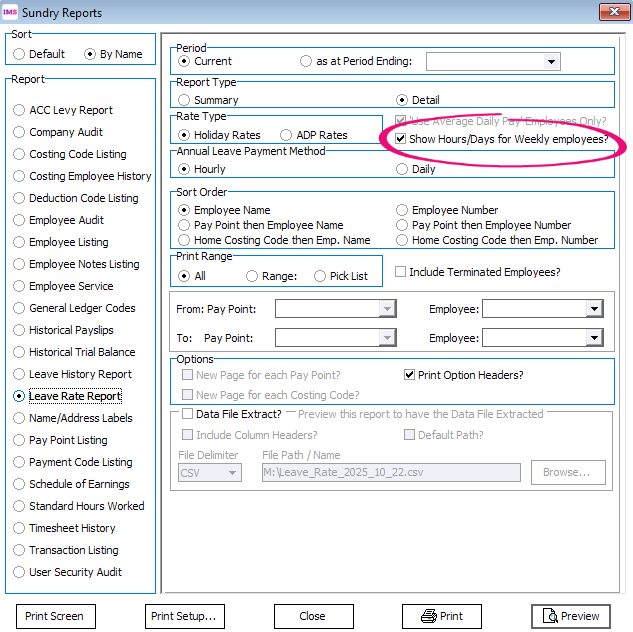
Leave Rate – Including hours and days
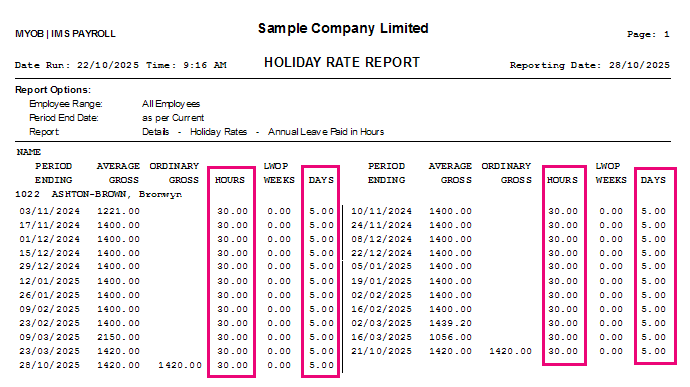
When running or exporting the Leave Rate Report, you can now include recorded employee hours and days by selecting the Show Hours/Days for Weekly employees? checkbox. These values are not used to calculate holiday pay rates for employees who are paid weekly.
Due to report page size constraints, hours per day aren’t included in the report, but they are included in the export file.
Adding your logo to a certificate of earnings
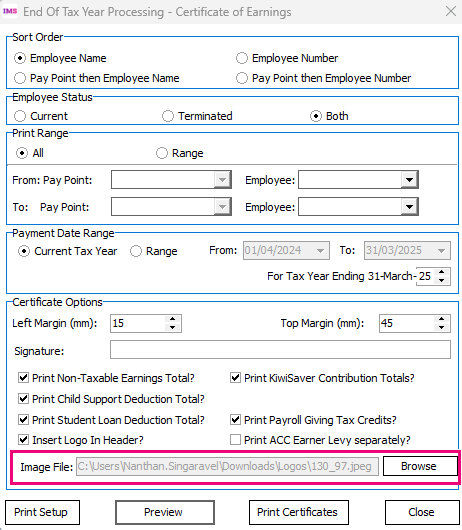
You can now add an image, like a company logo, to the header of the Certificate of Earnings report.
When running the report from Tools > End of Tax Year, you can choose to add an Image File. The file type must be PNG, BMP, JPG or JPEG. For the image to display properly, make sure it has a 4:3 aspect ratio.
Sorting sundry reports in alphabetical order
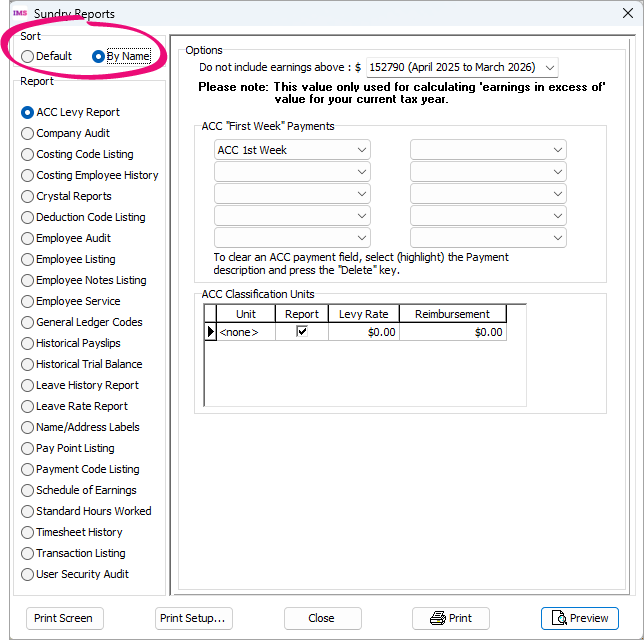
You can now choose to list sundry reports in alphabetical order. In the new Sort section, select By Name. By default, the reports are listed in the same order as in previous versions.
Other improvements
-
Time Target have rebranded and changed their name to Humanforce. To reflect the name change, we’ve updated how the leave extract menu option. It’s now called Tools > Files Export > Humanforce Leave Extract. In a future release, we’ll make further changes to the Time Target/Humanforce module.
-
If you select the Deduct Before Tax tax type setting, you now get a warning about causing potential issues with Payday Filing returns. We’ve left the setting available in case any companies still need to use it.
-
If the ESCT Rate Update utility can’t calculate an accurate rate, you’ll now get a message with more useful information about what information is missing – i.e. salary type, hourly rates or hours per period.
-
When reinstating terminated employees or changing an employee’s start date, you now get the option to automatically change the Annual Leave Next Entitlement Due Date. Previously, this only happened for sick leave and family violence leave – now you can apply the change to one leave type or both.
Changing the due date for employees with set hours can affect the calculated days/hours/weeks they accrue.
Resolved issues
-
The link from MYOB IMS Payroll to the online support site was broken. We’ve updated the link to take you to the correct support site:
-
If you opened the Terminated Employees Listing report from the End of Tax Year menu, the report wasn’t showing all terminated employees.
-
If you opened the Trial Balance report from the End of Tax Year menu, the Weeks value on the Leave tab of the Employee screen would appear to be blanked out. This was only a display issue and didn’t affect the actual values.
-
Employee Import was missing the 39% option for ESCT.
-
When emailing payslips, the Use Microsoft authentication option to send emails with Microsoft Office 365 wasn’t working.
-
Calendar dates were displayed inconsistently between the desktop and cloud versions of MYOB IMS Payroll.