
MYOB IMS Payroll 6.65 release notes
Introduction
The original 6.65 release:
-
Adds a new report, called Standard Hours Worked.
-
Updates the Leave History and Costing Employee History reports.
-
Updates the relative hours feature.
-
Resolves issues identified in previous releases.
Additionally, the new 6.65.0.3972 release:
-
Adds the option to fully recalculate a pay.
-
Resolves a timesheet calculation issue.
Installing your upgrade
Before installing the desktop upgrade, you must close all Open payroll periods in your payroll companies
To install the desktop upgrade
Before you install the desktop version:
-
Close all Open payroll periods in your payroll companies.
-
Back up each of your payroll companies via the Tools menu.
-
Close all IMS applications on your PC.
Uninstalling an earlier version of IMS Payroll prior to installing this version is not recommended or required, as you’ll need to reinstall any custom payroll software or modules.
If you’re downloading the installer:
-
Double-click the executable file (.exe) that you downloaded.
-
Install the new version on every computer that has MYOB IMS Payroll installed.
To install the IMS Payroll Cloud upgrade
If you’ve already upgraded to 6.65, the Upgrade button won’t appear. To upgrade, log out of MYOB IMS Cloud and log back in. The upgrade will be applied automatically.If you haven’t upgraded to 6.65, follow the steps below.
-
Log in to IMS Payroll Cloud.
-
At the bottom left, click the gold Upgrade button.
The Upgrade button only appears after you click on a company with the Closed status.
-
Repeat steps 1–2 for each payroll company you manage.
New Features
Timesheet calculation update
The new 6.65.0.3972 release of MYOB IMS Payroll includes a fix for an issue that occurred in the original 6.65 release. Previously, timesheets calculated incorrectly if a user viewed relative hours after performing a full calculation. This has been resolved.
We recommend that you download and install this new version as soon as possible. To check that you have the correct version installed, go to the Help menu and choose About MYOB IMS Payroll.
If you have any open pays, we recommend that you upgrade before closing the pay. Then, after upgrading, do a full recalculation of the pay.
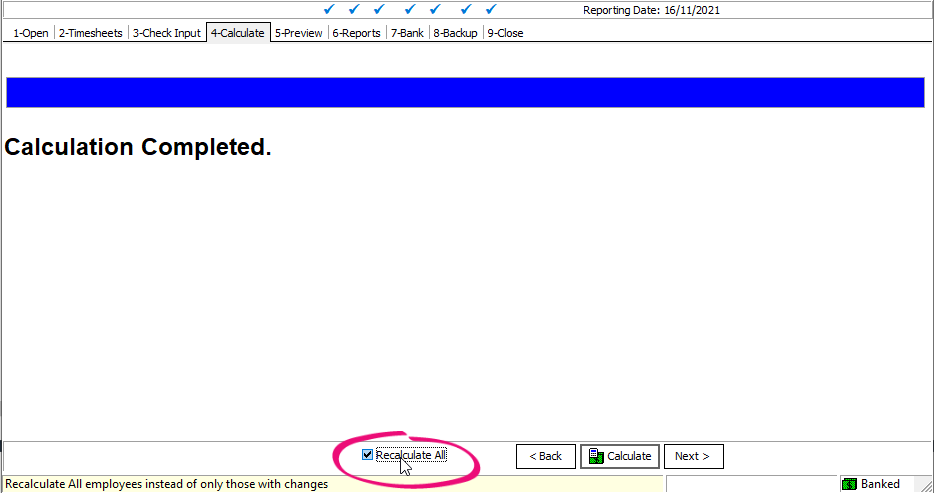
As part of the fix, this release adds a Recalculate All option on the 4-Calculate tab. Selecting this option allows you to fully recalculate a pay, instead of only recalculating the employees who you’ve updated.
Standard Hours Worked report
This release adds a new report called Standard Hours Worked, which is useful for reviewing hours worked by employees with irregular work patterns. IT shows how many hours employees worked within a date range, including total hours and average hours per week. The report sources its Hours and Days values from the H/Rate Hrs and H/Rate Days columns on an employee’s History > Leave Earnings tab.
If an employee’s pay frequency isn’t weekly, the report also shows average hours per period. The report doesn’t include overtime.
You can also use the report to help you decide how to update an agreed definition of a week.
Ensure that your employee understands and accepts the definition of their working week, and that this is reflected in your employment agreements.
If you select the Print Employee Detail? option, the report includes each employee's hours for every week. If you don't select the option, then the report displays a summary of each employee's hours.
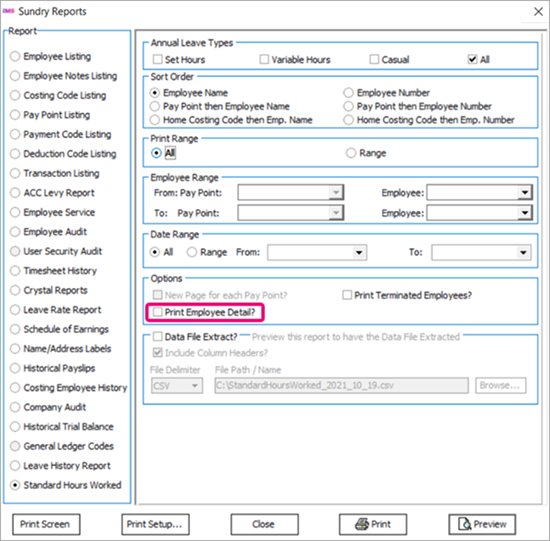
For example, here’s a report preview of the Details view.
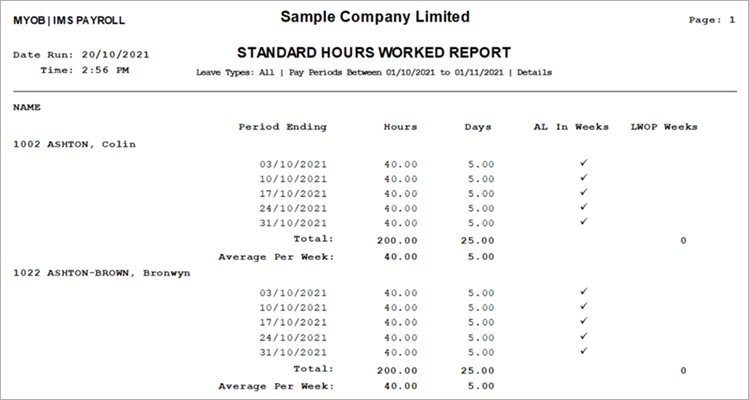
And here’s a report preview of the Summary view.
Valuation added to Leave History report
We’ve added two new options to the Leave History report:
-
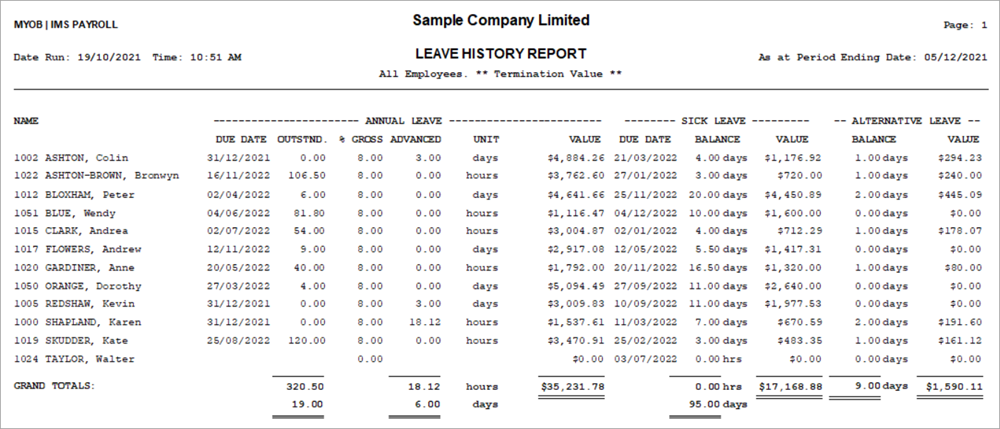
Include $ Values?—Includes the dollar value of each leave payment on the report.
-
Termination Value?—Includes the gross percentage and units for each annual leave payment.
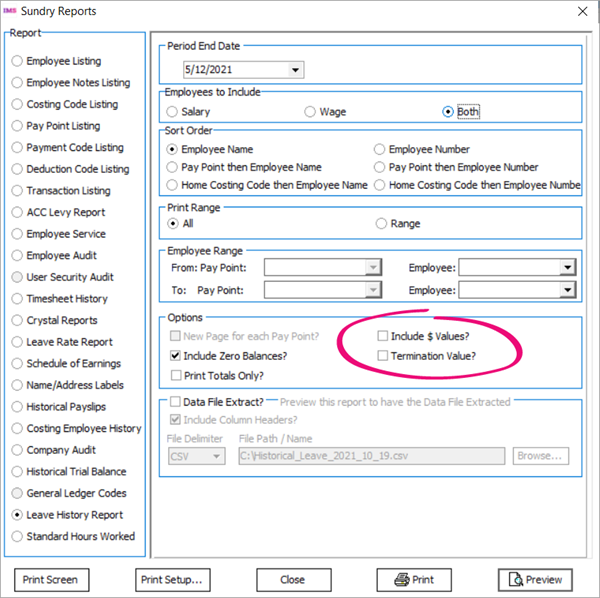
Here’s how the Leave History report looks with both options selected.
Costing Employee History report update
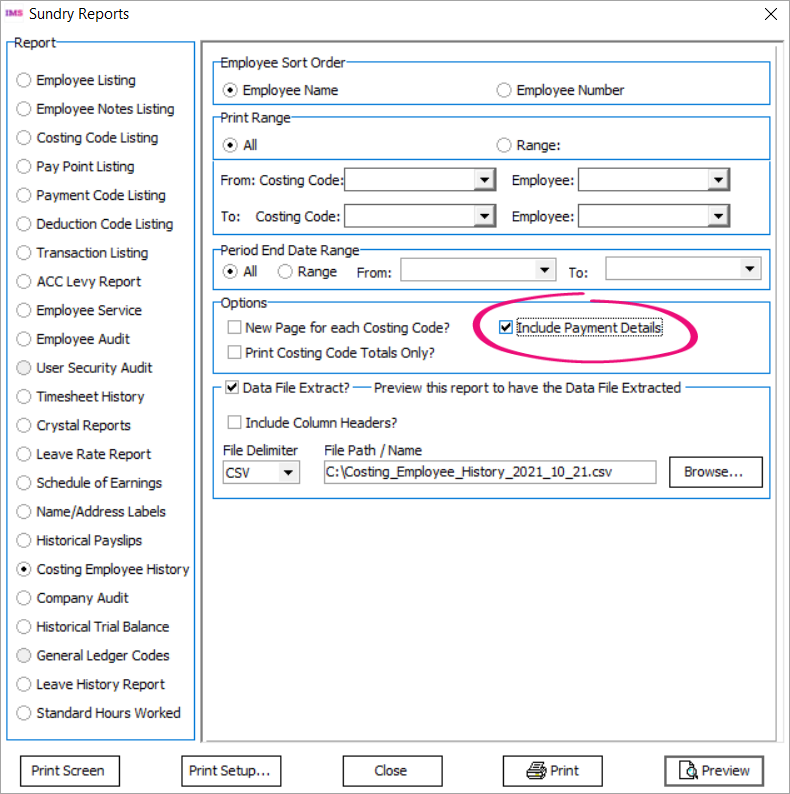
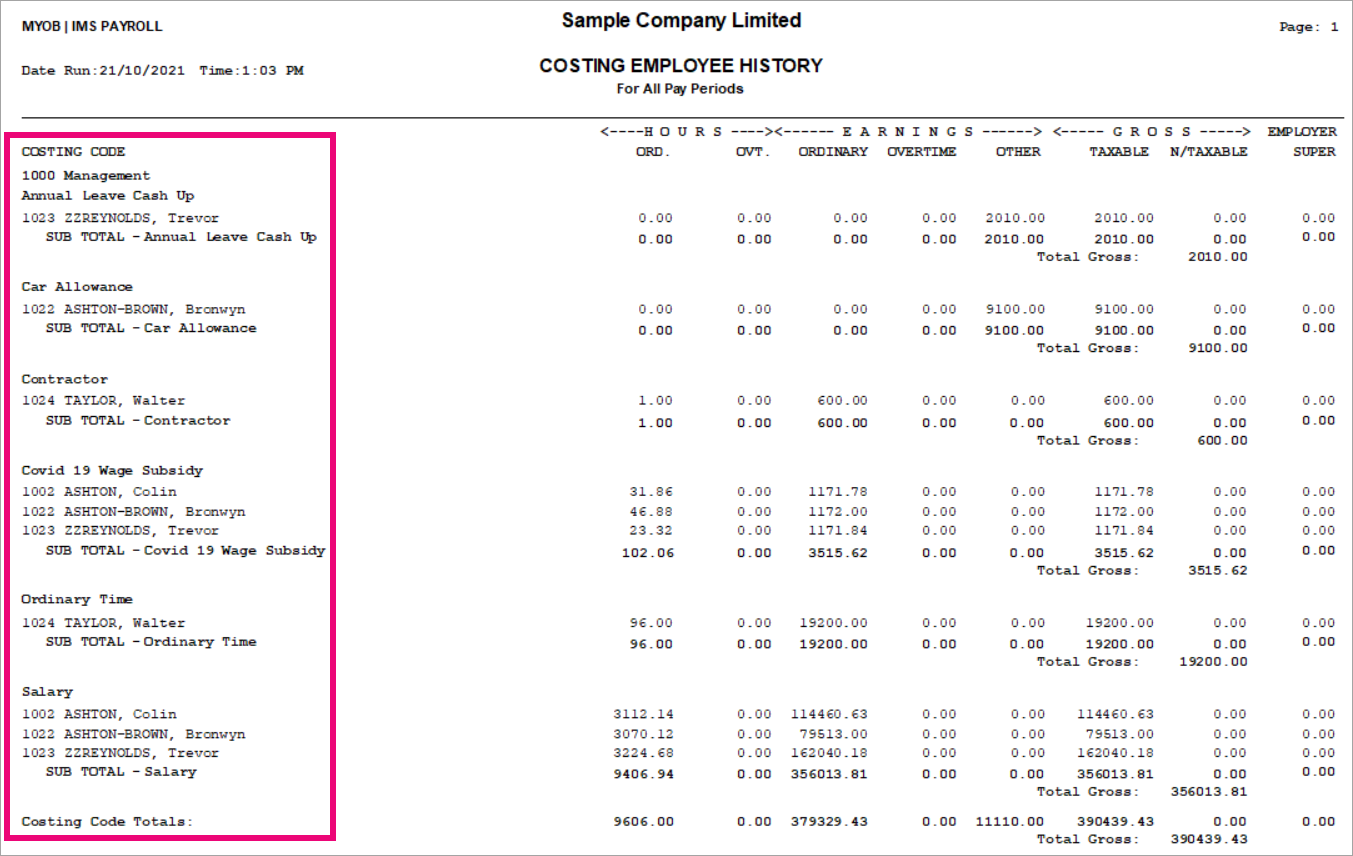
On the Costing Employee History report, you can now add a payment breakdown by selecting the new Include Payment Details checkbox.
The breakdown includes every payment in a costing code and the amount each employee received for that payment.
Selecting the Include Payment Details option also adds this information to the new Payments Name column in the data file extract.
Relative hours for employees with set hours
You can now use the relative hours feature for employees with Set Hours as their annual leave type. When paying their FBAPS leave, if the transaction's unit is measured in days, you can use the relative hours feature to adjust the number of hours of FBAPS paid.
For example, a salaried employee might work eight hours a day from Monday to Thursday, and four hours on Friday. If the employee takes sick leave on a Friday, you can use the relative hours feature to adjust the number of hours accordingly.
We recommend that you don’t change hours for employees that use the ADP rate.
To enter relative hours for an FBAPS payment, double-click the payment in an employee's timesheet. The new Enter Units window opens.
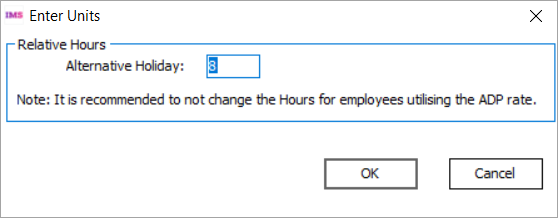
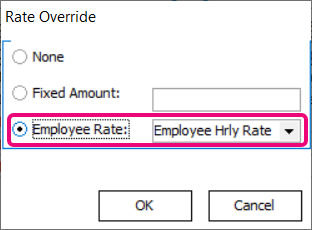
If you pay sick leave to a salaried employee and enter relative hours for them, you also need to:
-
Reduce their salary Quantity by the same amount as the relative hours. For example, if you entered 4 for their relative hours, you need to enter -4 for their salary.
-
Set the salary Rate to Employee Rate and select Employee Hrly Rate from the dropdown.
-
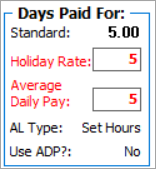
Update the Days Paid For section, so that it reflects the correct number of days the employee should be paid for.
Modifying a Period Ending date
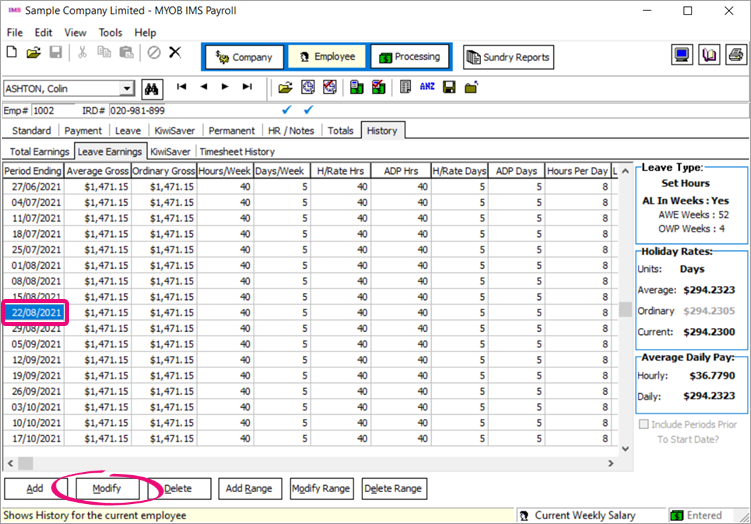
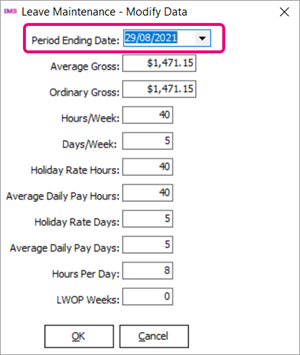
On an employee's History > Leave Earnings tab, you can now modify a record's Period Ending date.
To modify a Period Ending date
-
Go to an employee’s History > Leave Earnings tab.
-
Select a date and click Modify. The Leave Maintenance – Modify Data window opens.
-
In the Period Ending Date field, enter a new date.
-
Click OK.
Resolved Issues
The following table details the issues addressed in this release.
MYOB IMS Payroll
|
Problem ID |
Description |
|
- |
When previewing the Timesheet History report multiple times, it could display the wrong Tax Credit figure for payroll giving. This has been resolved. |
|
- |
There was an issue when using the Leave History Import feature. In MYOB IMS Payroll, on an employee's History tab, the Hours/Week and Days/Week columns are displayed in that order. But in an import file, the order of these columns was swapped. This has been resolved. The order of columns in an import file now matches the order on the History tab. |
|
- |
In the Employee Listing report preview, if the Print Payment & Deduction Totals? option was selected, an error would occur when saving the report as a Microsoft Excel file: "Range check error." This has been resolved. |
|
- |
When running the Pay Period Exceptions report, if the Hourly Rate option was selected, an error would occur: "Timesheet:Field 'LeaveRateAsAtDate not found". This has been resolved. |
|
- |
We’ve fixed the error that was happening during the General Ledger file export when Xero Online is used. |