
MYOB IMS Payroll 6.55 release notes
Introduction
What’s New in this Release?
The release updates the payday filing functions to use the new v2021 format, ensuring that your payday filing remains compliant.
Installing Your Upgrade
Desktop Installation
Before you install this version:
-
Close all “Open” payroll periods in your payroll companies.
-
Back up each of your payroll companies, via the Tools menu, after closing the last payroll period processed in each company.
-
Close all IMS applications on your PC.
Uninstalling an earlier version of IMS Payroll prior to installing this version is not recommended or required as any custom payroll software and modules will need to be reinstalled.
If you’re downloading the installer:
-
Double-click the executable file that you download (.exe as contained in the link).
-
You need to install the new version on every computer that has MYOB IMS Payroll installed.
IMS Payroll Cloud Installation
-
Log in to IMS Payroll Cloud.
-
Click the gold Upgrade button that appears at the bottom left of your screen. The Upgrade button will only appear when you click on a company with the “Closed” status.
-
Repeat for each payroll company you manage.
After installing, log in to a payroll company, go to Help > About IMS Payroll Partner and check that the version is Version November 2020.
If you have any issues, please call us on 0800 600 110.
New Features
Payday Filing Updates
This release updates MYOB IMS Payroll to produce files for payday filing in the new v2021 format. This includes the EI Return file and the Employment Details (ED) file.
These updates were introduced in the 6.54 EAP release.
Updates to KiwiSaver
The Employee Details (ED) file now includes information on employees starting and finishing/opting out of KiwiSaver. The KiwiSaver information included in payday filing has been expanded to include information on employees who opt out of KiwiSaver after the normal opt out period.
Employees can opt out of KiwiSaver between the ends of the second and eighth weeks of their employment (i.e. between days 14 and 56)—see for more information.
To opt out after the end of this period, the employee must send their KS10 to the IRD or apply online. The IRD will let you know if they’ve approved the late opt out reason and when to stop deductions and contributions. New fields have been added to the Employee Information > KiwiSaver tab to capture the late opt out reason:
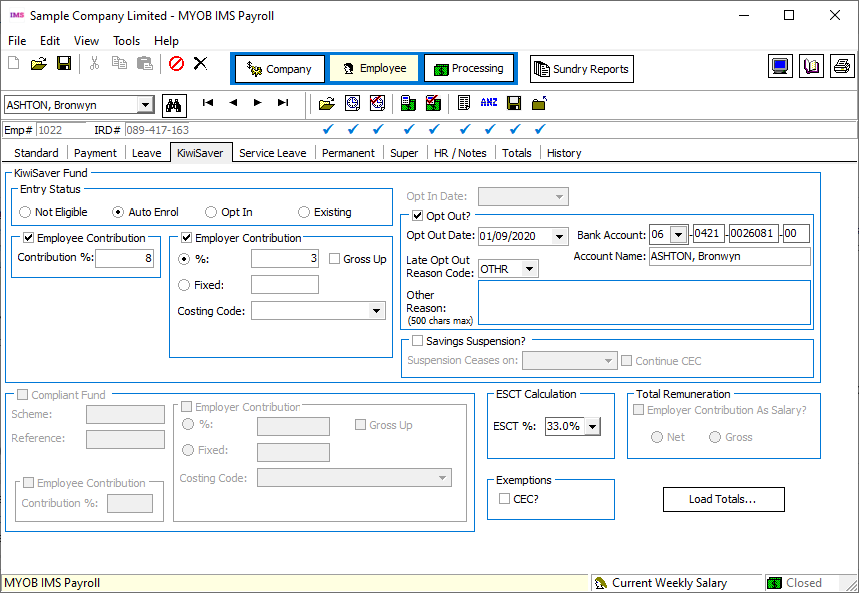
The Late Opt Out Reason Code dropdown contains a list of possible reasons and their codes, as well as an “OTHR” option, if the reason is not covered by any of the other codes. When “OTHR” is selected, you must enter the reason into the Other Reason field.
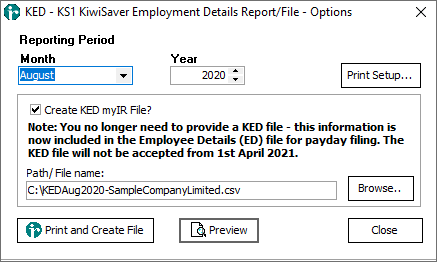
Because KiwiSaver information is now included in the ED file, it is no longer necessary to produce and send the KS1 KiwiSaver Employment Details (KED) file. You can still produce a KED file from IMS Payroll and send it to the IRD for now, but the KED file will not be accepted from 1 April 2021. A note has been added to the KED window to indicate this:
Payday Filing File Paths
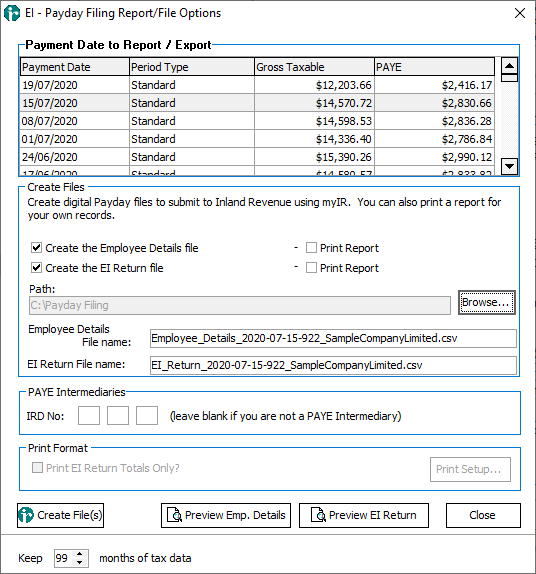
The Path field on the EI – Payday Filing Report window is now read-only—the only way to alter the path is to use the Browse button. This removes the possibility of accidentally entering an invalid path.
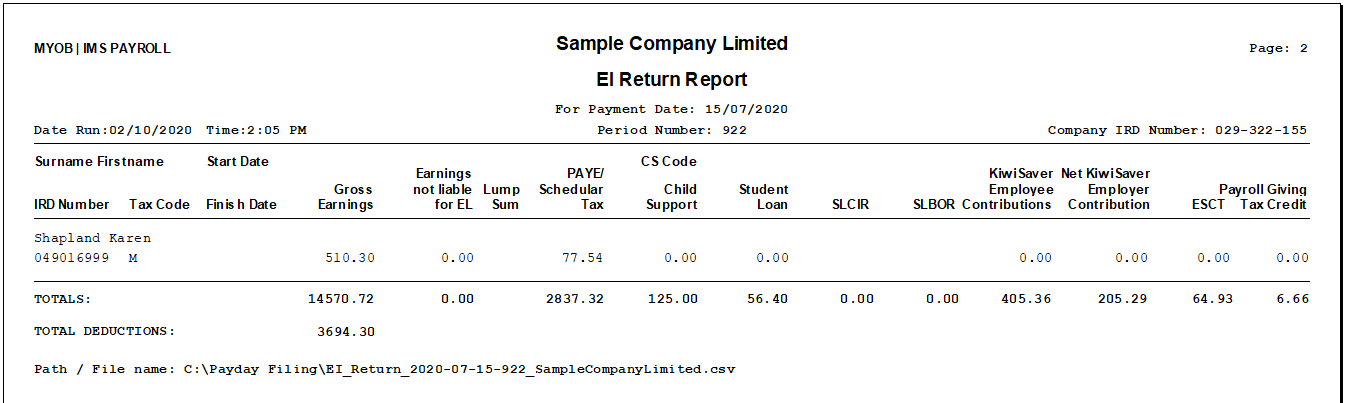
When an EI or ED file is printed or previewed, the file path of the generated CSV file is now displayed at the end of the report:
Updates to Data File Extraction
Options for extracting report data to a file have been added to the Employee Audit, Company Audit and Employee Notes Listing reports:
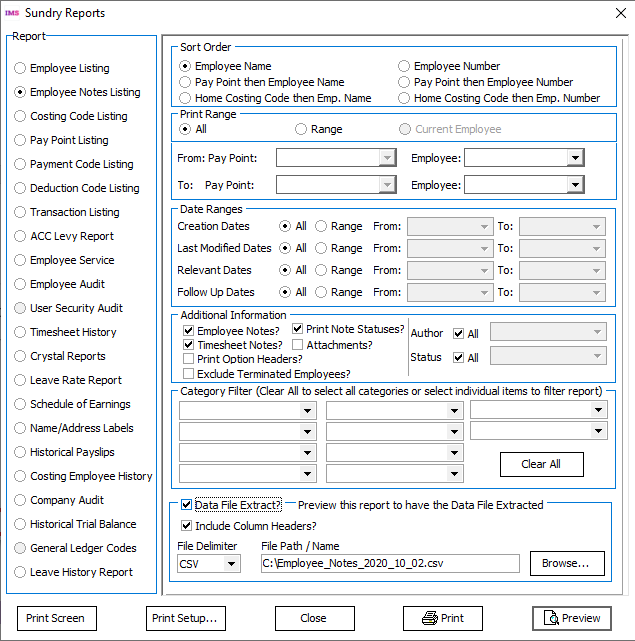
These options behave in the same way as the existing Data File Extract options on other reports.
For the Employee Notes Listing report, only employee note data is extracted. The Data File Extract options can only be enabled if the Employee Notes? option is ticked under Additional Information.
The label “Preview this report to have the Data File Extracted” has been added to all reports that include Data File Extract options—this emphasises to the user that they do not have to print out the report to extract data; the extraction happens on previewing the report.
Payroll Update
MYOB IMS Payroll now detects and accounts for the situation where an employee is terminated and their Annual Leave anniversary date falls within the termination period. In this case, the following message window appears on the 3-Check Input tab:
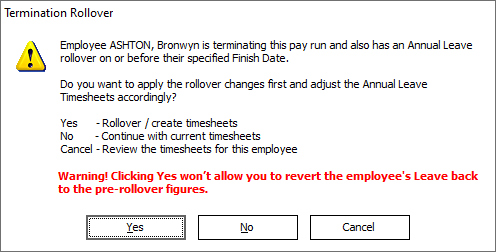
Clicking Yes applies the Annual Leave rollover and updates the employee’s timesheet with new items as necessary. You are then given the option of returning to the 2Timesheets tab to review the updates.
Once the rollover has been applied, it cannot be reversed.
Updates to Annual Leave in Weeks
Labels have been added to the Leave > Annual Leave tab of the Employee Information screen, to make it clearer what the units of the various values are:
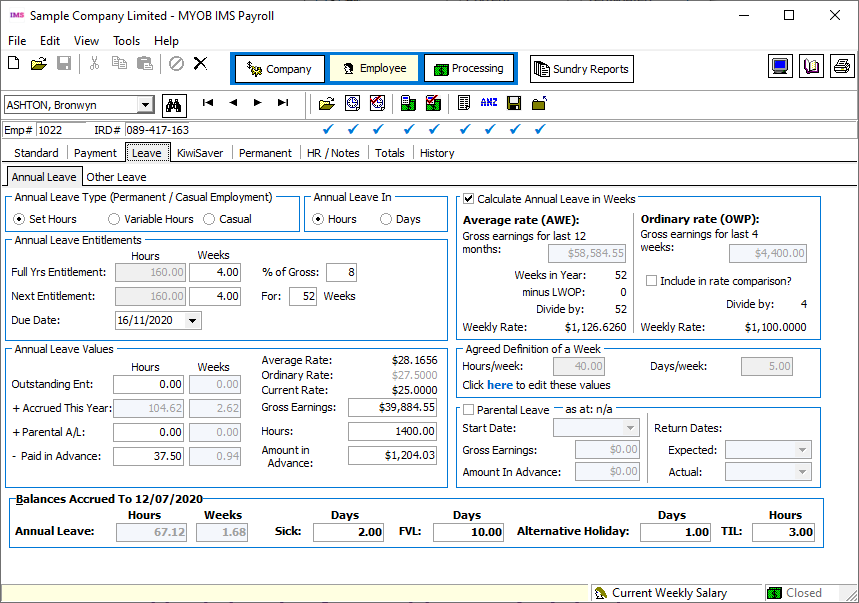
When an employee’s Annual Leave is calculated in weeks, the Weeks values are clearly labelled. For all employees, values are labelled Hours or Days depending on their Annual Leave In setting.
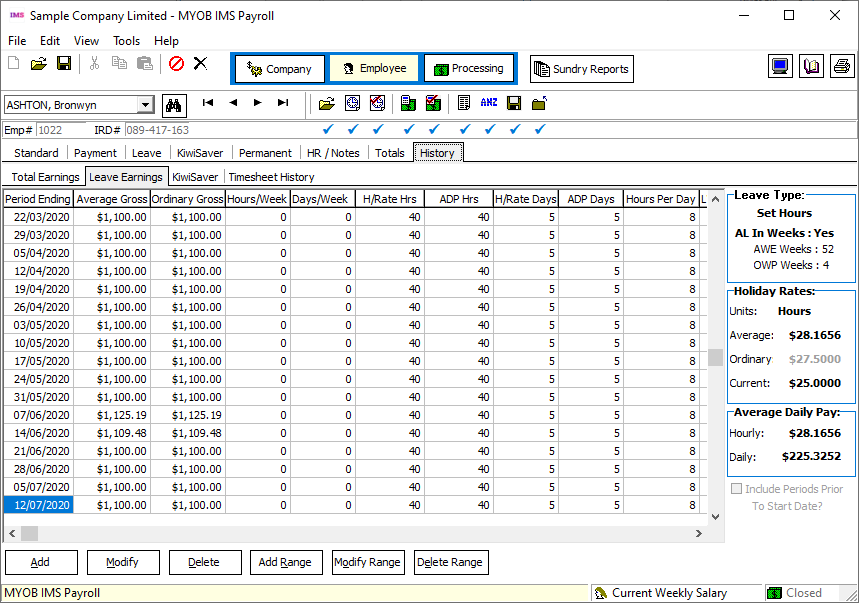
The History > Leave Earnings tab now displays extra information about the employee’s Leave in Weeks status:
Employee Data Export
A new Employee Listing Data Export utility is available at Tools > Files Export > Employee List.
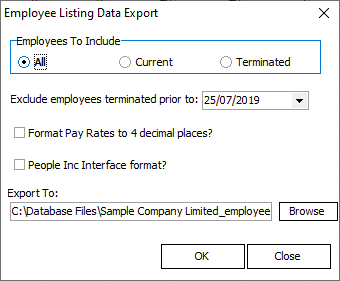
This utility extracts employee details from the following tabs of the Employee Information screen:
-
Standard
-
Payment
-
Leave
-
KiwiSaver
-
Superannuation
This data can be then imported into an external HR system
The options on this window are the same as the existing Vizual Personnel Data Export utility, with the addition of an Export To: file that lets you specify a file name and location before exporting. By default, file names are named in the format:
<payroll company>_employee list_<date>.txt
Resolved Issues
The following table details the issues that are addressed by this release.
|
Problem ID |
Description |
|
- |
When integrating with People Inc., if an employee’s Hours Worked were updated from People Inc., their Agreed Definition of a Week was not updated accordingly. This has been resolved. |
|
- |
Ticking the Include Periods Prior to Start Date option on the Leave Earnings History tab could cause an employee’s AWE and OWP to be calculated incorrectly. This has been resolved. |
|
- |
When exporting the Leave Rate report, the column header row would not be exported if the user had previously saved the report as PDF or CSV from the preview. This has been resolved. |
|
- |
When running the Leave Rate report with the Period set to “Current”, in some cases the Ordinary Gross was not calculated correctly for employees who had taken Leave Without Pay in the previous period. This has been resolved. |
|
- |
If an employee was set to calculate Annual Leave in weeks, the Days/Hours columns did not appear on the Average Daily Pay report. This has been resolved. |
|
- |
The Leave History report displayed Accrued values for employees who had been terminated in the pay period being reported on. This has been resolved. |
|
- |
When using the Global Load function to load payments, if the payment type’s unit was set up in hours, entering 1 unit would set the payment’s quantity to the amount of set hours instead of 1. This has been resolved. |