
MYOB IMS Payroll 6.63 release notes
Introduction
What’s New in this Release?
The release adds a utility to help companies manage the recent update to Sick Leave entitlements and updated the Xero integration feature. This release also addresses issues identified in previous releases.
Installing Your Upgrade
Desktop Installation
Before you install this version:
-
If you haven’t yet installed version 6.60, close all “Open” payroll periods in your payroll companies. (If you are upgrading from 6.60 to , there is no need to do this.)
-
Back up each of your payroll companies, via the Tools menu, after closing the last payroll period processed in each company.
-
Close all IMS applications on your PC.
Uninstalling an earlier version of IMS Payroll prior to installing this version is not recommended or required as any custom payroll software and modules will need to be reinstalled.
If you’re downloading the installer:
-
Double-click the executable file that you download (.exe as contained in the link).
-
You need to install the new version on every computer that has MYOB IMS Payroll installed.
IMS Payroll Cloud Installation
-
Log in to IMS Payroll Cloud.
-
Click the gold Upgrade button that appears at the bottom left of your screen. The Upgrade button will only appear when you click on a company with the “Closed” status.
-
Repeat for each payroll company you manage.
After installing, log in to a payroll company, go to Help > About IMS Payroll Partner and check that the version is Version .
If you have any issues, please call us on 0800 600 110.
New Features
Sick Leave Entitlement Update
From 24 July 2021, the minimum Sick Leave entitlement increases from 5 to 10 days per year—see for more information.
Any new employees added after installing this release will have the new Sick Leave entitlement by default, i.e. they will receive 10 days of Sick Leave at their Next Entitlement date. Any employees added using the Employee Import CSV file will default to a 10 day Sick Leave entitlement as well.
Updated Employee Import CSV templates are available—see page 6.
This release also adds a new utility that lets you update existing employees’ entitlements in bulk. Select Sick Leave Entitlement Update from the Tools menu to open the new utility:
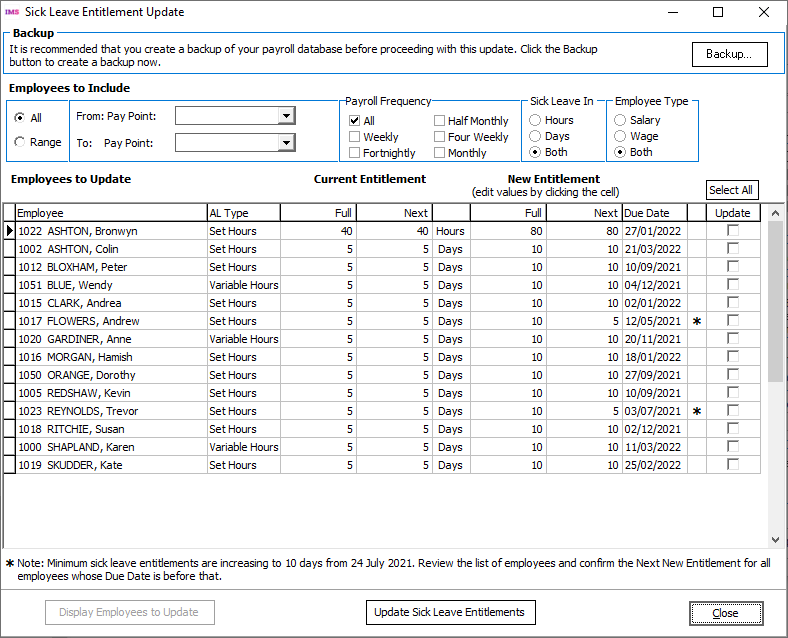
It is a good idea to perform a backup before updating employees’ entitlements in bulk—a Backup button is available on this window.
Use the filters in the Employees to Include section to specify the employees you want to view, then click Display Employees to Update to populate the main table with all employees who currently have a Sick Leave entitlement of less than 10 days, and who match the filters you have set. (For employees whose Sick Leave is recorded in hours, the system will convert their hourly entitlement to days using their Hours Worked Per Day value, to determine whether or not they need to be updated.)
The main table shows the employees’ current Full and Next entitlements and what their new entitlements will be after updating. The new Full and Next values can be adjusted if necessary, e.g. if you have special arrangements with an employee to give them more than the legal minimum.
Any employees whose Next Entitlement date is before 24 July 2021 are highlighted with an asterisk (*). You may need to adjust these employees’ entitlements before updating.
Once you have made any necessary adjustments, tick the boxes for the employees you want to update (or click Select All), then click Update Sick Leave Entitlements.
Xero Integration Update
This release updates the General Ledger Export tool when exporting to Xero Online. You can now log in to multiple Xero companies at the same time.
When “Xero Online” is selected as the General Ledger Fie Format, a Setup Journal Configuration option becomes available:
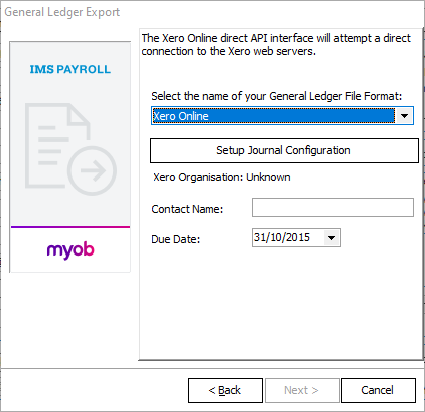
Click this button to open the Xero Library Browser window:
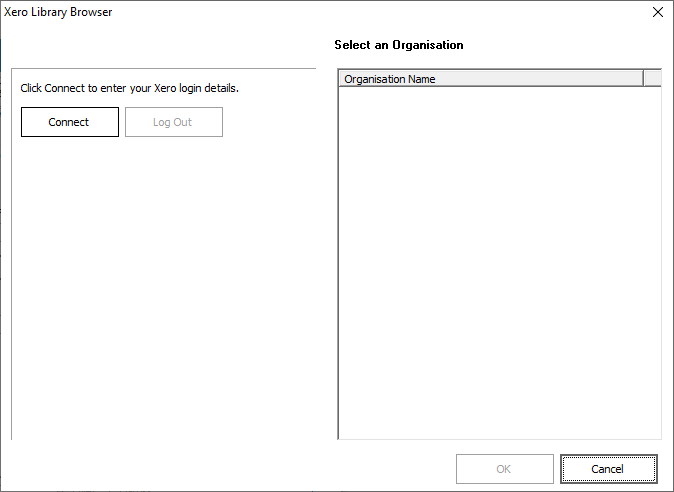
Click Connect to log in to your Xero account. Once you’ve logged in, you can select the company to connect to and click Allow access.
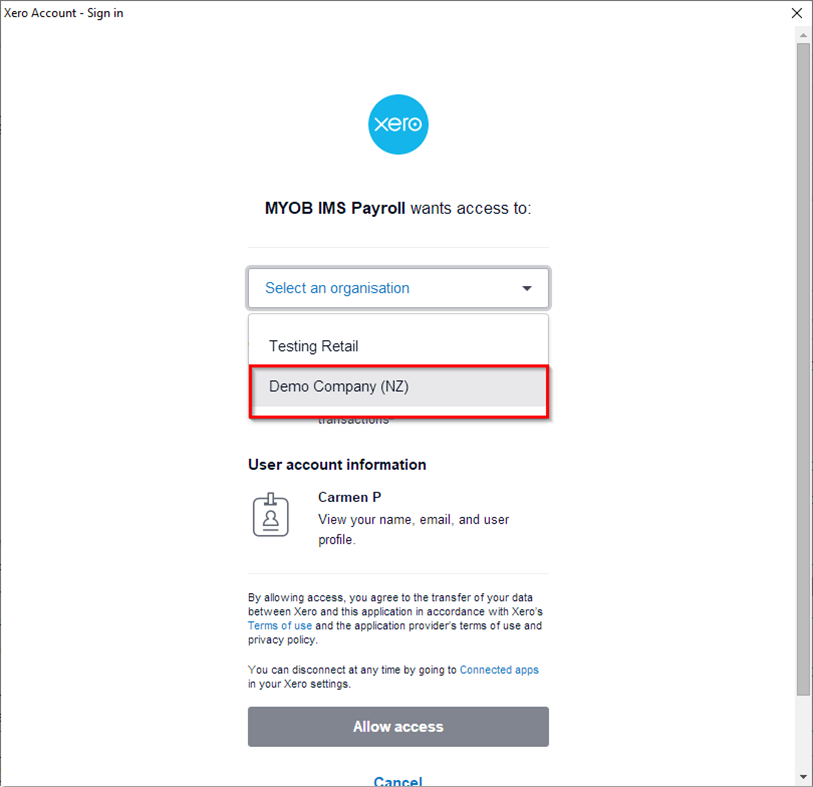
If your Xero account is connected to multiple companies, you can select Continue with … organisations to select all companies.
Once this is done, you are returned to the Xero Library Browser window, where the company or companies you selected are now displayed:
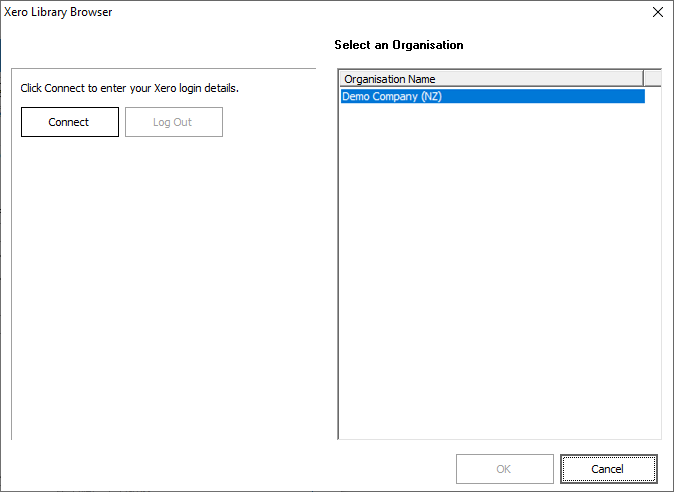
Select the company that you want to export data to and click OK. You are returned to the General Ledger Export window, where the selected company is now displayed next to Xero Organisation:
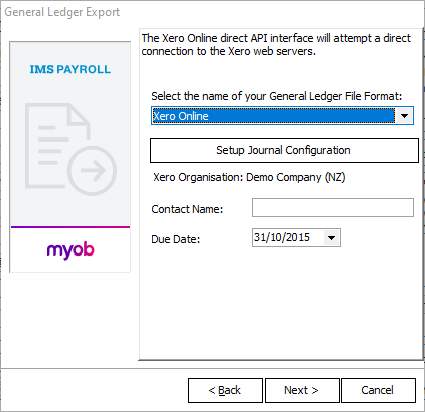
Click Next and continue with the export as normal.
Updated CSV Templates
The following CSV templates for employee imports have been updated:
-
Employee Import Field Specification
-
Employee Import Field Description
-
Employee Import File Template
These files are available in the .
Updates to Other Modules
The release includes the following updates to additional modules in the MYOB IMS Payroll system.
Fixes to other modules in this release are detailed in the Resolved Issues section on page 8.
People Inc
This release supports version 1.30 of the MYOB IMS Payroll – BTL People Inc Integration.
This version supports the update to the minimum Sick Leave entitlement (see page 2):
-
New Set Hours or Variable Hours employees default to 10 days (or the hourly equivalent).
-
The maximum Sick Leave has been increased from 5 to 20 days.
Time Import
When importing Leave Without Pay (LWOP) payments for AL In Weeks employees, the following warning message is now displayed: “AWE divisor should be adjusted by the number of whole or part weeks of LWOP taken in excess of one.”
This adjustment can be made by double-clicking on the LWOP record just imported and entering the full weeks LWOP in the field provided.
NanoRepair
This release includes version 1.31 of the NanoRepair utility, featuring an updated look and feel.
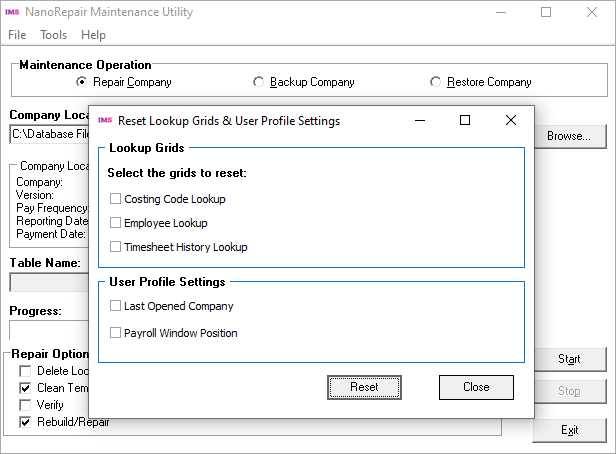
You can now use NanoRepair to reset profile settings as well as lookup grids. The Tools > Reset Lookup Grids menu option has been renamed to Reset Profiles / Lookup Grids—selecting this option opens an updated window where options related to user profile settings are now available:
-
Last Opened Company – The Welcome to IMS Payroll window displays the company that you last opened. Ticking this box and clicking Reset resets the last opened company to the Sample Company.
-
Payroll Window Position – IMS Payroll remembers the position of the main window on your screen, including which monitor it appeared on if you have multiple monitors. Ticking this box and clicking Reset resets the main window’s position to whichever monitor is currently set as the main display.
Resolved Issues
The following table details the issues that are addressed by this release.
MYOB IMS Payroll
|
Problem ID |
Description |
|
- |
In some cases, the warning message about public holidays and outstanding Annual Leave that can appear during the termination did not appear when it should have. This has been resolved. |
|
- |
The Pay Period Exceptions report calculated the base rate differently for Set Hours employees and Variable Hours/Casual employees. This has been resolved. |
|
- |
When entering leave for an employee who has been on parental leave and is having both Parental AL leave and AL Taken, the warning message to check the leave rates on the AL taken did not appear when it should have. This has been resolved. |
|
- |
The Sick Leave Due Date for a newly created employee was not always calculated correctly. This has been resolved. |
Timesheet Import
|
Problem ID |
Description |
|
When using the Standard CSV import file format, the ADP Rate Days would not be imported when the imported Holiday Rate Days was zero/blank on the same Days record. This has been resolved. |
People Inc
|
Problem ID |
Description |
|
- |
When an employees’ KiwiSaver savings suspension ended in People Inc, this was not updated in IMS Payroll. This has been resolved. |
|
- |
Employees under the age of 18 would not be imported if the CEC Exempt option was ticked for them. This has been resolved. |