
Automatic Credit Card Surcharges
When customers choose to pay by credit card, you can automatically apply a surcharge to help recover credit card processing costs. Surcharge is a small fee added to a credit card transaction to cover your company's costs for processing the payment. You can configure and apply a surcharge to each payment created with a credit card or POS terminal. The surcharge is calculated by the processing center and added to the transaction total (including sales tax and applicable fees), then itemized so it's visible in the payment and on receipts.
The surcharge functionality supports only monthly billing. In other words, your company (a merchant) pays the fees to the processing center once a month. Surcharging in MYOB Acumatica works only when the Compliant Surcharge service is enabled for the merchant location in the processing center.
What You Need to Know
- Fees are regulated by states. Most states cap the surcharge at 3% of the purchase, including sales tax. CT (Connecticut), MA (Massachusetts), Maine (ME), and PR (Puerto Rico) prohibit surcharging. Surcharging isn't supported outside of USA.
- Surcharging is not allowed on ACH payments or debit card payments.
- Each surcharge is shown in a separate line on the bill or receipt and its amount doesn't exceed the cost of processing.
- Sales taxes are applied to surcharges. In other words, a surcharge is applied to the total transaction amount that includes the sales tax and any other applicable fees.
Configuration of Surcharge Functionality
A system administrator should make sure that the Compliant Surcharge functionality is enabled for the merchant location in the processing center.
To configure the surcharge functionality:
- On the Entry Types (CA203000) form, create a new entry
type with the following settings:
- Disb./Receipt: Receipt
- Module: CA
- Default Offset Account: Specified
- On the Cash Accounts (CA202000) form, add this entry type to the cash account specified for the payment method.
- On the Processing Centers (CA205000) form, create a new processing center.
- In the Cash Account box, select the cash account for the
processing center. Attention:You should add the entry type for surcharges to this cash account as well.
- On the Preferences tab, select the Compliant
Surcharge check box.Attention:This check box appears on the tab when a new processing center is created. It won't be shown for existing processing centers.
- In the Surcharge Entry Type box, select the entry type set up for surcharges.
- On the form toolbar, click Save.
Reviewing the Surcharge Before Processing a Payment
On the Payments and Applications (AR302000) and Cash Sales (AR304000) forms, the surcharge applied to each payment is shown on the Charges tab and in the Finance Charges box in the Summary area (see below).
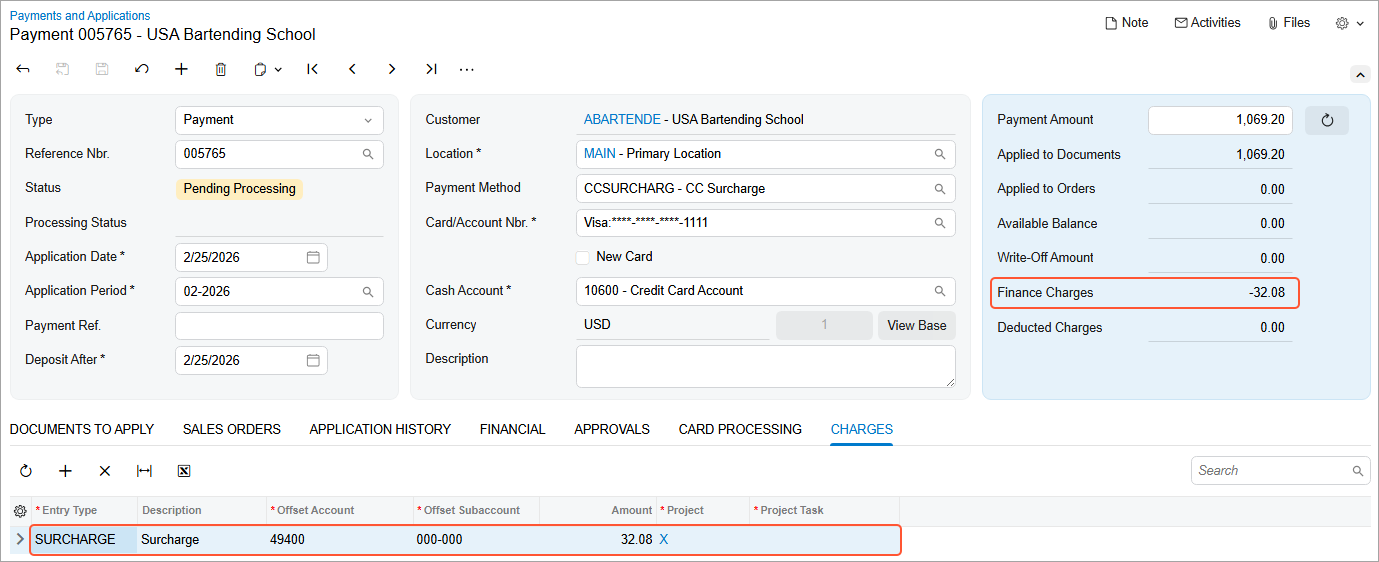
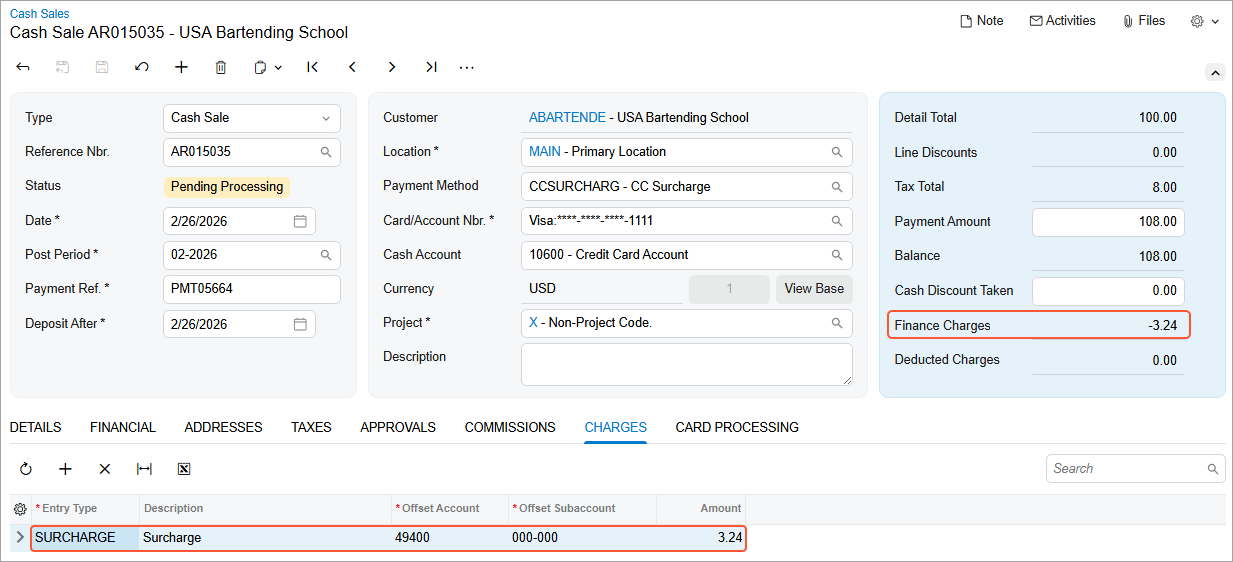
What happens when you save a payment or cash sale with the credit card or POS payment method:
- The system retrieves a calculated surcharge and shows it on the form (see above).
- For saved cards: a surcharge is calculated once you select the customer payment method.
- For new cards entered in a hosted form: the system may show an assumed surcharge initially. After the card is entered, the system updates the surcharge amount. If the card is debit, the surcharge becomes zero.
- If you change the payment method or processing center before processing the payment, the system updates the surcharge amount accordingly.
The line added on the Charges tab:
- Is added automatically by the system
- Can't be selected manually, edited, or deleted
- Remains non-editable even for unreleased payments
- Is removed automatically if the payment method is changed to a non-eligible method (for example, CHECK or ACH)
Applying Surcharges Across Payment Channels
The surcharge functionality is applied not only in MYOB Acumatica but also in customer-facing payment flows:
- Processing actions: Surcharges are applied when you click
Authorize, Capture,
Void, or Refund on the More menu of the
Payments and Applications (AP302000) or Cash Sales (AR304000) form.Attention:The amount shown in the Financial Charges box is negative for authorized and captured payments and positive for voided payments and refunds.
- Payment links: Surcharges are applied to transactions processed through payment links. For more details about payment links, see Processing of Payment Links.
- MYOB Acumatica Customer Portal: The surcharge amount is shown before the payment is processed and only when a credit card payment method is selected.
Posting Surcharge Amounts to the GL
When you release a payment that includes a surcharge, the system automatically generates a GL entry using the selected surcharge entry type. The surcharge is posted to the default offset account, separating surcharge income from the main sales income.
You can review this amount on the Journal Transactions (GL301000) form.
Surcharges in Settlement Batches and Bank Deposits
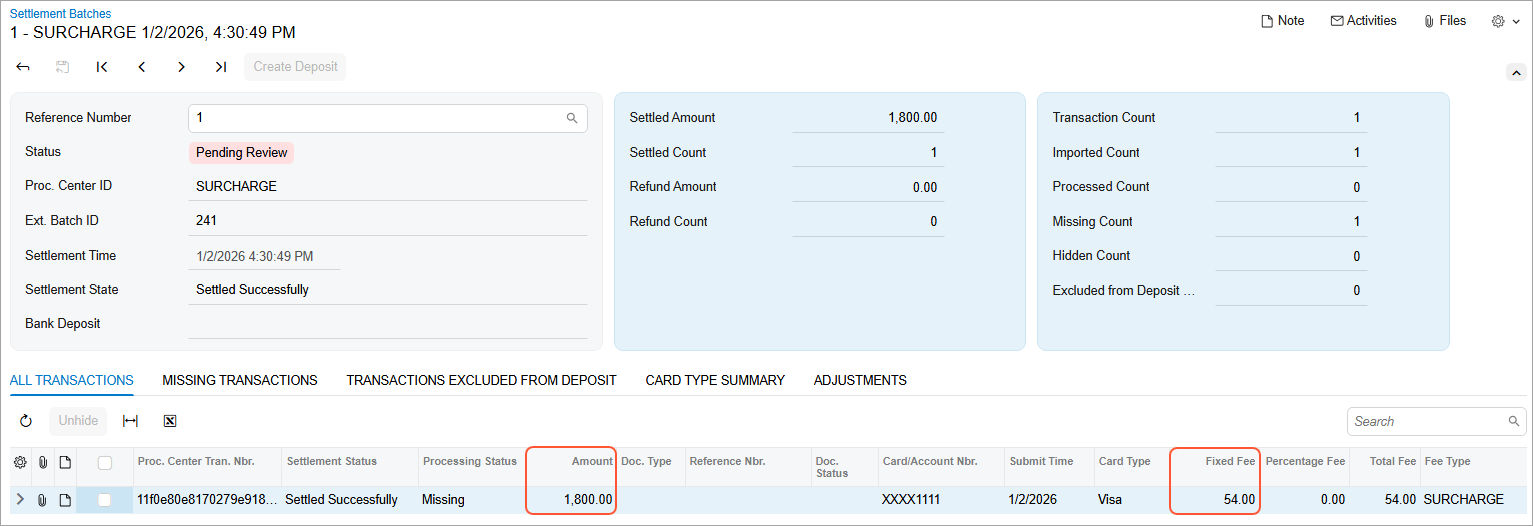
In settlement batches on the Settlement Batches (CA307000) form, each payment is displayed as a single line:
- Payment amount is shown in the Amount column
- Surcharge amount is shown in the Fixed Fee column
Below is a settlement batch with a surcharge applied.
For more details on using settlement batches, see Performing Settlement of Credit Card Payments and EFTs.
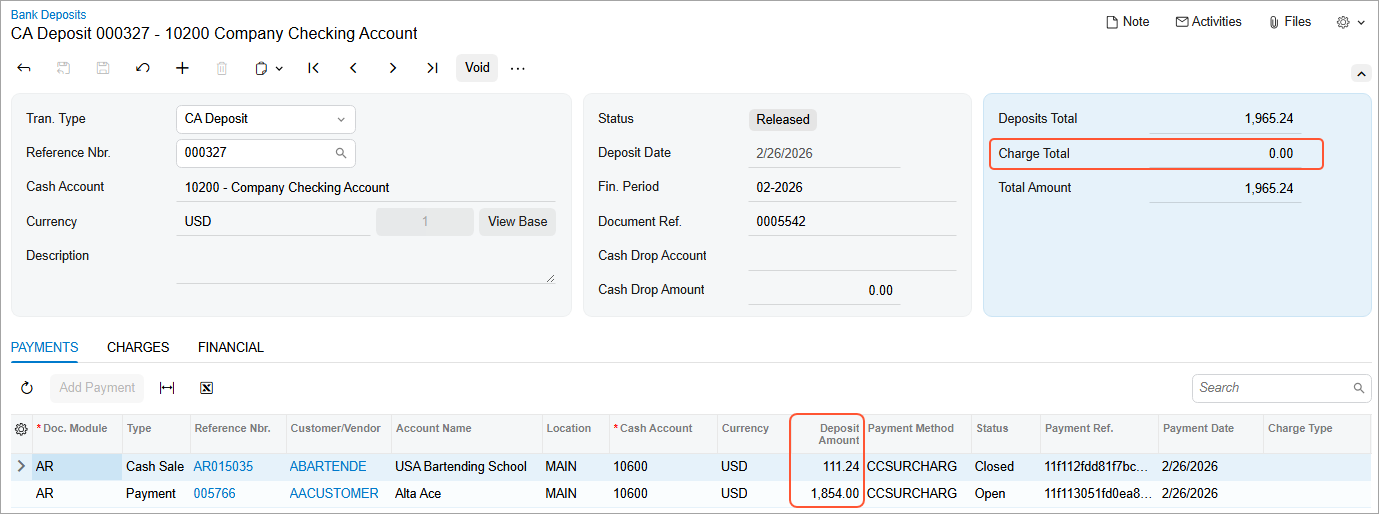
The surcharge functionality supports monthly billing (the processing center bills at the end of the month and does not withhold the surcharge amount from the settlement batches). Because the surcharge is treated as funds coming in, it doesn't appear as a negative charge on the Bank Deposits (CA305000) form. Instead, it's included in the deposit amount displayed on the Payments tab, as shown below.
For more details on bank deposits, see Preparation of Deposits.
Reviewing Surcharges on Receipts
On the printed forms of the Invoice/Memo (AR641000) and Payment Receipt (AR643000) reports, every surcharge is shown as a separate line item.
Below is the printed Payment Receipt report with a surcharge displayed in a separate line.
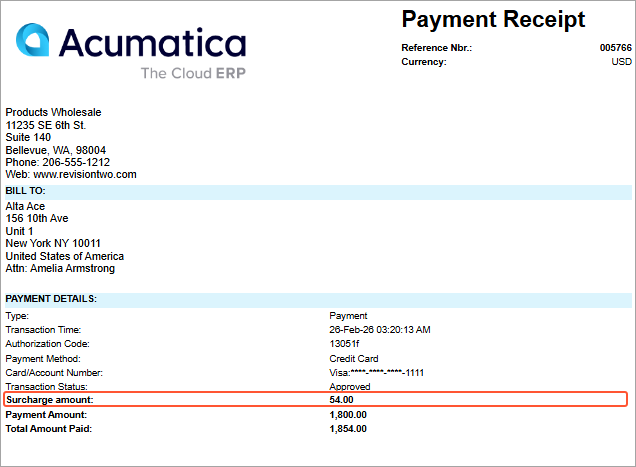
This line appears on the reports for documents that have the Credit Card or POS Terminal means of payment.