
Acumatica Add-In for Outlook: Incoming Document Management
Emails may include attachments, such as vendor bills. If the attached files are in a recognizable format, such as PDF, they can be submitted for recognition in MYOB Acumatica if the AP Document Recognition Service feature is enabled on the Enable/Disable Features (CS100000) form. Once the documents are recognized, they can be used to create the corresponding records in the system.
When you open an email with attachments while the Acumatica add-in for Outlook is running, it tries to find related documents on the Incoming Documents (AP301110) form. That is, it searches for recognized incoming documents that have a link to the currently open email.
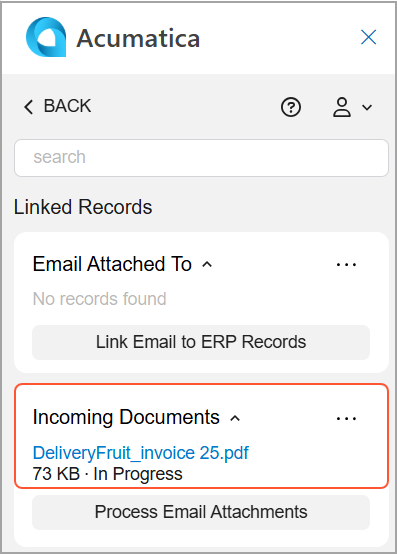
If any matching documents are found in MYOB Acumatica, they appear in the Incoming Documents section of the Linked Records form. You can click any incoming document’s name (which is a link) to open the document on the Incoming Documents form of your MYOB Acumatica instance.
If the incoming document is assigned to a vendor, its name is also displayed next to the document's name, which is a link. You can click the link to open the vendor on the Vendors (AP303000) form.
Attachment Recognition
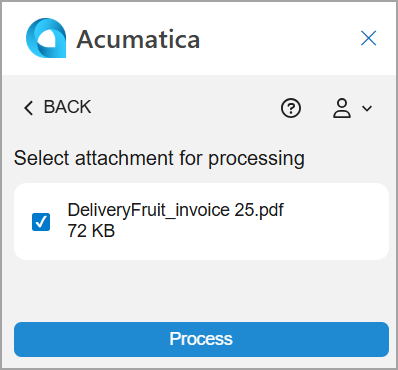
To recognize an email attachment that hasn't been recognized yet in MYOB Acumatica, you click Process Email Attachments on the Linked Records form. On the Attachment Selection form, which opens (see below), you select the document you want to submit for recognition and click Process.
You return to the Linked Records form, which refreshes and shows the recognized document in the Incoming Documents section (see below).
Access Rights
Users with the following user roles have the Delete access rights to the Attachment Selection form:
- AcumaticaSupport
- Administrator
- AP Admin
- AP Clerk