
Acumatica Add-In for Outlook: Opportunity Management
When you communicate with a potential or existing customer in Outlook and realize that an email may lead to a new deal, you can easily use this email to create an opportunity in MYOB Acumatica by using the Acumatica add-in for Outlook. You can also link the email to an existing opportunity.
When you open an email with the Acumatica add-in running, it tries to find related opportunities on the Opportunities (CR304000) form. That is, it searches for opportunities whose email addresses match the one selected in the filter box on the Related Records form of the Acumatica add-in.
If matching opportunities are found, they appear in the Opportunities section of the Related Records form. You can:
- Link the email to the related opportunity record. For details, see Acumatica Add-In for Outlook: Email Activity Management.
- Review the opportunity by clicking its name, which is a link. The record opens on the Opportunities form in your MYOB Acumatica instance.
- Quickly create a related opportunity and link it to the email, as described in the next section.
Opportunity Creation
To create an opportunity with the email address selected in the Filter box of the Related Records form, click Add Opportunity in the Opportunities section—either directly or through the More menu.
The Opportunity form opens (see below), and the following boxes may be filled in automatically:
- Description: The email subject.
- Business Account: The name of the existing related business account with the same email address as the address specified in the filter box; otherwise, the box is empty.
- First Name (Contact section): The first word of the email address if it consists of two or more parts separated by spaces (for example, Mill Gibson <mill.gibson.mail.com>); otherwise, the box is empty.
- Last Name (Contact section): The second word of the email address if it consists of two or more parts separated by spaces (for example, Mill Gibson <mill.gibson.mail.com>). If a last name can’t be derived, the email address selected in the filter box is inserted.
- Email (Contact section): The email address selected in the filter box.
- Link Email to Opportunity: Selected.
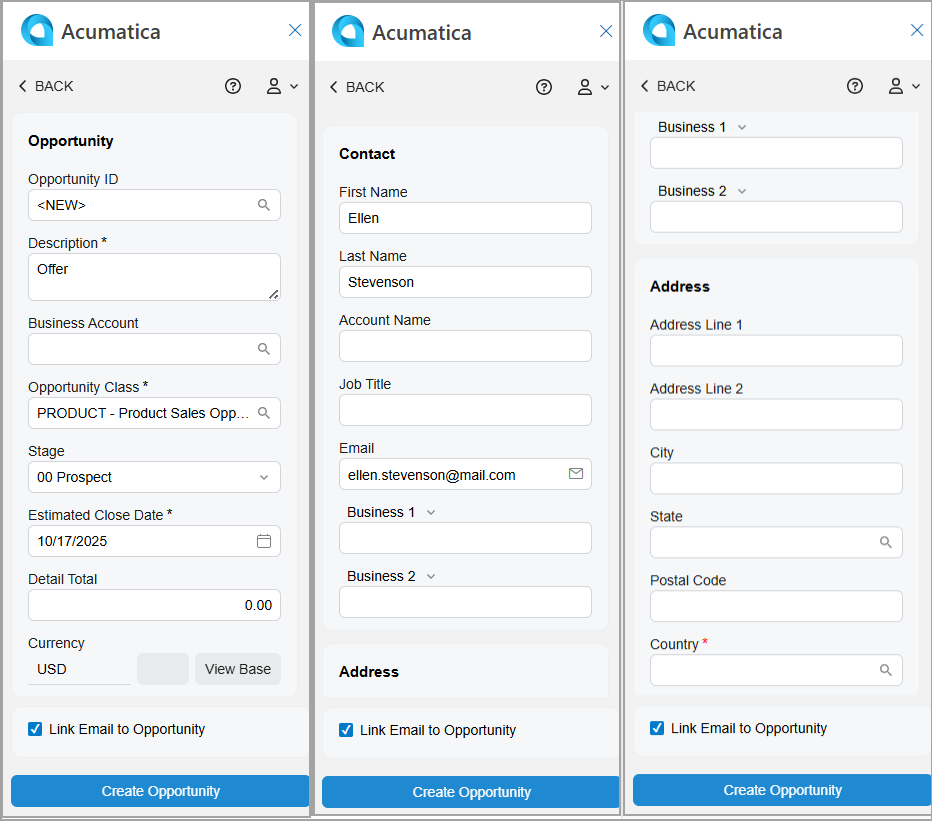
After you click Create Opportunity, the form you go to depends on the state of the Link Email to Opportunity check box:
- If the check box is cleared, you return to the Related Records form. The system refreshes the Opportunities section and shows the newly created opportunity.
- If the check box is selected, you go to the Email Activity form. The system fills in the Related Entity box with a new opportunity and selects Opportunity in the Related Entity Type box. For details, see Acumatica Add-In for Outlook: Email Activity Management. The email is linked to the newly created opportunity in MYOB Acumatica.
Access Rights
Users with the following user roles have the Delete access rights to the Opportunity form:
- AcumaticaSupport
- Administrator
- CR Marketing Manager
- CR Sales & Marketing Admin
- CR Sales Representative