
Acumatica Add-In for Outlook: Email Activity Management
Keeping all communication with customers or partners in one place helps keep your work organized and transparent. The Acumatica add-in for Outlook lets you easily store email correspondence along with the relevant records in MYOB Acumatica.
While viewing an email in Outlook, you click the Acumatica on the toolbar to open the add-in panel. From there, you can link the email to one or more records on the Related Records form. The same email can be saved multiple times, if needed.
Linking an Email to Records
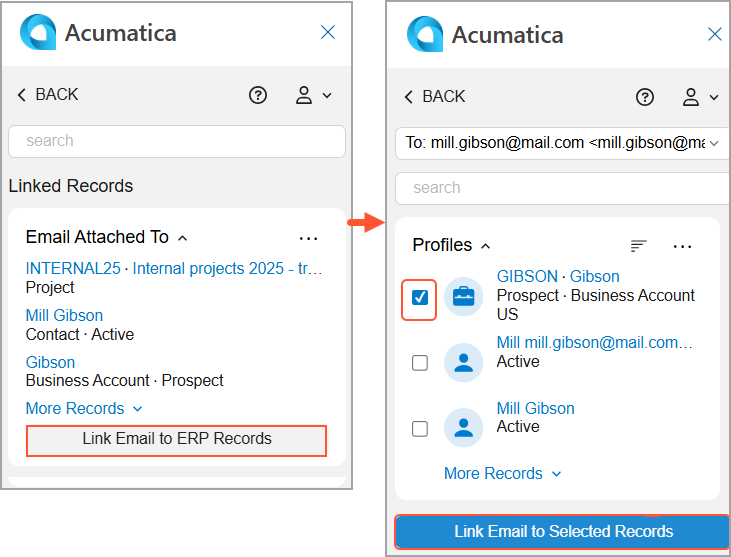
You use the Related Records form of the Acumatica add-in panel to link the email you're viewing to records. On this form, select one or more records and click Link Email to Selected Records; the Email Activity form opens.
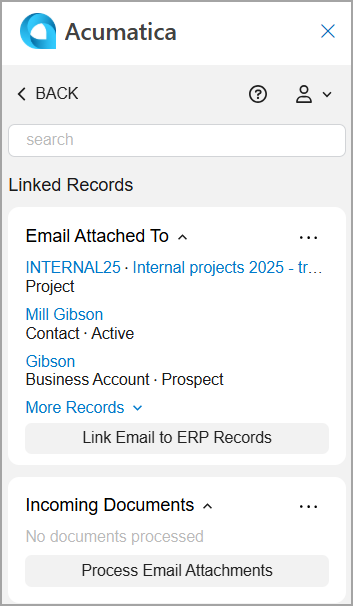
If the Linked Records form is initially displayed on the add-in panel, click Link Email to ERP Records to open the Related Records form. Then you can link the email, as shown below.
Finishing Email Activity Creation
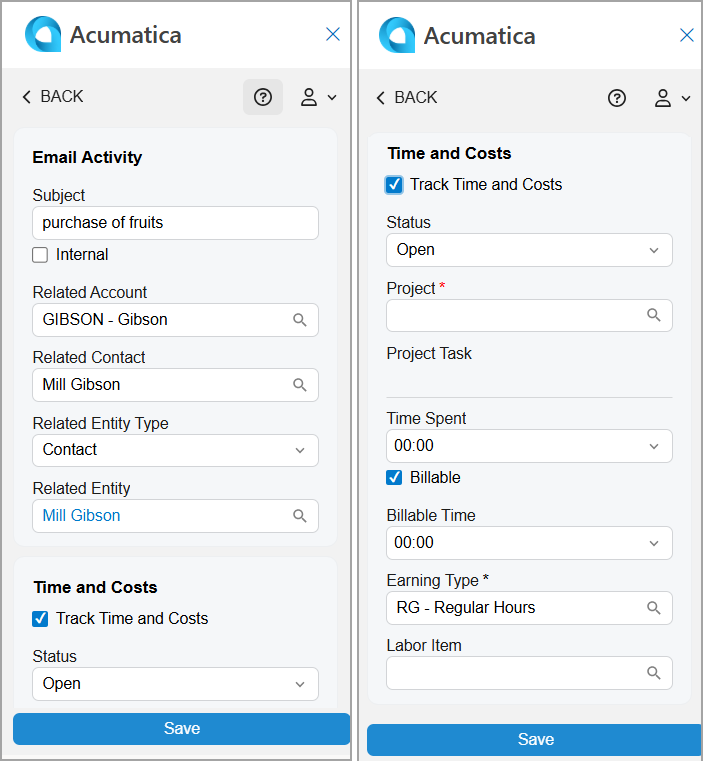
To finish the process of linking records to the email, you finish creating the email activity on the Email Activity form (see below). Depending on the type of record you selected on the Related Records form, the following boxes of the email activity may be filled in automatically:
- Subject: The email message's subject.
- Related Account: The business account name if a business account was selected in the Profiles group of records.
- Related Contact: The contact name if a contact was selected in the Profiles group of records.
- Related Entity Type: The type of entity to which the email will be linked. If both a contact record and a business account record were selected in the Profiles group of records, the Contact entity type is selected by default. If both a record from the Profiles group and a record from another group were selected, the type of record from the other group will be used.
- Related Entity: The entity (record) of the selected type to which the email will be linked.
- Status: Open if the Track Time and Costs check box is selected; otherwise, it's Completed.
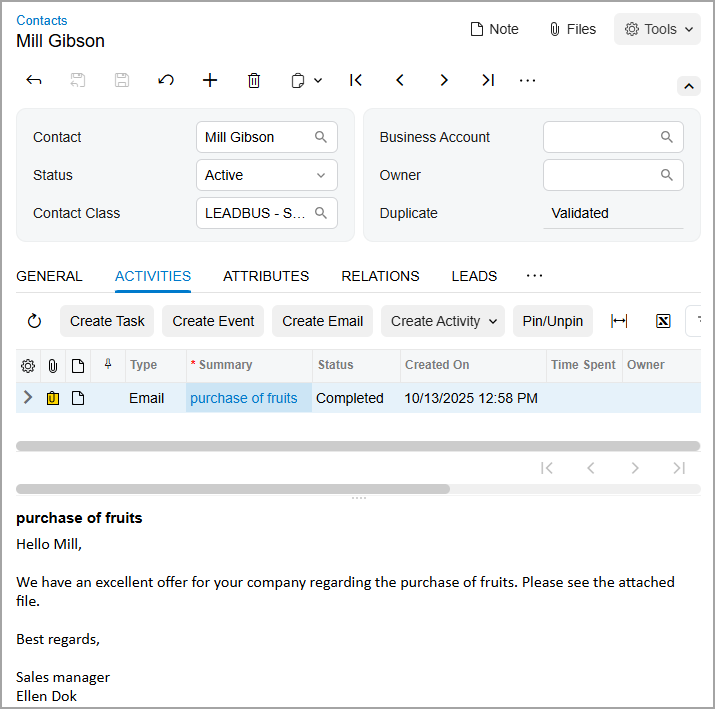
In MYOB Acumatica, the saved email activity appears on the Activities tab of the data entry form for the record selected in the Related Entity box, as shown below. Any email attachments are saved as files and linked to the email activity. The activity’s status is changed to Completed, and Completed On is populated with the current date and time.
Access Rights
Internal employees with the following user roles have the Delete access rights to the Email Activity form:
- AcumaticaSupport
- Administrator
- CR Marketing Manager
- CR Sales & Marketing Admin
- CR Sales Representative
- CR Support Admin
- CR Support Representative