
MYOB Acumatica Integration with Gmail: Installation of the Gmail Integration Customization Project
Gmail integration in MYOB Acumatica is provided as a customization project. After publishing, you need to enable the Gmail Integration feature on the Enable/Disable Features (CS100000) form.
To download and publish the customization project in your MYOB Acumatica instance, follow the steps described in the next sections.
Downloading the Customization Project Package
You can find the customization project packages for MYOB Acumatica versions 2022 R1 and later here: Acumatica Community Gmail Integration.
In the Installation section, select the appropriate MYOB Acumatica version and click download in the Download Link column. The customization project package is downloaded to your device.
You can verify the version of the customization project by its file name, which has the following format: PXGmail<xx.xxx.xx>.zip, where <xx.xxx.xx> is the MYOB Acumatica version.
Publishing the Customization Project
To publish the customization project in your MYOB Acumatica instance, do the following:
- Sign in to MYOB Acumatica.
- On the Main menu, click More Items and select the
Customization workspace.
Figure 1. The tile of the Customization workspace 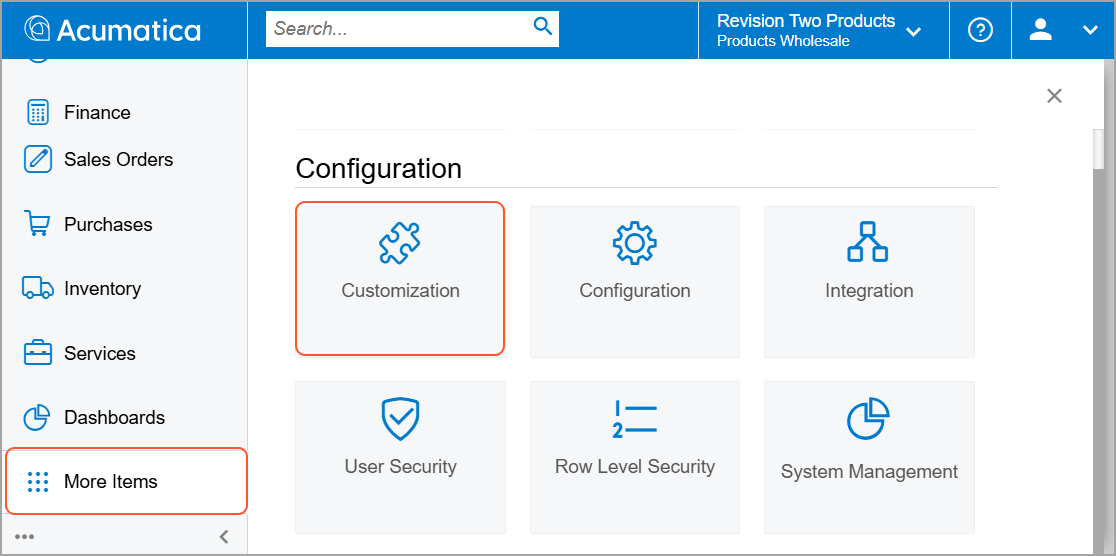
- In the Customization workspace, click Customization
Projects.
Figure 2. The link to the Customization Projects form 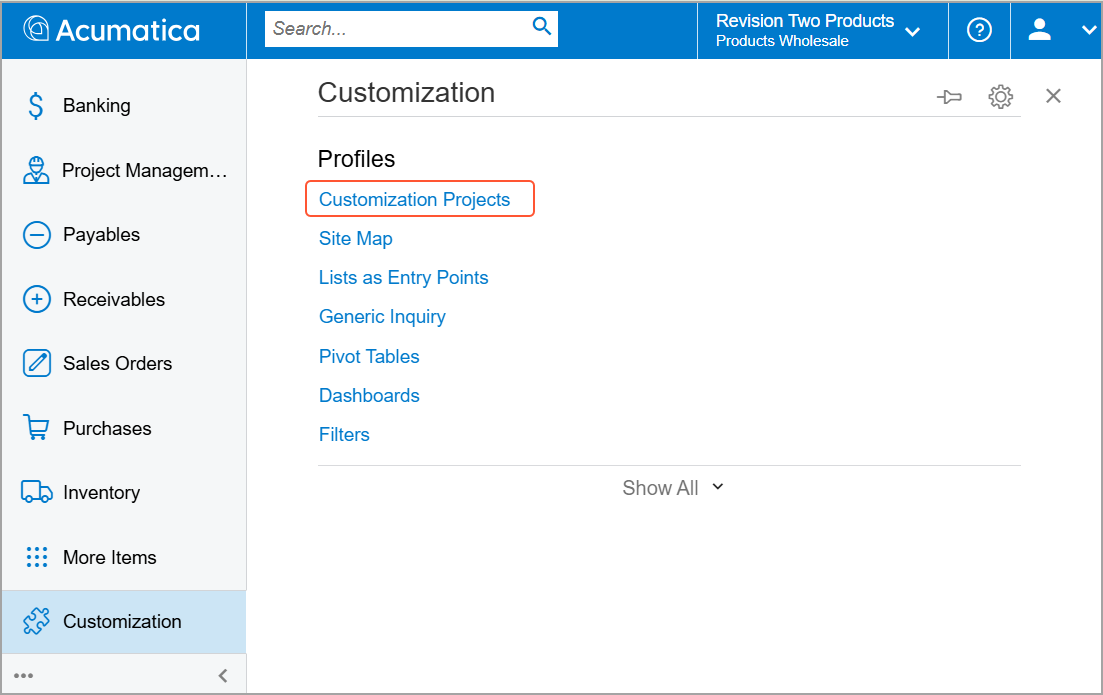
- On the Customization Projects (SM204505) form, click
Import on the form toolbar and select the customization project
package that you downloaded earlier.
Figure 3. Importing of the customization project package 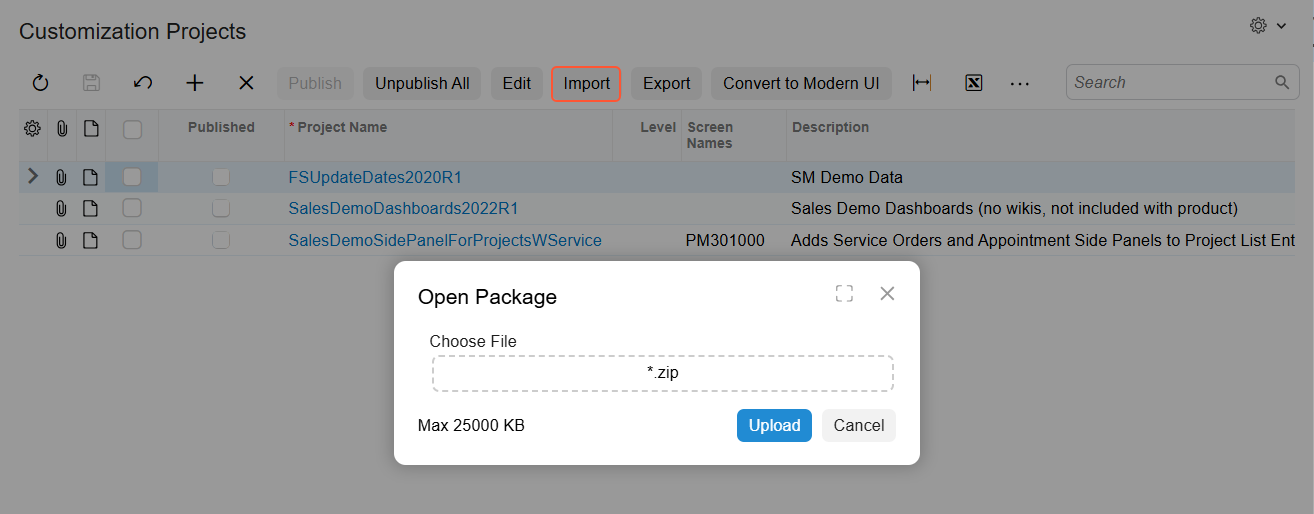
- Select the uploaded customization project and click Publish on
the form toolbar.
Figure 4. Publishing of the customization project 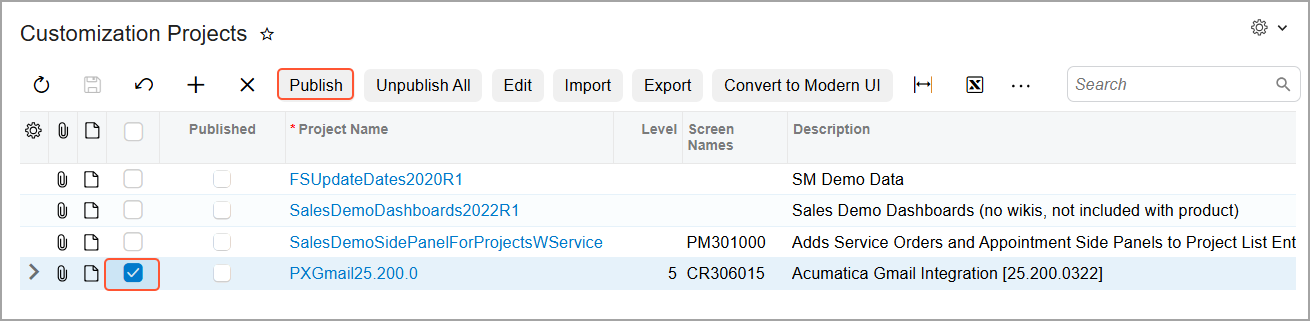
Wait until the publishing is complete.
Figure 5. The published customization project 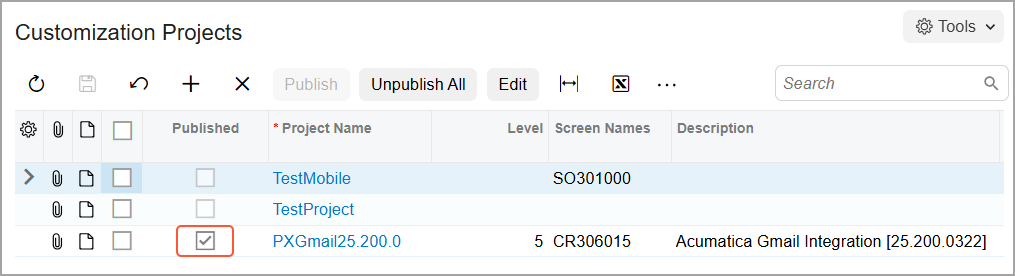
- On the Enable/Disable Features (CS100000) form, enable the Gmail Integration feature in the Third-Party Integrations group of features.
You can now install the Gmail add-on.