
MYOB Acumatica Integration with Gmail: Using a Local MYOB Acumatica Site for Gmail Integration
The Gmail integration is designed to work with live MYOB Acumatica sites hosted over HTTPS. To use this integration with a local MYOB Acumatica instance, you need to configure the site to use HTTPS with a valid SSL certificate. This is required because Gmail integration uses secure OAuth authentication.
Preparing the System Environment
- Open the Internet Information Services (IIS) Manager.
- On the Connections panel, expand the Sites
node and locate your MYOB Acumatica instance where the Gmail integration customization project is installed. This site may
be Default Web Site, as shown below.
Figure 1. The Default Web Site 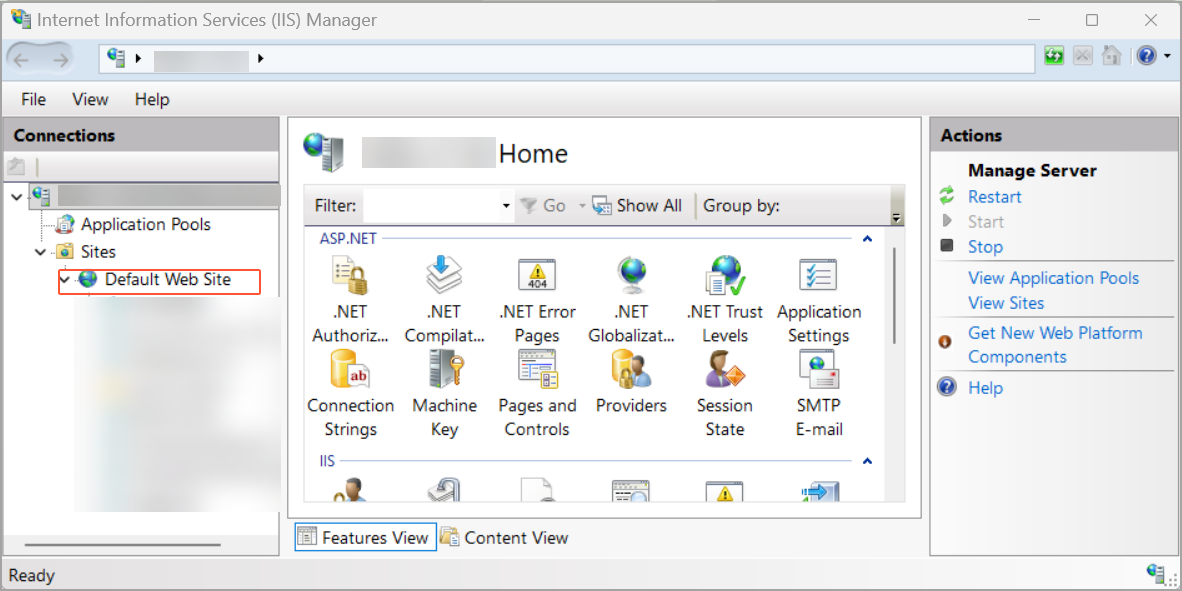
- Right-click the site and select Edit Bindings.
Figure 2. Selection of Edit Binding 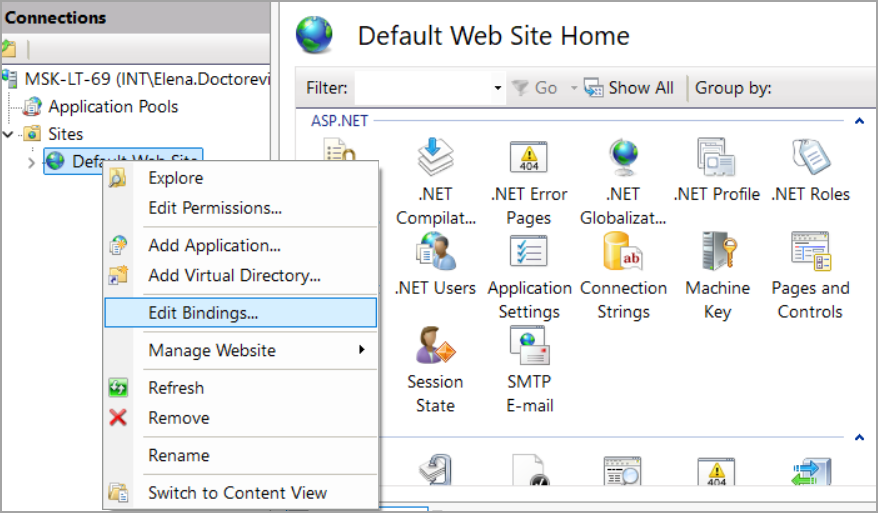
- In the Site Binding dialog box, click
Add.
Figure 3. Adding Binding 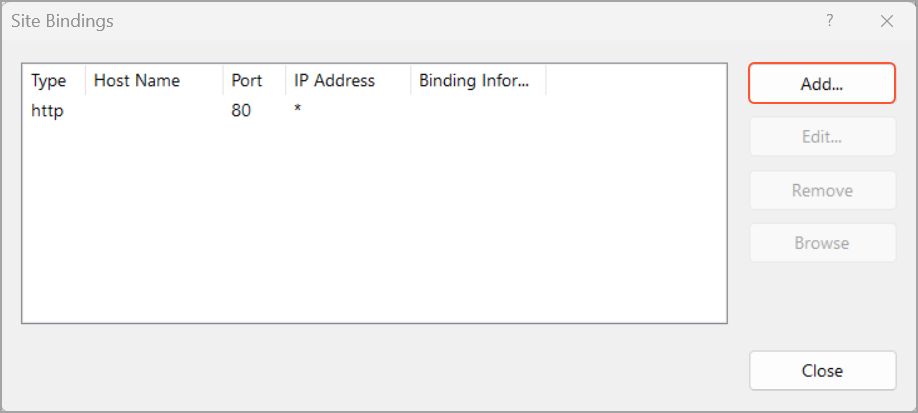
- In the Add Site Binding dialog box, specify the following
settings, and then click OK:
- Type: https
- SSL certificate: Your computer name
Figure 4. Specifying binding settings 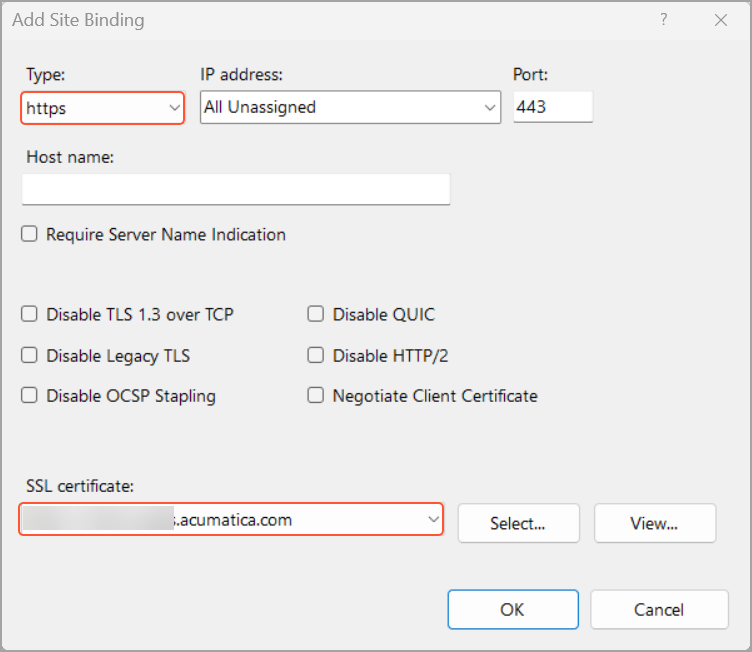
A new HTTPS binding is added.
Figure 5. The HTTPS binding 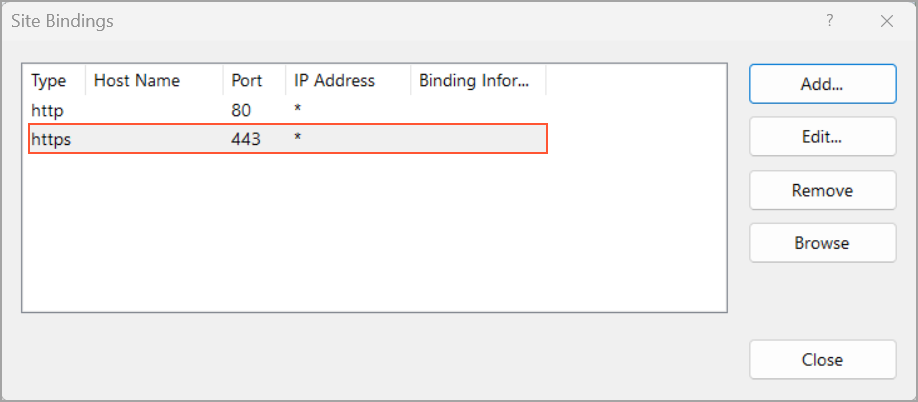
- Close the dialog box.
- In the Actions pane, restart the site by doing one of the
following:
- Click Stop, and then click Start
- Click Restart
Figure 6. The Manage Website actions 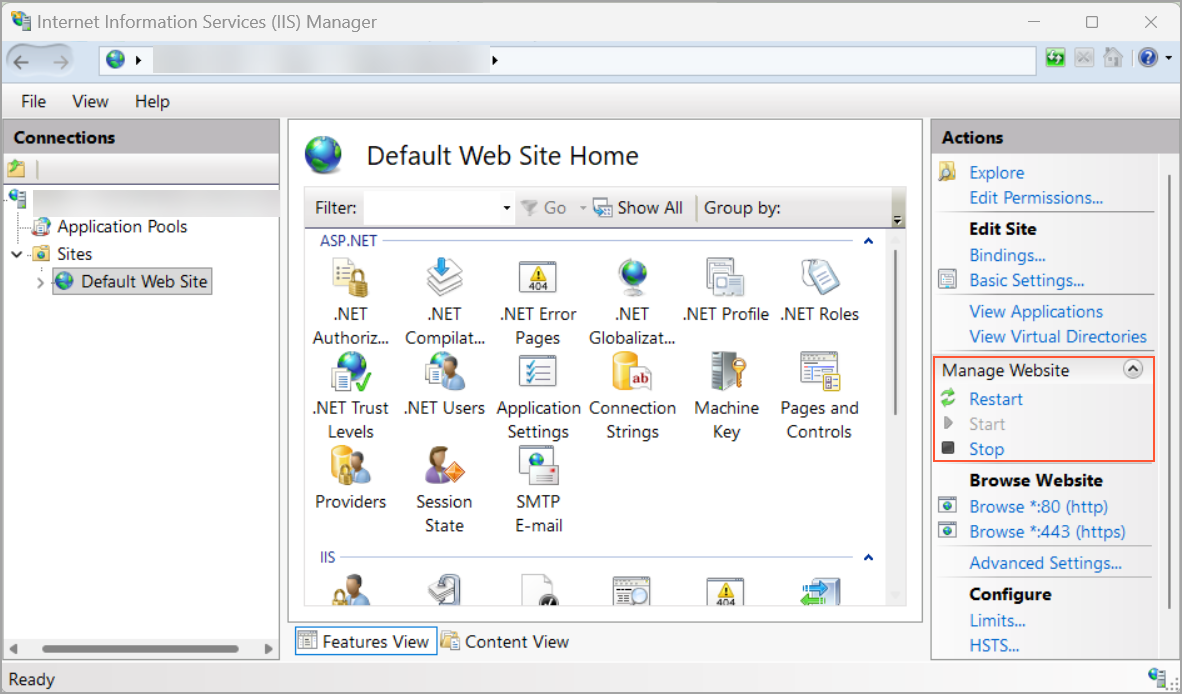
Launching the Local Instance
You can now launch your local MYOB Acumatica instance to proceed with the Gmail integration in one of the following ways:
- By using the MYOB Acumatica ERP Configuration Wizard
- By entering the HTTPS localhost address of your instance in a browserTip:You may see the Your connection is not private message. In this case, click Advanced and then Proceed to <name of website>.