MYOB Acumatica Integration with Gmail: Add-on Installation
The Gmail integration is available through a Gmail add-on. With the MYOB for Gmail add-on, you can view existing records or create new ones, such as
contacts, cases, or opportunities, based on the selected email message in your Gmail
mailbox.
Tip:
Before installing the MYOB for Gmail add-on, make sure you have a Gmail account.
Installing the MYOB for Gmail Add-on
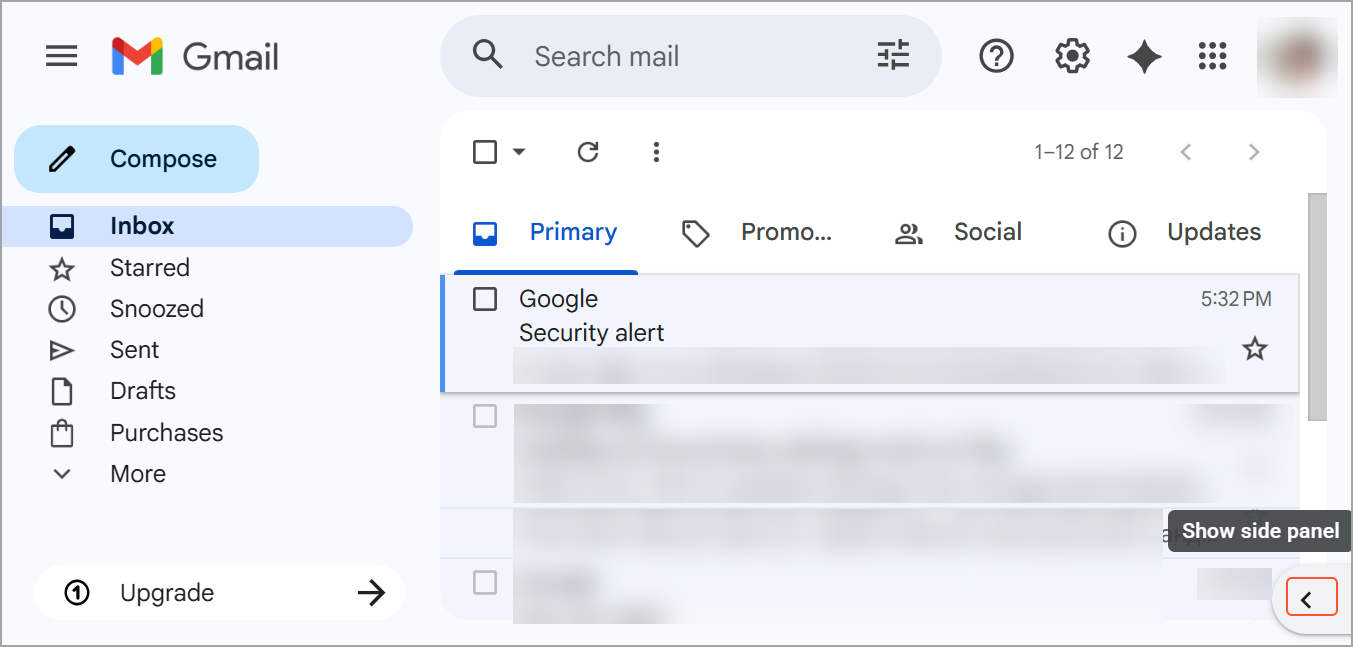
Before you begin, sign in to your Gmail account and open your mailbox. If the side panel is hidden, click the arrow to display it, as shown below, and then do the following:
- On the side panel of your Gmail mailbox, click Get Add-ons.
Figure 2. The Get Add-ons icon 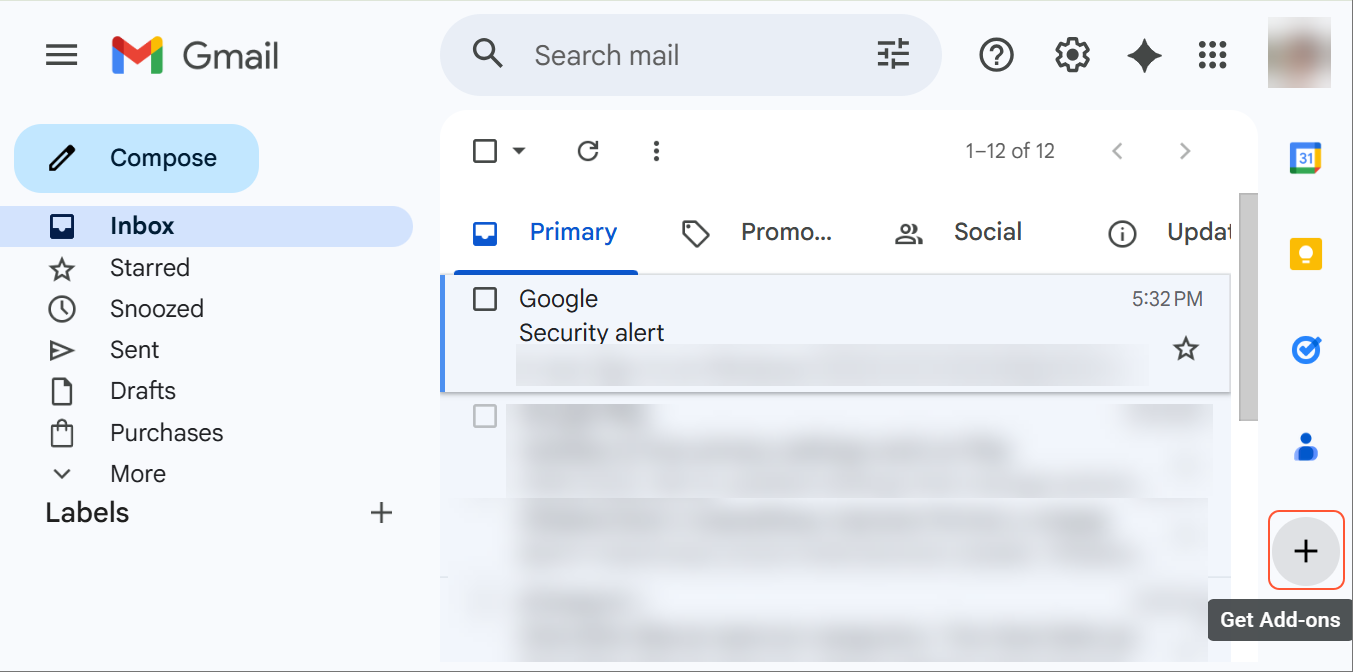
- In the Search box of the Goggle Workspace Marketplace, enter
Acumatica.
Figure 3. Searching for the Acumatica add-on 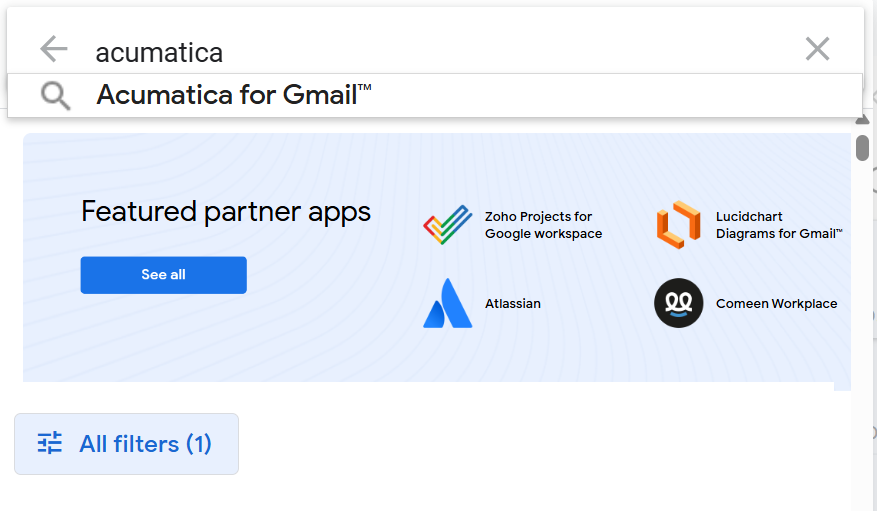
- Select Acumatica for Gmail from the search results.
Figure 4. The Acumatica for Gmail add-on 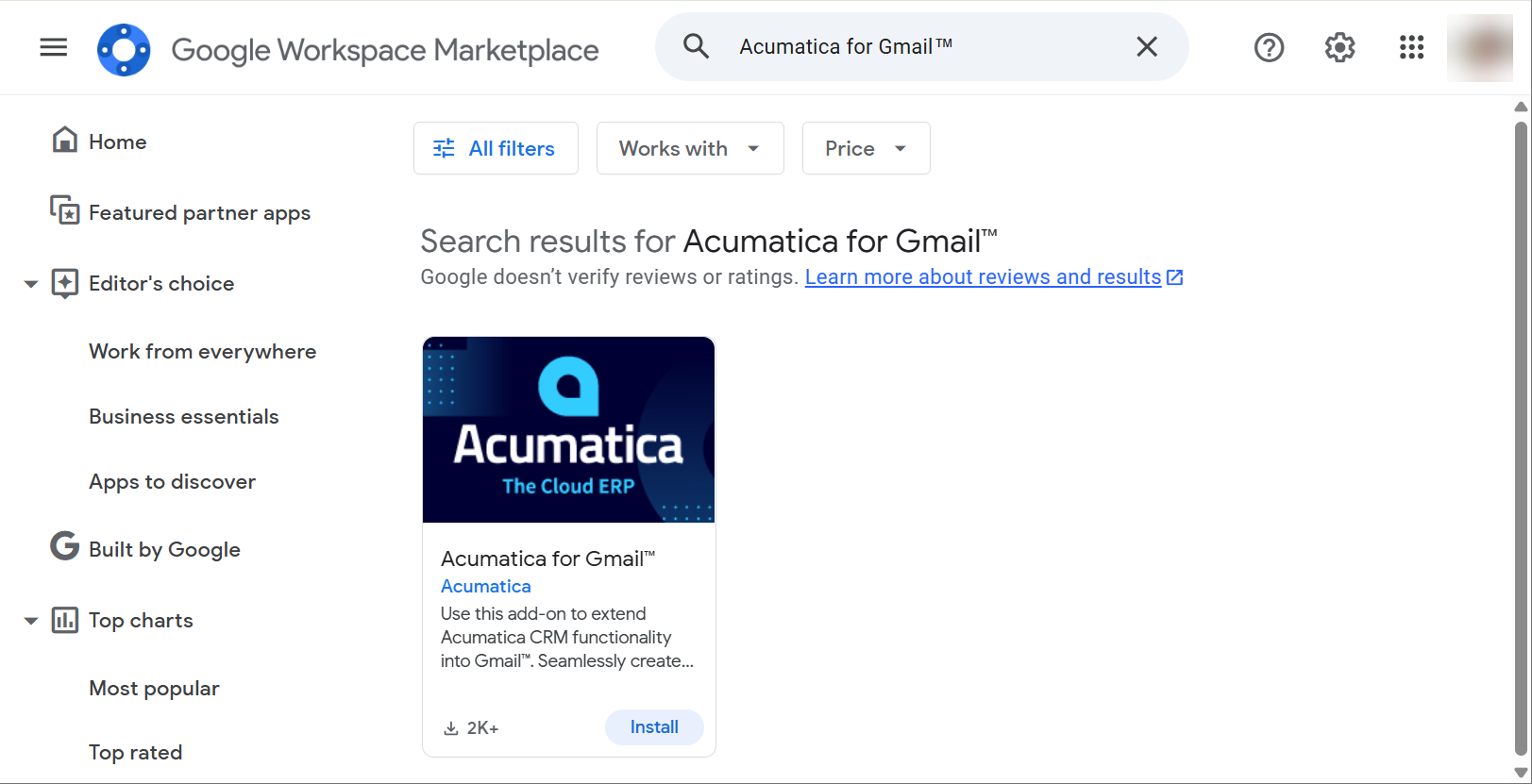
- In the MYOB for Gmail add-on tile, click Install.
- In the Get ready to install dialog box, click
Continue.
Figure 5. The Get ready to install dialog box 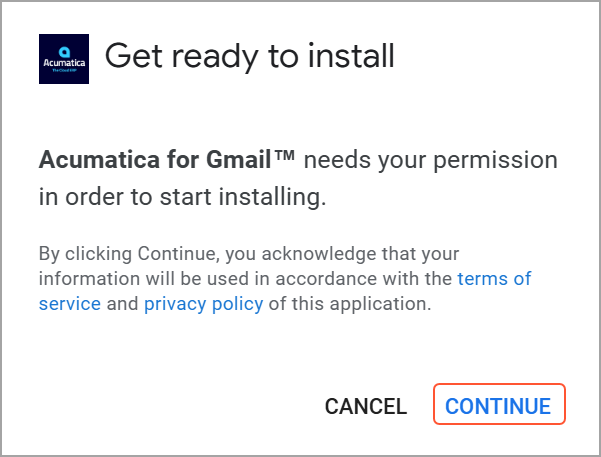
- In the Sign in with Google dialog box, select the
Select all check box and click
Continue.
Figure 6. Providing access to the gmail account 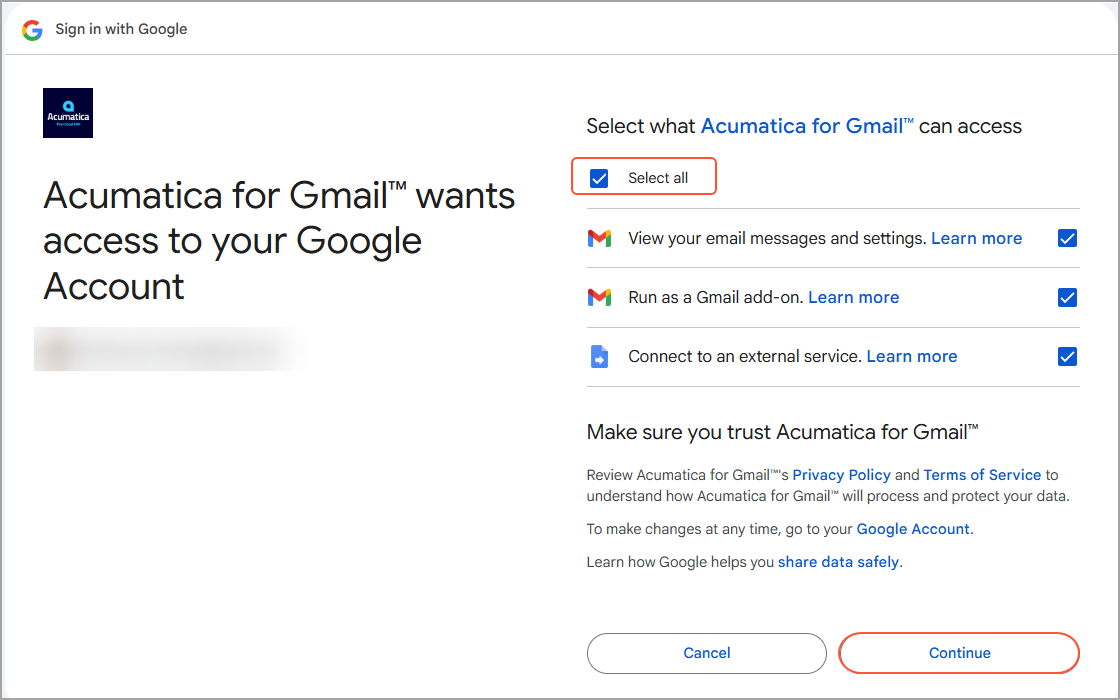
- When the installation is complete, click Done in the confirmation
dialog box.
Figure 7. The confirmation dialog box 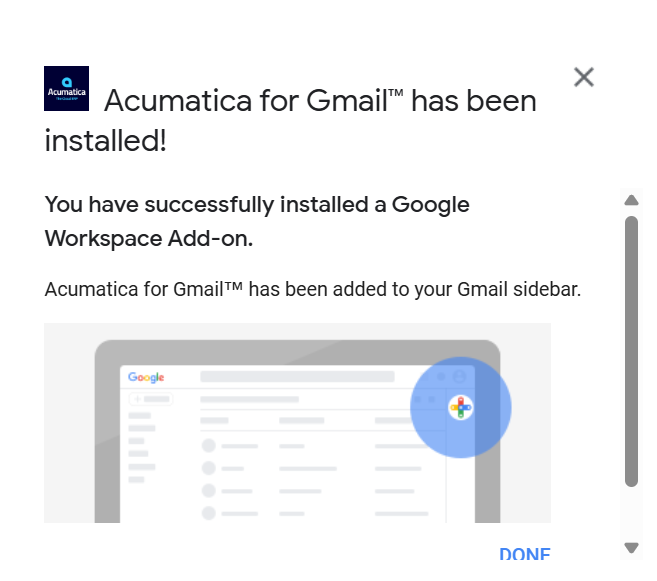
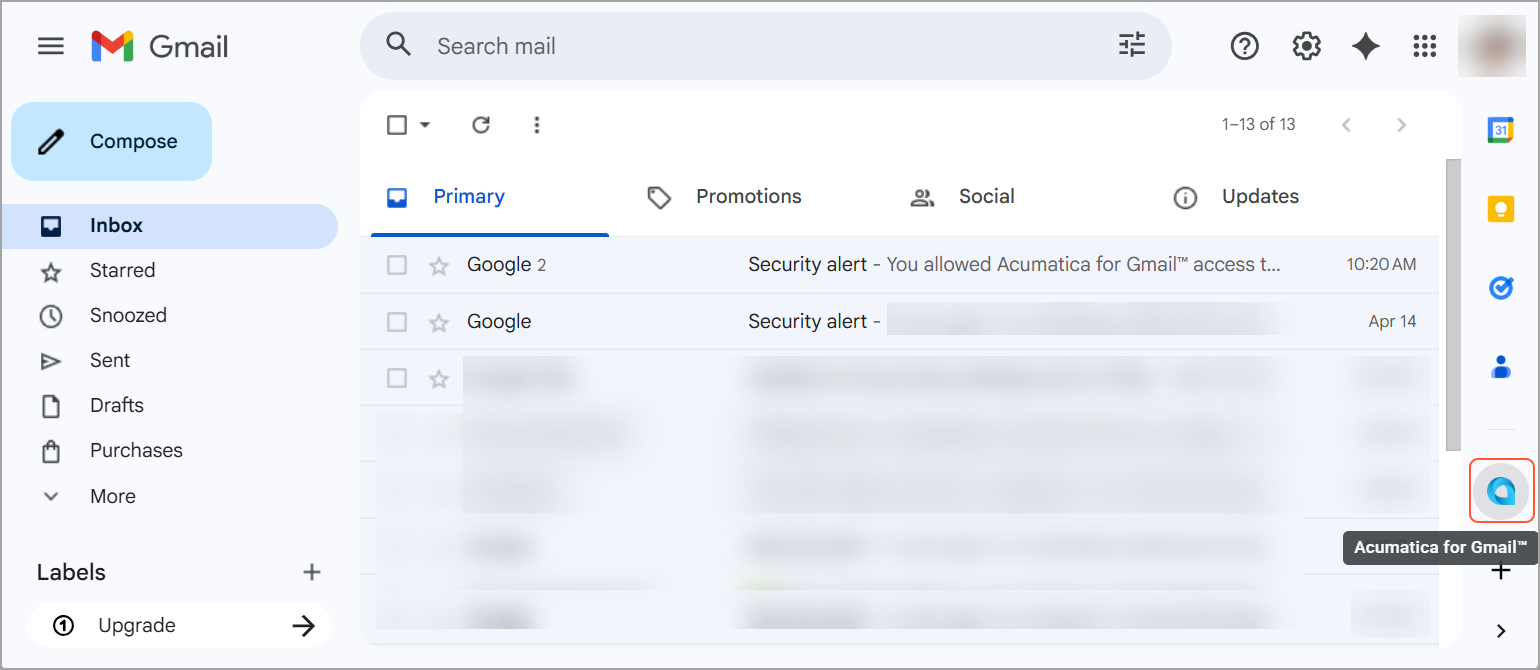
The dialog box closes, and the Acumatica for Gmail icon appears on the side panel of your Gmail mailbox.
Figure 8. The Acumatica for Gmail icon