
MYOB Acumatica Integration with Gmail: Lead Management
With the Acumatica for Gmail add-on, you can convert an email from a potential customer into a lead directly from your inbox, so you can start tracking the interaction without leaving Gmail. You can then convert the lead to a contact, business account, or opportunity.
Creating a Lead
If the email address used in the message is not associated with any existing record in MYOB Acumatica, you can create a lead directly from the email to start tracking the interaction.
When you open an email message, the Acumatica for Gmail add-on opens the Actions page with the email address shown in the Contact Email box. To create a lead with this email address, do the following:
- On the Actions page, click Create
Lead.
Figure 1. The Create Lead button 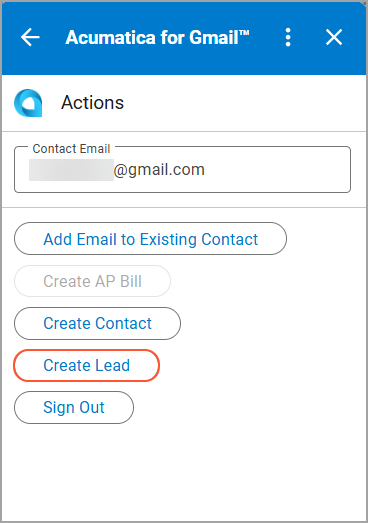
- On the Create Lead page, specify the lead settings.
Figure 2. The lead settings 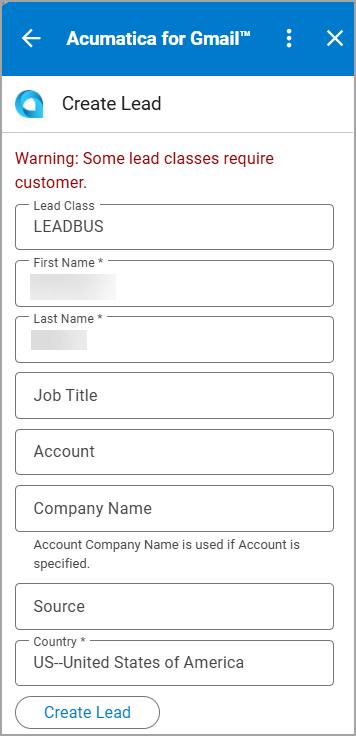
- Click Create Lead.
The system creates the lead and returns you to the Actions page. You can review the lead in the Lead Information section of the page.
Figure 3. The created lead 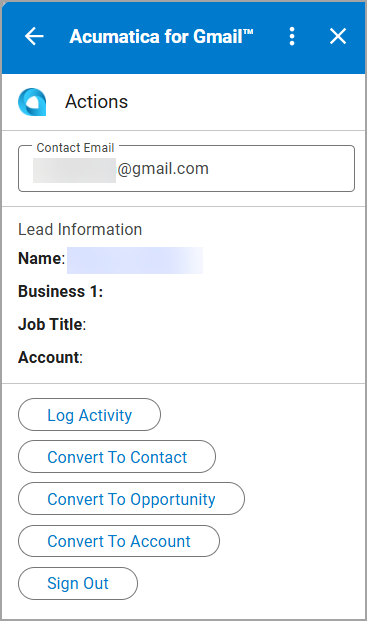
Converting the Lead to a Contact
After you have qualified a lead and want to store the person’s information as a contact in your system, you can convert the lead to a contact on the Actions page in one click:
- Under the Lead Information section, click Convert to
Contact.
Figure 4. The Convert to Contact button 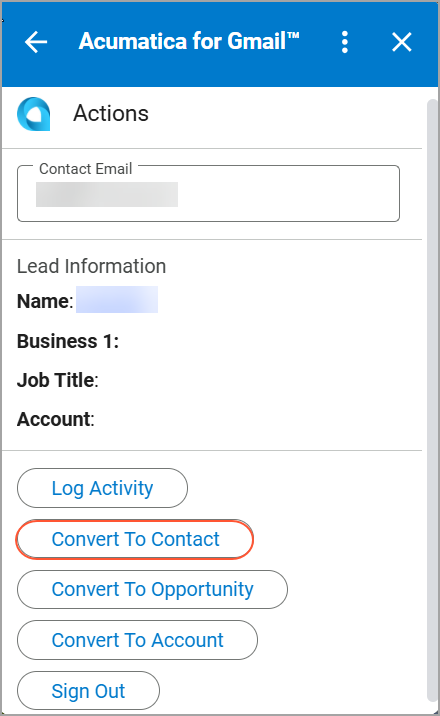
The contact information appears in the Contact Information section of the page.
- Review the contact information. You can also review the lead information in the
Lead Information section of the page.
Figure 5. The lead and contact information 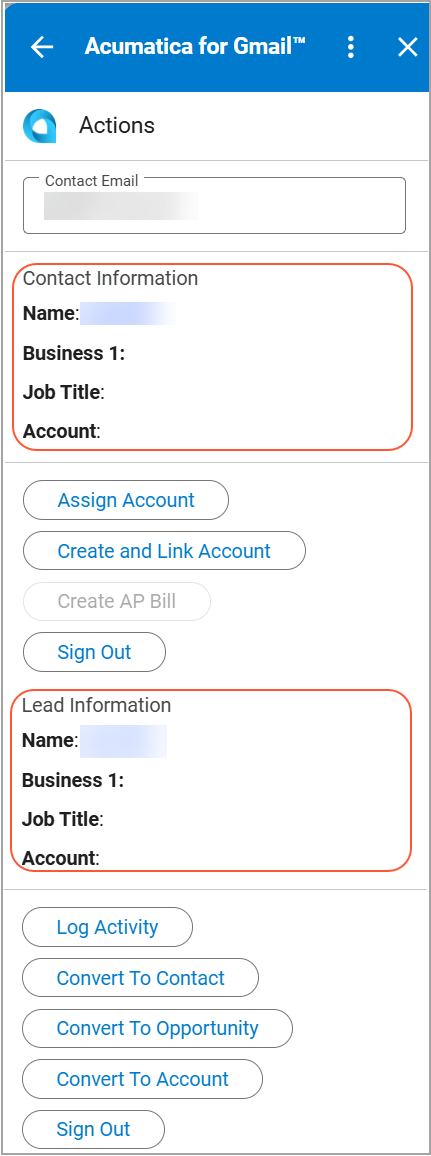
Converting the Lead to a Business Account
If the lead represents a company that you want to track as a customer or partner, you can convert the lead to a business account as follows:
- On the Actions page, click Convert to Account.
- On the Convert Lead to Account page, enter the business account
details.
Figure 6. The business account settings 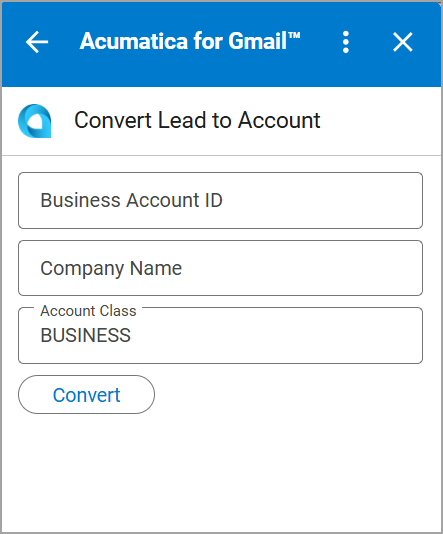
- Click Convert.
The system returns you to the Actions page and adds the business account link to the Lead Information section.
Converting the Lead to an Opportunity
When a lead is ready for further sales work, you can convert it to an opportunity to start managing the sales process as follows:
- On the Actions page, click Convert to Opportunity.
- On the Convert Lead to Opportunity page, fill in the required settings.
- Click Convert.
The system returns you to the Actions page and adds the opportunity link and information to the Opportunities section.