MYOB Acumatica Integration with Gmail: Business Account Management
By using the Acumatica for Gmail add-on, you can assign a contact to an existing business account or create a new business account and link it to the contact.
Assigning an Existing Business Account to the Contact
If the contact belongs to a company that already exists in the system, you can link the contact to that business account to keep your data consistent. To assign an existing business account to the contact, do the following:
- On the Actions page, click Assign
Account.
Figure 1. The Assign Account button 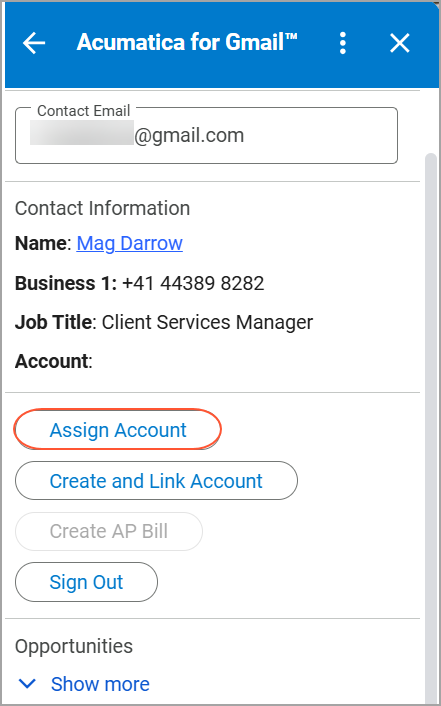
- On the Assign Business Account page, select a business account in
the Account box.Tip:You can select a business account from the list or enter its name manually.
Figure 2. Selection of a business account 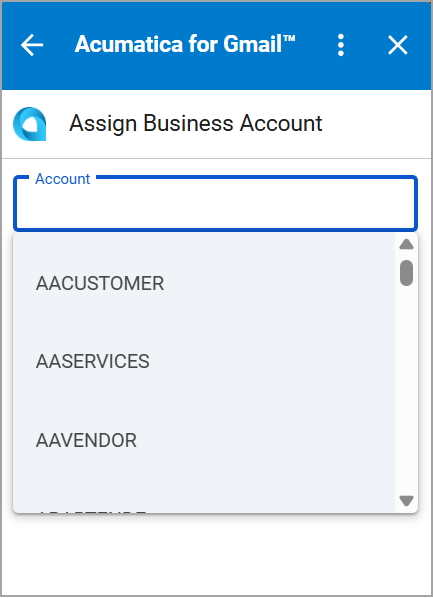
- Click Assign.
Figure 3. The Assign button 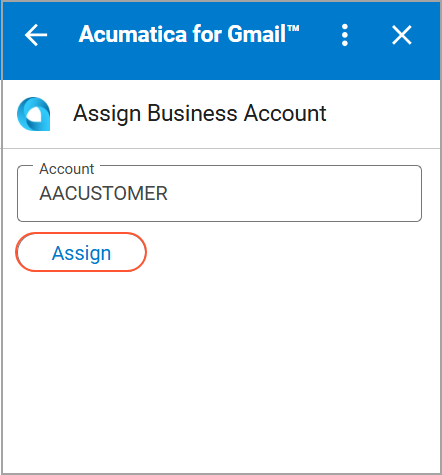
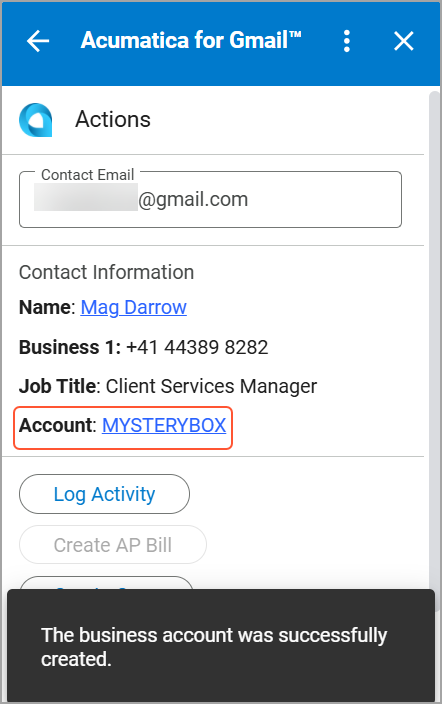
The business account is assigned to the contact, and you are returned to the Actions page.
Figure 4. The business account assigned to the contact 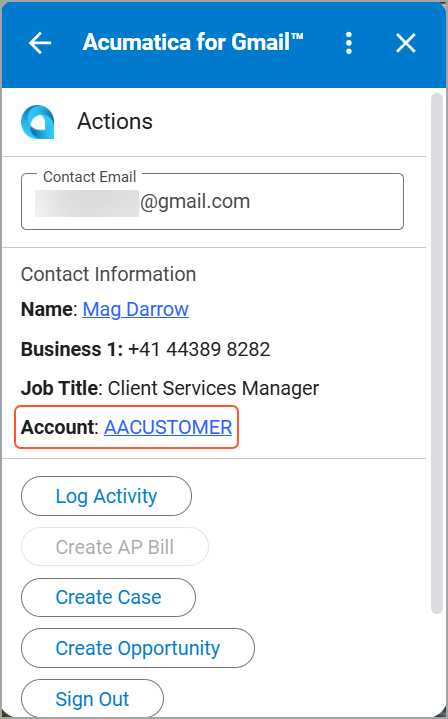
Linking the Contact to a New Business Account
If the contact is associated with a company that is not yet in your system, you can create a new business account and link it to the contact to keep your records organized. To link the contact to a new business account, do the following:
- On the Actions page, click Create and Link
Account.
Figure 5. The Create and Link Account button 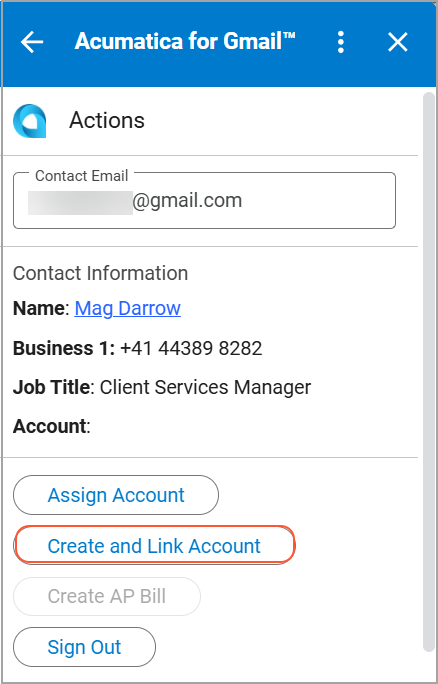
- On the Create and Link Account page, enter the business account
details.
Figure 6. The business account details 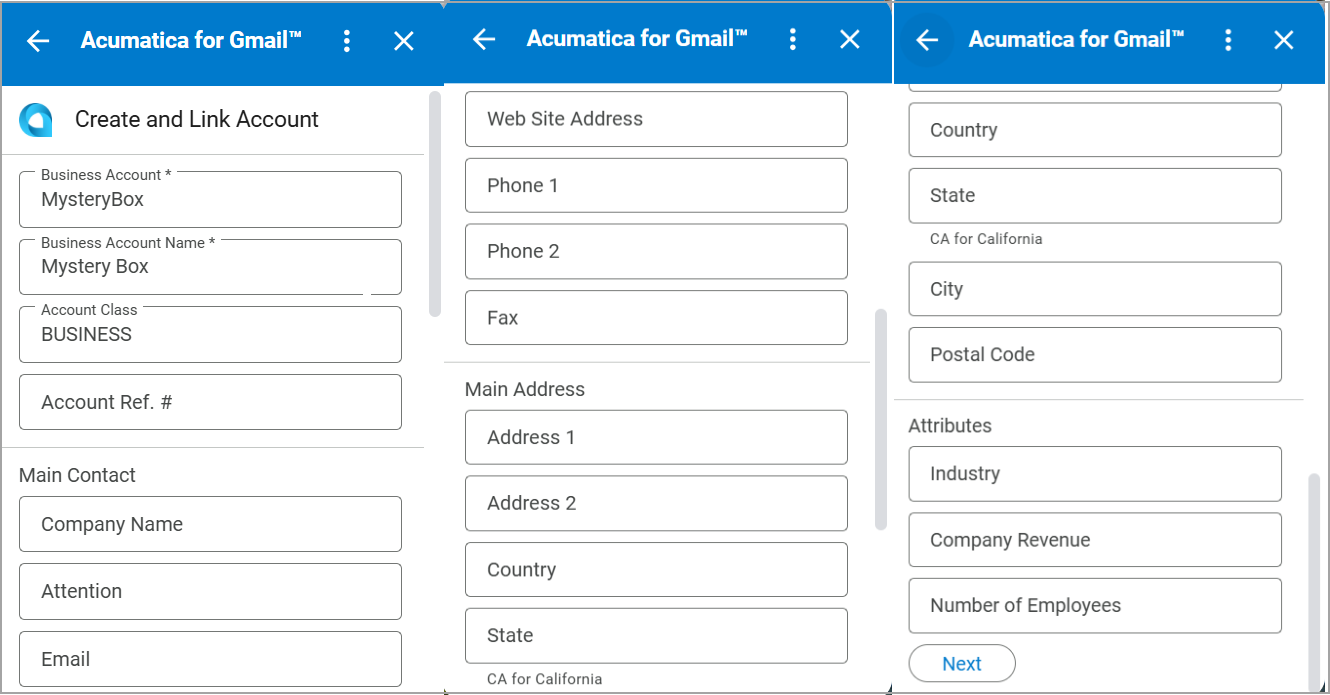
- Click Next.
The business account is created and linked to the contact.
Figure 7. The business account linked to the contact