
MYOB Acumatica Integration with Gmail: Configuration of the Connected Application
To ensure secure data exchange with Gmail, you need to configure a connected application in MYOB Acumatica. This configuration allows the Gmail add-on to securely access your MYOB Acumatica data.
Creating the Connected Application
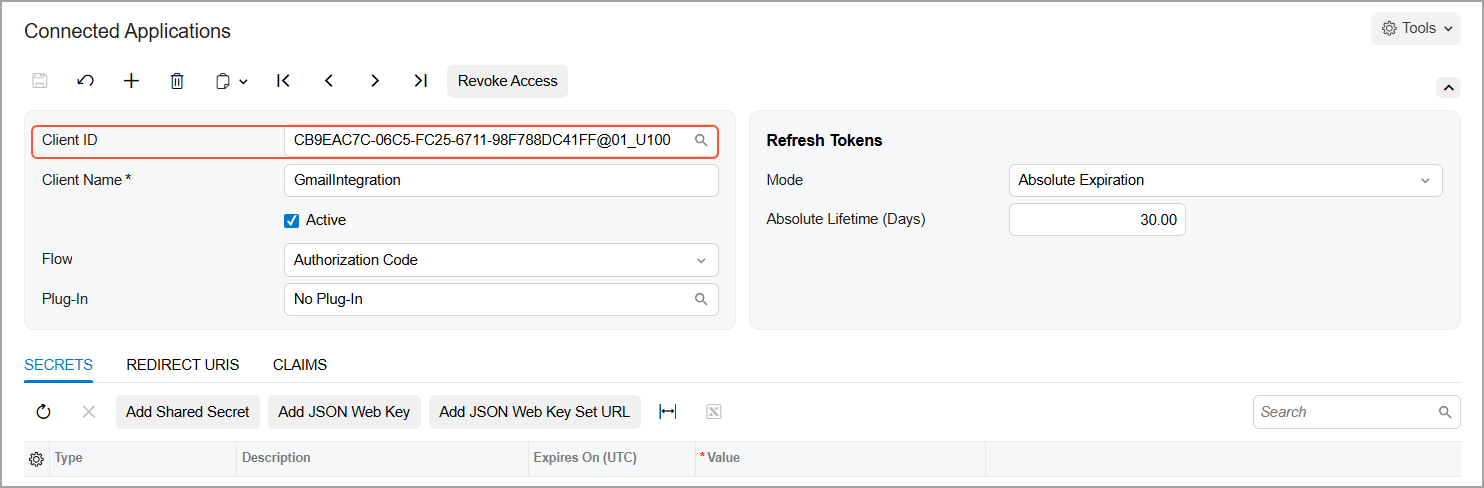
On the Connected Applications (SM303010) form, you create the connected application for Gmail integration and specify the following settings:
- Client Name: GmailIntegration
- Active: Selected
- Flow: Authorization Code
- Click Save
After you save the record, the system assigns the client ID to the connected application.
Creating a Client Secret
The client secret, together with the client ID, is used to establish a connection between MYOB Acumatica and the Gmail add-on. To create a client secret, do the following on the Connected Applications (SM303010) form:
- On the Secrets tab, click Add Shared Secret on the table toolbar.
- In the Add Shared Secret dialog box, specify the following
settings:
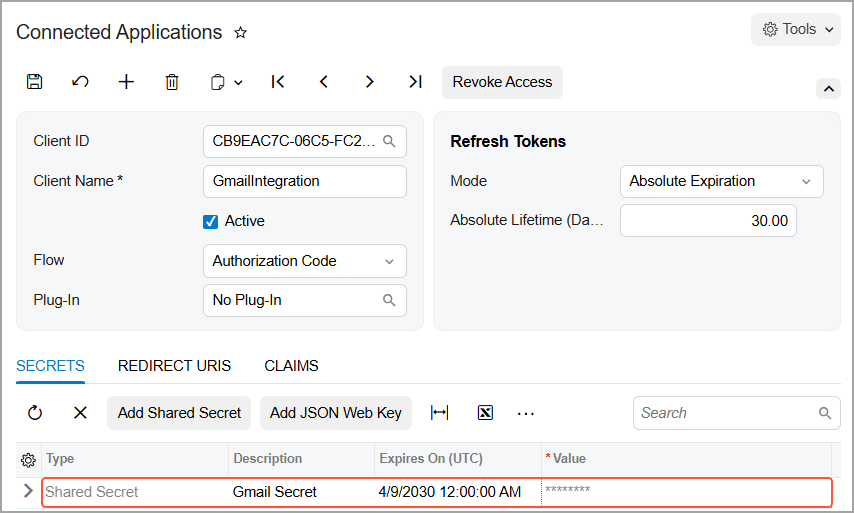
- Description: Gmail Secret
- Expires On (UTC): Any future date
- Copy the Value from the dialog box and save it in a secure
location so that you can retrieve it later.Important:Once the dialog box is closed, the client secret value cannot be retrieved. We recommend storing the client secret value in a plain text file (for example, in Notepad). Make sure there are no extra spaces or line breaks before or after the value.
- Click OK.
The system creates the client secret and adds it to the Secrets tab.
Specifying the Redirect URL
The redirect URL is the publicly reachable address to which the user is redirected after authentication so that MYOB Acumatica can complete the connection. To specify a redirect URL, do the following on the Connected Applications (SM303010) form:
- On the Redirect URLS tab, add a new row.
- In the Redirect URL column, enter the following URL as a single
line:
https://script.google.com/macros/d/1VSrjL20PHfefExtq5XWyOVBEHvDymrRoXOXRemLO9OsGWzhOV5ztzZNm/usercallback
Figure 3. The redirect URL 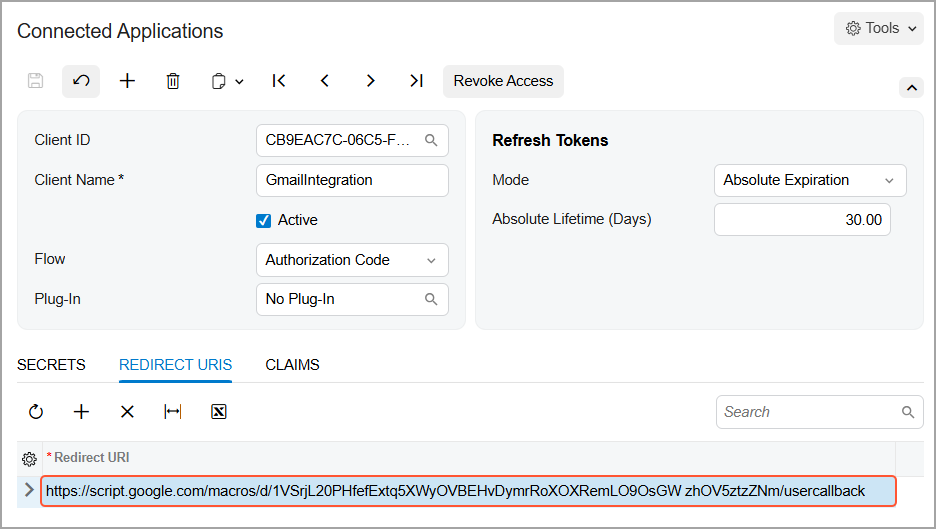
- Click Save.