
MYOB Acumatica Integration with Gmail: Contact Management
With the Acumatica for Gmail add-on, you can add a sender's email address from an open email to an existing contact in MYOB Acumatica or create a new contact. With this, you can:
- Link emails to the correct contact in the system
- Create related records, such as leads or opportunities, in MYOB Acumatica without leaving Gmail
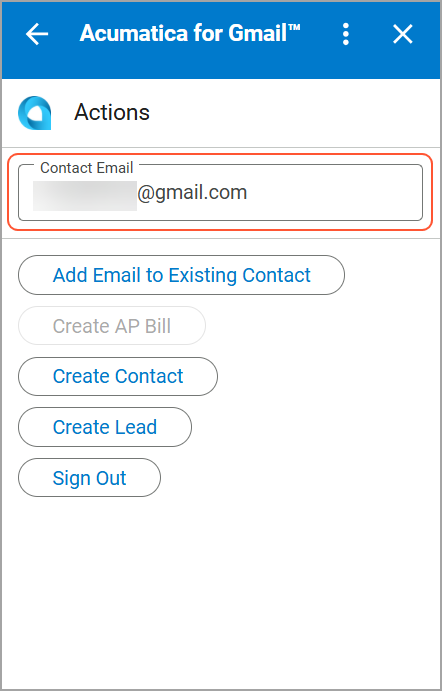
When you open the Acumatica for Gmail add-on for an email message, the email address appears in the Contact Email box on the Actions page.
Adding the Email Address to an Existing Contact
If the sender already exists in the system but their email address hasn't been added, you can add it to the contact to keep communication history linked by doing the following:
- Open an email in Gmail mailbox and open the add-on.
The add-on opens on the Actions page with the email address selected in the Contact Email box.
- Click Add Email to Existing Contact.
- On the Add Email Address to Contact page, select a contact in the
Contact box. Tip:You can select the contact from the list or enter the name manually.
Figure 2. Selection of a contact 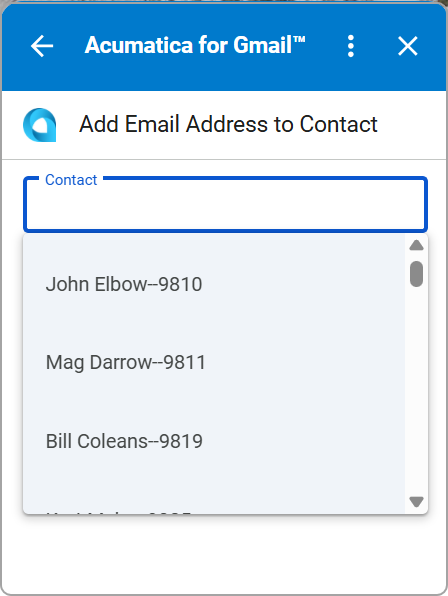
- Click Add to Contact.
Figure 3. The Add to Contact button 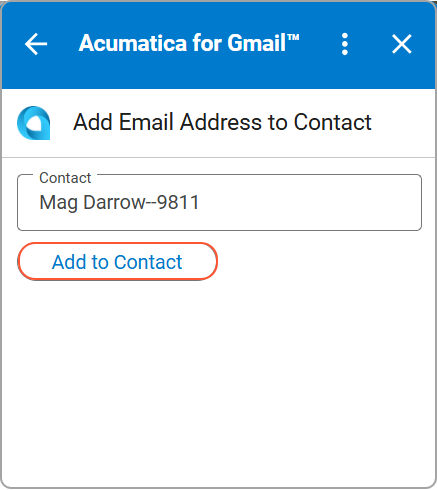
After you add the email address to the contact, the contact details appear in the Contact Information section on the Actions page.
Figure 4. The Actions page for the contact 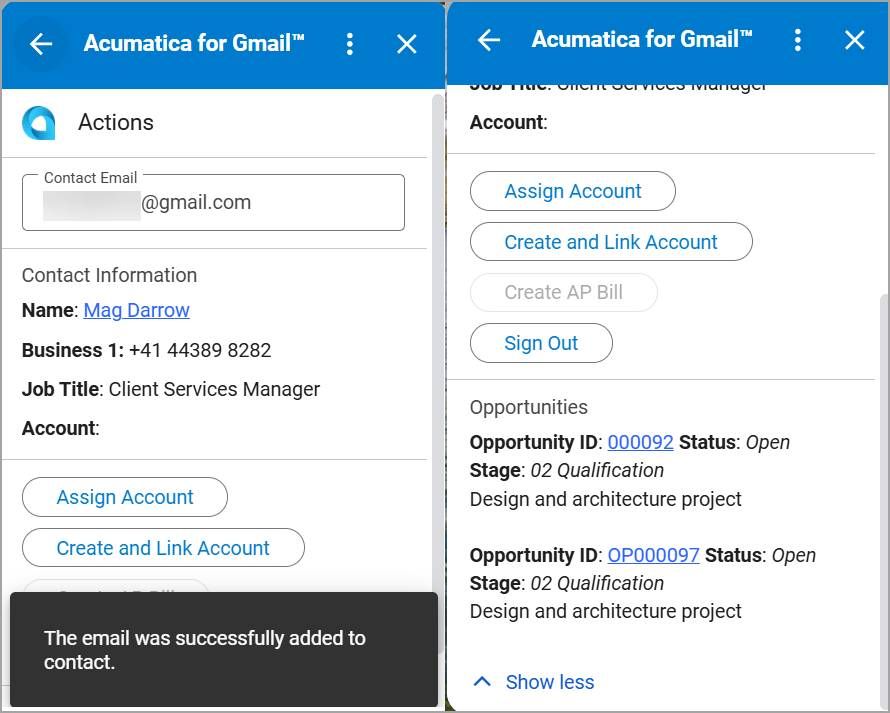
Creating a Contact
If the email is from a new person who isn't yet in MYOB Acumatica, you can create a contact directly from the email to start tracking communication. To create a new contact, do the following:
- Open an email message in your Gmail mailbox and run the add-on.
The add-on opens on the Actions page with the email address selected in the Contact Email box.
- Click Create Contact.
Figure 5. The Create Contact button 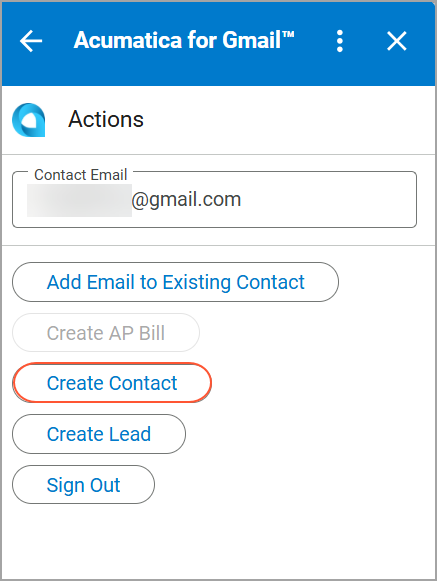
- On the Create Contact page, enter the contact details.
Figure 6. The contact details 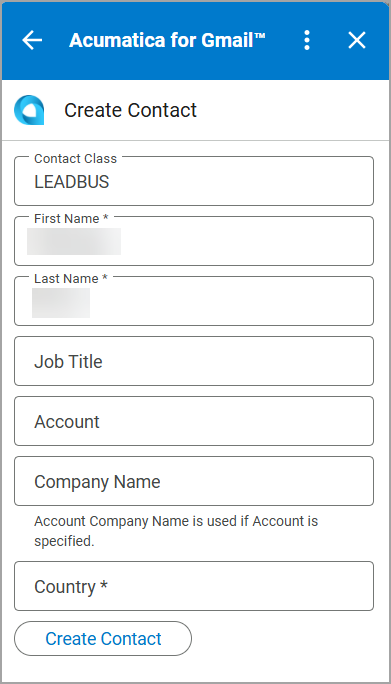
- Click Create Contact. The contact is creates. and its details
appear in the Contact Information section on the
Actions page.
Figure 7. The contact information 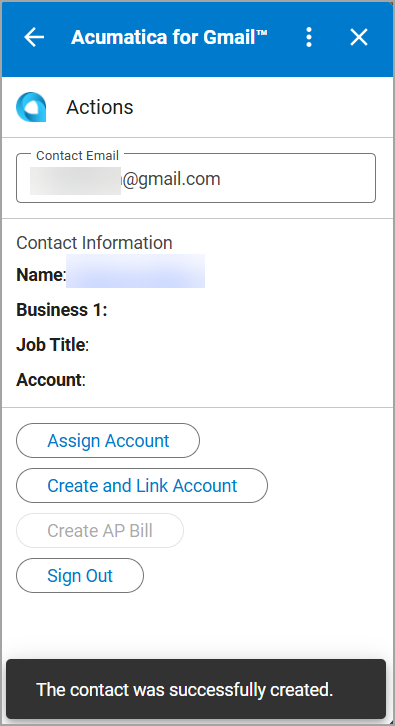
Assigning Business Account to the Contact
If a contact is not yet associated with a company in MYOB Acumatica, you can link it to an existing business account or create a new one to keep your data structured and consistent.
On the Actions page, you can do the following:
- To assign an existing business account to the contact, click Assign Account
- To create a business account and link it to the contact, click Create and Link Account
For details, see MYOB Acumatica Integration with Gmail: Business Account Management.